Book TOC · Previous · Chapter 7 of 8 · Next
Chapter 7: Access & Security Governance: IAM Hierarchy, Custom Roles, Service Accounts & WIF
Chapter Focus: IAM policy inheritance, predefined vs. custom roles, IAM Conditions, Service Account impersonation (
--impersonate-service-account), short-lived tokens, and Workload Identity Federation.
Subsection 4.1: Managing Identity and Access Management (IAM)
The Big Picture
Section 4 (Configuring Access and Security) accounts for 20% of Google Cloud architecture, and its questions are designed to test whether you enforce Least Privilege reflexively. In production, three IAM mistakes cause the vast majority of audit failures:
- The
read -> modify -> writeset-iam-policyRace Condition Trap (4.1a): When adding a single role binding via the CLI, novices sometimes export the entire project policy topolicy.json, edit it manually, and rungcloud projects set-iam-policy. If they omit theetagfield or write an incomplete JSON file,set-iam-policyoverwrites the entire project's IAM policy—instantly locking out existing admins and breaking service agents! For single bindings, always use atomicadd-iam-policy-bindingandremove-iam-policy-binding. Useget-iam-policy→ edit →set-iam-policy(preserving theetagconcurrency token!) only when making bulk edits or configuring AuditConfigs. - The "Revoke Inherited Access at the Child Level" Fallacy (4.1b): Because standard Google Cloud IAM allow policies are strictly additive (union of parent + child), if a contractor group is granted
roles/storage.objectVieweron theEngineeringFolder, you cannot block them from reading a secret bucket insideproject-payroll(a child of that folder) simply by editing the IAM allow policy onproject-payroll. To follow least privilege, either move the binding down to only the specific projects that need it, moveproject-payrollinto a separate Folder, restrict the binding with an IAM Condition, or apply an IAM Deny Policy (which always overrides allow policies). - The Basic Role vs. Predefined Role vs. Custom Role Trap (4.1c):
- Granting Basic roles (
Owner,Editor,Viewer) in production is almost always a look-alike alternatives in Production becauseEditorgrants broad write/delete access across virtually every Google Cloud service. - Creating a Custom Role when an exact Google-managed Predefined Role already exists wastes maintenance effort—because Google automatically updates Predefined roles when new API features launch, whereas Custom Roles must be maintained manually by your team (and cannot include permissions with a
NOT_SUPPORTEDcustom-role support level).
Consideration 4.1a: Viewing and creating iam policies
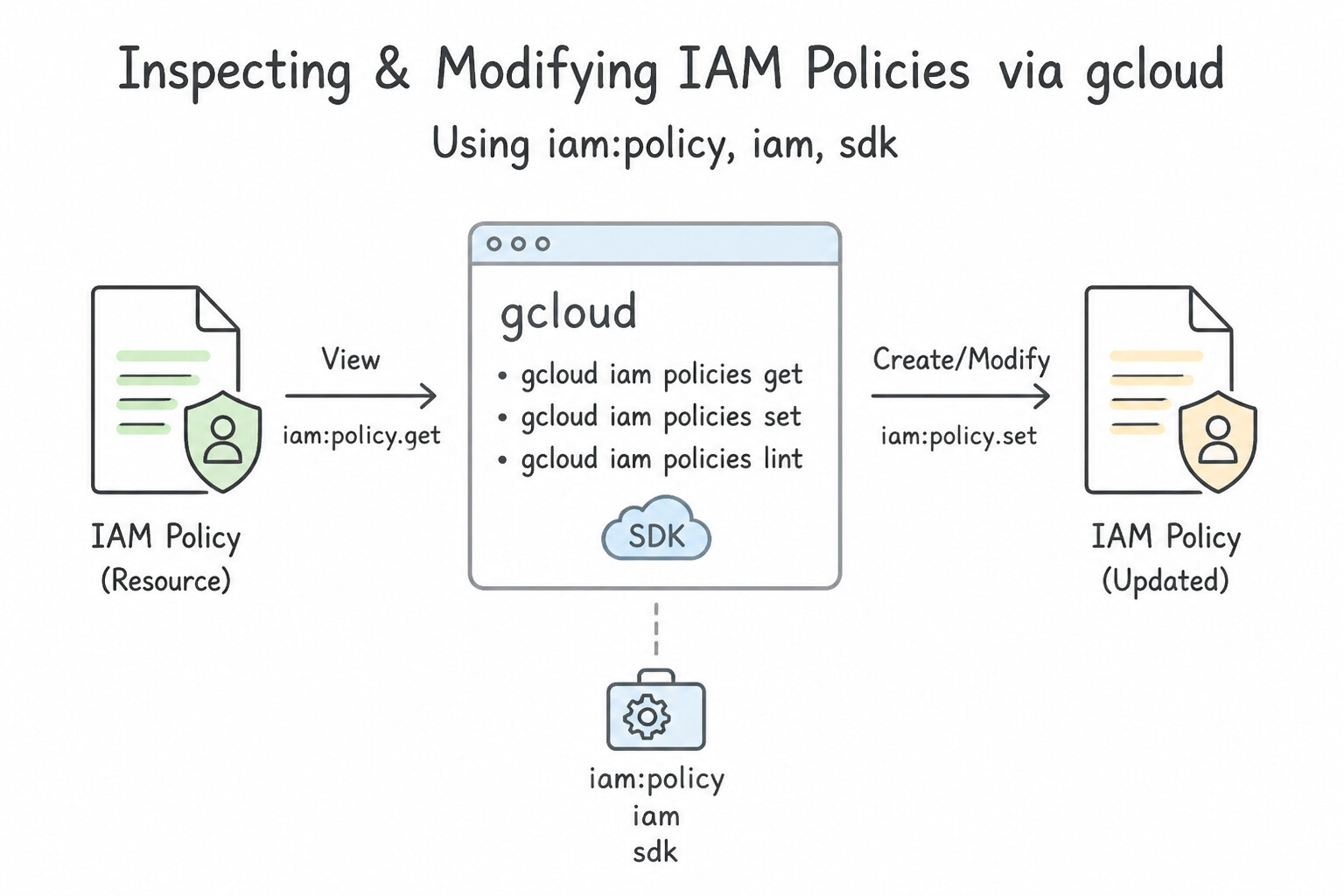
- Inspecting & Modifying IAM Policies via
gcloud: - View policy:
gcloud projects get-iam-policy <PROJECT_ID> - Add a single binding safely:
gcloud projects add-iam-policy-binding <PROJECT_ID> --member="group:sre@example.com" --role="roles/monitoring.editor" - Remove a single binding safely:
gcloud projects remove-iam-policy-binding <PROJECT_ID> --member="user:temp@example.com" --role="roles/viewer" - Bulk updates via
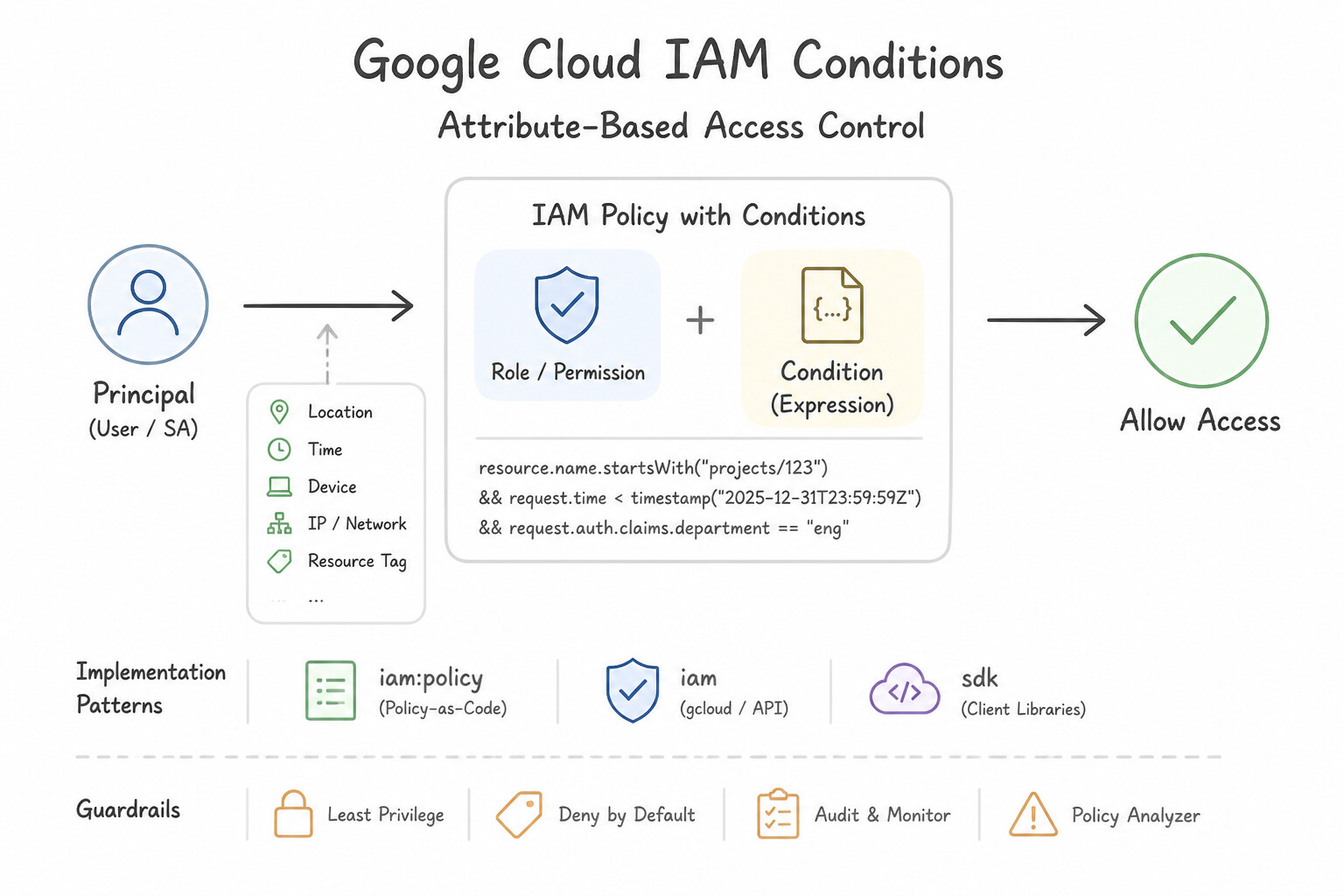
set-iam-policy: Always runget-iam-policy <PROJECT_ID> --format=json > policy.json, edit the bindings while preserving theetagfield, and rungcloud projects set-iam-policy <PROJECT_ID> policy.json. If another admin modified the policy in the meantime, theetagmismatch prevents you from silently overwriting their changes! - IAM Conditions (Attribute-Based Access Control): Attach CEL (Common Expression Language) conditions to role bindings to enforce:
- Temporary / Time-Bound Access:
request.time < timestamp("2026-12-01T00:00:00Z")(ideal for temporary contractor or emergency break-glass access). - Resource Name / Prefix / Type Filtering:
resource.name.startsWith("projects/_/buckets/acme-prod-reports/objects/finance/"). - Resource Tag Filtering:
resource.matchTag("acme-org/environment", "dev"). - IAM Policy Troubleshooter: When a user gets
403 Permission Denied(or unexpectedly has access), use Policy Troubleshooter (gcloud policy-troubleshoot iam) with the Principal email + Resource full name + Permission (compute.instances.start) to see the exact inherited allow/deny policy binding causing the result.
Key Implementation Patterns
- CLI: Adding a Single Binding: Use Run
gcloud projects add-iam-policy-bindingspecifying the project, the memberuser:alice@example.com, and the role.add-iam-policy-bindingsafely adds a single role to a user without overwriting the rest of the policy. (Avoid alternative:set-iam-policyoverwrites the entire policy with the provided file, potentially removing existing access.) - Risk of set-iam-policy: Use Change the script to use the "gcloud projects add-iam-policy-binding" command. The add-iam-policy-binding command safely appends a new role binding without overwriting the entire existing policy. (Avoid alternative: This command updates the permissions within a custom role definition, not the assignment of roles to users.)
- Concurrency Control with Etags: Use Read the current policy, make changes locally, and include the original etag value in the setIamPolicy request. The etag field verifies that the policy has not changed since you last read it, preventing concurrent overwrite issues. (Avoid alternative: The version field controls policy syntax features (like conditions), not update concurrency.)
Key Takeaways (4.1a)
- Use
add-iam-policy-bindingfor quick, safe additions of single roles to users via CLI.- Use
set-iam-policywhen you need to apply a complex, version-controlled policy definition that replaces the current state.- Modifying role definitions (
roles update) is different from assigning roles to users.set-iam-policyis authoritative; it overwrites the entire policy with the provided file.
Consideration 4.1b: Managing role types and defining custom iam roles
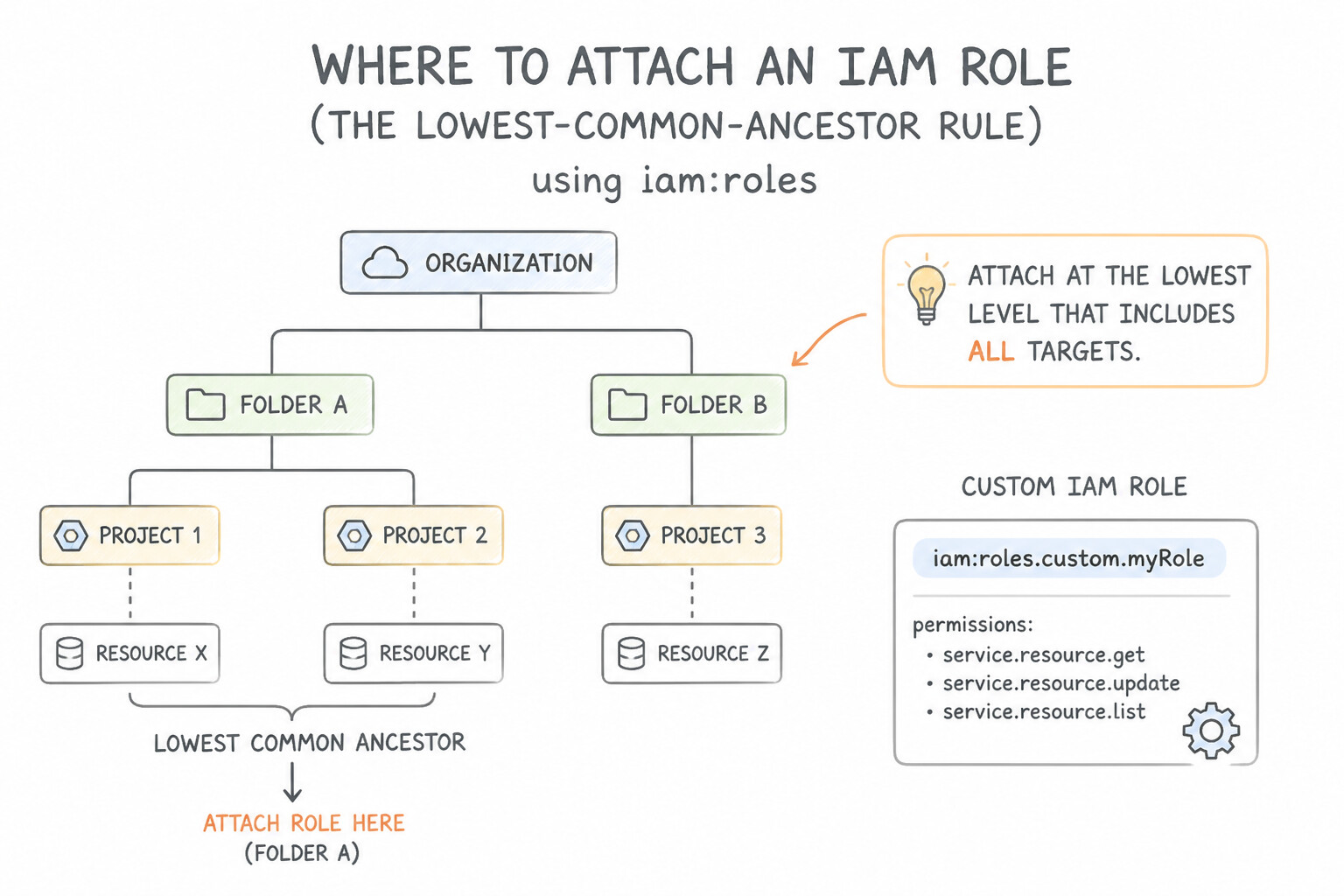
- Where to Attach an IAM Role (The Lowest-Common-Ancestor Rule):
- Always grant an IAM role at the lowest level in the hierarchy (
Organization → Folder → Project → Resource) that encompasses all the resources the principal legitimately needs to access: - Need access across every project in the company (e.g., Security Auditors)? Bind at the Organization level.
- Need access across all 6 projects in the Finance department (including future Finance projects)? Put those 6 projects in a
FinanceFolder and bind the role at the Folder level. - Need access to all buckets in a single project? Bind at the Project level.
- Need access to only 1 specific Cloud Storage bucket or 1 BigQuery dataset? Bind directly at the Resource level (
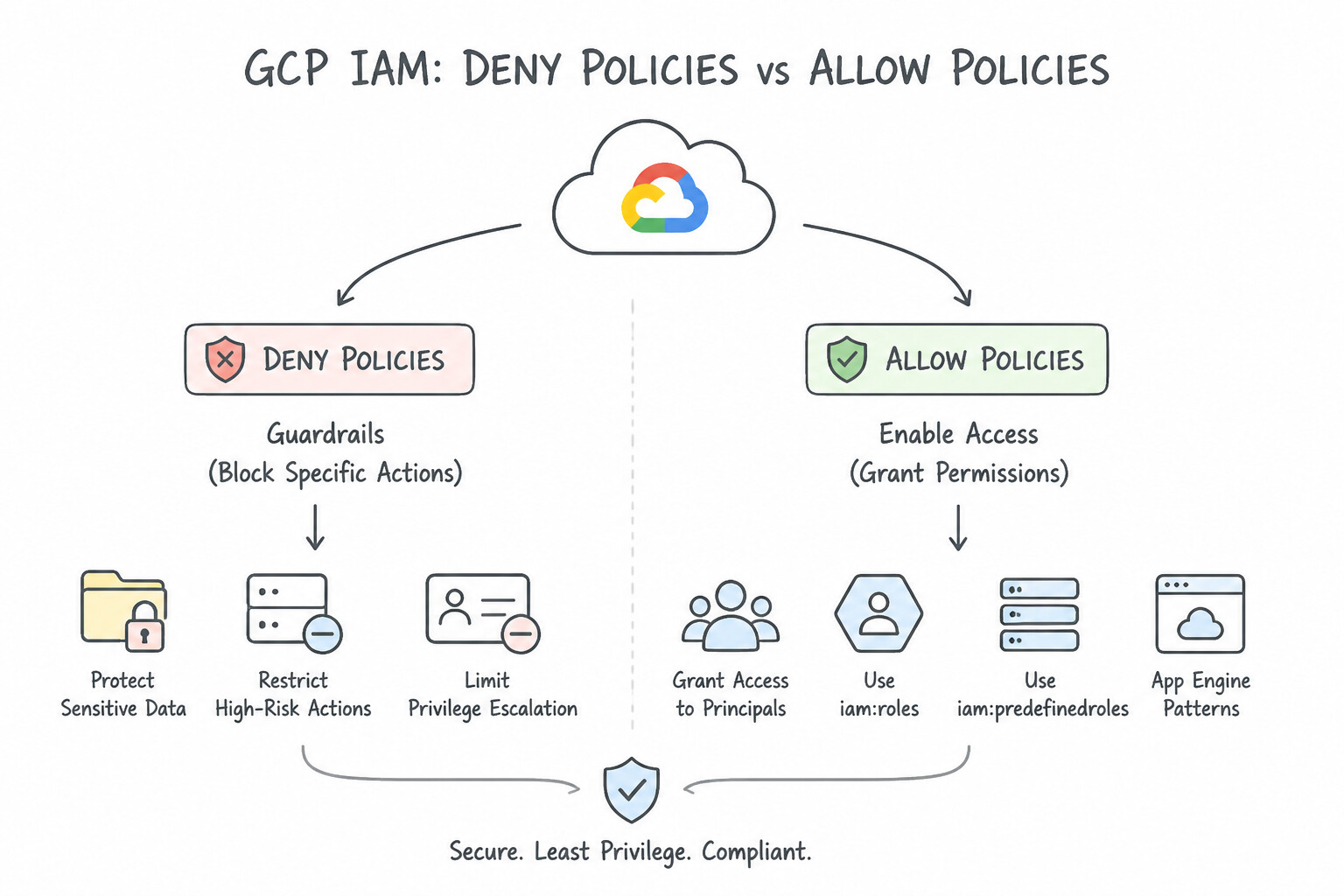
gcloud storage buckets add-iam-policy-binding gs://my-bucket ...)! - IAM Deny Policies vs. Allow Policies: Standard IAM allow policies are purely additive—a child project cannot "subtract" an allow binding inherited from its parent Folder. Only an IAM Deny Policy (which explicitly lists denied permissions and optional exception principals) can block an inherited allow permission.
- The Three IAM Role Types:
- Basic (Primitive) Roles (
roles/owner,roles/editor,roles/viewer,roles/browser): Exist at the Project/Folder/Org level. AvoidOwnerandEditorin production because they bundle thousands of cross-service permissions. - Predefined Roles (e.g.,
roles/compute.instanceAdmin.v1,roles/bigquery.dataViewer): Fine-grained roles curated and automatically updated by Google Cloud. Always check if a Predefined role (or combination of 2 Predefined roles) satisfies the requirement before creating a Custom role! - Custom Roles: Created by you when predefined roles contain disallowed permissions (e.g., a user needs
compute.instances.startandstop, but must not havecompute.instances.delete). - Rules for Creating and Managing Custom IAM Roles:
- Scope Cannot Be Changed Later: A Custom Role is created either at the Project level (usable only inside that single project) or at the Organization level (
--organization=<ORG_ID>, usable across any project or folder in the entire Organization!). If a scenario says "must apply to current and future projects across the organization", you must create an Organization-level Custom Role. - Permission Support Levels: Every Google Cloud permission (
<service>.<resource>.<verb>) has a Custom Role support level:SUPPORTED,TESTING(works, may change), orNOT_SUPPORTED(cannot be added to any Custom Role). - Deleting & Undeleting Custom Roles: Deleting a custom role immediately disables its bindings, starts a 30-day soft-delete window during which you can run
gcloud iam roles undelete <ROLE_ID>, and permanently purges the role ID after 30–37 days.
Key Implementation Patterns
- Migrating from Primitive to Predefined Roles: Use Revoke the Editor role. Assign the App Engine Admin and Storage Admin roles to the team members. Revoking the broad Editor role and assigning specific predefined roles enforces the principle of least privilege. (Avoid alternative: Primitive roles like Editor are built-in and cannot be modified or edited.)
- Creating a Custom Role for Specific Needs: Use Create a custom IAM role. Add the logging.viewer and storage.buckets.get permissions to the role. Assign the role to the auditor. A custom role with storage.buckets.get allows viewing bucket metadata without exposing object contents, adhering to the principle of least privilege.
- Recovering an Accidentally Deleted Custom Role: Use Run the gcloud iam roles undelete command specifying the role ID. Deleted custom roles can be undeleted within 7 days using the gcloud command line or API. (Avoid alternative: You cannot reuse the ID of a deleted role until it is permanently deleted (after 37 days).)
Key Takeaways (4.1b)
- Primitive roles (Owner, Editor, Viewer) are broad and cannot be modified.
- Always prefer Predefined roles over Primitive roles to enforce least privilege.
- IAM permissions are additive; to restrict access, you must revoke broad roles, not just add specific ones.
- Distinguish between similar roles (e.g., Storage Admin vs. Storage Object Admin) based on resource scope (Bucket vs. Object).
Quick Decision Cheat Sheet (Subsection 4.1)
If the Scenario Requires... | Choose This Google Cloud Pattern | Avoid This Common Mistake |
|---|---|---|
"Add a single user/group to a project IAM role via CLI without risking overwriting existing bindings" | gcloud projects add-iam-policy-binding | Running set-iam-policy with a partial JSON file (wipes out all other bindings!) |
"Find out who currently holds the Owner role on my-project in the Cloud Console" | Navigate to IAM & Admin → IAM for my-project and filter by Role:Owner | Checking Cloud Audit Logs (only shows recent changes, not initial bindings older than 400 days) |
"Allow a user to see the project and folder structure in the Console without reading any resource data" | Grant roles/browser (Browser) | Granting roles/viewer (allows reading configuration and data across many services) |
"Inspect the exact list of service.resource.verb permissions inside a Custom or Predefined IAM role" | View in IAM & Admin → Roles in the Console or run gcloud iam roles describe <ROLE_NAME> | Guessing permissions from the role display title |
"Diagnose why user:alice@acme.com received 403 Forbidden when calling storage.objects.get" | Use IAM Policy Troubleshooter ( gcloud policy-troubleshoot iam) | Resetting Alice's Cloud Identity password |
Further Reading (Subsection 4.1)
- Granting, changing, and revoking access — Refer to the section 'Grant a single role' which explicitly details using
gcloud projects add-iam-policy-bindingto add a binding without editing the policy file. - Granting, changing, and revoking access to resources — Refer to the section 'Granting access' to see the difference between setting a policy and adding a binding using the Google Cloud CLI.
- gcloud projects add-iam-policy-binding — Command reference showing syntax for adding a member and role binding to a project.
- IAM Policy Structure and Etags — Documentation explaining the
etagfield, which is used for optimistic concurrency control to prevent simultaneous updates from overwriting each other. - IAM Basic and Predefined Roles — Review the 'Basic roles' section to understand why they are fixed and the 'Predefined roles' section for service-specific granular access.
- Using IAM Securely — Refer to the section on 'Granting least privilege' which explains replacing basic roles with predefined roles.
Subsection 4.2: Managing Service Accounts
The Big Picture
In Google Cloud, a Service Account is simultaneously an Identity (a Principal) and a Resource:
- It acts as an Identity when you grant
serviceAccount:my-sa@my-proj.iam.gserviceaccount.coma role likeroles/storage.objectVieweron a bucket. - It acts as a Resource when you attach an IAM policy to the Service Account itself governing which human users or other workloads are allowed to attach (
serviceAccountUser) or impersonate (serviceAccountTokenCreator) that Service Account.
Mastering Subsection 4.2 means eliminating static JSON keys and legacy default service accounts across every layer of your stack:
- The Default Compute Engine Service Account Trap (
4.2a,4.2b,4.2c): By default, the auto-created Compute Engine Service Account (<PROJECT_NUMBER>-compute@developer.gserviceaccount.com) was historically granted the BasicEditorrole across the entire project! Never use the default service account for production VMs or GKE nodes. Always enforceconstraints/iam.automaticIamGrantsForDefaultServiceAccounts, create a dedicated User-Managed Service Account per application, grant it the minimum predefined roles, and attach it to the VM or Cloud Run service. - The
serviceAccountUservs.serviceAccountTokenCreatorConfusion Trap (4.2d,4.2e,4.2f): - Grant
roles/iam.serviceAccountUser(Service Account User) on a Service Account when a human or CI pipeline needs to attach that Service Account to a Google Cloud compute resource (such as launching a VM or deploying a Cloud Run service that runs as that SA). - Grant
roles/iam.serviceAccountTokenCreator(Service Account Token Creator) on a Service Account when a developer or workload needs to impersonate the Service Account directly (gcloud ... --impersonate-service-account=<SA_EMAIL>) to mint short-lived OAuth 2.0 access tokens, ID tokens, or signed blobs via the IAM Credentials API—without ever downloading a static JSON key! - The GKE Node SA vs. Workload Identity Federation for GKE Trap (
4.2g,4.2h): If 10 different microservices run on the same GKE cluster and authenticate using the Node Pool's Compute Engine Service Account, every single Pod inherits the union of all 10 microservices' permissions! Instead, enable Workload Identity Federation for GKE (4.2g), which maps a specific Kubernetes Service Account (KSA) in a namespace directly to an IAM permission or a Google Cloud IAM Service Account (GSA). - The External Multi-Cloud / CI-CD JSON Key Trap (
4.2h— Modern Cloud Focus): When an application running in AWS, Azure, GitHub Actions, GitLab CI, or an on-premises Kubernetes cluster needs to access Google Cloud resources, never export a JSON key. Configure a Workload Identity Pool and Provider (4.2h) so the external workload exchanges its native AWS IAM role or OIDC JWT token with Google's Security Token Service (STS) for a short-lived Google Cloud token!
Consideration 4.2a: Creating service accounts
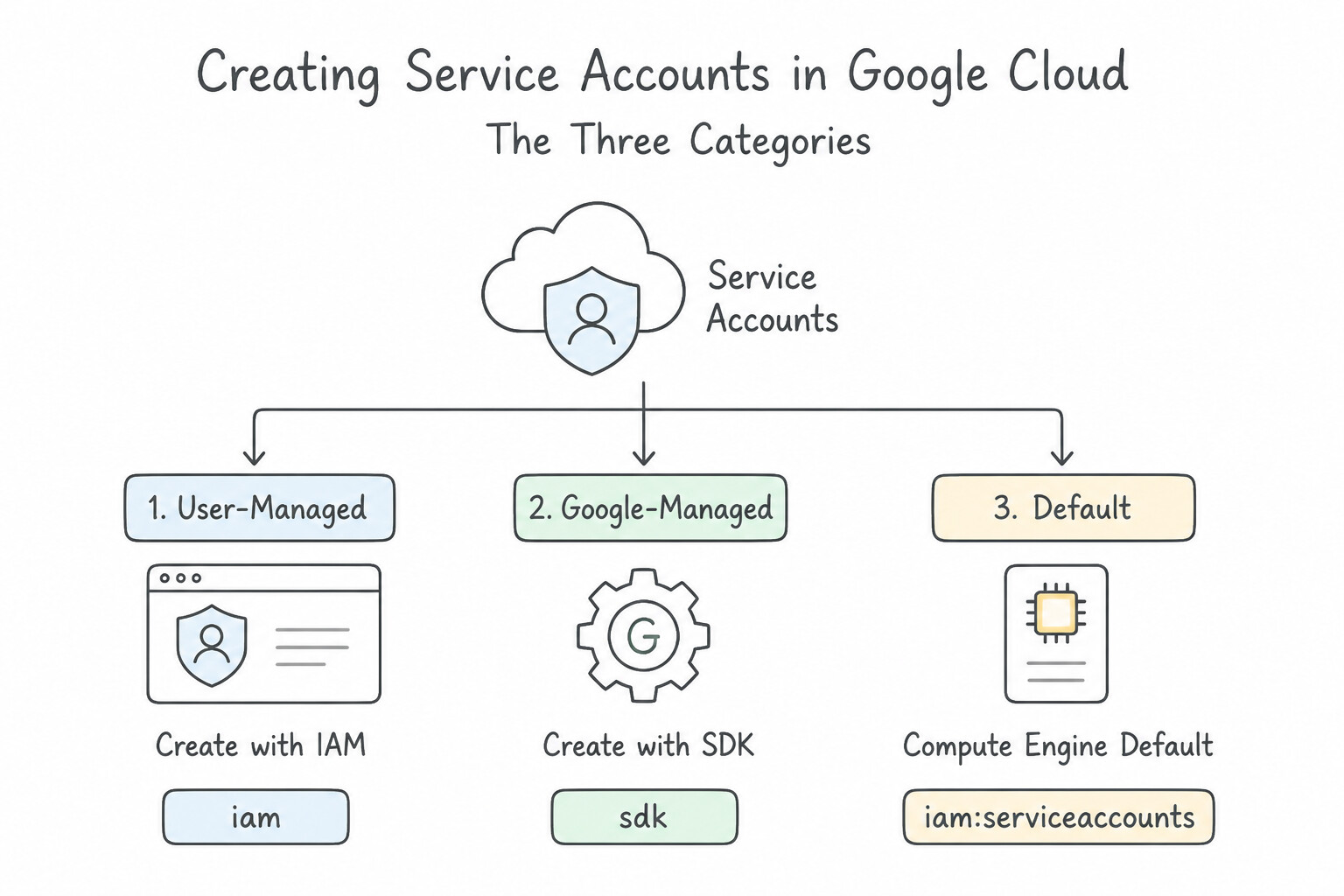
- The Three Categories of Service Accounts in Google Cloud:
- User-Managed Service Accounts (
<SA_NAME>@<PROJECT_ID>.iam.gserviceaccount.com): Created explicitly by you viagcloud iam service-accounts create <SA_NAME>. Starts with zero permissions—the gold standard for production workloads. - Default Service Accounts: Automatically created when you enable Compute Engine (
<PROJECT_NUMBER>-compute@developer.gserviceaccount.com) or App Engine (<PROJECT_ID>@appspot.gserviceaccount.com). Historically receivedroles/editorunless disabled byconstraints/iam.automaticIamGrantsForDefaultServiceAccounts. - Google-Managed Service Agents (
service-<PROJECT_NUMBER>@...iam.gserviceaccount.com): Owned and operated by Google Cloud backend services (e.g., Cloud Build, Cloud Storage CMEK, GKE, Eventarc) to act on resources inside your project on your behalf.
Key Implementation Patterns
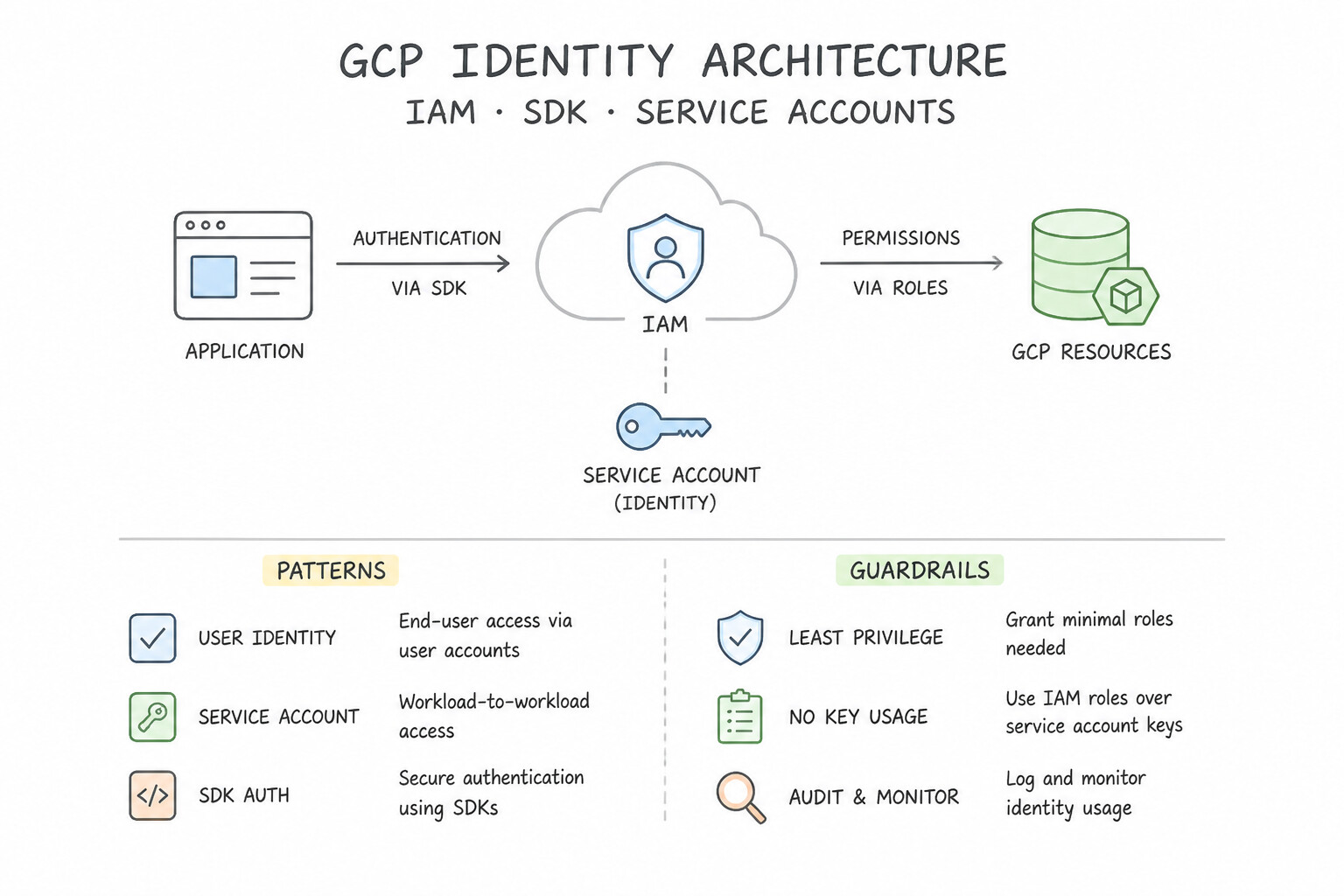
- CLI Command for Creation: Use Run
gcloud iam service-accounts create app-backend --display-name "Backend Application Identity". The correct syntax isgcloud iam service-accounts create [NAME]. This follows the standardgcloud group resource actionpattern. (Avoid alternative: Theservice-accountscommand group is nested underiam. You cannot call it directly from the rootgcloudcommand.) - Service Account Identification: Use Use data-processor@my-finance-app-123.iam.gserviceaccount.com. User-managed service accounts use the format [name]@[project-id].iam.gserviceaccount.com. (Avoid alternative: The project ID should follow the @ symbol, not precede it.)
- Least Privilege Implementation: Use Create a new service account, grant it the Pub/Sub Subscriber role, and attach it to the VM. Create a custom service account with the specific Pub/Sub Subscriber role to ensure the VM has only the minimum necessary permissions. (Avoid alternative: Access scopes are a legacy feature; IAM roles on custom service accounts are the recommended way to manage permissions.)
Key Takeaways (4.2a)
- The
gcloudcommand structure is generallygroup resource action.- Service accounts are managed under the
iamgroup:gcloud iam service-accounts.- The
createaction requires a name as a positional argument.- Use
--display-nameto assign a friendly name to the service account in the console.
Consideration 4.2b: Using service accounts with minimum required permissions
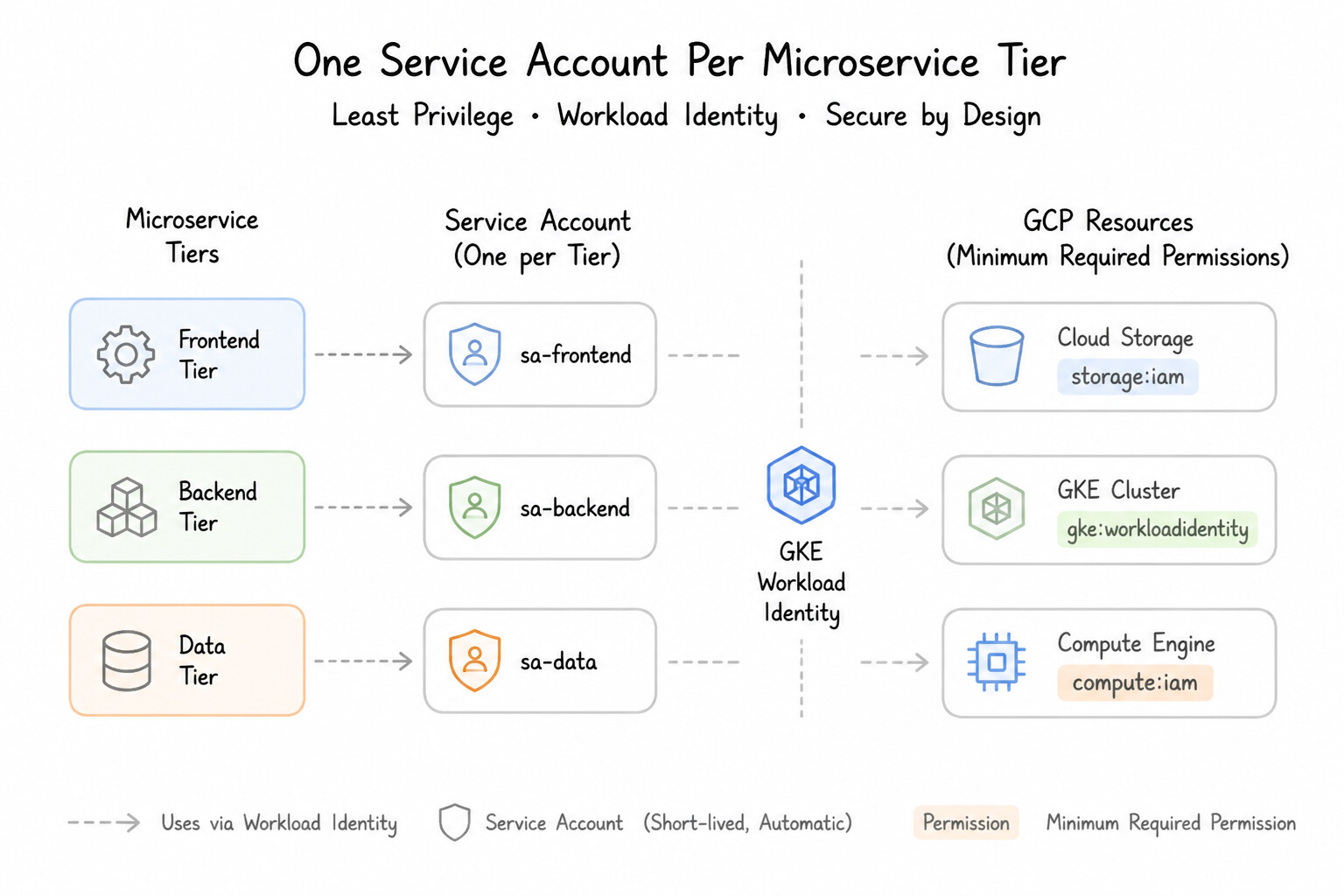
- One Service Account Per Microservice Tier: Never share a single "uber-service-account" across 15 different VMs or Cloud Run services. Create
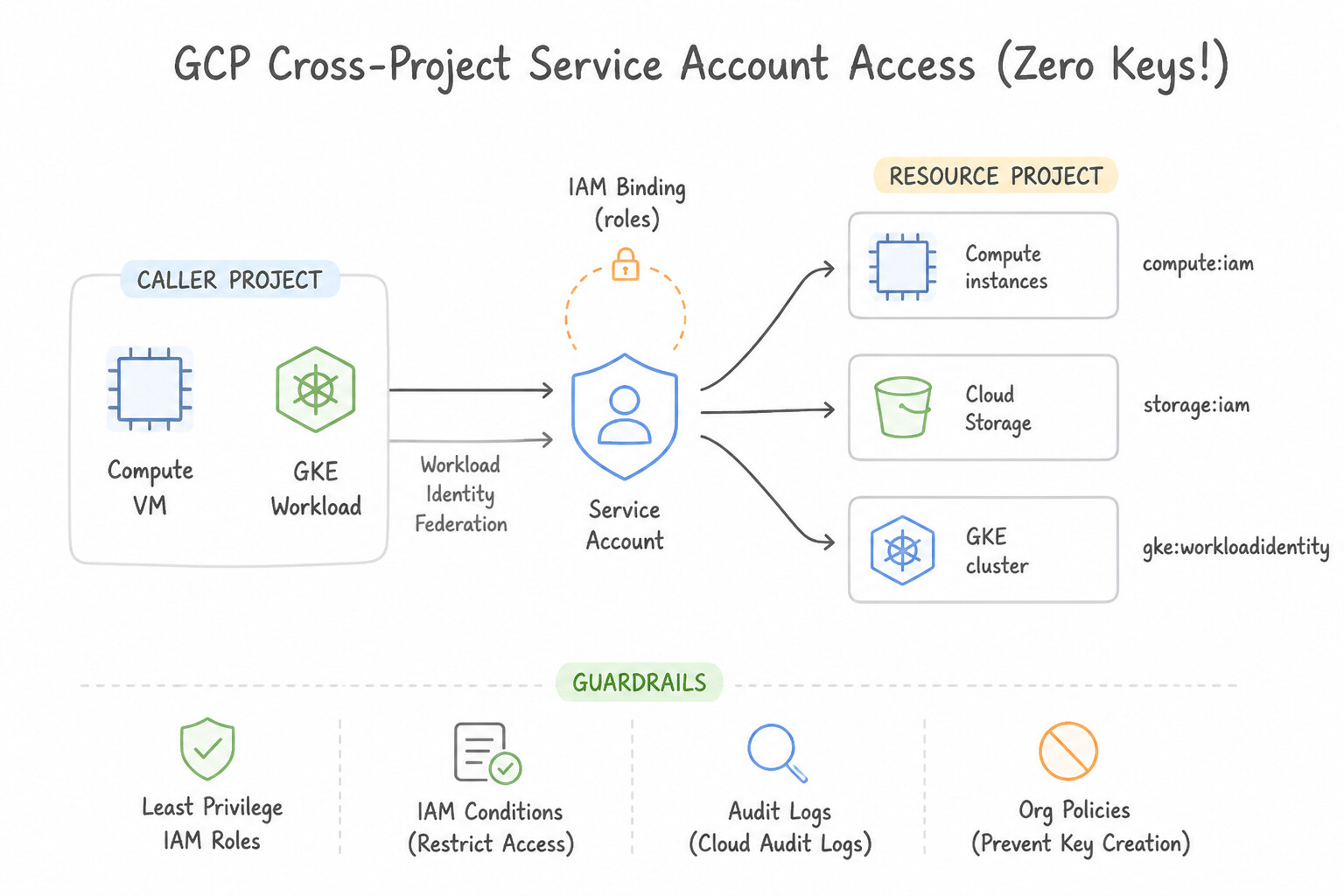
checkout-sa,inventory-sa, andreporting-saso each workload only holds the exact predefined roles it requires. - Cross-Project Service Account Access (Zero Keys Required!): If a VM running in
Project-A(vm-sa@project-a.iam.gserviceaccount.com) needs to read a Cloud Storage bucket inProject-B, do NOT create a service account inProject-Band export a JSON key toProject-A! Simply grantserviceAccount:vm-sa@project-a.iam.gserviceaccount.comtheroles/storage.objectViewerrole directly on the bucket inProject-B! - VM Access Scopes vs. IAM Roles: On a Compute Engine VM, effective permissions are the intersection (AND) of the VM's OAuth Access Scopes AND the Service Account's IAM Roles. Modern best practice: set the VM's Access Scope to
cloud-platform(--scopes=cloud-platform, which allows all scopes) and control access 100% through IAM Roles.
Key Implementation Patterns
- Replacing Default Compute Engine Service Account: Use Create a user-managed service account. Grant the Storage Object Viewer role on the specific bucket to this service account. Configure the instance to use this new service account. Best practice is to use a user-managed service account with a granular role (Storage Object Viewer) scoped to the specific resource (bucket) required.
- GKE Workload Identity Implementation: Use Enable Workload Identity on the cluster. Create a Google Service Account (GSA) with the BigQuery Data Editor role. Bind the GSA to a Kubernetes Service Account (KSA) and configure the pod to use this KSA. Workload Identity maps a Kubernetes Service Account to a Google Service Account, granting permissions only to specific pods.
- Custom Roles for Specific Operations: Use Create a custom IAM role with compute.instances.start and compute.instances.stop permissions. Assign this role to the service account. A custom role allows you to include only the specific permissions needed (start and stop), adhering to the principle of least privilege.
Key Takeaways (4.2b)
- Avoid using the default Compute Engine service account in production because it has the broad Editor role by default.
- Always create user-managed service accounts for specific applications.
- Apply the Principle of Least Privilege by selecting the most restrictive role (e.g., Viewer vs. Admin).
- Grant permissions at the lowest necessary level of the resource hierarchy (e.g., Bucket vs. Project).
Consideration 4.2c: Assigning service accounts to resources
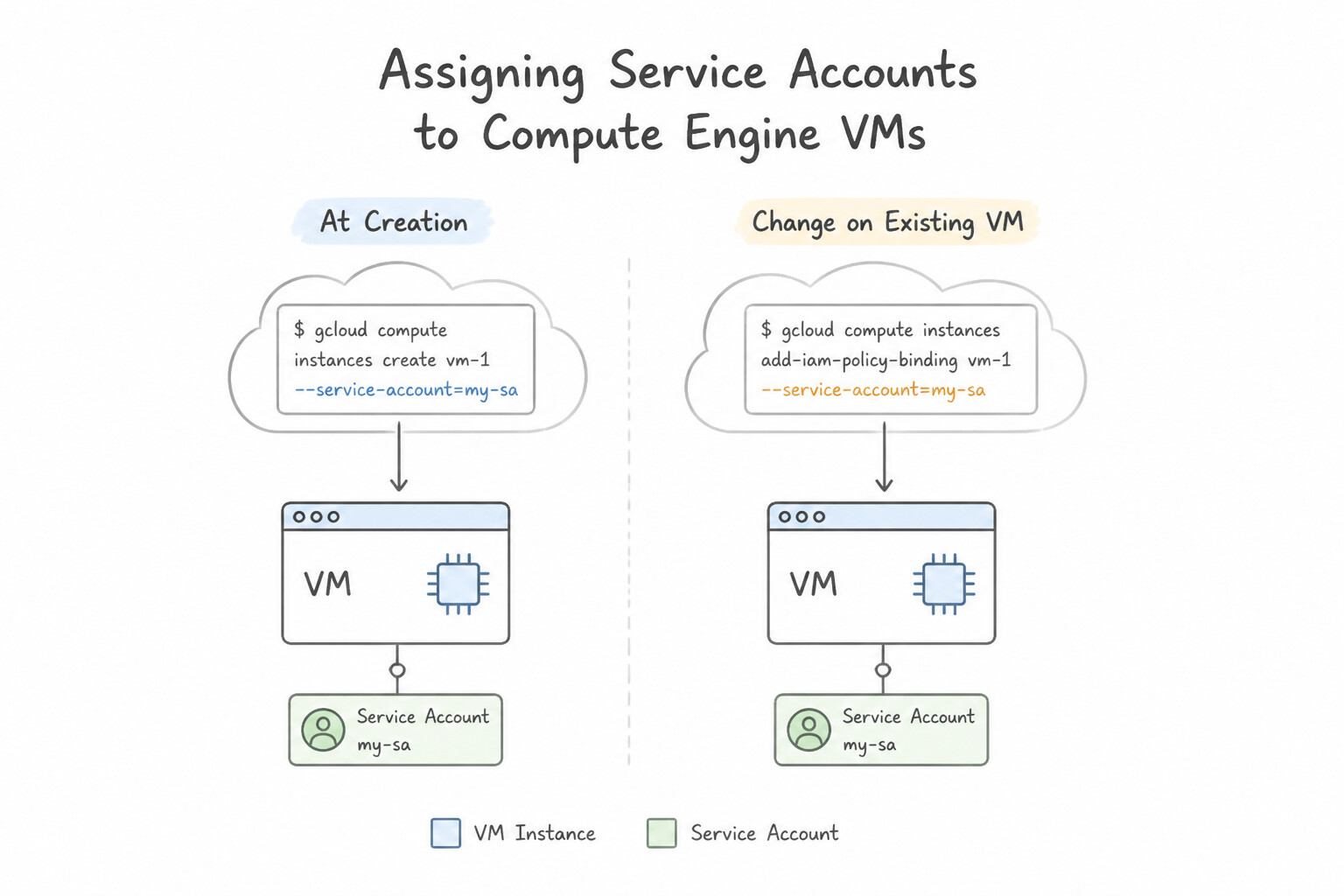
- Attaching a Service Account at Creation vs. Changing on an Existing VM:
- At creation:
gcloud compute instances create my-vm --service-account=my-sa@my-proj.iam.gserviceaccount.com --scopes=cloud-platform - Changing the Service Account on an Existing VM (
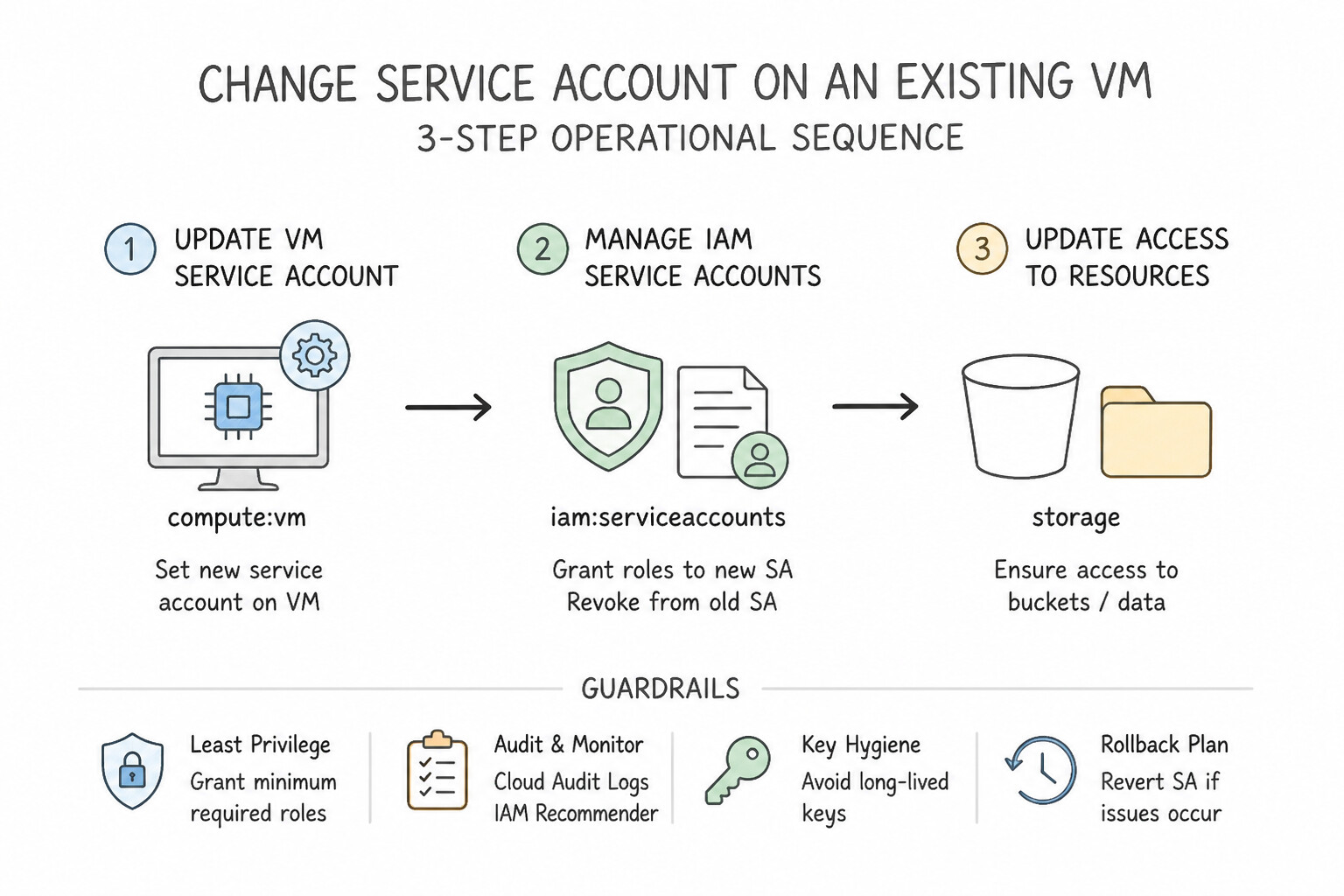
3-Step Operational Sequence): You cannot swap the Service Account on aRUNNINGVM! You must: - Stop the VM:
gcloud compute instances stop my-vm - Update the Service Account & Scopes:
gcloud compute instances set-service-account my-vm --service-account=new-sa@... --scopes=cloud-platform - Start the VM:
gcloud compute instances start my-vm
Key Implementation Patterns
- Enforcing Least Privilege on Compute Engine: Use Create a new user-managed service account. Grant the Storage Object Viewer role to this account. Assign it to the VM. Creating a dedicated service account with the specific Storage Object Viewer role ensures the VM has only the minimum permissions required.
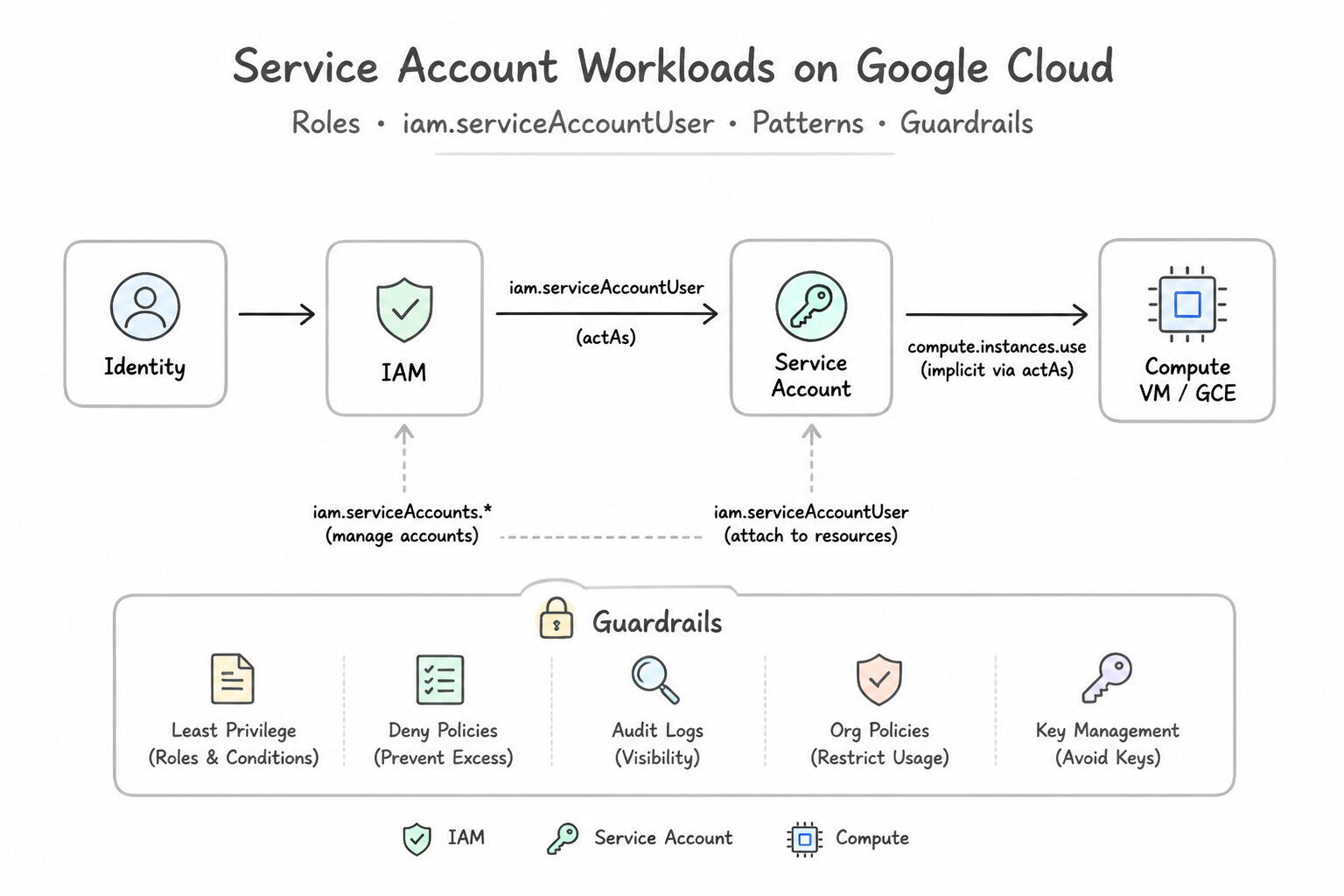
- Service Account User Role Requirement: Use Grant the engineer the Service Account User role on the specific service account. The Service Account User role provides the
iam.serviceAccounts.actAspermission required to attach a service account to a resource. (Avoid alternative: Key Admin is for managing user-managed keys (JSON/P12), not for assigning the identity to resources.) - Access Scopes vs. IAM Roles: Use Stop the VM, change the access scopes to "Allow full access to all Cloud APIs," and start the VM. Access scopes limit API calls; default scopes are read-only for storage. You must update scopes to allow the IAM role to function. (Avoid alternative: The IAM role is already sufficient; adding more IAM roles will not bypass the restriction set by access scopes.)
Key Takeaways (4.2c)
- Avoid using the Compute Engine default service account for production workloads because it includes the broad Editor role.
- Create dedicated user-managed service accounts for different applications or workloads.
- Grant granular IAM roles (like Storage Object Viewer) rather than primitive roles (like Owner or Editor) to follow the principle of least privilege.
- To attach a service account to a resource, you need the
iam.serviceAccounts.actAspermission.
Consideration 4.2d: Managing iam permissions of service accounts
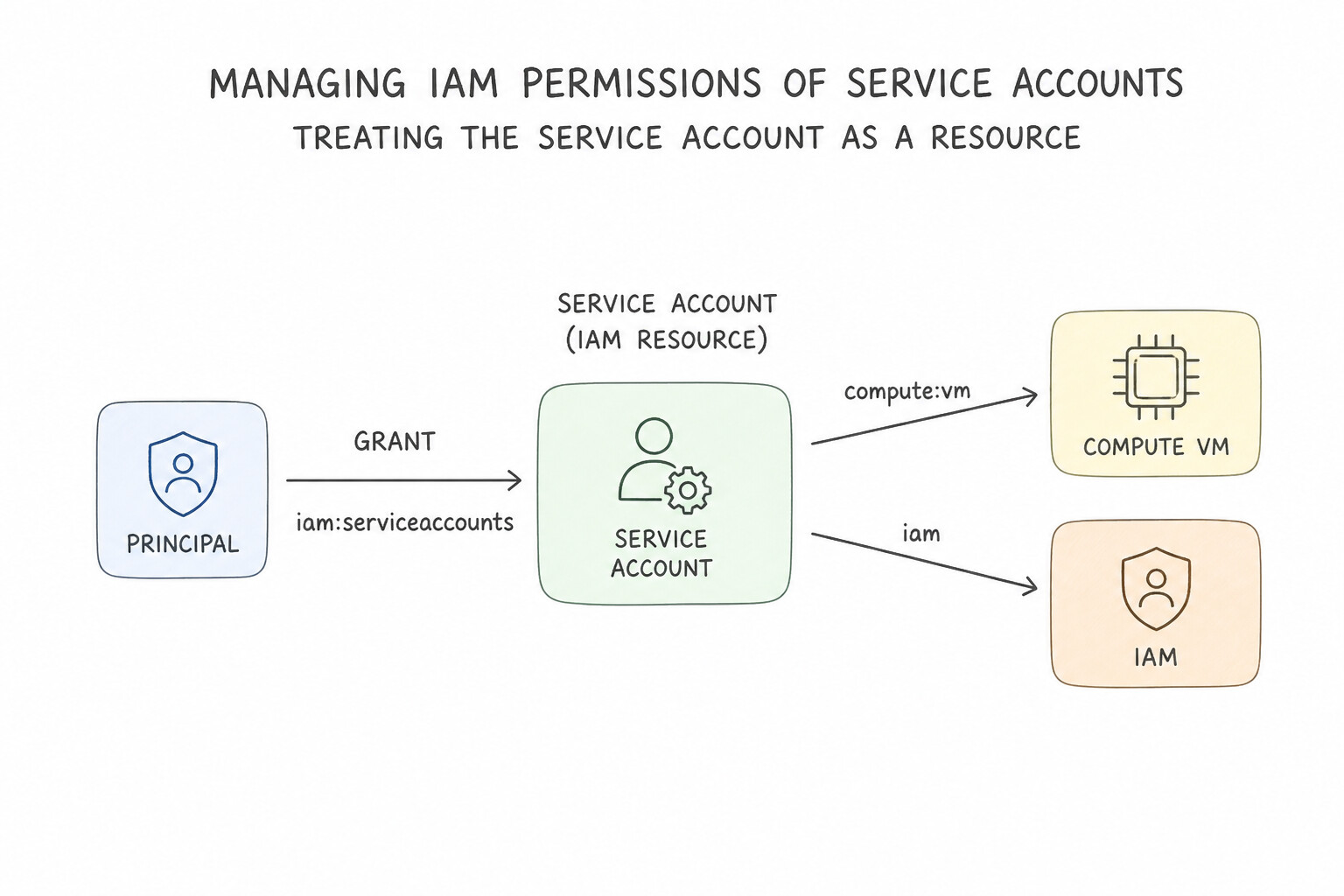
- Treating the Service Account as a Resource: You can attach an IAM policy directly to a specific Service Account (
gcloud iam service-accounts add-iam-policy-binding <SA_EMAIL> --member=... --role=...): roles/iam.serviceAccountUser(Service Account User): Grantsiam.serviceAccounts.actAs—required when a user or deployment pipeline attaches that Service Account to a VM, Cloud Run service, or Dataflow job.roles/iam.serviceAccountTokenCreator(Service Account Token Creator): Grantsiam.serviceAccounts.getAccessToken/signBlob—required when a principal impersonates the Service Account directly to generate short-lived tokens (--impersonate-service-account).roles/iam.serviceAccountKeyAdmin: Allows creating/deleting static keys (disable this in production viaconstraints/iam.disableServiceAccountKeyCreation!).
Key Implementation Patterns
- Deploying VM with Specific Identity: Use Grant the developer the Service Account User role on the
backend-prod-saservice account. The Service Account User role provides theiam.serviceAccounts.actAspermission required to attach a service account to a resource. (Avoid alternative: Service Account Token Creator is for creating tokens and signing blobs, not for attaching service accounts to infrastructure resources.) - Separation of Duties: Key Management: Use Remove the Editor role. Grant the Service Account User role and specific resource roles to the developers. The Service Account User role allows developers to attach service accounts to resources for deployment without granting key management permissions.
- Local Development Impersonation: Use Grant your user account the Service Account Token Creator role on the service account. The Service Account Token Creator role provides the specific permissions needed to generate short-lived tokens for impersonation. (Avoid alternative: The Service Account User role allows attaching service accounts to resources like VMs, not impersonating them locally.)
Key Takeaways (4.2d)
- To attach a service account to a resource, you need the
iam.serviceAccounts.actAspermission.- The Service Account User role is the standard role for granting
actAspermission.- Permissions should be scoped to specific service accounts rather than the whole project to follow least privilege.
- Compute Instance Admin allows creating VMs but not assigning arbitrary service accounts to them.
Consideration 4.2e: Managing service account impersonation
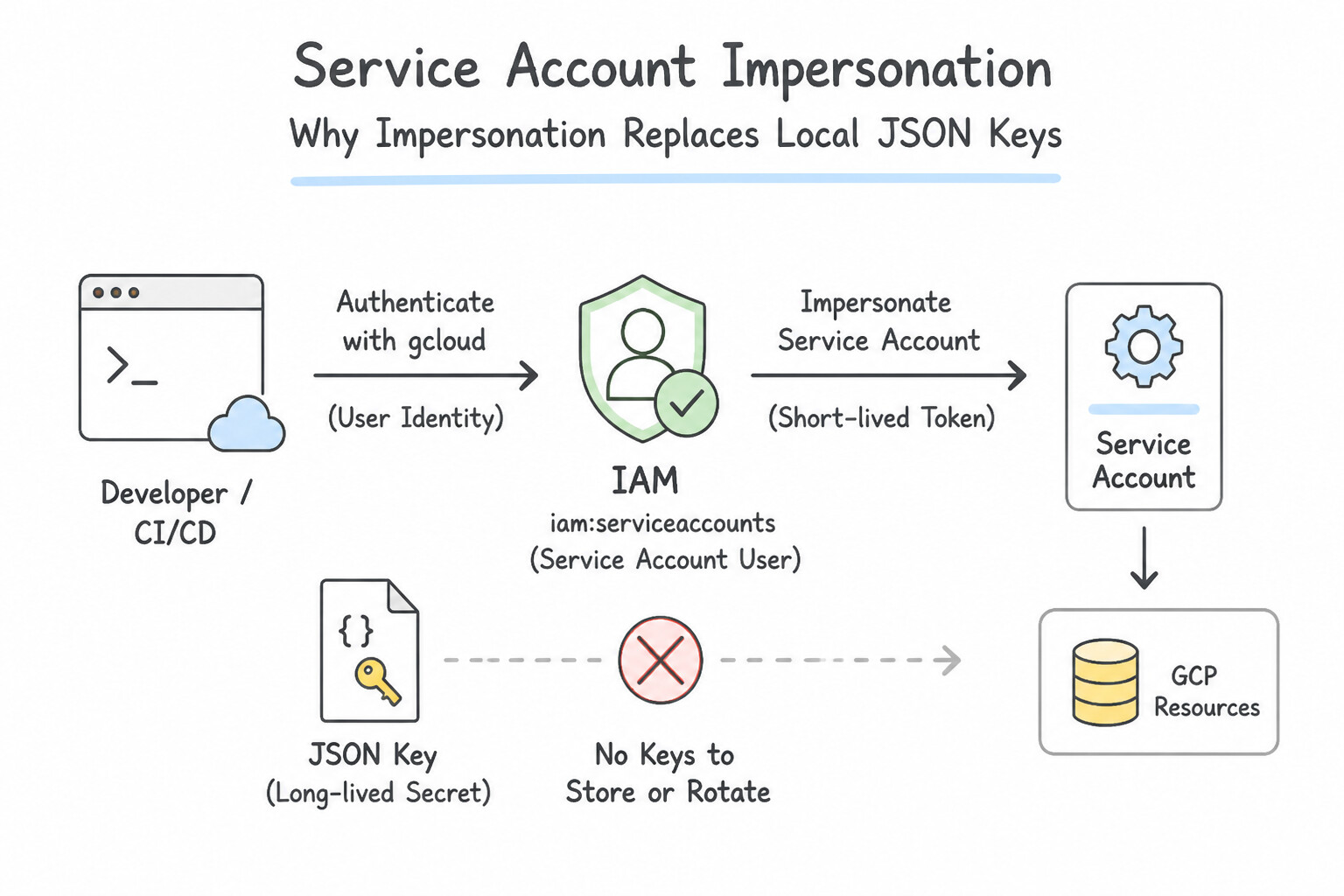
- Why Impersonation Replaces Local Developer JSON Keys: When a developer needs to test a script locally or run a privileged
gcloudorterraformcommand, they authenticate with their own corporate user identity (gcloud auth login) and impersonate a target Service Account: - Single command:
gcloud storage ls gs://prod-bucket --impersonate-service-account=ops-sa@prod.iam.gserviceaccount.com - Persistent session config:
gcloud config set auth/impersonate_service_account ops-sa@prod.iam.gserviceaccount.com - Application Default Credentials (ADC) for local Python/Go SDK code:
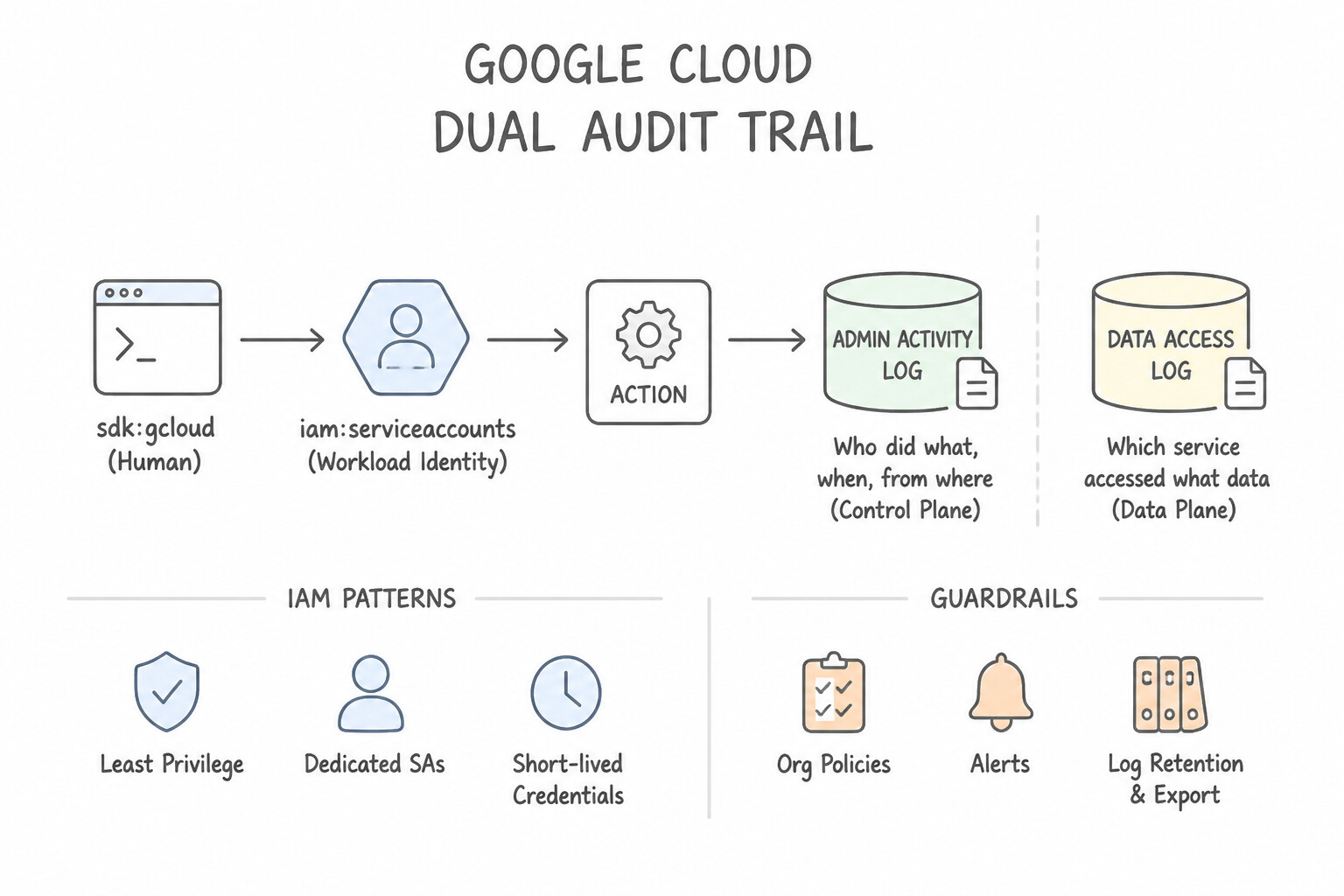
gcloud auth application-default login --impersonate-service-account=ops-sa@... - Dual Audit Trail: Cloud Audit Logs record both the target Service Account (
principalEmail) and the human user who initiated the impersonation (serviceAccountDelegationInfo), preserving 100% individual accountability!
Key Implementation Patterns
- Local Development without Service Account Keys: Use Authenticate with your user credentials, and run gcloud config set auth/impersonate_service_account [SA_EMAIL]. This command configures the gcloud CLI to use your user credentials to impersonate the service account without needing a key file.
- Attaching Service Accounts to VM Instances: Use Grant the engineer the Service Account User role (roles/iam.serviceAccountUser) on the specific service account. The
roles/iam.serviceAccountUserrole grants theactAspermission required to attach a service account to a resource. - Generating Short-Lived Credentials for External Apps: Use Grant the Service Account Token Creator role (roles/iam.serviceAccountTokenCreator) to the user identity on the service account. The Token Creator role grants the specific permission needed to generate short-lived tokens via the IAM Credentials API.
Key Takeaways (4.2e)
- Avoid downloading long-lived service account keys (JSON files) whenever possible to improve security.
- Use service account impersonation to run commands as a service account using your own user credentials.
- The IAM role required for impersonation is
roles/iam.serviceAccountTokenCreator.- Configure impersonation in the CLI using
gcloud config set auth/impersonate_service_account.
Consideration 4.2f: Creating and managing short-lived service account credentials
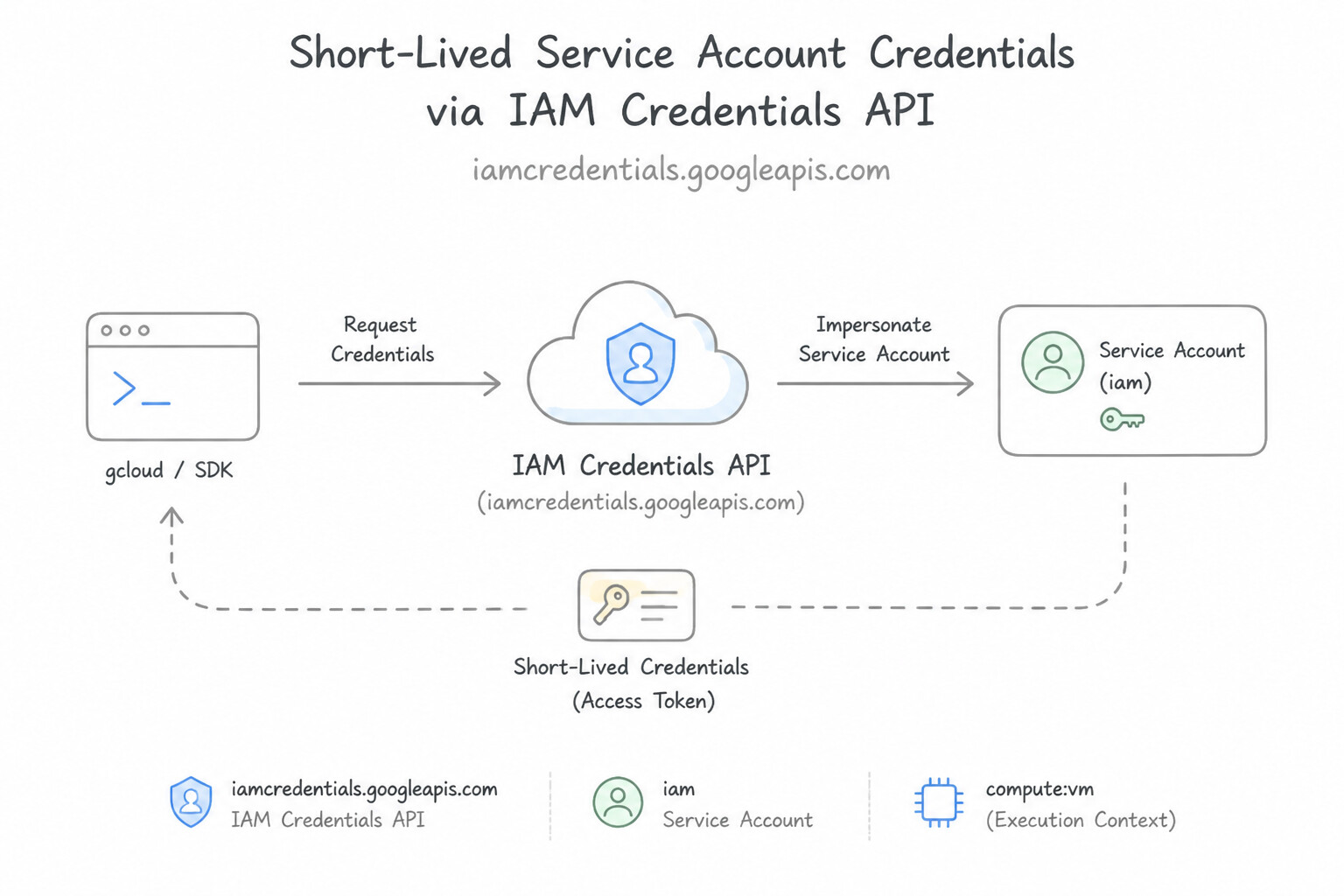
- The IAM Credentials API (
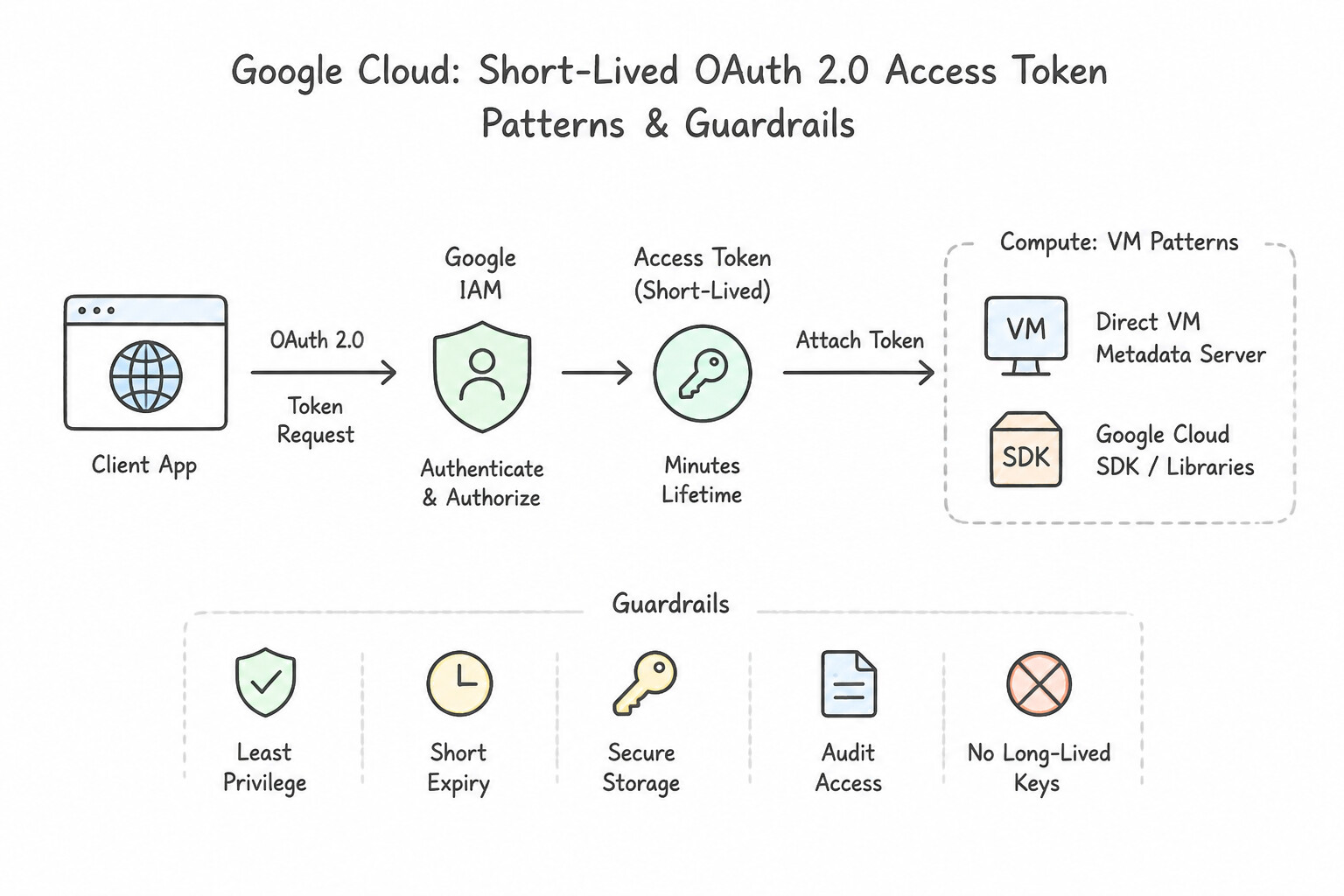
iamcredentials.googleapis.com): Generates temporary cryptographic credentials (default 1-hour lifetime, up to 12 hours if configured via org policy) that automatically expire without manual revocation: - Short-Lived OAuth 2.0 Access Token:
gcloud auth print-access-token --impersonate-service-account=<SA_EMAIL>(used to call Google Cloud REST/gRPC APIs). - Short-Lived OIDC ID Token:
gcloud auth print-identity-token --impersonate-service-account=<SA_EMAIL> --audiences="https://my-cloud-run-url.a.run.app"(used to invoke authenticated Cloud Run or Cloud Run functions endpoints!). - Keyless Signed URLs / Blobs (
signBlob): Generates Cloud Storage Signed URLs using Google-managed system keys without ever exporting a private key file.
Key Implementation Patterns
- CLI Impersonation for Short-lived Access: Use Run the gcloud app deploy command with the --impersonate-service-account flag specifying the Service Account email. Impersonation creates short-lived credentials for the command execution without needing a local key file. (Avoid alternative: Downloading a JSON key file violates the security policy mentioned in the scenario.)
- Inter-Service Authentication (OIDC): Use Query the VM metadata server to retrieve an OpenID Connect (OIDC) ID token. Cloud Functions require an OIDC ID token for authentication, which verifies the identity of the caller. (Avoid alternative: Access tokens are used for Google APIs, not for invoking private Cloud Functions.)
- Required IAM Permissions for Impersonation: Use Grant the engineer the Service Account Token Creator role on the "automation-sa" service account. The Service Account Token Creator role provides the specific permissions needed to generate short-lived credentials and tokens.
Key Takeaways (4.2f)
- Avoid downloading long-lived Service Account keys (JSON/P12) to developer workstations whenever possible.
- Use the
--impersonate-service-accountflag in gcloud to act as a Service Account using short-lived credentials.- You need the
iam.serviceAccountTokenCreatorrole to impersonate a Service Account.- Use OIDC ID Tokens for authenticating calls to Cloud Functions and Cloud Run.
Consideration 4.2g: Using a service account with a gke application
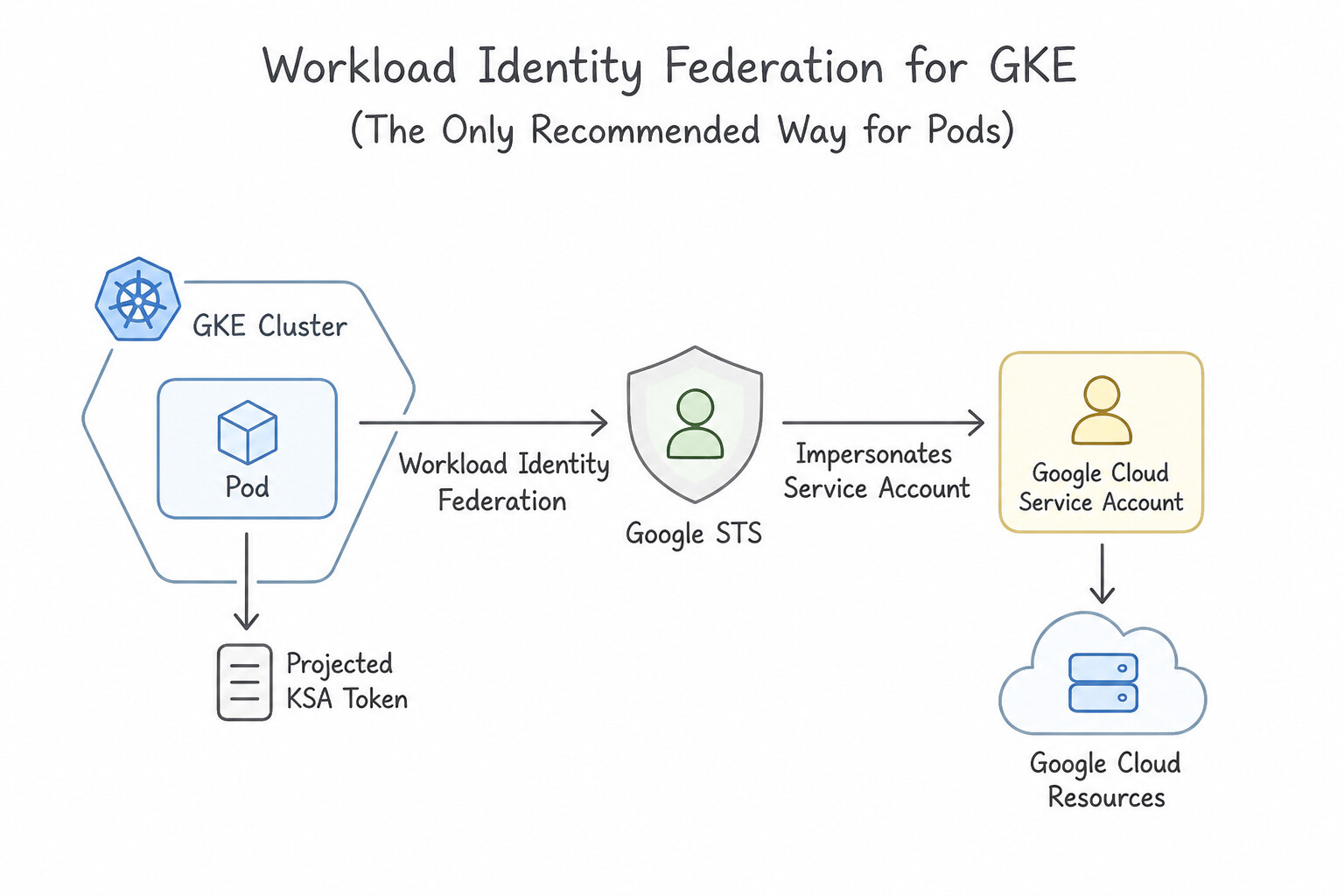
- Workload Identity Federation for GKE (The Only Recommended Way for Pods to Call GCP APIs):
- Automatically enabled on GKE Autopilot clusters and enabled on GKE Standard via
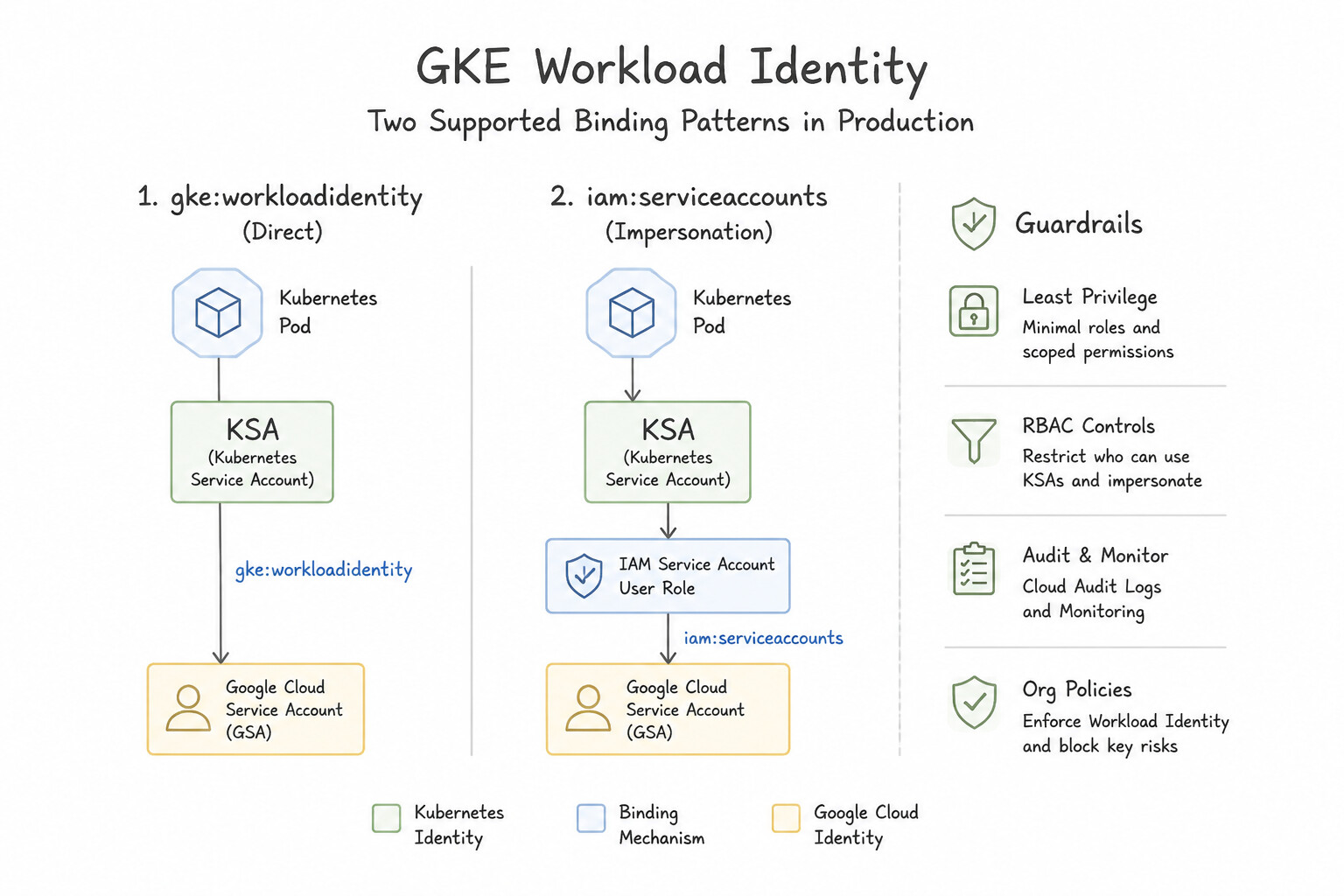
--workload-pool=<PROJECT_ID>.svc.id.goog. - Two Supported Binding Patterns in Production:
- Direct IAM Principal Binding (Modern Streamlined Pattern): Grant the target Google Cloud IAM role (e.g.,
roles/storage.objectVieweron a bucket) directly to the Kubernetes Service Account principal:principal://iam.googleapis.com/projects/<PROJECT_NUMBER>/locations/global/workloadIdentityPools/<PROJECT_ID>.svc.id.goog/subject/ns/<K8S_NAMESPACE>/sa/<KSA_NAME> - KSA-to-GSA Impersonation Binding (Classic Two-Way Handshake):
- Step 1 (IAM Side): Grant the KSA
roles/iam.workloadIdentityUseron the Google Cloud Service Account (GSA):gcloud iam service-accounts add-iam-policy-binding <GSA_EMAIL> --role="roles/iam.workloadIdentityUser" --member="serviceAccount:<PROJECT_ID>.svc.id.goog[<K8S_NAMESPACE>/<KSA_NAME>]" - Step 2 (Kubernetes Side): Annotate the Kubernetes Service Account (
KSA) with theGSAemail:kubectl annotate serviceaccount <KSA_NAME> -n <K8S_NAMESPACE> iam.gke.io/gcp-service-account=<GSA_EMAIL>\n
Key Implementation Patterns
- Granting the Workload Identity User Role: Use Add an IAM policy binding to the GSA. Use the role
roles/iam.workloadIdentityUserfor the memberserviceAccount:[PROJECT_ID].svc.id.goog[[NAMESPACE]/[KSA_NAME]]. You must bind theroles/iam.workloadIdentityUserrole to the KSA member on the GSA's IAM policy to allow impersonation.
Key Takeaways (4.2g)
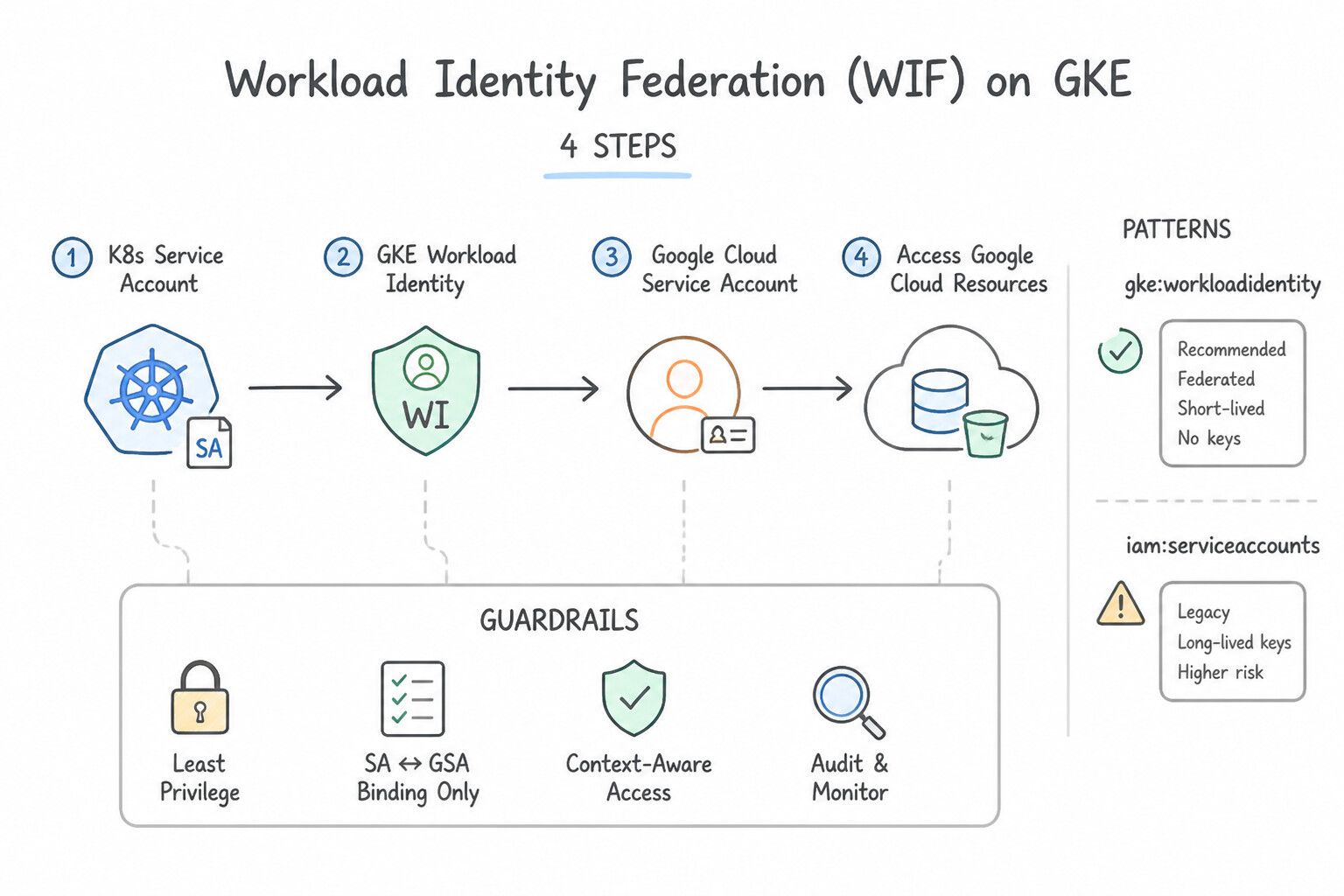
- Workload Identity maps Kubernetes Service Accounts (KSA) to Google Service Accounts (GSA).
- Two steps are required for the mapping: Annotating the KSA and adding an IAM Policy Binding to the GSA.
- The required IAM role is
roles/iam.workloadIdentityUser.- The binding is granted to the special member identifier:
serviceAccount:[PROJECT_ID].svc.id.goog[[NAMESPACE]/[KSA_NAME]].
Consideration 4.2h: Provisioning Workload Identity Federation
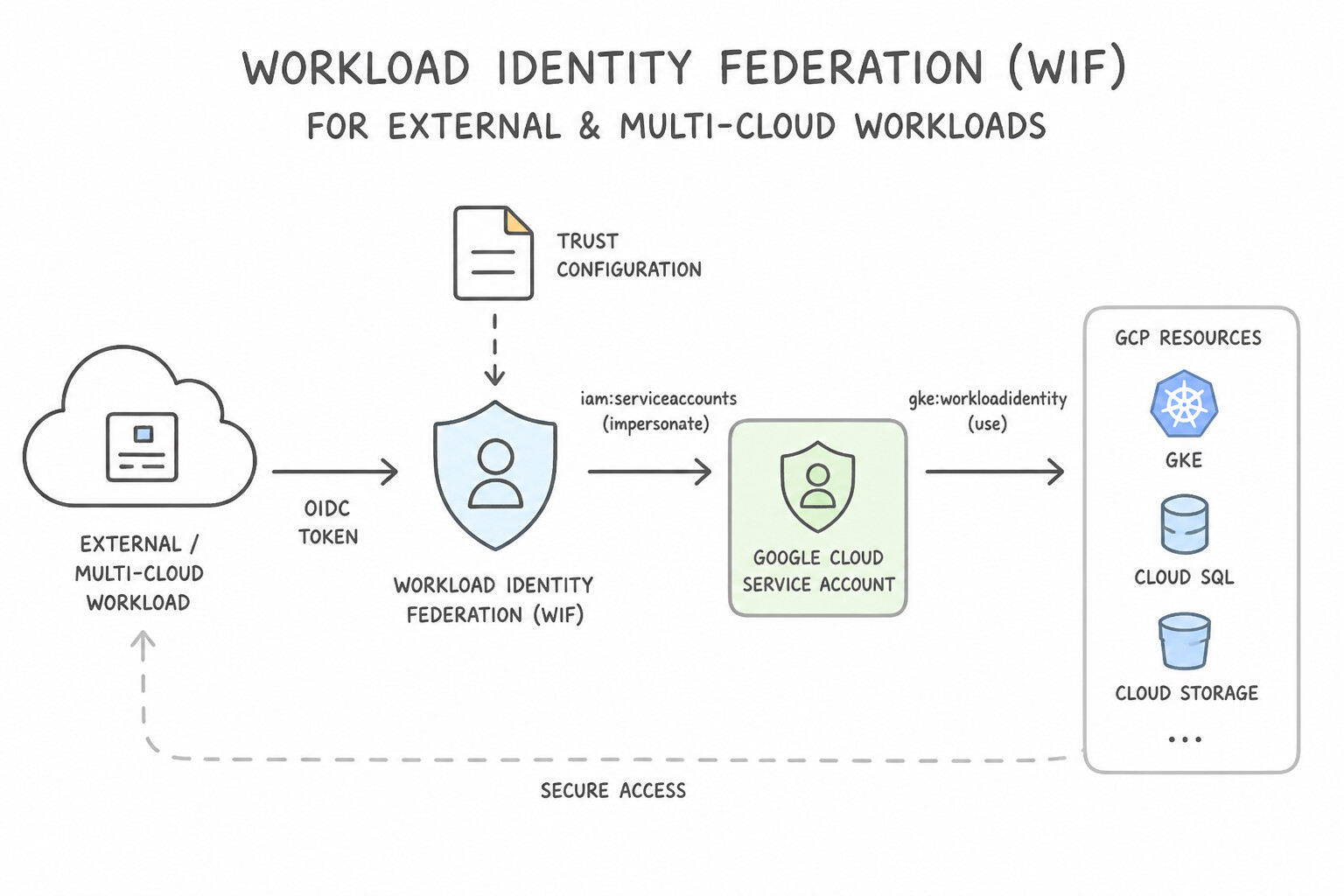
- Workload Identity Federation (WIF) for External / Multi-Cloud Workloads:
- Eliminates downloadable Service Account JSON keys for workloads running outside Google Cloud (AWS EC2/Lambda, Azure VMs/AKS, GitHub Actions, GitLab CI, or on-premises Kubernetes/ADFS).
- How to Provision WIF (4 Steps):
- Create a Workload Identity Pool (
gcloud iam workload-identity-pools create <POOL_ID> --location=global). - Create a Workload Identity Provider inside the pool (
create-awsfor AWS accounts orcreate-oidc/create-samlfor GitHub Actions, Azure, or K8s clusters) and define Attribute Mappings (google.subject=assertion.sub,attribute.repository=assertion.repository) + an Attribute Condition (e.g., restricting tokens strictly to your company's GitHub orgassertion.repository_owner == 'acme-corp'). - Grant the external workload access by either granting IAM roles directly to
principalSet://iam.googleapis.com/projects/<PROJ_NUM>/locations/global/workloadIdentityPools/<POOL_ID>/...OR grantingroles/iam.workloadIdentityUseron a Google Cloud Service Account. - Generate a credential configuration file (
gcloud iam workload-identity-pools create-cred-config ... --output-file=creds.json—contains zero private keys, only STS endpoint metadata!) and setGOOGLE_APPLICATION_CREDENTIALS=creds.json.
Key Implementation Patterns
- Enabling Workload Identity on Existing Clusters: Use Update the cluster to enable Workload Identity. Update the existing node pools to enable the GKE Metadata Server. Existing clusters require enabling the Workload Identity feature on the cluster and the GKE Metadata Server on the node pools.
- Mapping KSA to GSA via Annotation: Use Annotate the Kubernetes Service Account with the email address of the Google Service Account. To complete the Workload Identity mapping, you must annotate the KSA with the GSA's email address. (Avoid alternative: Using JSON keys is insecure and bypasses the benefits of Workload Identity.)
Key Takeaways (4.2h)
- Workload Identity is the recommended way for GKE workloads to access Google Cloud APIs securely.
- Existing GKE clusters require explicit updates to both the cluster (workload-pool) and node pools (GKE Metadata Server) to enable Workload Identity.
- Avoid using node-level service accounts for application permissions to adhere to the principle of least privilege.
- Avoid managing static JSON service account keys in Kubernetes Secrets.
Quick Decision Cheat Sheet (Subsection 4.2)
If the Scenario Requires... | Choose This Google Cloud Pattern | Avoid This Common Mistake |
|---|---|---|
"Prevent anyone in the organization from creating downloadable Service Account JSON keys" | Enforce the constraints/iam.disableServiceAccountKeyCreation Organization Policy | Manually auditing keys once a month; deleting all service accounts |
"User can create VMs, but fails with Permission iam.serviceAccounts.actAs denied when attaching app-sa" | Grant the user roles/iam.serviceAccountUser (Service Account User) on app-sa | Granting roles/iam.serviceAccountTokenCreator (used for token generation/impersonation, not actAs VM attachment) |
"Generate a 1-hour access token for ops-sa via gcloud --impersonate-service-account" | Grant the caller roles/iam.serviceAccountTokenCreator (Service Account Token Creator) on ops-sa | Granting roles/iam.serviceAccountKeyAdmin |
"Bind a Kubernetes Service Account ( ns-a/ksa-1) to a Google Service Account (gsa@proj.iam...) in GKE" | Grant roles/iam.workloadIdentityUser to serviceAccount:<PROJ_ID>.svc.id.goog[ns-a/ksa-1] on the GSA + annotate the KSA with iam.gke.io/gcp-service-account=<GSA> | Mounting a JSON key inside a Kubernetes Secret volume |
"Authenticate an external AWS, Azure, or on-premises workload to Google Cloud without static keys" | Workload Identity Federation (Workload Identity Pool + AWS/OIDC/SAML Provider) | Workforce Identity Federation (Workforce is for human browser/CLI users; Workload is for machines/CI/clouds!) |
Further Reading (Subsection 4.2)
- gcloud iam service-accounts create — Reference documentation for the 'gcloud iam service-accounts create' command, detailing the syntax, positional arguments, and flags.
- Service accounts — Documentation describing what service accounts are and how they are identified.
- Creating and managing service accounts — Provides specific details on creating service accounts and the resulting email address formats.
- Service accounts — Documentation explaining the difference between default and user-managed service accounts and best practices for securing them.
- Best practices for using service accounts — Official Google Cloud documentation outlining security best practices, specifically highlighting the use of user-managed service accounts and least privilege.
- Use Workload Identity — Official documentation explaining how Workload Identity allows GKE workloads to impersonate Identity and Access Management (IAM) service accounts to access Google Cloud services.
Book TOC · Previous · Chapter 7 of 8 · Next
AwesomeGCP.com Learning
The approach taken is a question-led learning approach: you explore realistic project scenarios where you need to make decisions or take actions to achieve business goals within specific constraints. Instead of passive learning, you are challenged to think and work through the options to master the Associate Cloud Engineer (ACE) certification!