Book TOC · Previous · Chapter 3 of 7 · Next
Chapter 3: Cloud Development Environments, Container Supply Chain (SLSA) & Automated Testing
Chapter Focus: Cloud Workstations, local CLI emulators, Gemini Code Assist, Cloud Build multi-stage containers, Artifact Registry, Binary Authorization, and unit/integration/load testing.
Subsection 2.1: Setting up your development environment
The Big Picture
When a 50-developer engineering team writes code locally by pointing every laptop directly at a shared Google Cloud development project, three chronic failures slow delivery to a crawl:
- Noisy-Neighbor Collisions & Cloud Bill Spikes (2.1a): Two developers running unit tests simultaneously overwrite each other's Firestore documents or consume each other's Pub/Sub messages, causing flaky tests, while leaving a test Cloud Spanner instance running over the weekend burns thousands of dollars. Using
gcloudCLI Local Emulators (pubsub,firestore,bigtable,spanner,datastore) isolates every developer and CI test runner completely offline at zero cost. - Inconsistent Local Laptop Environments & Data Exfiltration Risks (2.1b): Contractors waiting three days to install the right versions of
gcloud,kubectl,terraform, Java, and Python on unmanaged personal laptops—or worse, downloading sensitive production source code onto unencrypted local disks. Cloud Workstations solves both problems by running standardized, pre-configured container images inside your private VPC with zero local data persistence on the user's endpoint. - Manual Build-Push-Deploy Loops & Disconnected AI Assistants (
2.1b,2.1c): Runningdocker build,docker push, andkubectl applymanually after every 2-line code edit, or copying and pasting stack traces and database schemas into a browser chat window. Configuring Cloud Code (powered by Skaffold hot-reloading), Gemini Code Assist / Gemini Cloud Assist, and Model Context Protocol (MCP) servers inside the IDE connects the developer environment and AI coding agents directly to project schemas, documentation, and live cluster state.
Consideration 2.1a: Emulating Google Cloud services using the Google Cloud CLI for local application development and local unit testing
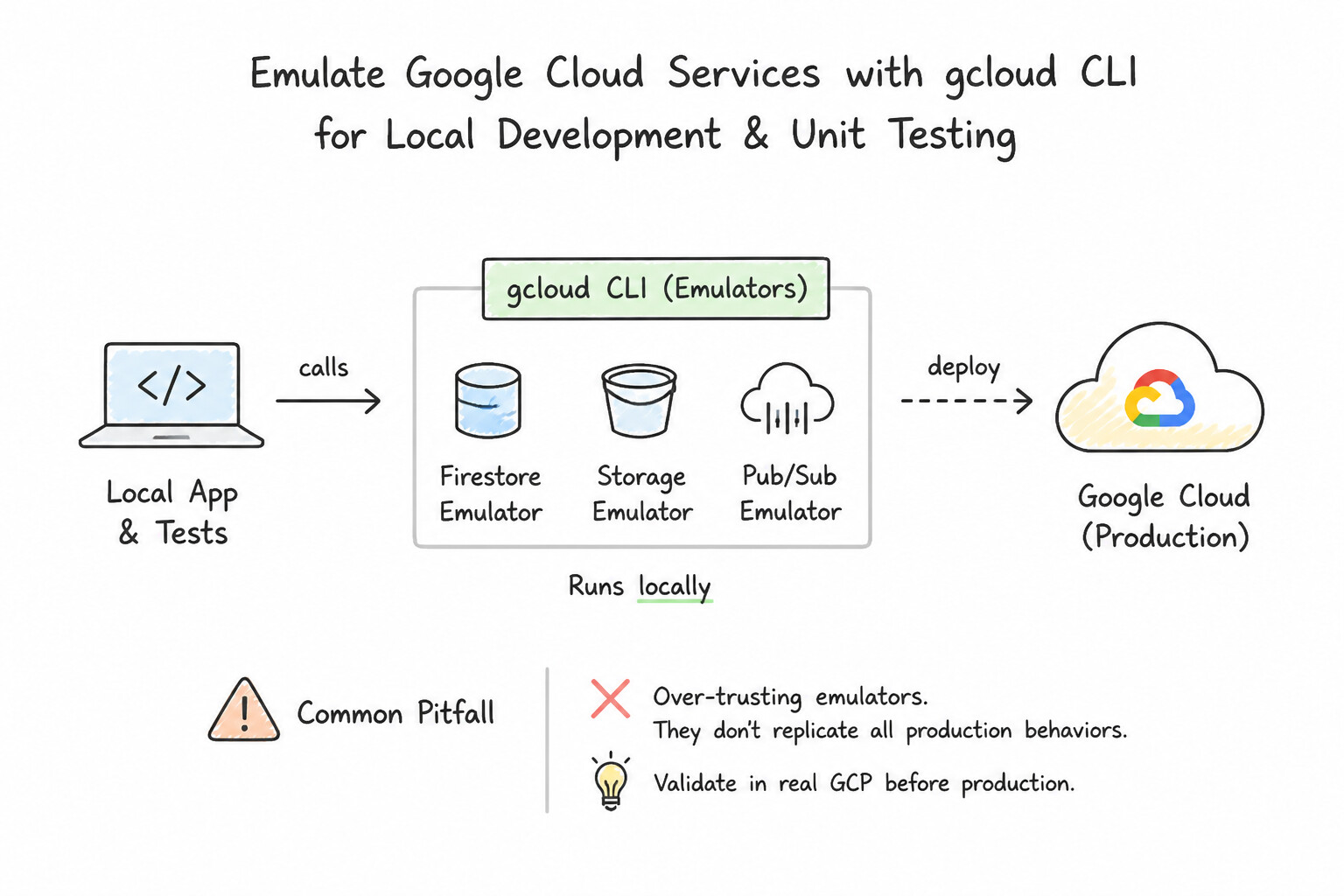
- The Five Official Local Emulators (And What Does Not Have One):
- The Google Cloud CLI provides local emulators for Cloud Pub/Sub, Cloud Firestore, Cloud Bigtable, Cloud Spanner, and Datastore.
- Common Pitfall: There is no official
gcloudCLI emulator for BigQuery, Cloud Storage, or Cloud SQL (for Cloud SQL, run a local PostgreSQL/MySQL Docker container or connect to a dev instance via the Cloud SQL Auth Proxy). - Connecting Client Libraries to Emulators (
*_EMULATOR_HOST): - Simply starting an emulator (
gcloud beta emulators pubsub start) does not automatically redirect your Python/Node.js/Go application! You must export the service's emulator environment variable in the same shell where your application or test suite runs: - Pub/Sub:
$(gcloud beta emulators pubsub env-init)→ setsPUBSUB_EMULATOR_HOST=localhost:8085 - Bigtable:
$(gcloud beta emulators bigtable env-init)→ setsBIGTABLE_EMULATOR_HOST=localhost:8086 - Firestore: sets
FIRESTORE_EMULATOR_HOST=localhost:8080 - Spanner: sets
SPANNER_EMULATOR_HOST=localhost:9010(and--emulator-host/api_endpoint_overridesingcloud configfor CLI commands). - Ephemeral State & Fast Reset Between Unit Tests: By default, emulators keep data in memory (or a temporary local directory). Always reset or clear emulator state (or create isolated per-test topics/collections) between unit test runs so test ordering never introduces flakiness.
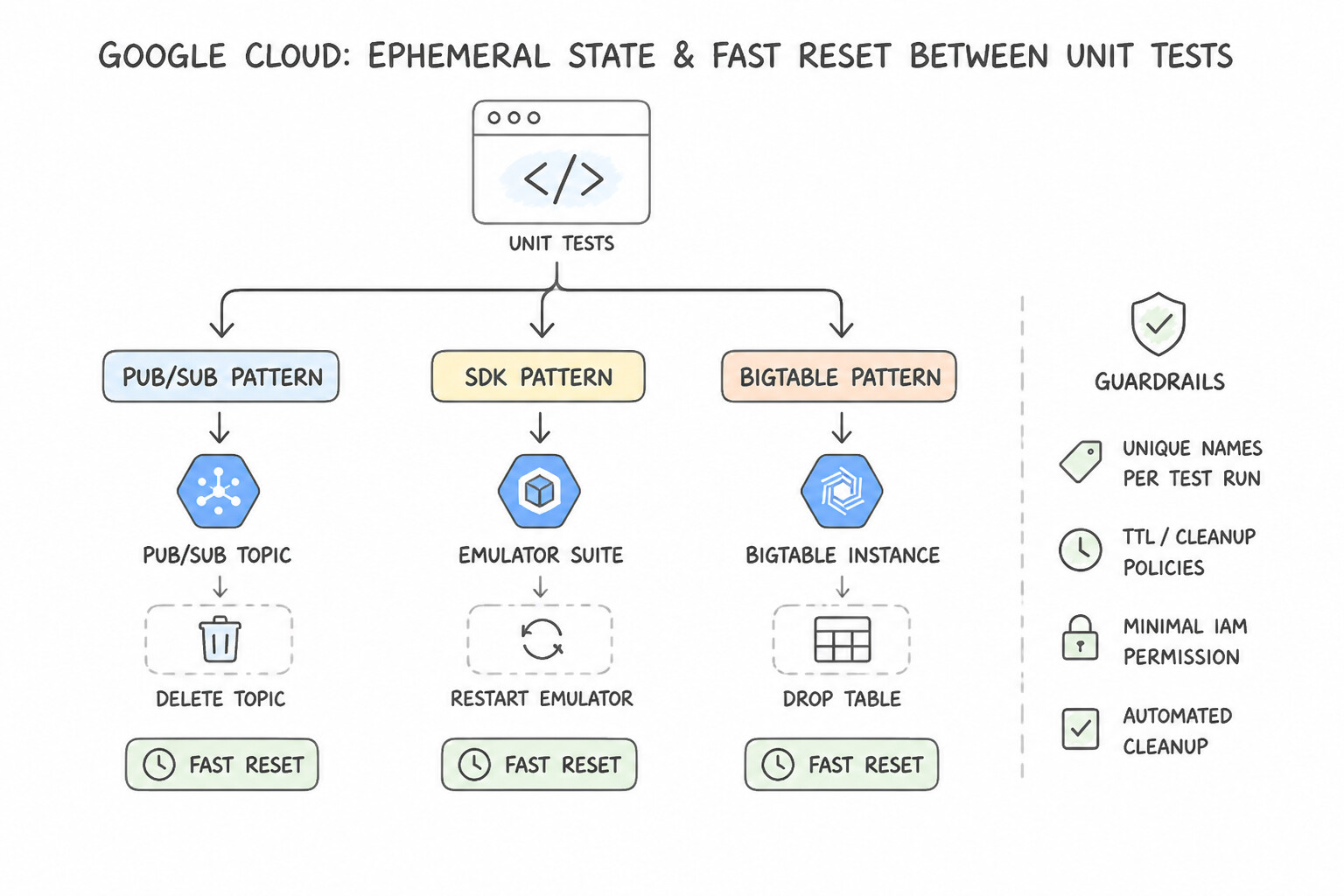
Key Implementation Patterns
- Configuring Pub/Sub Emulator Environment Variables: Use Set the PUBSUB_EMULATOR_HOST environment variable to the emulator's host and port. The Client Library automatically directs traffic to the local emulator when the PUBSUB_EMULATOR_HOST environment variable is defined.
- Automating Environment Setup with env-init: Use Run the
gcloud beta emulators bigtable env-initcommand. The env-init command generates the export commands needed to point your shell environment to the running emulator. (Avoid alternative: The start command runs the emulator process but does not generate the environment variable exports.) - Persisting Data in Datastore Emulator: Use Start the emulator using the command gcloud beta emulators datastore start --data-dir=[DIRECTORY]. The --data-dir flag configures the Datastore emulator to persist data to a specific local directory instead of a temporary one. (Avoid alternative: Manual exports are inefficient for local development loops compared to using the built-in persistence flags.)
Key Takeaways (2.1a)
- Google Cloud provides local emulators for services like Pub/Sub, Firestore, Bigtable, and Spanner to facilitate local development.
- Client libraries automatically detect emulator configurations via specific environment variables.
- For Pub/Sub, the key variable is
PUBSUB_EMULATOR_HOST.- Using emulators avoids costs and allows for offline testing without modifying application code.
Consideration 2.1b: Using Google Cloud console, Cloud SDK, Cloud Code, Gemini Cloud Assist, Gemini Code Assist, Cloud Shell, and Cloud Workstations
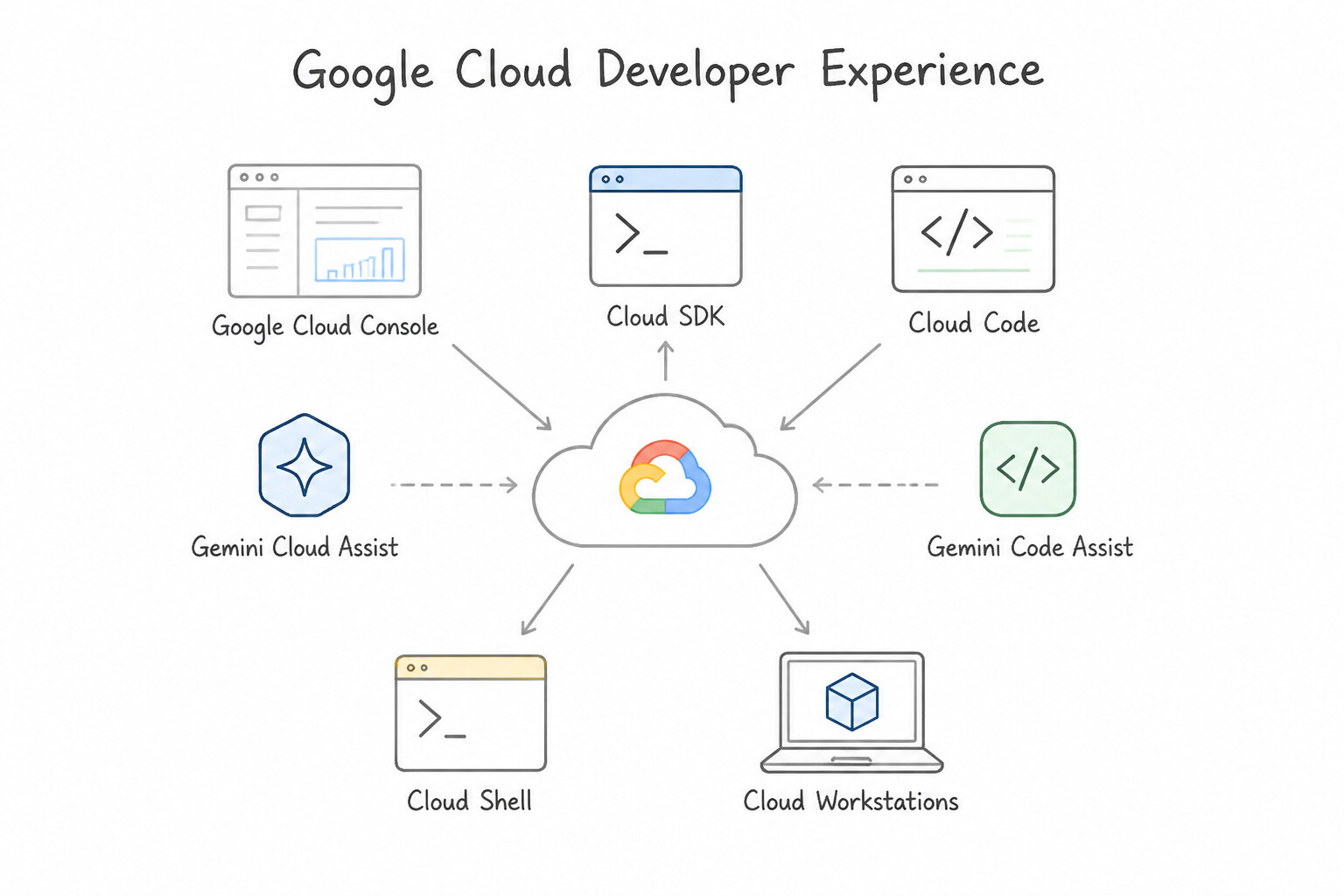
- Cloud Shell vs. Cloud Workstations:
- Cloud Shell: Free, browser-accessible ephemeral Debian VM with 5 GB of persistent
$HOMEstorage, pre-installedgcloud/kubectl/terraform, and built-in Web Preview. Ideal for quick ad-hoc CLI administration and rapid prototyping by an individual developer, but cannot be placed inside a customer's private VPC without public egress and automatically terminates after inactivity. - Cloud Workstations: Fully managed, enterprise development environments running on Compute Engine VMs inside your private VPC network, governed by IAM and VPC Service Controls, and standardized via custom container images hosted in Artifact Registry (rebuilt automatically via Cloud Build + Cloud Scheduler). Choose Cloud Workstations whenever enterprise security requires zero source code on local laptops, private VPC resource access, or standardized team toolchains.
- Cloud Code & Skaffold (Automated Inner Development Loop): Cloud Code is the official VS Code / JetBrains IDE extension that integrates Skaffold (
skaffold.yaml) to watch local source files, automatically rebuild containers, push to Artifact Registry, deploy to a localminikubeor remote GKE/Cloud Run environment, stream structured logs, and attach interactive language debuggers (Java/Python/Node.js/Go) to running pods. - Named
gcloudConfigurations & Service Account Impersonation: When switching betweendev,staging, andprodprojects locally, usegcloud config configurations create/activate <NAME>rather than overwriting default globals. When testing IAM permissions locally, rungcloud auth application-default login --impersonate-service-account=<SA_EMAIL>instead of downloading JSON keys. - Configuring IDEs with AI Coding Assistants & Model Context Protocol (MCP) Servers (2.1c): Modern cloud development integrates Gemini Code Assist (for inline code synthesis, refactoring, and workspace-aware context engineering via
.gemini/rules/configs) and Model Context Protocol (MCP) servers directly into the IDE—allowing the coding assistant to query live Cloud SQL/Spanner schemas, inspect Cloud Logging entries, and read internal API specs safely via standardized MCPToolsandResources.
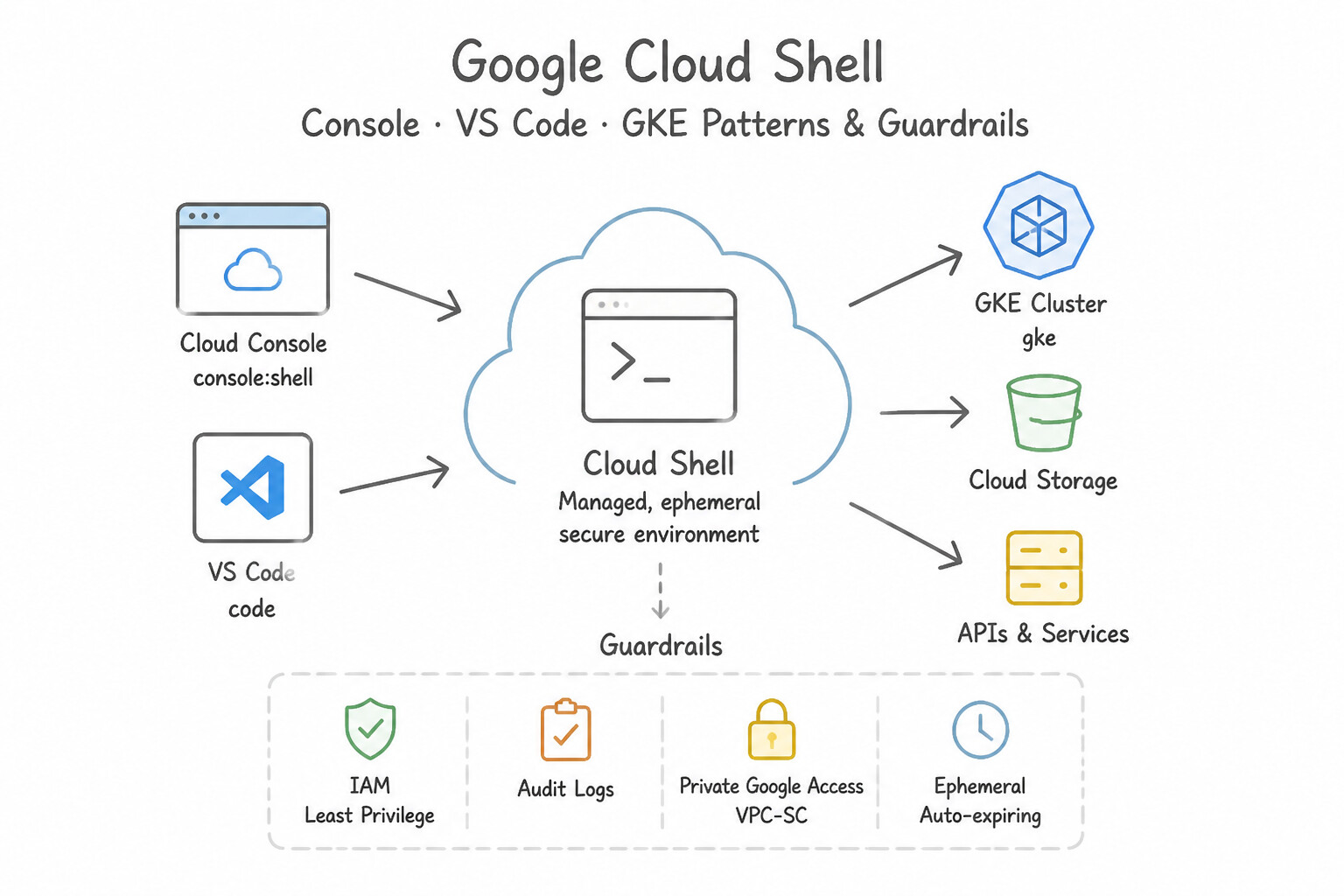
Key Implementation Patterns
- Cloud Shell Persistence Strategy: Use Install the tool and save the configuration files in the
$HOMEdirectory. The$HOMEdirectory is the only persistent storage in Cloud Shell; the root file system is ephemeral. (Avoid alternative: Startup scripts increase boot time and do not provide true storage persistence for modified files.) - Inner-Loop Kubernetes Debugging: Use Install the Cloud Code extension for VS Code and launch the "Debug on Kubernetes" configuration. Cloud Code automates the build, push, deploy, and attach-debugger loop directly from VS Code. (Avoid alternative: Cloud Build triggers are for CI/CD pipelines and are too slow for real-time interactive debugging.)
- Managing Multiple Client Contexts: Use Create a separate named configuration for each project using
gcloud config configurations create, and switch between them usinggcloud config configurations activate. Named configurations allow you to store and switch between multiple distinct environments (account, project, region) easily.
Key Takeaways (2.1b)
- Cloud Shell instances are ephemeral virtual machines that reset after the session ends.
- The root file system (/) is read-write but not persistent; changes are lost upon restart.
- The
$HOMEdirectory is backed by a 5 GB persistent disk.- Always store custom tools, configuration files, and project code in
$HOMEto persist them across sessions.
Quick Decision Cheat Sheet (Subsection 2.1)
If the Scenario Requires... | Choose This Google Cloud Pattern | Avoid This Common Mistake |
|---|---|---|
"Test Pub/Sub, Firestore, Bigtable, or Spanner logic offline in unit tests with $0 cloud cost" | Start the gcloud CLI Local Emulator and export <SERVICE>_EMULATOR_HOST | Mocking every internal Google Cloud wire protocol method by hand or using a shared cloud project |
"Standardize tools, SDK versions, and IDE plugins across 100 developers in a regulated VPC" | Define a custom container image in Artifact Registry for Cloud Workstations | Distributing a 20-page manual installation wiki for local laptops |
"Switch cleanly between dev-project and prod-project in the local terminal" | Use gcloud config configurations create/activate (or CLOUDSDK_ACTIVE_CONFIG_NAME) | Re-running gcloud init from scratch every hour |
"Local script needs to test the exact IAM permissions of app-runtime-sa without keys" | Use gcloud auth application-default login --impersonate-service-account | Creating and downloading a Service Account .json key file |
Further Reading (Subsection 2.1)
- Testing apps locally with the emulator — Refer to the section 'Setting environment variables' to see exactly how the client libraries are directed to the local emulator.
- Using the Bigtable Emulator — See the section 'Use the emulator' which describes using the env-init command to set environment variables automatically.
- Running the Datastore Emulator — Refer to the section 'Start the emulator' and the 'Flags' table. It explicitly describes the --data-dir flag behavior: 'The directory to be used to store/retrieve data/config. If not specified, the emulator uses a temporary directory.'
- Cloud Shell - How it works — See the section on 'Persistent disk storage'. It explains that Cloud Shell provisions 5 GB of free persistent disk storage mounted as your
$HOMEdirectory. - Debug a Kubernetes application — This documentation explains how to use Cloud Code in VS Code to debug an application running on a Kubernetes cluster. It details the setup and how the extension handles port forwarding and attaching the debugger.
- Skaffold — Describes how Cloud Code uses Skaffold behind the scenes to power the continuous development and debugging features.
Subsection 2.2: Building
The Big Picture
In modern cloud-native delivery, Cloud Build and Artifact Registry form the factory floor that turns source commits into production artifacts. Teams that treat cloudbuild.yaml as a simple shell script wrapper suffer from two critical failures:
- The 20-Minute Uncached Build Bottleneck (2.2a): Re-downloading 1.2 GB of
node_modulesor Maven dependencies and rebuilding every Docker layer from scratch on every commit because each Cloud Build execution runs on a fresh, clean VM. Mastering Kaniko layer caching (--cache=true),docker build --cache-from, Google Cloud Buildpacks, and parallel build steps (waitFor: ['-']) slashes build times from 20 minutes to 90 seconds. - The Unverified Artifact Supply Chain Gap (2.2b): Pushing images tagged with a mutable
:lateststring and deploying them directly to GKE or Cloud Run without cryptographic SLSA build provenance or Binary Authorization attestations. If an attacker compromises a developer's credentials and pushes an unverified image directly to the registry, a cluster without provenance enforcement will happily run it in production.
Consideration 2.2a: Using Cloud Build and Artifact Registry to build and store containers from source code
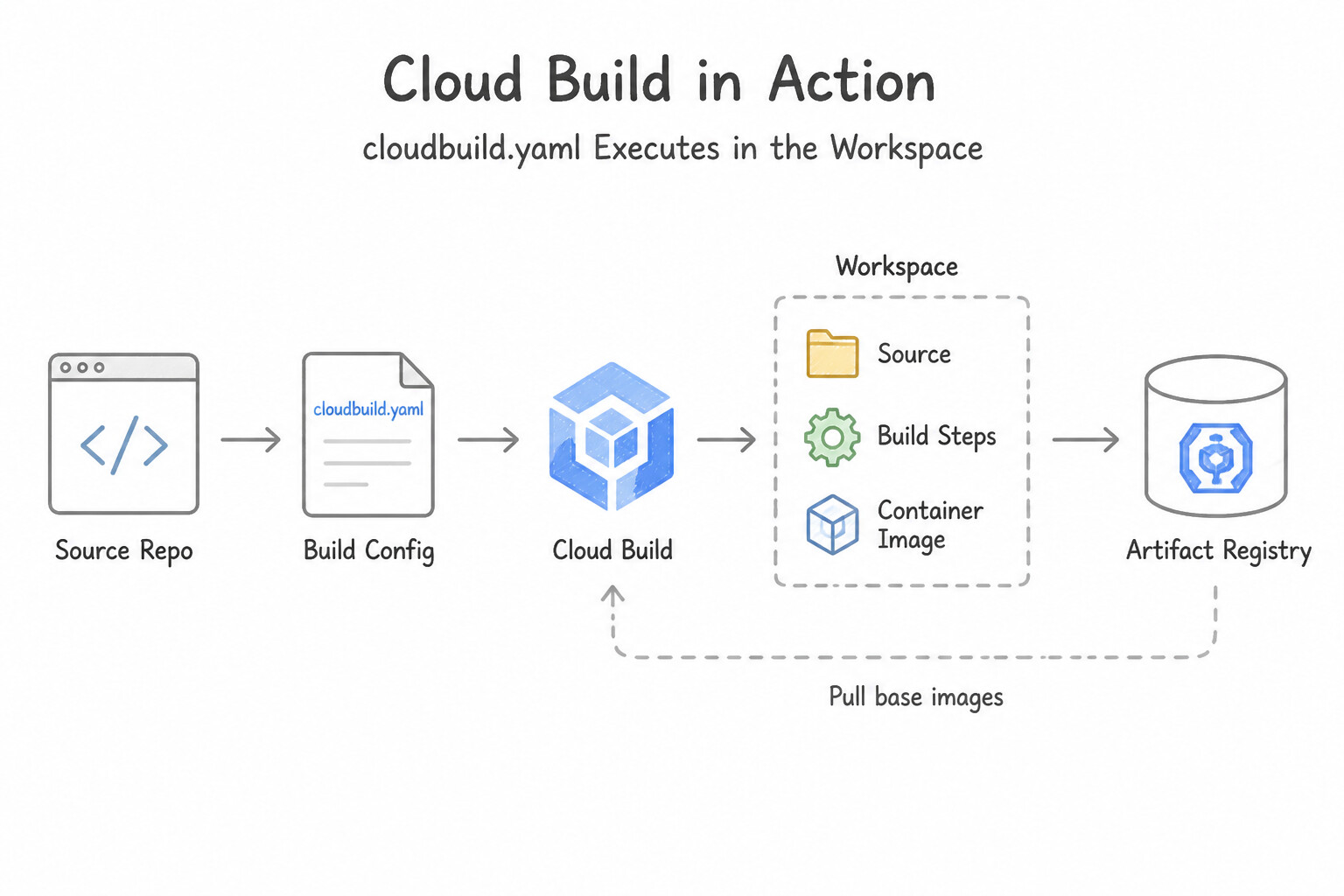
- How
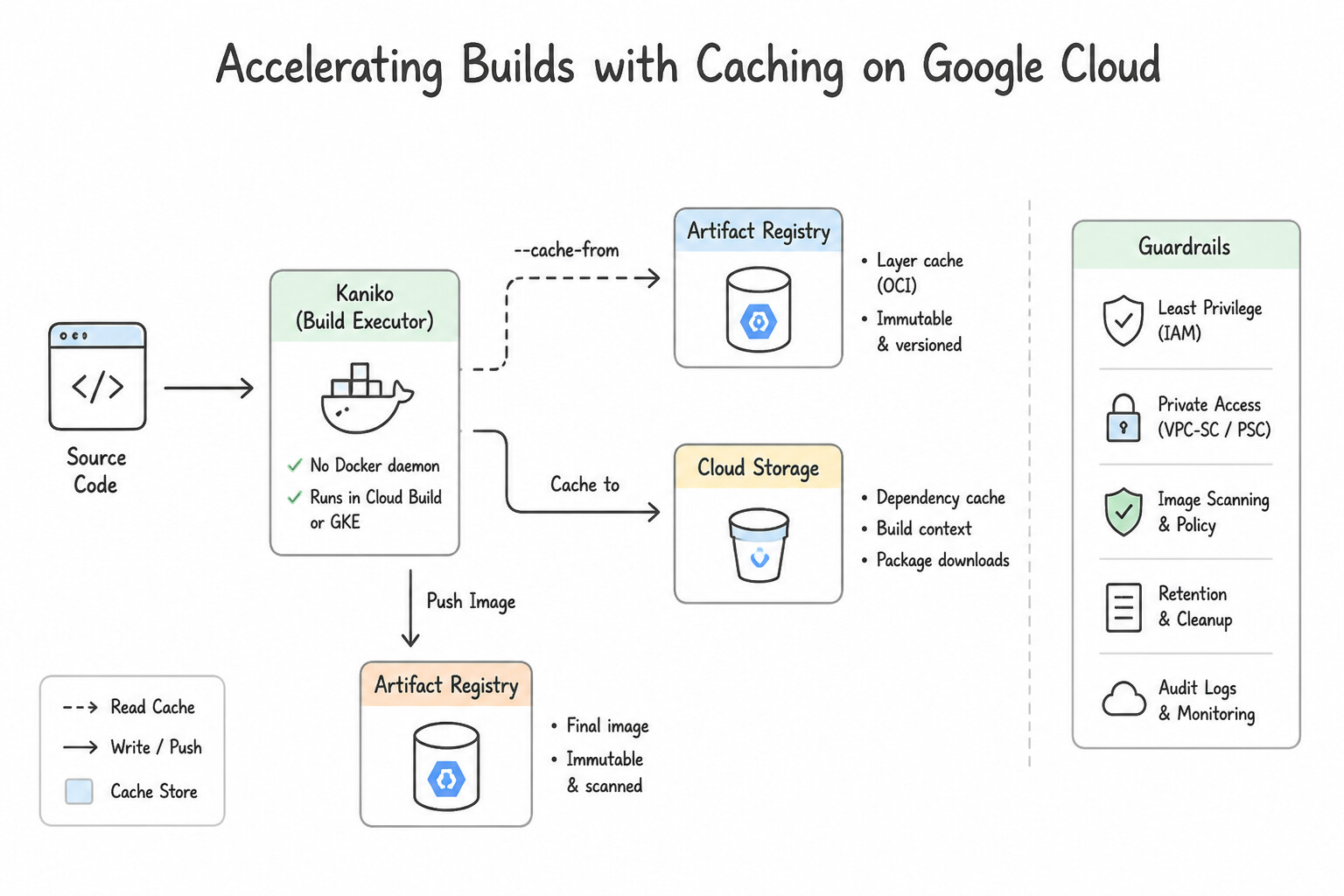
cloudbuild.yamlExecutes (workspace& Step Ordering): Every step incloudbuild.yamlruns as a container with/workspacemounted as a shared persistent volume across steps. By default, steps run sequentially; to run independent steps in parallel (e.g., linting and unit tests, or building two microservices), setwaitFor: ['-'](start immediately) or specify explicit stepiddependencies. - Accelerating Builds with Caching (
Kanikovs.--cache-fromvs. GCS Dependency Caching): - Kaniko (
gcr.io/kaniko-project/executorwith--cache=true): Builds container images inside Cloud Build and automatically caches individual intermediate image layers directly in Artifact Registry. - Docker
--cache-from: Pulls the previous image from Artifact Registry before runningdocker build --cache-from ...so unchanged layers are reused. - Language Dependency Caching (
node_modules,.m2,.pip): Store a compressed tarball of dependencies in a regional Cloud Storage bucket keyed by the hash ofpackage-lock.json/pom.xmland restore it in Step 1. - Google Cloud Buildpacks (
gcloud builds submit --pack): Builds production-ready, security-patched OCI container images directly from source code (Go, Node.js, Python, Java, .NET, Ruby) without writing or maintaining aDockerfile. - Artifact Registry Best Practices: Artifact Registry is the successor to Container Registry (
gcr.io) and supports regional/multi-regional repositories for Docker/OCI images, Maven, npm, Python (pip), Go, Apt, and Yum packages, with fine-grained repository-level IAM (roles/artifactregistry.reader,roles/artifactregistry.writer) and Cleanup Policies.
Key Implementation Patterns
- Configuring Automatic Image Pushes: Use Define the target image name in the
imagesfield at the top level of thecloudbuild.yamlfile. Theimagesfield automatically pushes specified images to the registry after a successful build. (Avoid alternative: The scenario asks to avoid adding a distinct push step, making this manual configuration incorrect.) - Optimizing Build Speeds with Caching: Use Configure your build to use the Kaniko executor. Enable layer caching to store artifacts in Artifact Registry. Kaniko enables caching of intermediate build layers to a remote registry, allowing Cloud Build to reuse layers across ephemeral build steps.
Key Takeaways (2.2a)
- The
imagesfield in cloudbuild.yaml automatically pushes container images upon build success.- Using
imagesis preferred over manualdocker pushsteps for simplicity and readability.- The
artifactsfield is for storing non-container files in Cloud Storage.- Cloud Build workers are ephemeral, meaning local Docker cache is lost after every build.
Consideration 2.2b: Configuring provenance in Cloud Build (e.g., Binary Authorization)
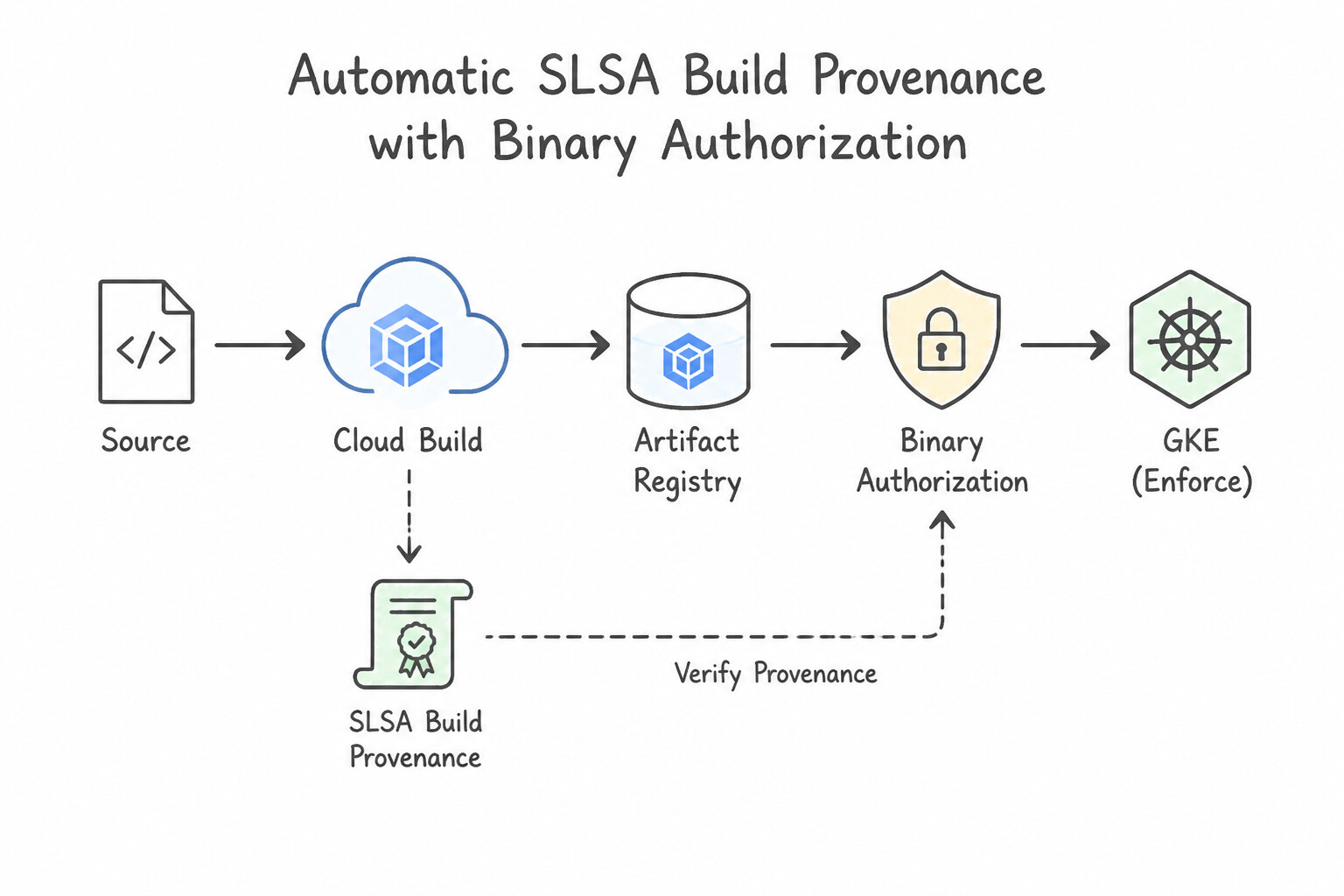
- Automatic SLSA Build Provenance in Cloud Build: When Cloud Build builds and pushes a container image listed in the top-level
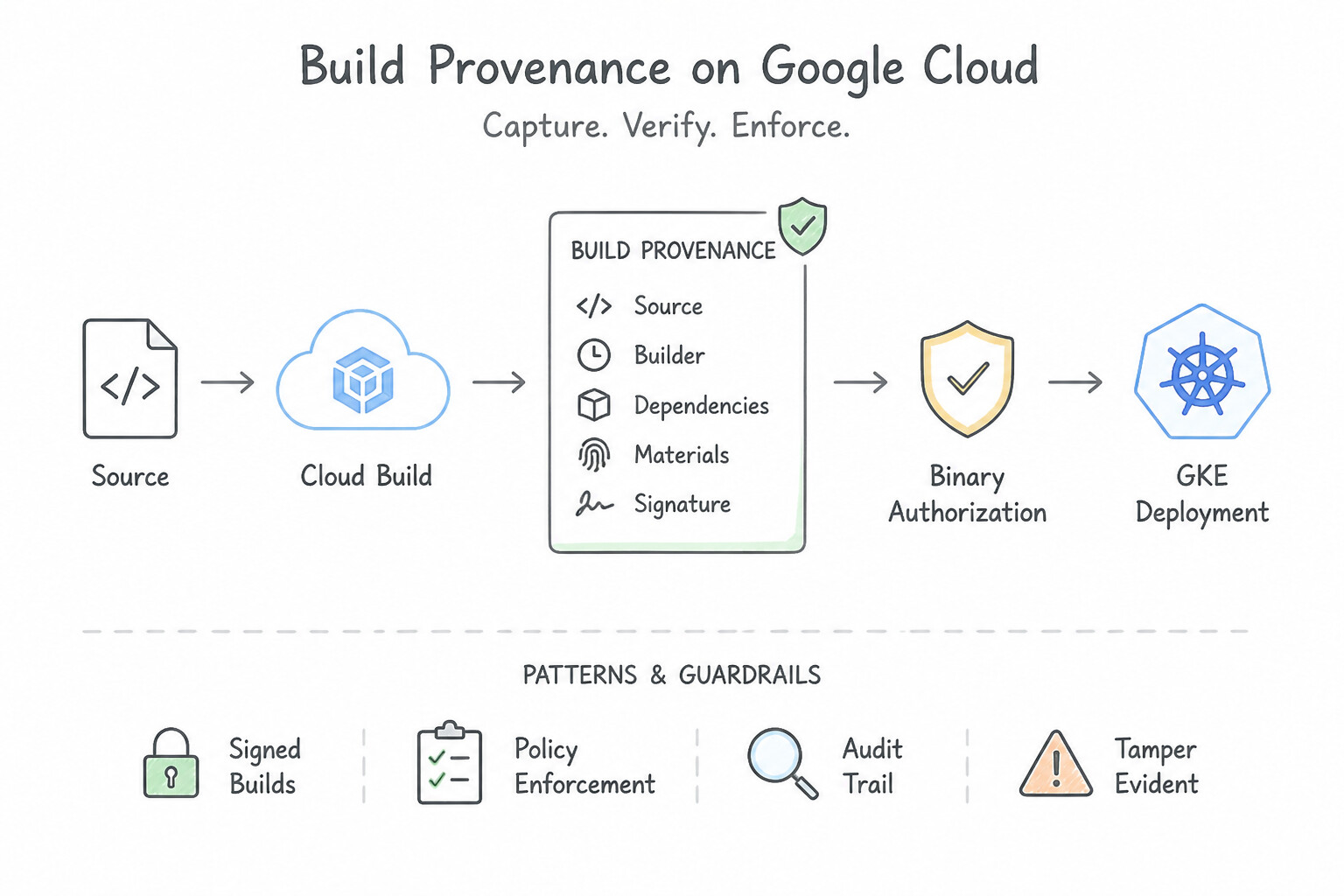
images:field ofcloudbuild.yaml(or runs inside a regional worker pool withoptions.requestedVerifyOption: VERIFIED), Cloud Build automatically generates cryptographically signed, tamper-proof SLSA (Supply-chain Levels for Software Artifacts) build provenance metadata stored in Artifact Analysis / Container Analysis. - What Build Provenance Captures: The exact Git commit SHA (
COMMIT_SHA), source repository URI, build step commands, builder image digests, build start/end timestamps, and the resulting immutable@sha256image digest—proving who built the artifact, from what source, and how. - The End-to-End Automated Attestation Pipeline:
- Cloud Build compiles the image and pushes it to Artifact Registry.
- Artifact Analysis automatically scans the image for CVEs.
- A verification step in
cloudbuild.yamlpolls the scan result and fails the pipeline if anyCRITICAL(orHIGH) vulnerabilities exist. - If the scan passes, a signing step uses
gcloud beta container binauthz attestations sign-and-create(backed by an asymmetric signing key in Cloud KMS) to attach a cryptographic Attestation to the image's@sha256digest. - Binary Authorization on GKE or Cloud Run verifies that attestation before allowing the container to start.
Key Implementation Patterns
- Automating Attestations in Cloud Build: Use Add a step to your cloudbuild.yaml file that runs gcloud beta container binauthz attestations sign-and-create. Specify the attestor and the Cloud Key Management Service (Cloud KMS) key. To automate attestations, use a Cloud Build step that executes the gcloud command to sign and create the attestation using a KMS key.
- Multi-Attestor Pipeline: Use Create a distinct QA attestor. Configure the Binary Authorization policy to require attestations from both the existing builder attestor and the QA attestor. Use a separate Attestor for QA to enforce a distinct, mandatory manual check in the policy.
- Emergency Deployments (Break Glass): Use Deploy the container image using the --breakglass flag. The --breakglass flag allows an emergency bypass of the policy while ensuring the action is audited. (Avoid alternative: Disabling the API removes security for the entire project and is not a targeted emergency solution.)
Key Takeaways (2.2b)
- Binary Authorization ensures software supply chain security by verifying images before deployment.
- Attestations are digital signatures that verify an image has completed a specific process.
- Cloud Build pipelines can automate attestations by including a step that runs the
gcloud beta container binauthz attestations sign-and-createcommand.- Labels and IAM roles alone are insufficient for creating cryptographic attestations.
Quick Decision Cheat Sheet (Subsection 2.2)
If the Scenario Requires... | Choose This Google Cloud Pattern | Avoid This Common Mistake |
|---|---|---|
"Share compiled artifacts from Step 1 (Maven build) with Step 2 (Docker build) in Cloud Build" | Write outputs to /workspace (automatically persisted across steps in the same build) | Uploading to Cloud Storage between Step 1 and Step 2 of the same build |
"Speed up a Cloud Build pipeline that runs 4 independent lint/unit-test steps sequentially" | Add waitFor: ['-'] to independent steps so they run concurrently | Splitting them into 4 separate Cloud Build triggers |
"Block container deployment if Artifact Analysis finds CRITICAL vulnerabilities during CI" | Add a cloudbuild.yaml step after push that checks Container Analysis occurrences and exits non-zero before creating the Binary Authorization attestation | Checking vulnerabilities only via a weekly scheduled cron job after deployment |
"Host private npm packages, Python wheels, Maven JARs, and Docker images in one service" | Create format-specific repositories in Artifact Registry | Using legacy Container Registry ( gcr.io) or public Cloud Storage buckets |
Further Reading (Subsection 2.2)
- Storing images in Artifact Registry — Documentation explaining how to configure the 'images' field in cloudbuild.yaml to store container images.
- Using Kaniko cache — This page explains how to use the Kaniko builder in Cloud Build to cache container build artifacts, specifically addressing the scenario of speeding up builds by reusing layers.
- Creating attestations — This guide explains how to create attestations using the gcloud CLI, which is the method used within Cloud Build steps.
- Create a Binary Authorization attestation in a Cloud Build pipeline — Specifically covers the integration of Cloud Build and Binary Authorization, detailing how to add the signing step to the pipeline.
- Binary Authorization overview — Provides a high-level explanation of how Binary Authorization works, including attestors and policies.
- Use breakglass (GKE, Distributed Cloud) — Describes how to deploy an image that violates the policy by using the break glass feature and how these events are audited.
Subsection 2.3: Testing
The Big Picture
In high-velocity cloud engineering, deploying untested code to a shared staging cluster and waiting for manual QA to click around guarantees production regressions. Yet many engineering teams struggle to automate testing across two distinct boundaries:
- The Legacy Untested Code & Edge-Case Blindness Trap (2.3a): Developers skip writing unit tests for complex business logic or legacy modules because scaffolding mocks, fixtures, and boundary cases (null inputs, timezone edges, integer overflows, HTTP 429 retries) is tedious. Leveraging AI coding assistants (Gemini Code Assist) with deliberate context engineering generates comprehensive unit test suites and dependency mocks in seconds—provided the developer verifies assertions against actual requirements rather than blindly trusting hallucinated mocks.
- The "Works in Unit Tests, Breaks in Cloud Integration" Trap (2.3b): Unit tests with mocked databases pass 100%, but the service crashes in production because an IAM permission is missing, a SQL migration syntax is invalid, or a Pub/Sub push payload is base64-encoded differently than the mock assumed. Executing automated integration tests inside Cloud Build—using ephemeral service containers,
gcloudemulators, or isolated test resources torn down automatically after the test step—catches real integration defects before any production traffic is touched.
Consideration 2.3a: Writing unit tests with the help of Gemini Code Assist
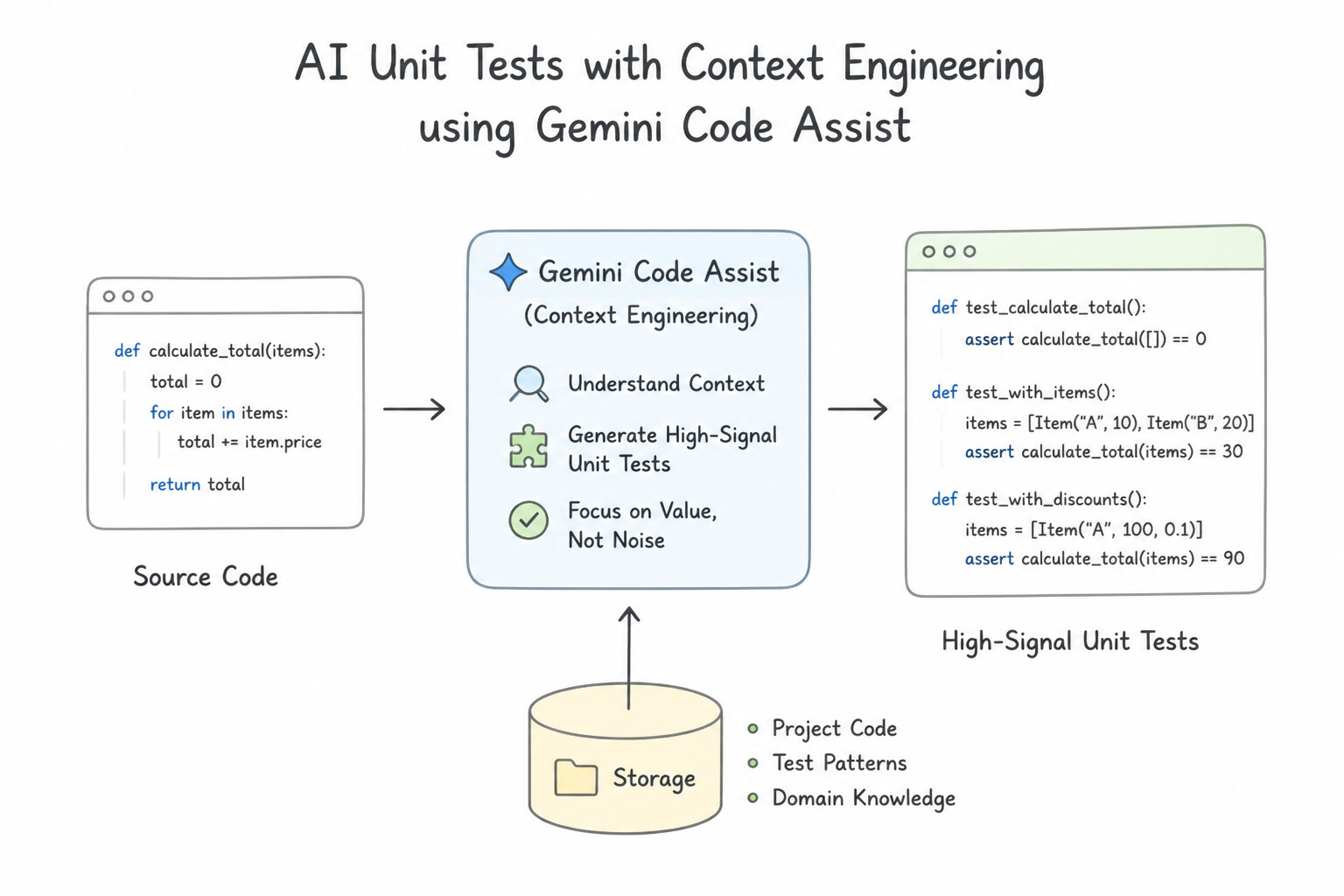
- Context Engineering for High-Signal AI Unit Tests: Gemini Code Assist generates dramatically more accurate unit tests when the relevant type definitions, interface contracts, and existing test helper files are open in the IDE workspace (or referenced in the prompt). Always specify the target test framework (
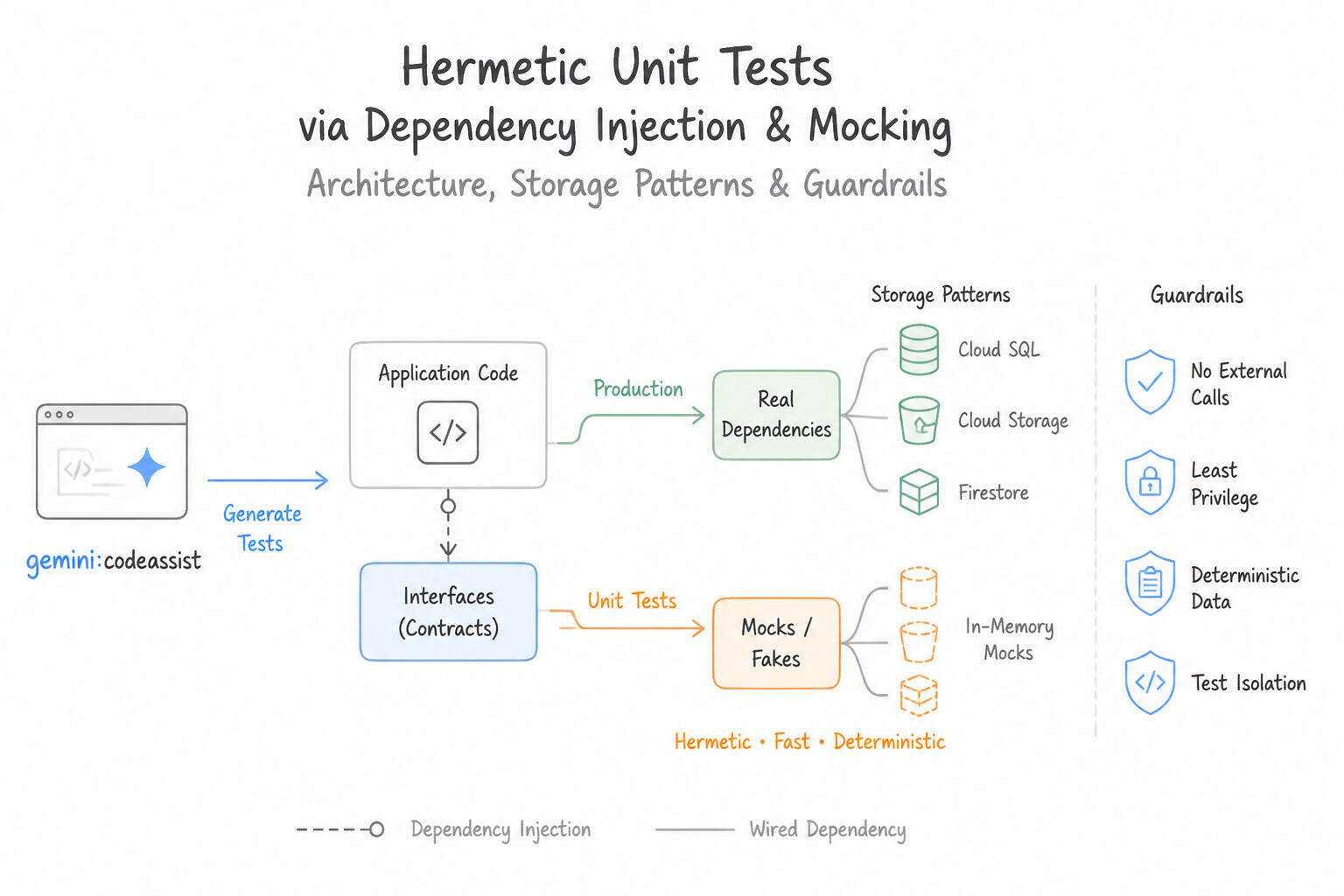
pytest,Jest,JUnit 5, Gotestingtable-driven tests) and explicitly ask for edge cases, boundary values, and error-handling branches (such as network timeouts and429/503responses). - Hermetic Unit Tests via Dependency Injection & Mocking: A true unit test must be fast, deterministic, and 100% network-isolated (hermetic). Never call live Cloud Storage, BigQuery, or third-party REST APIs inside a unit test. Refactor code to accept client interfaces via dependency injection so Gemini Code Assist can generate clean mocks/stubs for external dependencies.
- Validating AI-Generated Test Assertions (The Tautology Trap): When an AI assistant generates unit tests for buggy existing code, it may accidentally write assertions that lock in the current buggy behavior! Always review AI-generated
assertstatements against the intended business specification (or write test specifications first in a TDD workflow).
Key Implementation Patterns
- Generating Initial Test Skeletons via Comments: Use Type a comment in the test file describing the desired test case and accept the suggested code completion. Comments act as natural language prompts that trigger Gemini to generate inline code suggestions. (Avoid alternative: Chat requires context switching and copy-pasting, making it less efficient for inline skeletons.)
- Mocking External Cloud Services: Use Prompt Gemini Code Assist to generate a unit test that mocks the Cloud Storage dependency to simulate a successful upload. Mocking the Cloud Storage dependency isolates the function, allowing fast, reliable testing without external connections.
- Creating Tests for Specific Code Blocks: Use Highlight the calculateShipping method code, right-click, and select "Gemini > Generate unit tests". Selecting the specific code provides the necessary context for Gemini to generate tests only for that method. (Avoid alternative: Generating tests for the whole file is broader than the requirement to test only one specific method.)
Key Takeaways (2.3a)
- Gemini Code Assist helps developers write code faster by providing AI-driven suggestions.
- Writing descriptive comments (prompt engineering) is an effective way to trigger specific code generation.
- Always review and test AI-generated code to ensure accuracy and security.
- Unit tests should isolate code from external dependencies to ensure speed and reliability.
Consideration 2.3b: Executing automated integration tests in Cloud Build
- Fail Fast: Run Unit Tests Before Building or Pushing Production Images: In
cloudbuild.yaml, always place unit test execution as the very first step (beforedocker buildanddocker push). If a unit test fails, the build aborts in seconds without wasting compute time or polluting Artifact Registry with broken images. - Running Multi-Container Integration Tests on the
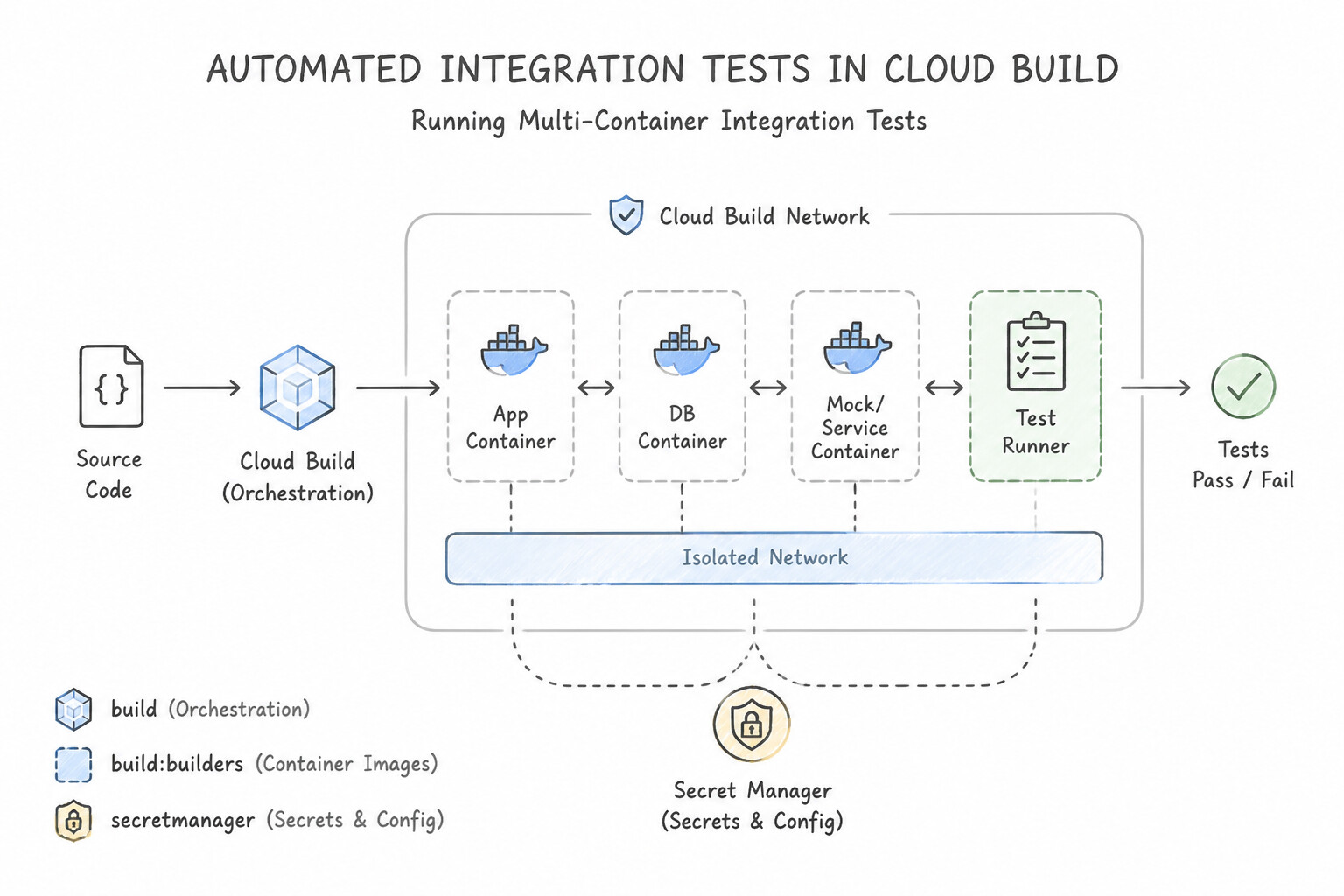
cloudbuildNetwork: Cloud Build automatically attaches all build steps to a single local Docker bridge network namedcloudbuild. You can start a local Pub/Sub / Firestore / Spanner emulator or a temporary PostgreSQL container in the background (or viadocker compose) during a build step and run integration tests against it by container hostname—with zero external cloud infrastructure needed. - Live Revision Smoke / Integration Testing on Cloud Run (
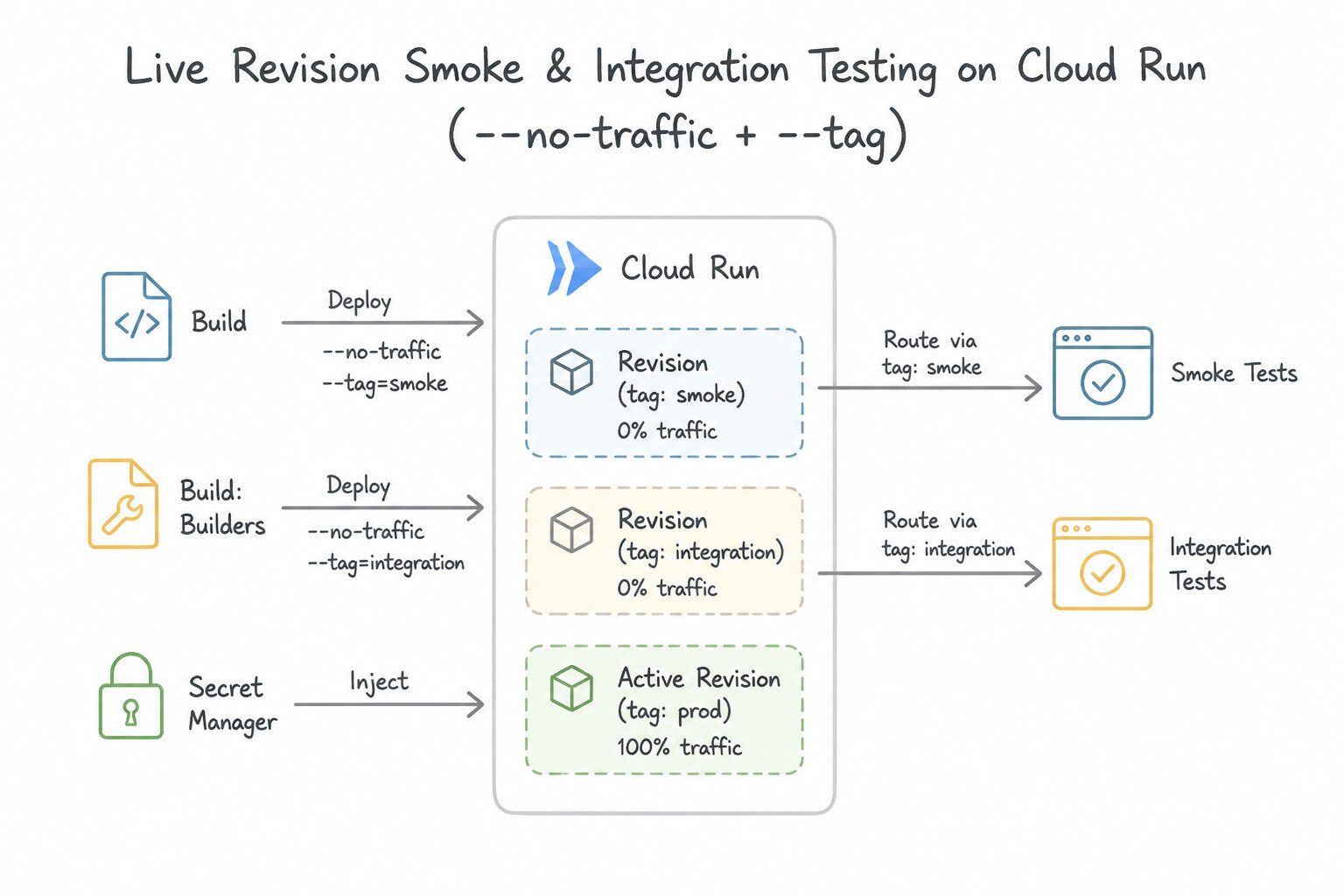
--no-traffic+--tag): To run end-to-end integration tests against a newly deployed Cloud Run revision in a real Google Cloud environment before exposing it to users: - Deploy the new revision in Cloud Build with
--no-traffic --tag=ci-$SHORT_SHA. - Run the integration test step in Cloud Build against the tagged revision URL (
https://ci-$SHORT_SHA---service-xyz.a.run.app), authenticating with an OIDC ID token. - Only if the integration test step exits
0, execute the final step:gcloud run services update-traffic --to-revisions=...=100.
Key Implementation Patterns
- Testing with Container Dependencies: Use Use the docker/compose builder in your build configuration. Reference a docker-compose.yml file that defines your application and the Redis service. Use the docker/compose builder to orchestrate the application and a fresh Redis container together for isolated integration testing.
- Secure Credentials in Tests: Use Store the key in Secret Manager. In cloudbuild.yaml, use the availableSecrets field to access the secret and map it to an environment variable in the test step. Secret Manager is the standard service for storing sensitive keys, and Cloud Build integrates directly with it using the availableSecrets field.
Key Takeaways (2.3b)
- Integration tests often require real, transient dependencies (databases, queues) rather than mocks.
- Docker Compose is the standard tool for defining and running multi-container applications locally and in CI pipelines.
- Cloud Build supports community builders (like docker/compose) to extend its capabilities beyond standard tools.
- Avoid using permanent infrastructure (like managed databases or VMs) for transient build tests to prevent cost and data collision issues.
Quick Decision Cheat Sheet (Subsection 2.3)
If the Scenario Requires... | Choose This Google Cloud Pattern | Avoid This Common Mistake |
|---|---|---|
"Accelerate writing unit tests for a complex Go/Python/Java module with edge cases" | Use Gemini Code Assist with open interface/schema files to generate table-driven unit tests and mocks | Testing only happy-path inputs manually in production |
"Integration test in cloudbuild.yaml needs to test Firestore/Pub/Sub interactions without touching shared cloud data" | Start the gcloud CLI emulator container inside the Cloud Build step on the cloudbuild network | Running integration tests against the live production Pub/Sub topic |
"Validate Kubernetes resilience to unexpected Pod terminations and node failures before launch" | Run automated chaos / failure injection testing (e.g., terminating pods under load while verifying readiness probes and HPA) in a staging GKE cluster | Assuming passing unit tests guarantee distributed system fault tolerance |
"Prevent concurrent Cloud Build pipelines from corrupting Terraform infrastructure state during test deployments" | Store Terraform state in a Cloud Storage backend ( backend "gcs") which provides native state locking | Committing terraform.tfstate to Git or storing it in /workspace |
Further Reading (Subsection 2.3)
- Cloud Code and Gemini Code Assist IDE Plugins — Refer to the section on 'Generate code with prompts' or similar usage guides that explain how comments trigger code suggestions.
- Gemini Code Assist Overview — Provides an overview of Gemini Code Assist capabilities, including code generation and unit test creation assistance.
- Testing Cloud Functions — Discusses strategies for testing cloud code, specifically distinguishing between unit tests (using mocks) and integration tests.
- Code with Gemini Code Assist Standard and Enterprise — Documentation on how to generate unit tests using Gemini Code Assist in an IDE.
- Cloud Build Community Builders — The GitHub repository for community-contributed Cloud Build builders, including the docker-compose builder.
- Creating a basic build config — Official documentation on how to structure a cloudbuild.yaml file and define steps.
Book TOC · Previous · Chapter 3 of 7 · Next
AwesomeGCP.com Learning
The approach taken is a question-led learning approach: you explore realistic project scenarios where you need to make decisions or take actions to achieve business goals within specific constraints. Instead of passive learning, you are challenged to think and work through the options to master the Professional Cloud Developer (PCD) certification!