Book TOC · Previous · Chapter 4 of 8 · Next
Chapter 4: Operating & Scaling Compute Engine, MIGs, GKE Workloads & Cloud Run
Chapter Focus: Managed Instance Groups (MIGs), autoscaling, rolling updates, OS Patch Management, SSH/IAP troubleshooting, GKE node pools/pods, and Cloud Run traffic splitting.
Subsection 3.1: Managing Compute Resources
The Big Picture
Deploying a compute cluster on Day 1 is only 20% of the job; Section 3.1 tests whether you can keep Compute Engine VMs, GKE clusters, Cloud Run services, and AI developer environments running, scaling, and upgrading cleanly on Day 2 without causing production outages:
- The Public Bastion Host & Exposed Port 22 Trap (
3.1a,3.1b): Opening TCP port22to0.0.0.0/0or maintaining a paid Bastion Host VM just to SSH into private VMs is an outdated anti-pattern. Google Cloud's Identity-Aware Proxy (IAP) TCP Forwarding (gcloud compute ssh <VM> --tunnel-through-iap) lets authorized engineers (roles/iap.tunnelResourceAccessor) establish encrypted SSH/RDP sessions to private VMs with zero external IP addresses, provided a firewall rule permits ingress from Google's IAP proxy range35.235.240.0/20. - The Snapshot vs. Custom Image Confusion Trap (3.1c): Using Persistent Disk Snapshots (incremental, differential backups designed for disaster recovery and cross-zone/region disk restoration) when you need a golden boot template to spin up 50 identical VMs in a Managed Instance Group (where a Custom Image or Image Family is required).
- The GKE 3-Dimensional Autoscaling & Artifact Registry Permission Trap (
3.1d–3.1i): Confusing Horizontal Pod Autoscaler (HPA) (adds more Pod replicas based on CPU/custom metrics), Vertical Pod Autoscaler (VPA) (adjusts Pod CPU/memoryrequestsandlimits), and Cluster Autoscaler / Node Auto-Provisioning (NAP) (adds more Compute Engine worker nodes when Pods are stuck inPendingdue toInsufficient cpu/memory). Worse, when GKE Pods fail withImagePullBackOff, novices grantProject Editorinstead of grantingroles/artifactregistry.readerto the GKE Node Service Account on the target Artifact Registry repository. - The Zero-Downtime Rollout & Modern AI Environment Trap (
3.1j–3.1p): Deploying a new Cloud Run revision without--no-trafficwhen a canary verification is required, or letting developers store proprietary source code on unmanaged local laptops instead of provisioning Cloud Workstations (managed container IDEs inside a private VPC), Gemini Enterprise Agent Platform Workbench (managed Jupyter notebooks), and Agent Runtime (managed serverless AI agents).
Consideration 3.1a: Remotely connecting to compute engine instances
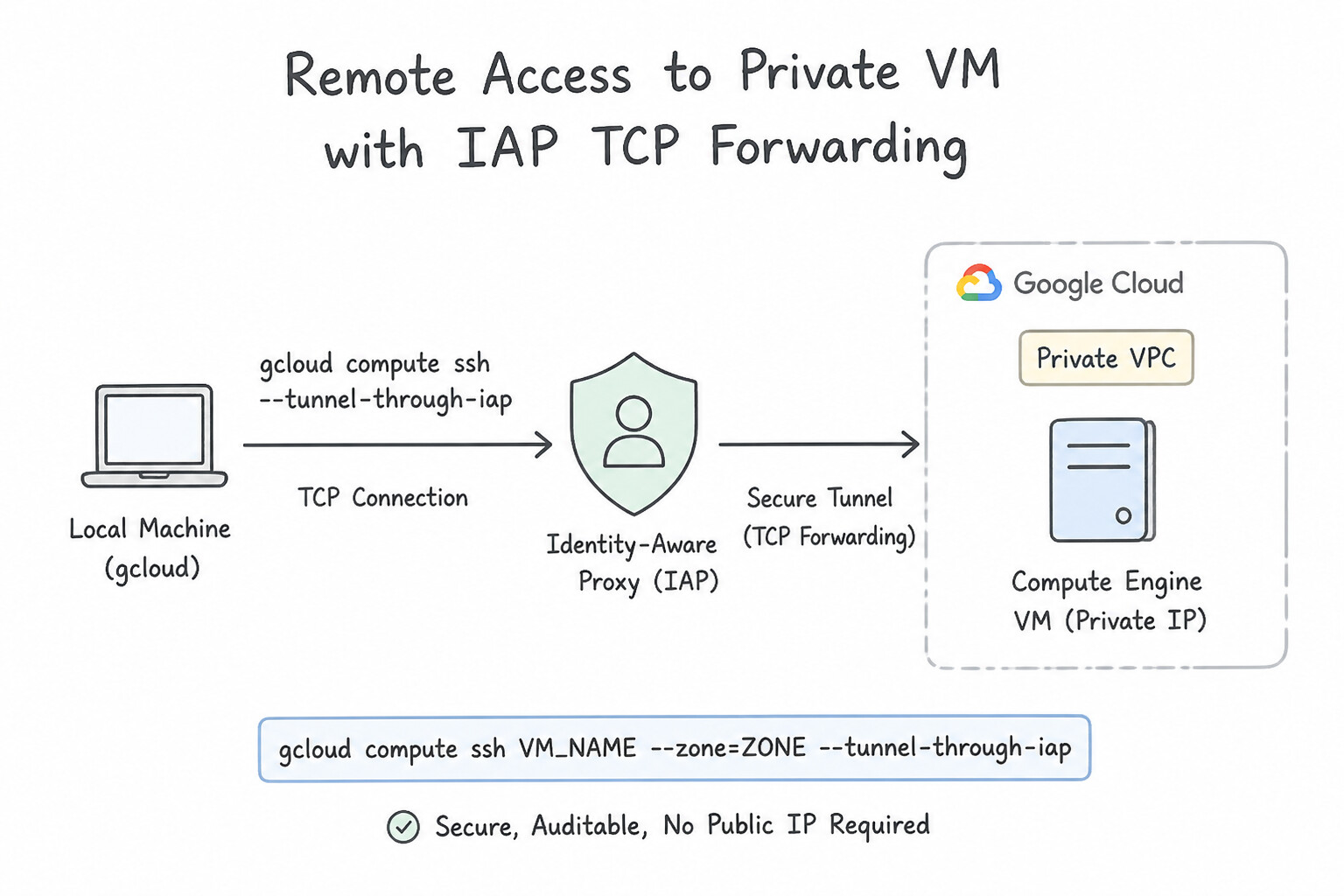
- IAP TCP Forwarding (
--tunnel-through-iap— The Production Standard for Private VMs): - Connects via SSH (port
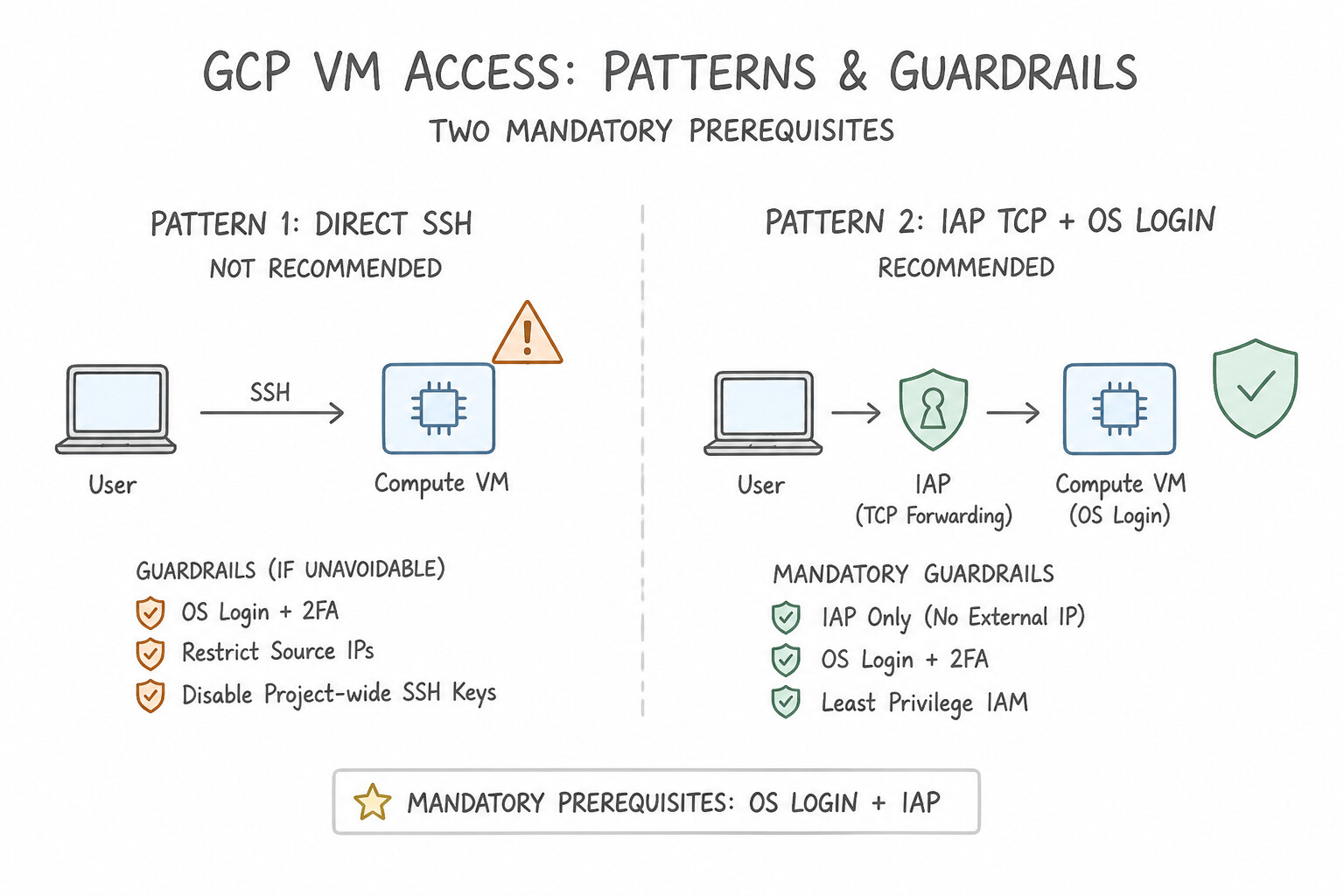
22) or RDP (port3389) to VMs that have no external IP address without needing a bastion host or VPN. - Two Mandatory Prerequisites:
- VPC Firewall Rule: Allow ingress on
tcp:22(ortcp:3389) from Google's IAP range35.235.240.0/20. - IAM Permissions: Grant the user
roles/iap.tunnelResourceAccessor(IAP-secured Tunnel User) plusroles/compute.osLogin(orroles/compute.instanceAdmin.v1). - Interactive Serial Console (Emergency Break-Glass): When a broken firewall rule, corrupt
/etc/ssh/sshd_config, or bad/etc/fstabprevents SSH login completely, enableserial-port-enable=TRUEand rungcloud compute connect-to-serial-port <VM>to debug the boot sequence directly at the console prompt.
Key Implementation Patterns
- Connecting to Private Instances without External IPs: Use Verify the firewall allows ingress from the Identity-Aware Proxy range. Use the
gcloud compute sshcommand with the--tunnel-through-iapflag. IAP allows SSH access to private VMs without external IPs by tunneling traffic, which is the recommended practice. - Centralized SSH Access Management via IAM: Use Enable the OS Login feature in the project metadata and grant the necessary IAM roles to users. OS Login links Linux accounts to Google identities, allowing you to manage SSH access centrally via IAM. (Avoid alternative: Project-wide metadata keys require manual management and do not automatically revoke access when a Google account is disabled.)
- Resetting Credentials for Windows Instances: Use Select the VM in the Google Cloud console and click the "Set Windows password" button. You must use the 'Set Windows password' feature to generate the initial credentials via the Google Guest Agent. (Avoid alternative: Google Cloud Windows images do not have a default or blank password configured out of the box.)
Key Takeaways (3.1a)
- Instances without external IP addresses are considered private and more secure.
- Identity-Aware Proxy (IAP) enables SSH access to private instances without needing a public IP or VPN.
- Use the
--tunnel-through-iapflag withgcloud compute sshto activate this feature.- Ensure firewall rules permit ingress traffic from the IAP netblock 35.235.240.0/20.
Consideration 3.1b: Viewing running compute engine instances
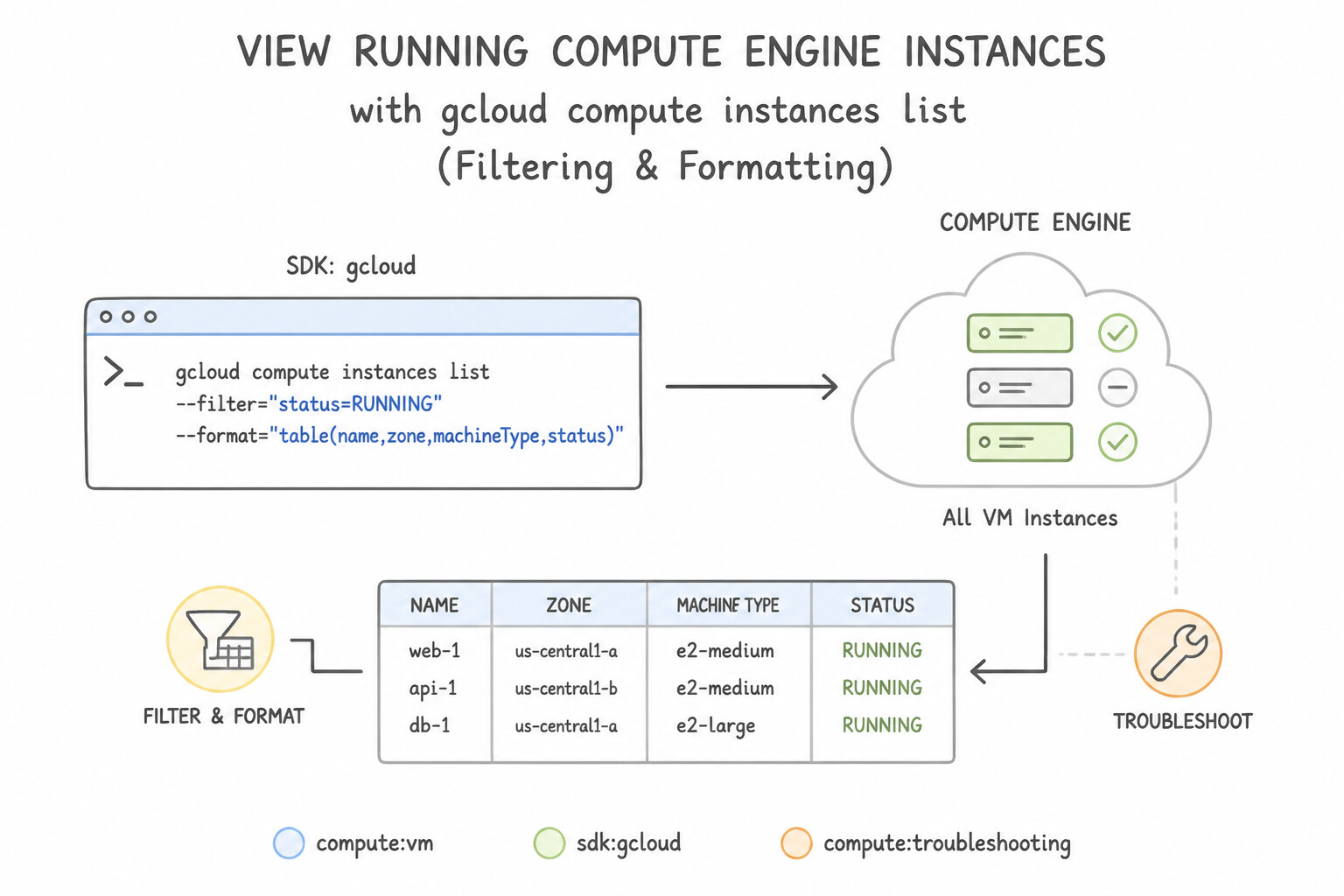
- Mastering
gcloud compute instances listFiltering & Formatting: - Filter by status and zone:
gcloud compute instances list --filter="status=RUNNING AND zone:us-central1-*" - Filter by label:
gcloud compute instances list --filter="labels.env=prod" - Extract specific fields for scripting:
gcloud compute instances list --format="value(name,networkInterfaces[0].networkIP)"(or--format=json).
Key Implementation Patterns
- Filtering Instances by Labels via CLI: Use Run gcloud compute instances list --filter="status:RUNNING AND labels.env=production". Use the --filter flag with the AND operator to combine status checks and label matching. (Avoid alternative: The --search flag does not exist for this command; use --filter instead.)
- Diagnosing Boot Failures with Serial Console: Use Go to the VM instance details page and view the output for Serial port 1 (console). Serial port 1 output displays kernel and system startup messages, allowing you to troubleshoot boot issues when SSH is unavailable. (Avoid alternative: This method requires stopping the instance, which contradicts the scenario requirements.)
- Extracting Specific Data Fields (IP Addresses): Use Run gcloud compute instances list --format="value(networkInterfaces[0].networkIP)". The --format="value(...)" flag extracts specific fields as raw text without headers, which is perfect for scripting. (Avoid alternative: The table format keeps the column headers and alignment formatting, which interferes with simple script processing.)
Key Takeaways (3.1b)
- Use the
--filterflag to restrict gcloud output based on resource criteria.- Labels are key-value pairs used for organization; Tags are strings used for networking.
- Use uppercase
AND,OR, andNOTfor logical operations in filters.- Filter keys for labels typically follow the syntax
labels.key.
Consideration 3.1c: Working with snapshots and images
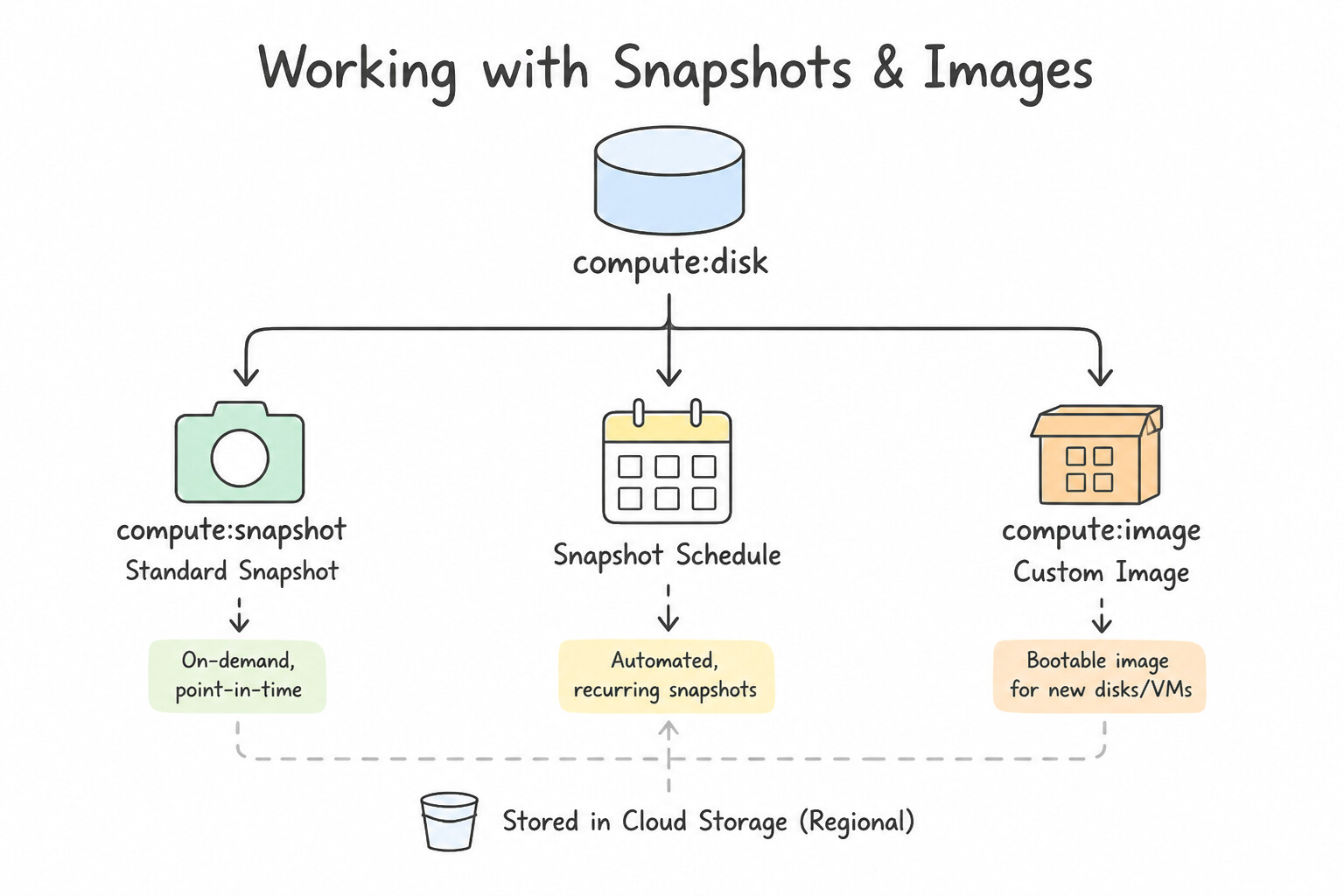
- Standard Snapshots vs. Snapshot Schedules vs. Custom Images:
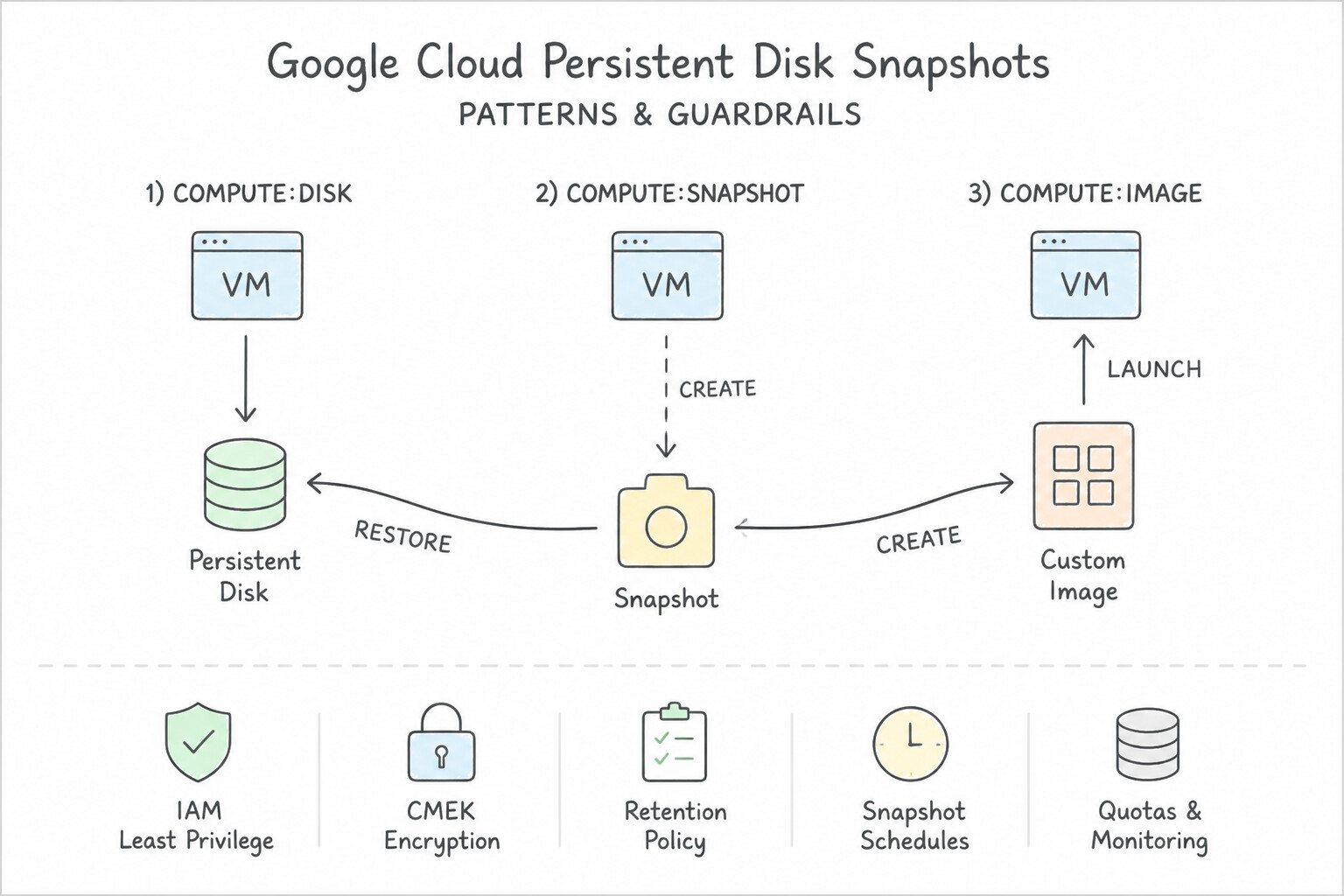
- Persistent Disk Snapshots: Point-in-time backups stored in Cloud Storage (multi-regional or regional). The first snapshot is a full copy of allocated blocks; all subsequent snapshots are incremental (only changed blocks are billed), and deleting an earlier snapshot merges blocks forward so later snapshots remain 100% intact.
- Snapshot Schedules: Attach a regional Snapshot Schedule (e.g., daily at 02:00 UTC with a 14-day retention policy) to any Persistent Disk for automated, crash-consistent backups (
gcloud compute disks add-resource-policies). - Custom Images & Image Families: Created from a stopped boot disk (or snapshot) to serve as an immutable golden OS + software template for Instance Templates / MIGs. Use Image Families (e.g.,
--image-family=web-app-prod) so Instance Templates always point to the latest verified golden image without hardcoding versioned image names.
Key Implementation Patterns
- Automating Backups with Snapshot Schedules: Use Create a snapshot schedule with a 12-hour frequency and a 30-day retention policy. Attach this schedule to the VM's persistent disk. Snapshot schedules are the built-in, managed way to automate snapshot creation and retention policies.
- Cross-Project Image Sharing: Use Grant the Compute Image User role to the developers on the image in the security-ops project. The Compute Image User role allows users to list and use images from one project to create instances in another project. (Avoid alternative: This role gives permissions within the developer's project but does not grant access to read images stored in the external security project.)
- Application Consistent Snapshots: Use Select the option to enable application-consistent snapshots (VSS) when creating the snapshot. VSS (Volume Shadow Copy Service) allows Windows applications to flush data to disk before a snapshot, ensuring application consistency. (Avoid alternative: Stopping the instance violates the requirement to keep the application running during the snapshot.)
Key Takeaways (3.1c)
- Snapshot Schedules are the standard way to automate disk backups in Compute Engine.
- They handle both creation frequency and retention (auto-deletion), simplifying cost management.
- Avoid using OS-level scripts (cron) or custom code (Cloud Functions) for tasks that have built-in managed features.
- Snapshots are incremental, making them efficient for frequent backups.
Consideration 3.1d: Viewing gke cluster inventory
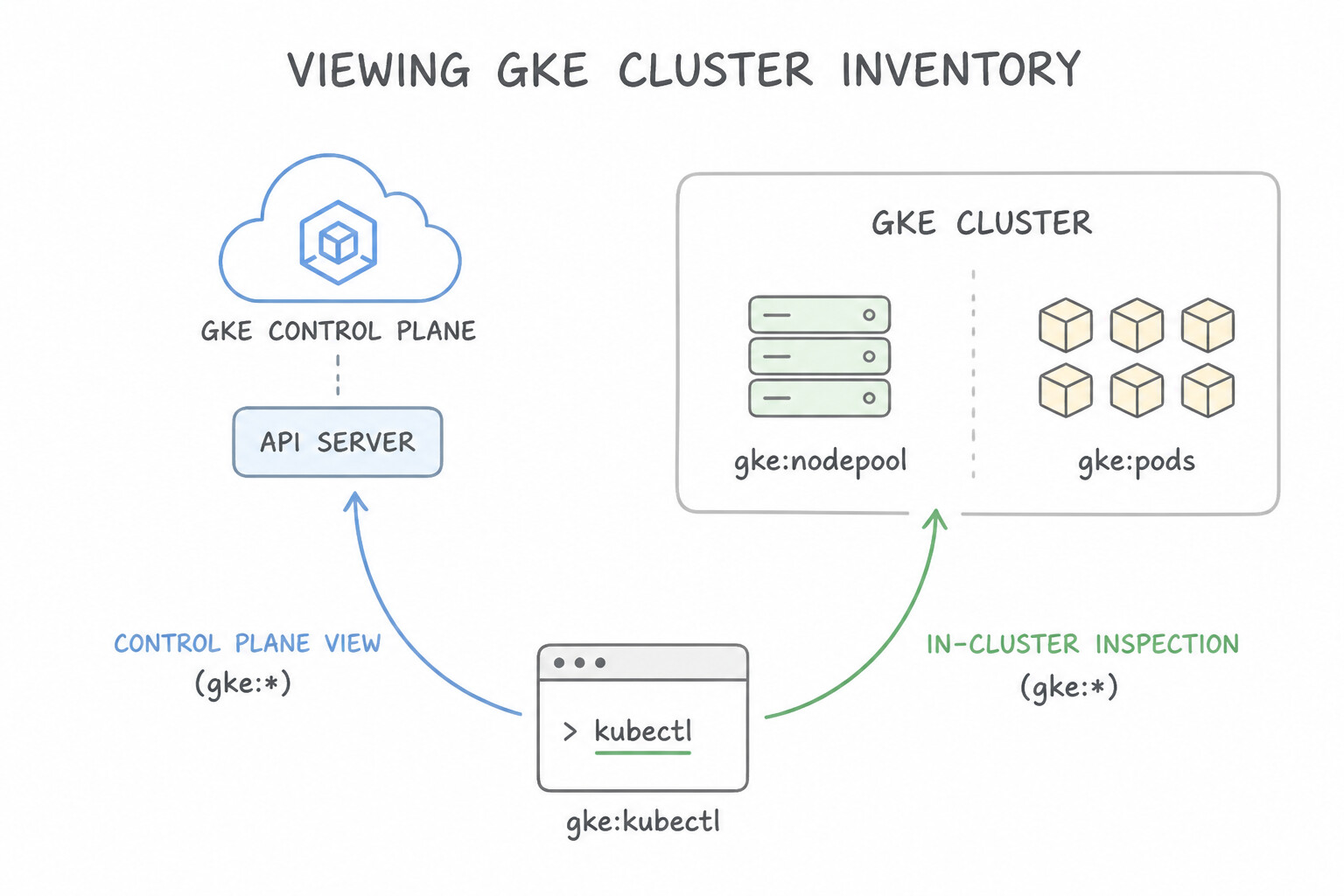
- Control Plane vs. In-Cluster Inspection:
- Use
gcloud container clusters listandgcloud container clusters describe <CLUSTER>to inspect Google Cloud control-plane settings (node pools, Kubernetes version, network CIDRs, Workload Identity config). - Use
kubectl(aftergcloud container clusters get-credentials) to inspect Kubernetes objects across namespaces: kubectl get nodes -o wide(node status, internal IPs, kubelet versions)kubectl get pods --all-namespaces(or-A)kubectl get svc,ing -n prodkubectl describe pod <POD_NAME>(crucial for viewing Pod Events likeFailedSchedulingorImagePullBackOff!).
Key Implementation Patterns
- Verifying Node Status: Use Run the command kubectl get nodes. The command kubectl get nodes lists all worker nodes and displays their current status (e.g., Ready). (Avoid alternative: This command lists network services, which manage traffic to pods, rather than the nodes themselves.)
- Debugging Pending Pods: Use Run
kubectl describe pod [POD_NAME]and review the Events section. The describe command shows detailed events, including scheduler errors explaining why a pod is pending. (Avoid alternative: This command only lists the status (e.g., Pending) but does not explain the cause.) - Filtering Resources by Label: Use Run the command
kubectl get podswith the-l env=prod,tier=frontendflag. The-lflag filters resources based on their assigned labels. (Avoid alternative: Field selectors filter by resource fields (like status), not by user-defined labels.)
Key Takeaways (3.1d)
- kubectl get nodes is the primary command to check the inventory and health status of worker nodes in a Kubernetes cluster.
- kubectl get pods checks the status of applications, not the infrastructure.
- gcloud commands are generally used for Google Cloud resource management (like creating clusters), while kubectl is used for internal Kubernetes object management.
- Node status values like Ready and NotReady are crucial for troubleshooting cluster availability.
Consideration 3.1e: Configuring gke access to artifact registry
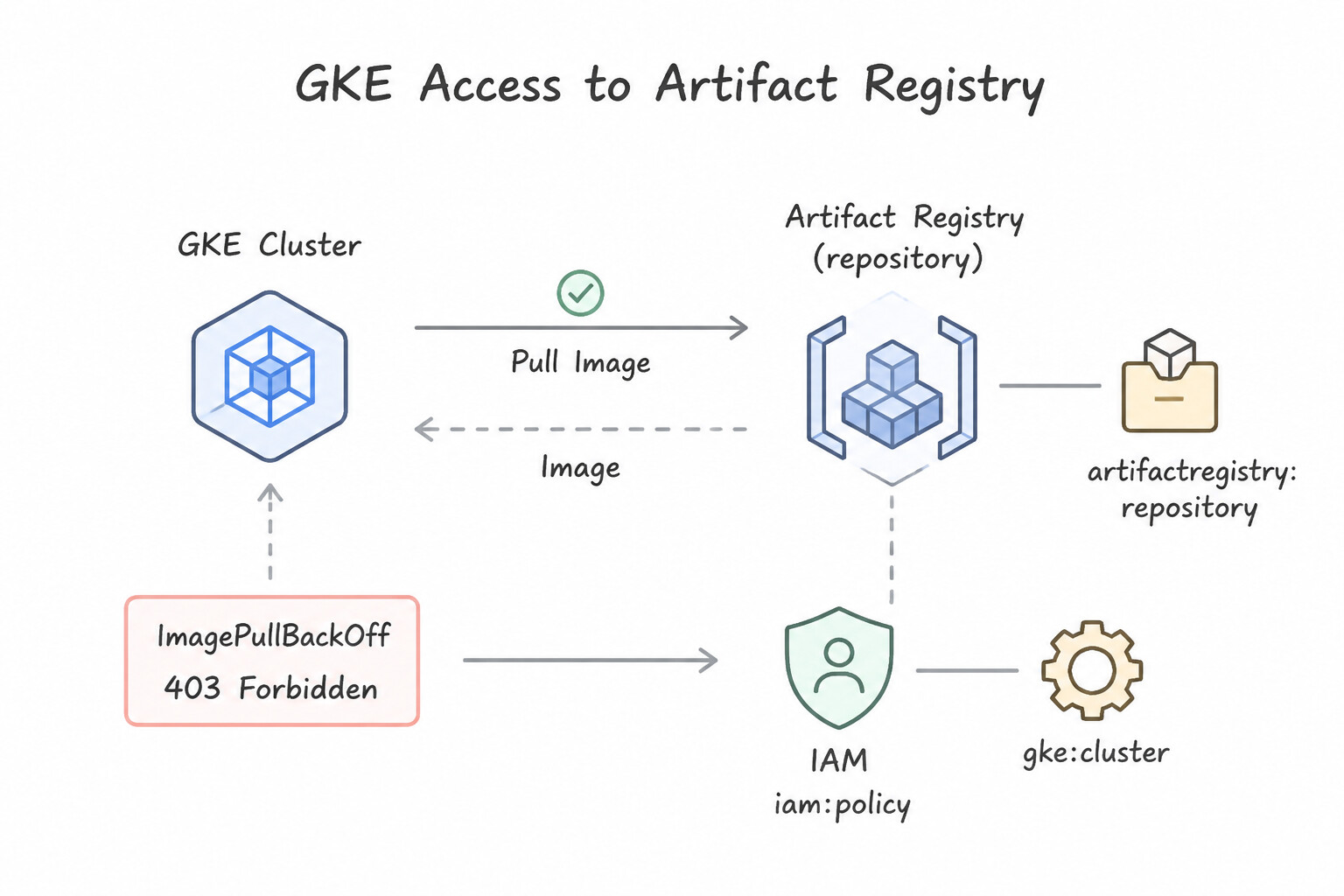
- Resolving
ImagePullBackOff/403 Forbiddenfrom Artifact Registry: - GKE worker nodes pull container images using the IAM Service Account attached to the GKE Node Pool (NOT the Pod's Workload Identity service account!).
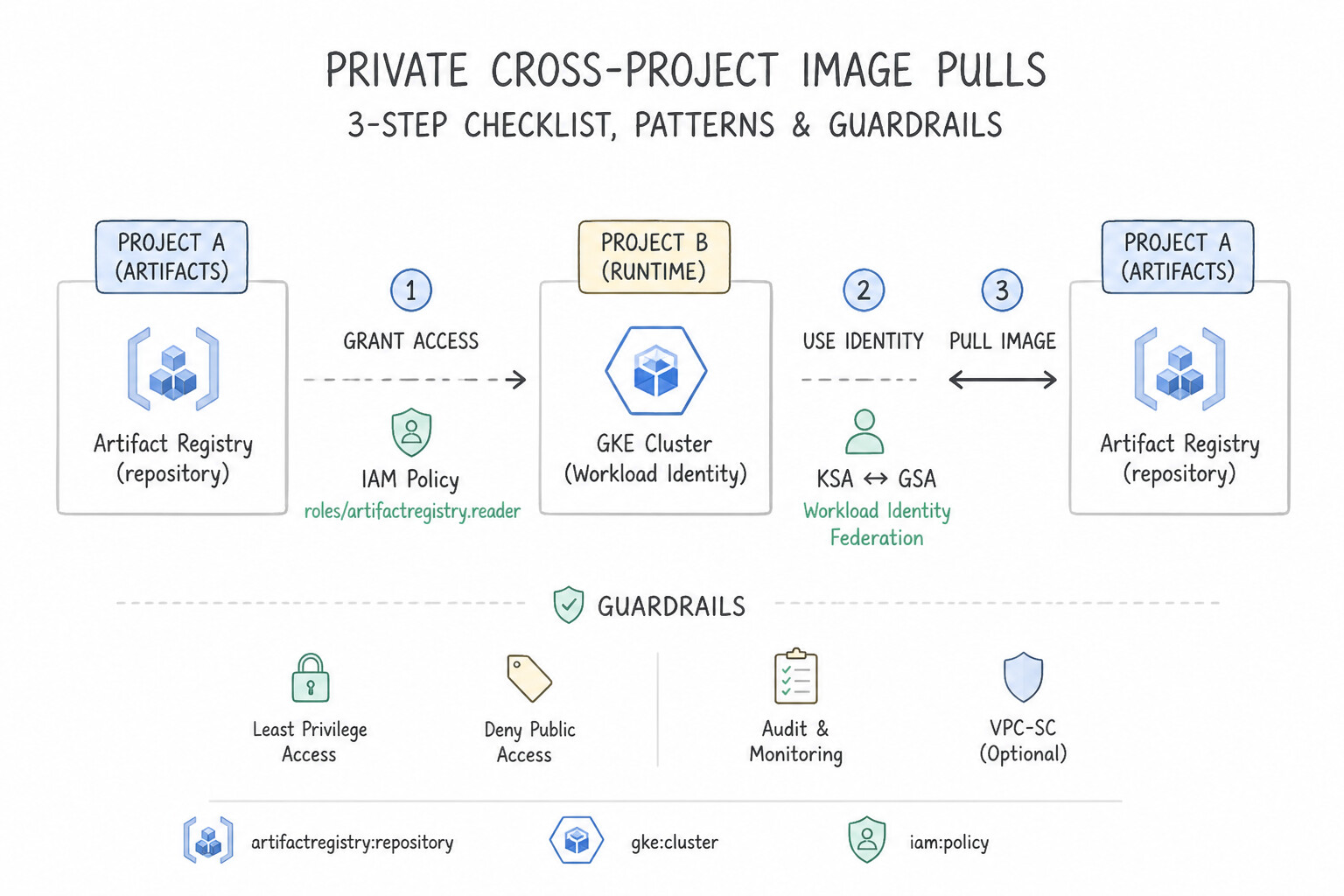
- Three-Step Checklist for Private Cross-Project Image Pulls:
- Grant
roles/artifactregistry.reader(Artifact Registry Reader) to the GKE Node Pool's custom IAM Service Account on the target Artifact Registry repository (or project). - Ensure the GKE Node Pool has the
https://www.googleapis.com/auth/cloud-platform(orstorage-ro) OAuth access scope. - If the GKE cluster uses Private Nodes (no external IPs), enable Private Google Access on the GKE subnet so nodes can reach
*-docker.pkg.devprivately.
Key Implementation Patterns
- Cross-Project Artifact Registry Access: Use Identify the service account used by the GKE nodes in Project A. In Project B, grant this service account the Artifact Registry Reader role. Grant the Artifact Registry Reader role in the project containing the repository (Project B) to the identity attempting access (Project A's node service account).
- Implementing Least Privilege for Image Pulling: Use Create a custom service account with the Artifact Registry Reader and Logs Writer roles. Update the cluster node pool to use this service account. Create a custom service account with minimal roles (Reader and Writer) and assign it to the GKE nodes to replace the over-privileged default account.
- Workload Identity for Artifact Registry: Use Create a Google Service Account (GSA) with the Artifact Registry Reader role. Create a Kubernetes Service Account (KSA) for the Pods. Annotate the KSA with the GSA email and bind the KSA to the roles/iam.workloadIdentityUser role. Workload Identity securely maps a Kubernetes Service Account to a Google Service Account, providing granular access control.
Key Takeaways (3.1e)
- GKE nodes use an attached IAM Service Account to interact with other Google Cloud APIs.
- To access a resource in a different project, grant permissions in the project where the resource resides.
- The
roles/artifactregistry.readerrole is the specific least-privilege role for pulling images.- Never make a repository public just to solve an internal permission issue.
Consideration 3.1f: Managing gke node pools and autoscaling
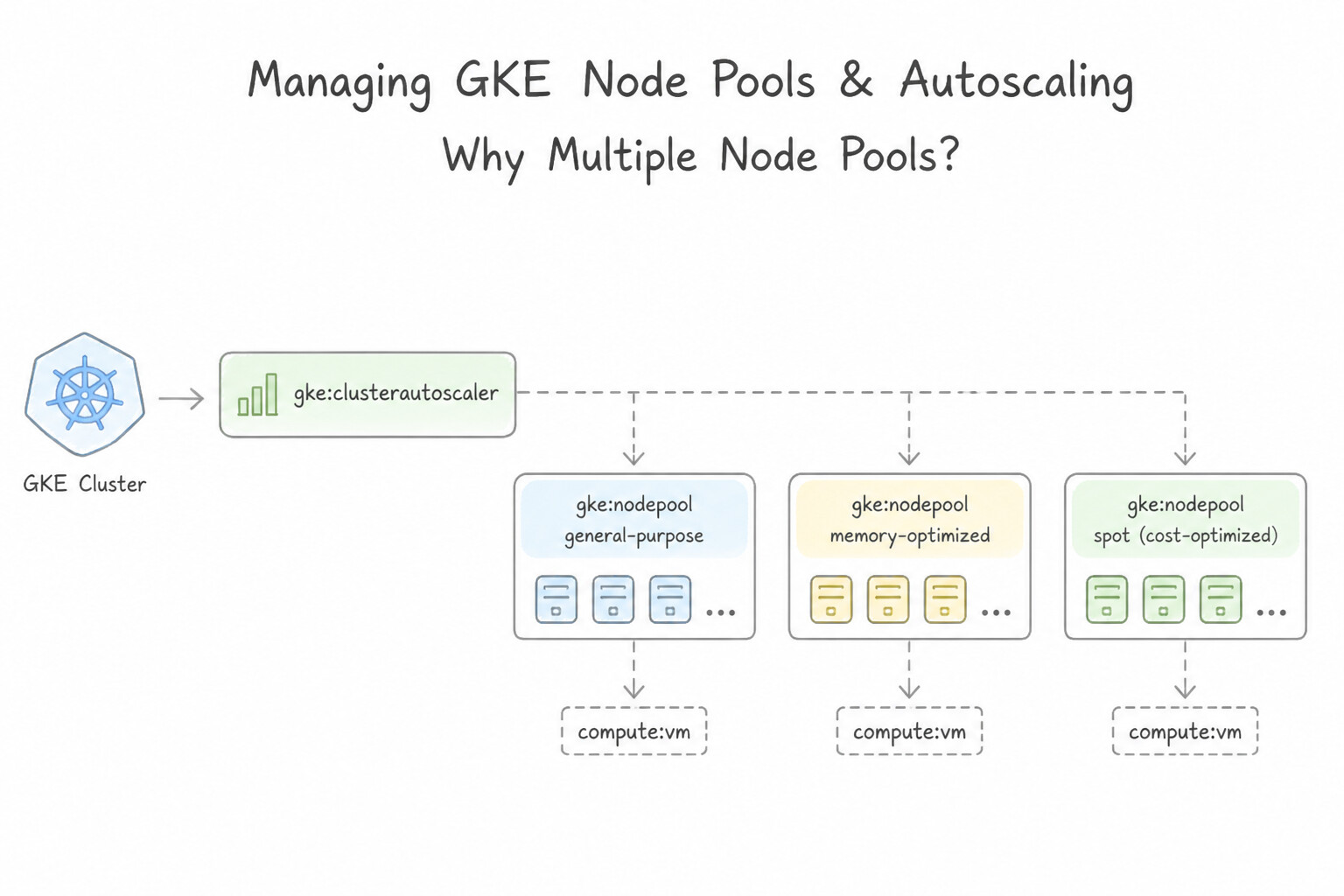
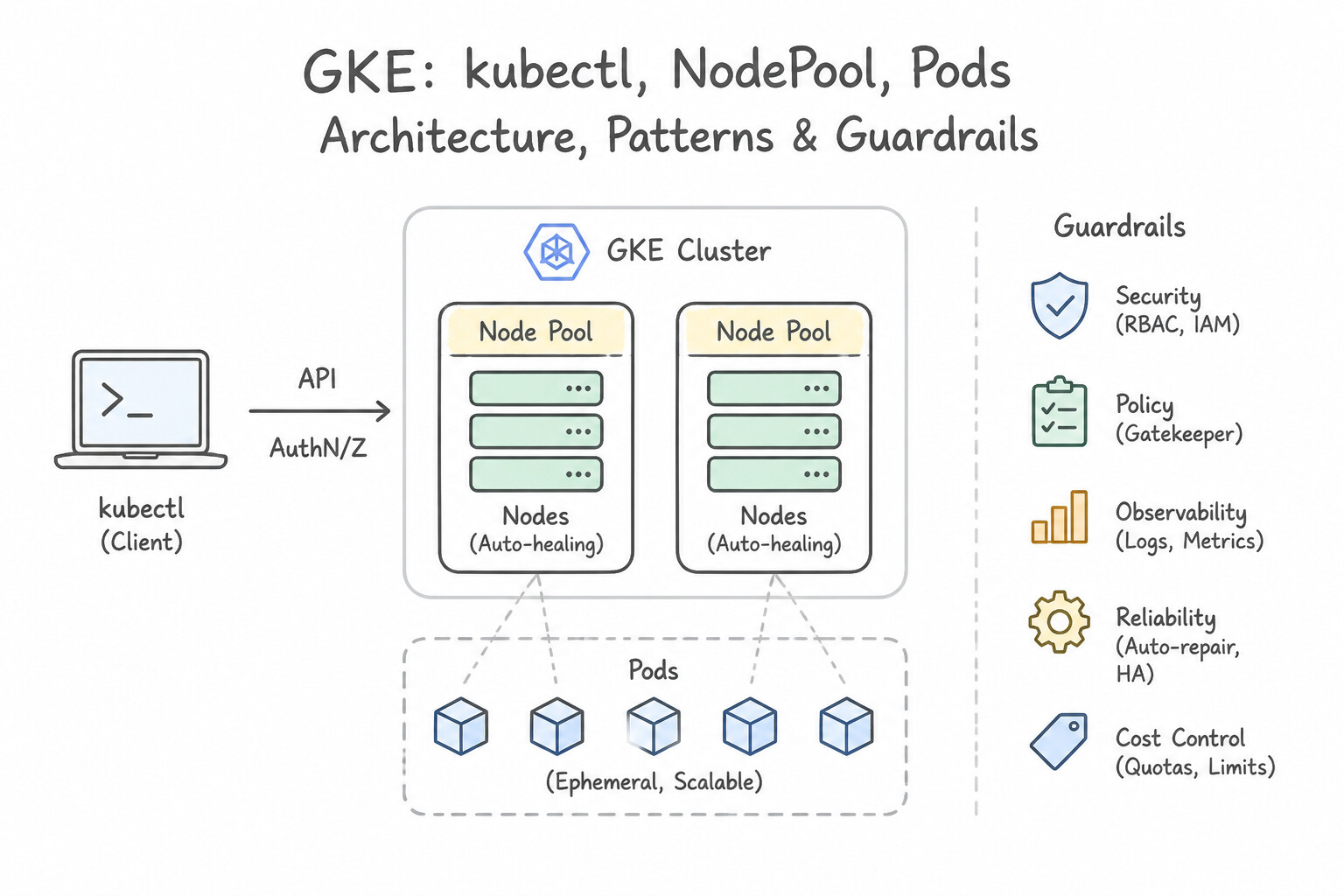
- Why Multiple Node Pools? Within a single GKE Standard cluster, you can create distinct Node Pools with different machine types (
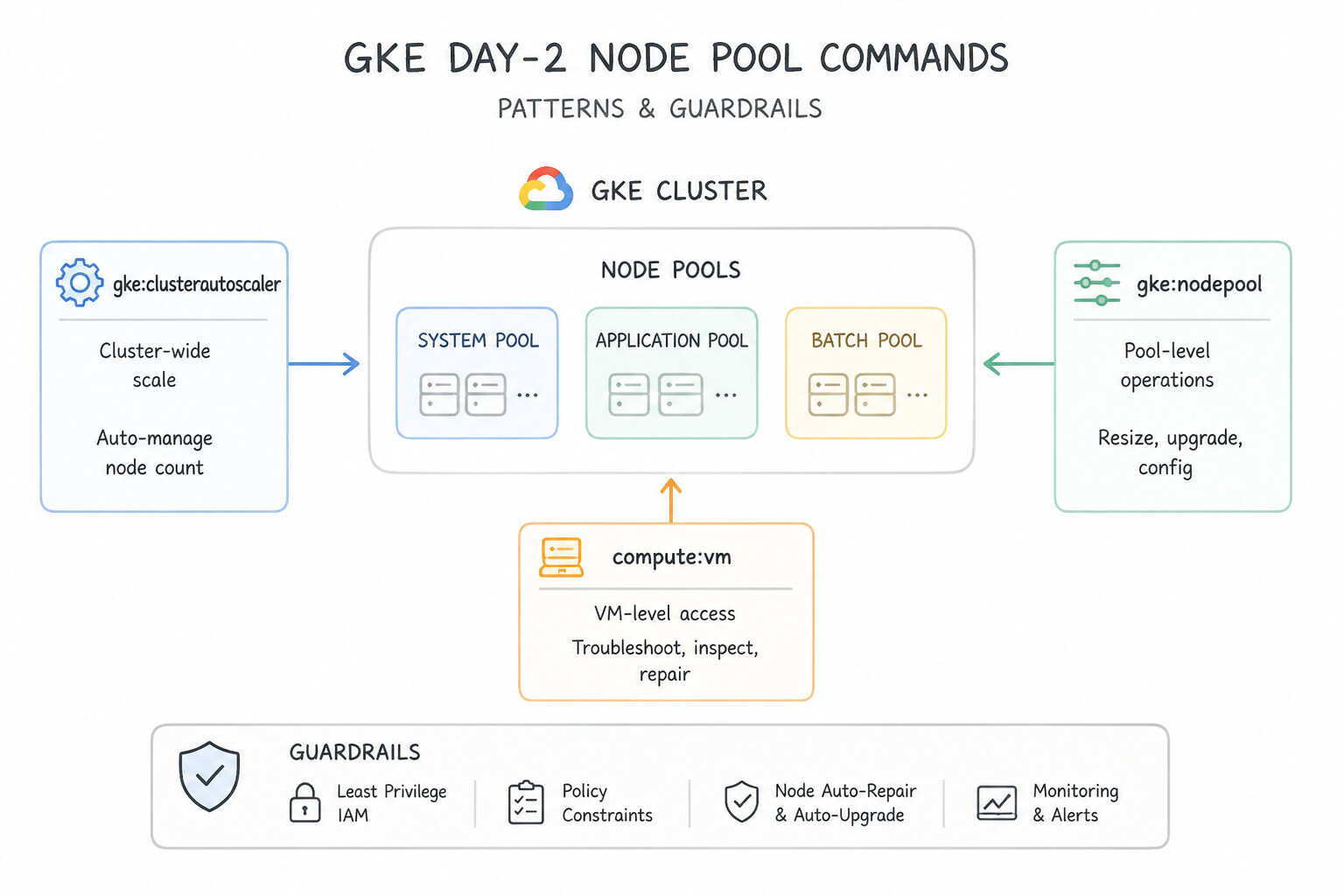
c3-highcpu-16), GPU accelerators, disk types, or Spot VMs, and steer specific Pods to specific node pools usingnodeSelector, Node Affinity, and Taints + Tolerations. - Day-2 Node Pool Commands:
- Create a node pool with autoscaling:
gcloud container node-pools create gpu-pool --cluster=prod-gke --machine-type=g2-standard-8 --accelerator=type=nvidia-l4,count=1 --enable-autoscaling --min-nodes=0 --max-nodes=10 - Resize manually:
gcloud container clusters resize prod-gke --node-pool=default-pool --num-nodes=5 - Always keep Node Auto-Upgrade and Node Auto-Repair enabled in production so GKE automatically patches CVEs and replaces unhealthy
NotReadyVM nodes.
Key Implementation Patterns
- Enabling Cluster Autoscaler for Spiky Traffic: Use Run the "gcloud container clusters update" command with the "--enable-autoscaling" flag and specify node limits. Cluster Autoscaler adds nodes when Pods are Pending due to insufficient resources. (Avoid alternative: HPA scales Pods, not Nodes. It cannot add infrastructure capacity.)
- Cost Optimization with Spot VM Node Pools: Use Create a new node pool with Spot VMs. Schedule the batch jobs on this node pool. Spot VMs offer steep discounts for fault-tolerant workloads, and a separate node pool allows you to target these savings specifically for the batch jobs.
- Migrating Workloads to Different Machine Types: Use Create a new node pool with the e2-highmem-4 machine type. Cordon and drain the existing node pool, and then delete the old node pool. The correct procedure is to create a new pool, migrate workloads by draining the old pool, and then delete the old pool.
Key Takeaways (3.1f)
- Cluster Autoscaler scales infrastructure (Nodes) and is triggered by unschedulable (Pending) Pods.
- Horizontal Pod Autoscaler (HPA) scales application instances (Pods) based on usage metrics like CPU.
- Pending Pods usually indicate that the cluster lacks the aggregate resources (CPU/RAM) to run the workload.
- Use
gcloud container clusters update --enable-autoscalingto turn on Cluster Autoscaler for existing clusters.
Consideration 3.1g: Working with kubernetes resources
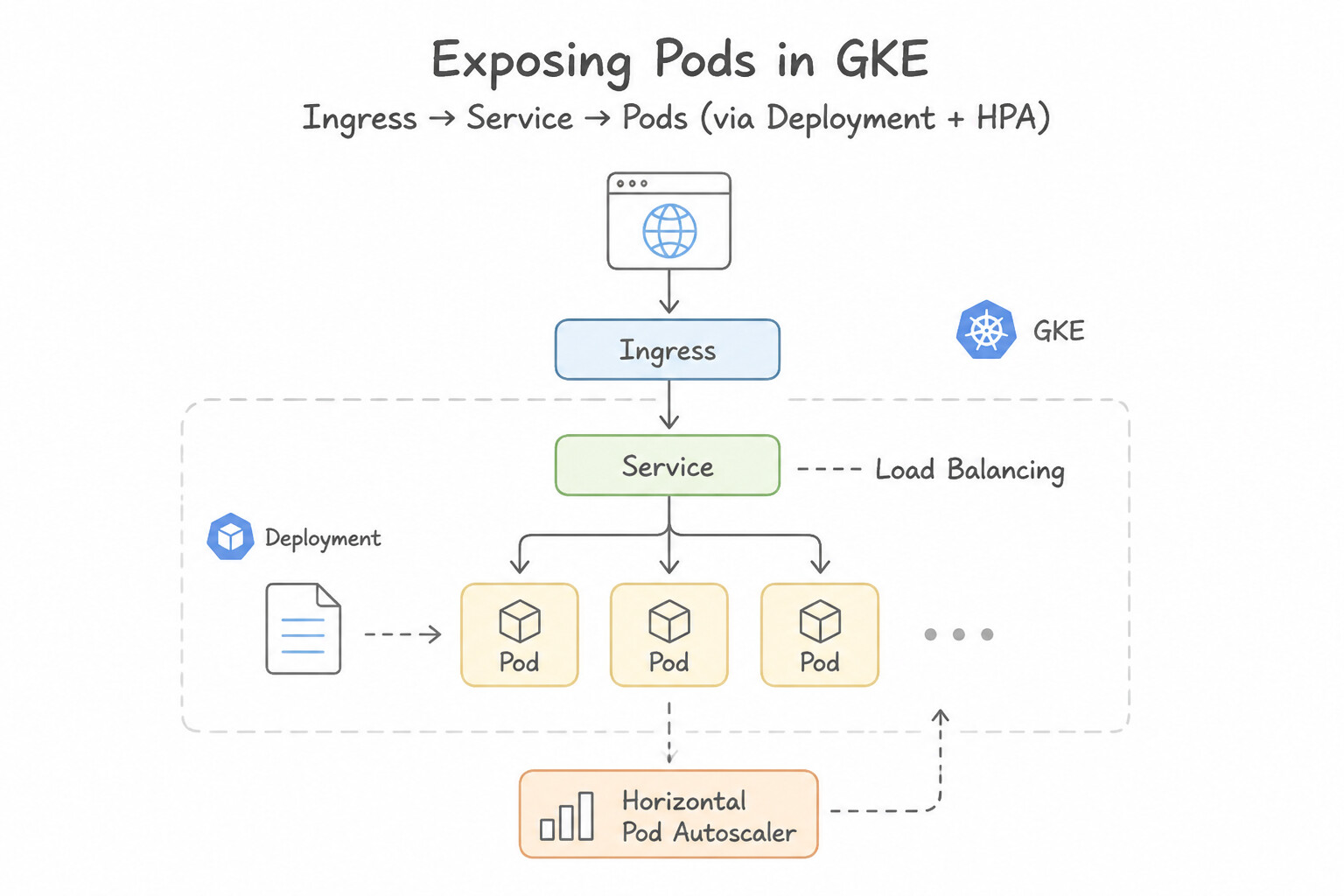
- Exposing Pods with Kubernetes Services & Ingress:
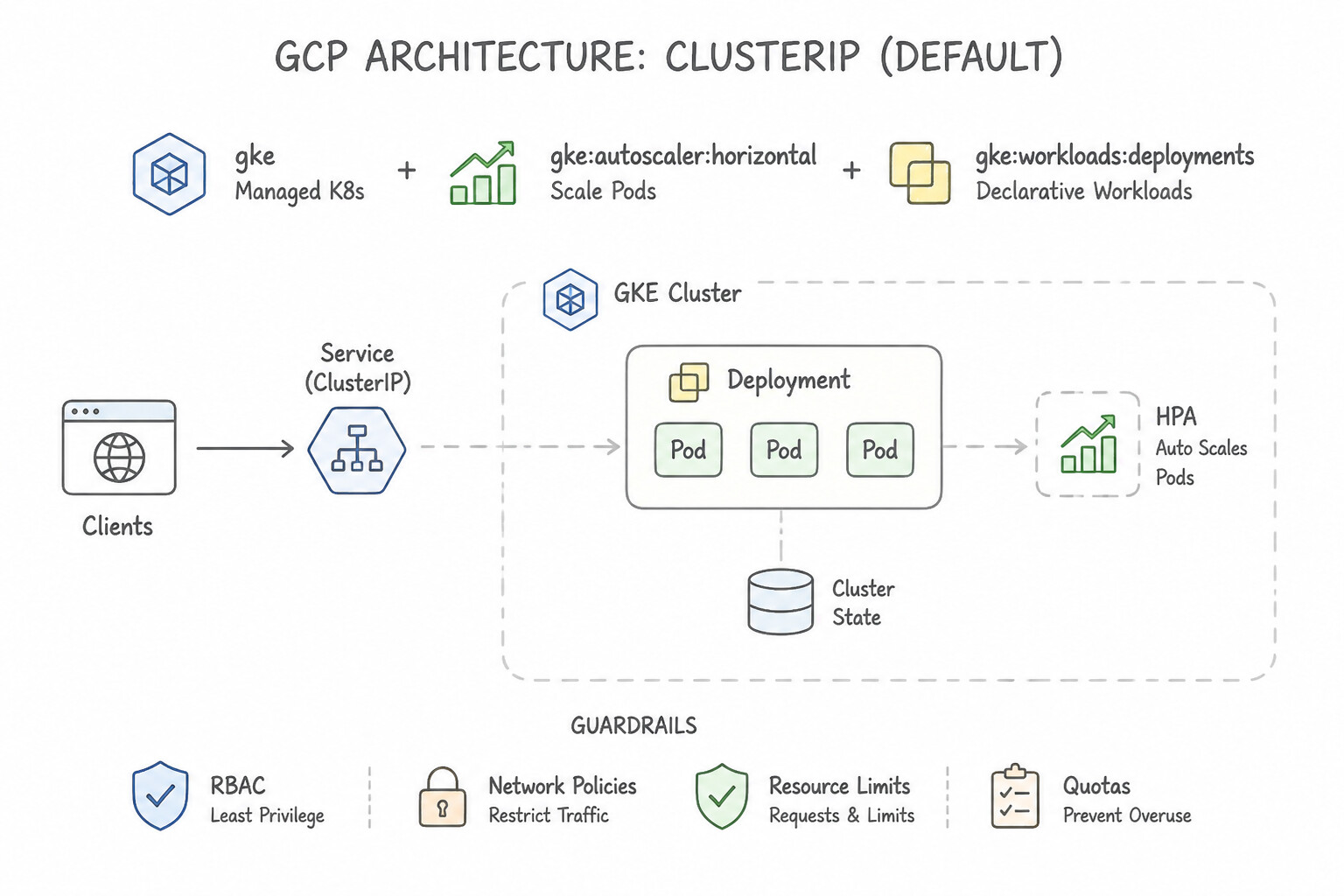
ClusterIP(Default): Exposes the Service on a cluster-internal IP reachable only from within the cluster (e.g.,Deployment-BcallingDeployment-Avia internal DNS<svc>.<namespace>.svc.cluster.local).NodePort: Opens a static port (30000–32767) on every GKE node VM; primarily used as a building block behind an Ingress / Load Balancer.LoadBalancer: Automatically provisions a Google Cloud Layer 4 Regional Passthrough Network Load Balancer (or internal L4 LB if annotated withnetworking.gke.io/load-balancer-type: "Internal").Ingress/ KubernetesGatewayAPI: Provisions a Google Cloud Layer 7 Application Load Balancer supporting host/path routing, TLS termination, and Cloud Armor.
Key Implementation Patterns
- Horizontal Pod Autoscaling Configuration: Use Create a HorizontalPodAutoscaler (HPA) resource targeting the deployment with a CPU utilization metric. HPA automatically scales the number of pods based on metrics like CPU utilization. (Avoid alternative: Cluster Autoscaler scales nodes (VMs), not the number of application pods.)
- Rolling Updates for Deployments: Use Run the 'kubectl set image deployment/frontend container-name=image:v2' command. This command triggers a rolling update, replacing old pods with new ones gradually to ensure continuous availability. (Avoid alternative: Deleting a deployment removes all pods immediately, causing downtime, which violates the zero-downtime requirement.)
- Exposing Services Internally: Use Set the type field to ClusterIP. ClusterIP exposes the service on an internal IP address reachable only from within the cluster. (Avoid alternative: ExternalName maps a service to an external DNS name, used for accessing external resources from within the cluster.)
Key Takeaways (3.1g)
- HorizontalPodAutoscaler (HPA) scales the number of pods based on metrics like CPU or memory.
- VerticalPodAutoscaler (VPA) adjusts the resource requests/limits (size) of individual pods.
- Cluster Autoscaler adds or removes nodes (VMs) based on scheduling capacity.
- Always match the scaling requirement (number vs. size) to the correct autoscaler type.
Consideration 3.1h: Managing horizontal and vertical pod autoscaling
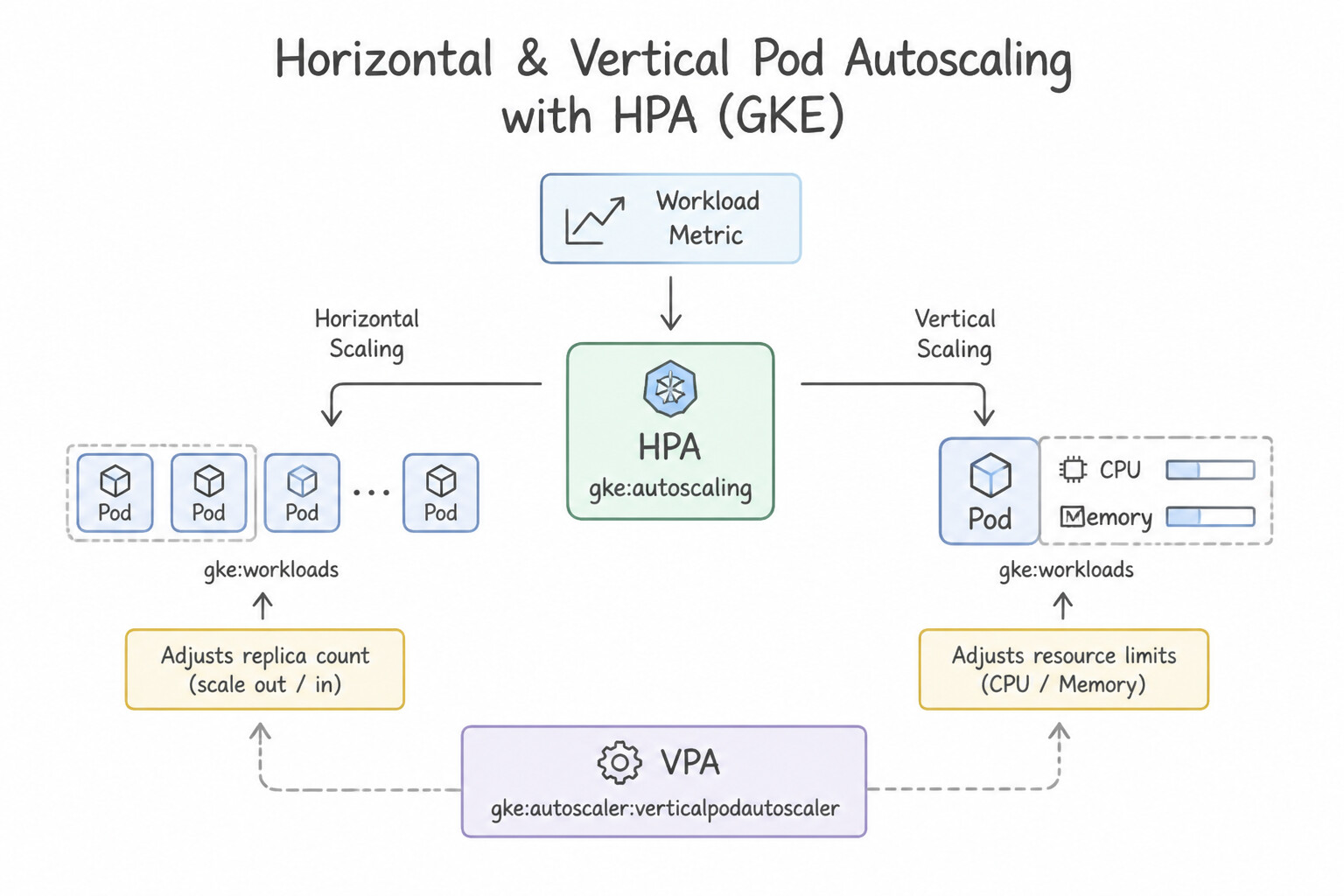
- Horizontal Pod Autoscaler (HPA): Scales the number of Pod replicas (
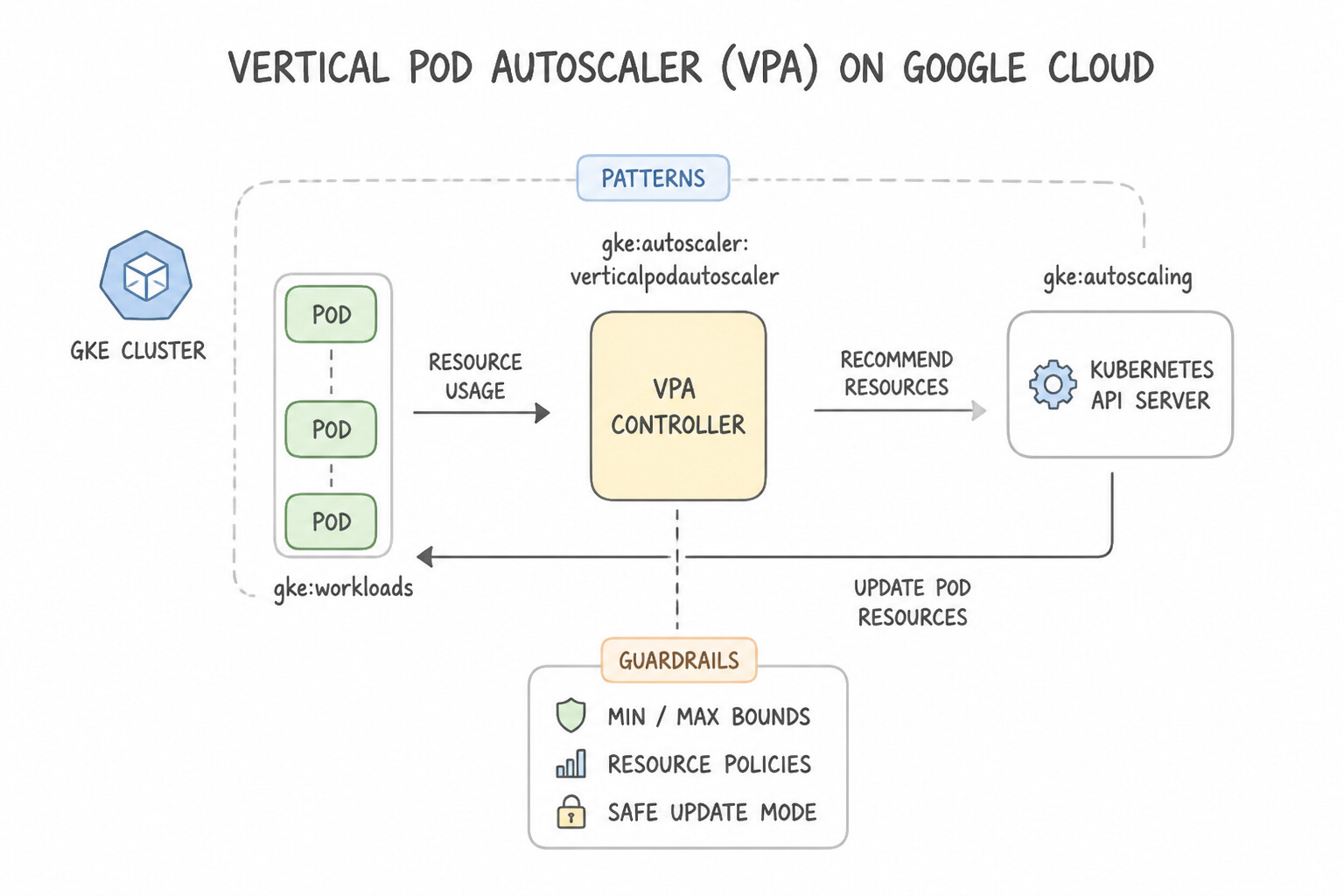
replicas: 3 -> 25) based on CPU utilization, memory, or custom Cloud Monitoring metrics (kubectl autoscale deployment web --cpu-percent=70 --min=3 --max=25). Best for stateless web tiers and worker queues. - Vertical Pod Autoscaler (VPA): Analyzes historical container usage and adjusts each Pod's CPU and Memory
requestsandlimits(or recommends optimal sizing inOff/recommendation mode). Best for stateful or monolithic workloads that cannot easily scale horizontally. - Rule of Thumb when Mixing HPA and VPA: Never configure HPA and VPA to scale on the exact same CPU or memory metric simultaneously (they will fight each other!). Either run VPA in recommendation-only mode (
updateMode: "Off") or use HPA only on custom external metrics (like requests-per-second).
Key Implementation Patterns
- Basic HPA Implementation: Use Run the command kubectl autoscale deployment web-app --cpu-percent=70 --min=1 --max=10. The kubectl autoscale command configures Horizontal Pod Autoscaling based on CPU utilization thresholds. (Avoid alternative: Kubectl scale sets a fixed number of replicas manually and does not enable automatic scaling based on metrics.)
- VPA Recommendations Mode: Use Configure a Vertical Pod Autoscaler (VPA) for the deployment and set the updateMode to Off. Off mode calculates recommendations based on usage but does not apply them or restart pods. (Avoid alternative: HPA scales the number of replicas, not the resource requests of individual pods.)
- HPA and VPA Conflict: Use Configure HPA to use a custom metric, such as requests per second, instead of CPU. HPA and VPA conflict when using the same metric (CPU/Memory); use a custom metric for HPA to separate their responsibilities. (Avoid alternative: Changing the update mode does not prevent both autoscalers from fighting over the same CPU metric.)
Key Takeaways (3.1h)
- HPA scales the number of pods based on metrics like CPU.
- VPA scales the size (resources) of existing pods.
- kubectl autoscale is the CLI command to quickly set up HPA.
- kubectl scale is for manual, fixed scaling, not dynamic autoscaling.
Consideration 3.1i: Managing gke autopilot pod resource requests
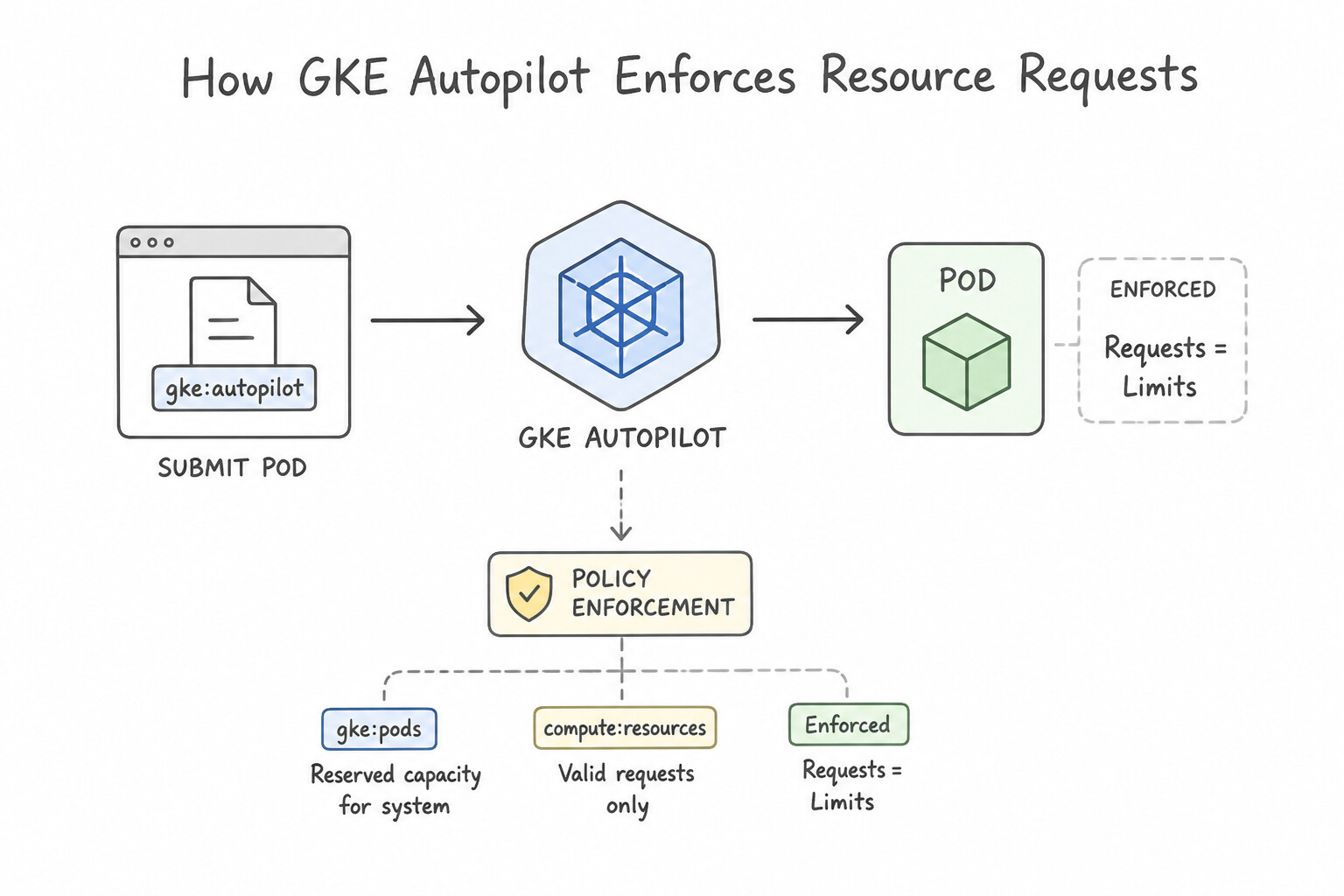
- How GKE Autopilot Enforces Resource Requests: In GKE Autopilot, you do not size nodes; GKE provisions compute capacity dynamically based on the
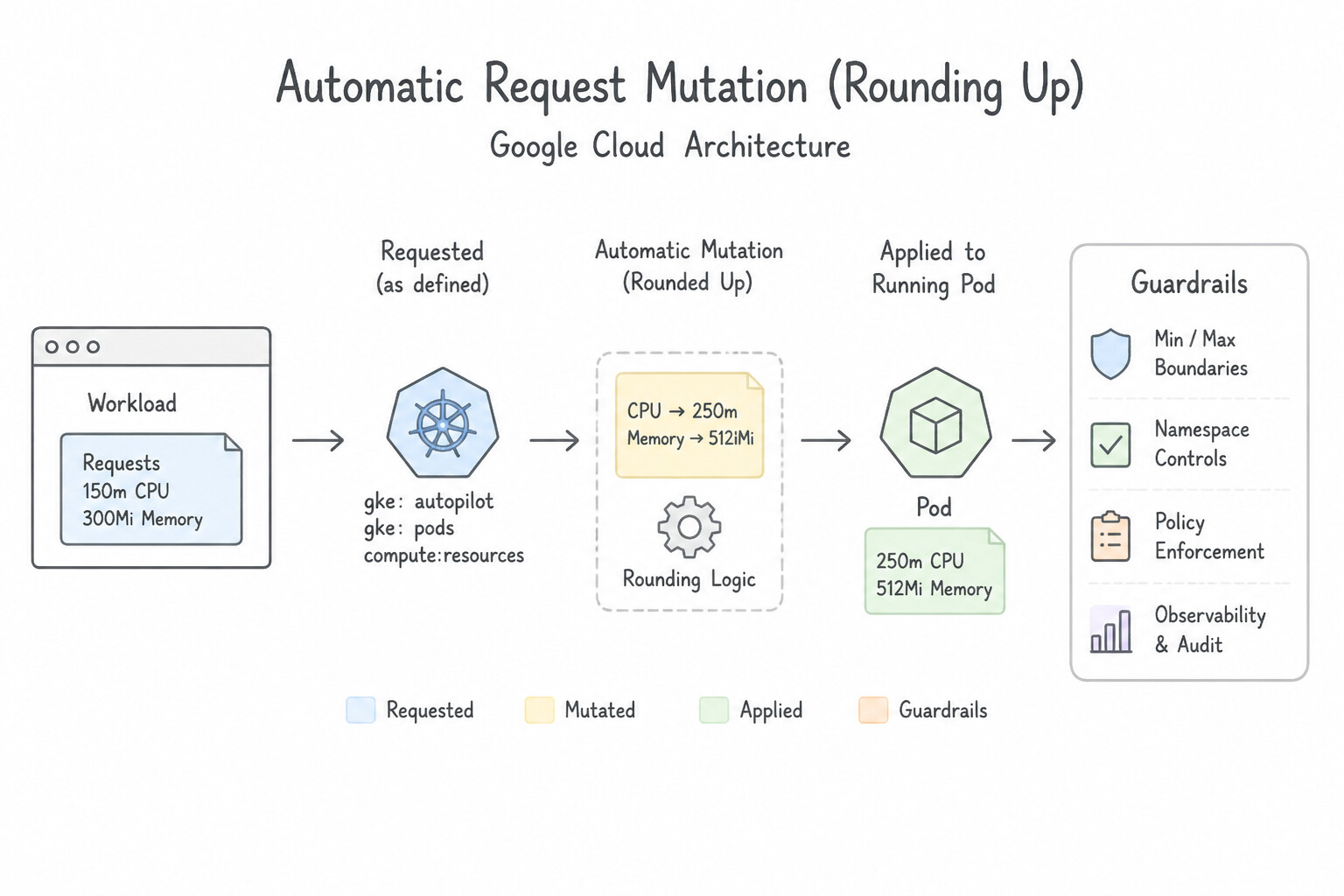
resources.requestsblock in your Pod YAML. - Automatic Request Mutation (Rounding Up): If a Pod manifest specifies
requestsbelow Autopilot's minimum floor (e.g., requesting50mCPU when the class minimum is250mCPU or50mfor burstable Pods) or violates the allowed CPU-to-Memory ratio (1 vCPU : 1 GiBto1 vCPU : 8 GiB), GKE Autopilot does NOT reject the Pod—instead, its mutating webhook automatically increases (rounds up) the Pod's requests to the nearest valid minimum and bills you for the modified request!
Key Implementation Patterns
- Autopilot Default Resource Assignment: Use Verify that GKE Autopilot applied built-in default values for CPU and memory. GKE Autopilot automatically assigns default resource requests (e.g., 500m CPU, 2Gi Memory) to pods that do not specify them to ensure schedulability and billing accuracy.
- Enforcing Minimum Resource Floors: Use Modify the manifest to use 250m CPU or higher, as GKE Autopilot enforces this minimum value. GKE Autopilot enforces a minimum of 250m CPU per Pod and automatically scales up smaller requests. (Avoid alternative: LimitRanges cannot override GKE Autopilot's hard system minimums.)
- Cost Optimization via Requests: Use Update the application manifests to decrease the
resources.requestsvalues. Autopilot charges for the resources requested in the Pod spec. Lowering requests reduces the bill. (Avoid alternative: GKE Autopilot bills based on requests, not limits. Changing limits does not affect the cost.)
Key Takeaways (3.1i)
- GKE Autopilot manages the underlying infrastructure, requiring all pods to have explicit resource requests for scheduling and billing.
- If resource requests are missing from a manifest, Autopilot applies built-in default values (e.g., 500m CPU, 2Gi Memory).
- Autopilot pods are never 'BestEffort'; they are treated as Guaranteed or Burstable to ensure reliability.
- Billing in Autopilot is based on the resource requests of the pods, not the size of the nodes.
Consideration 3.1j: Deploying new cloud run application versions
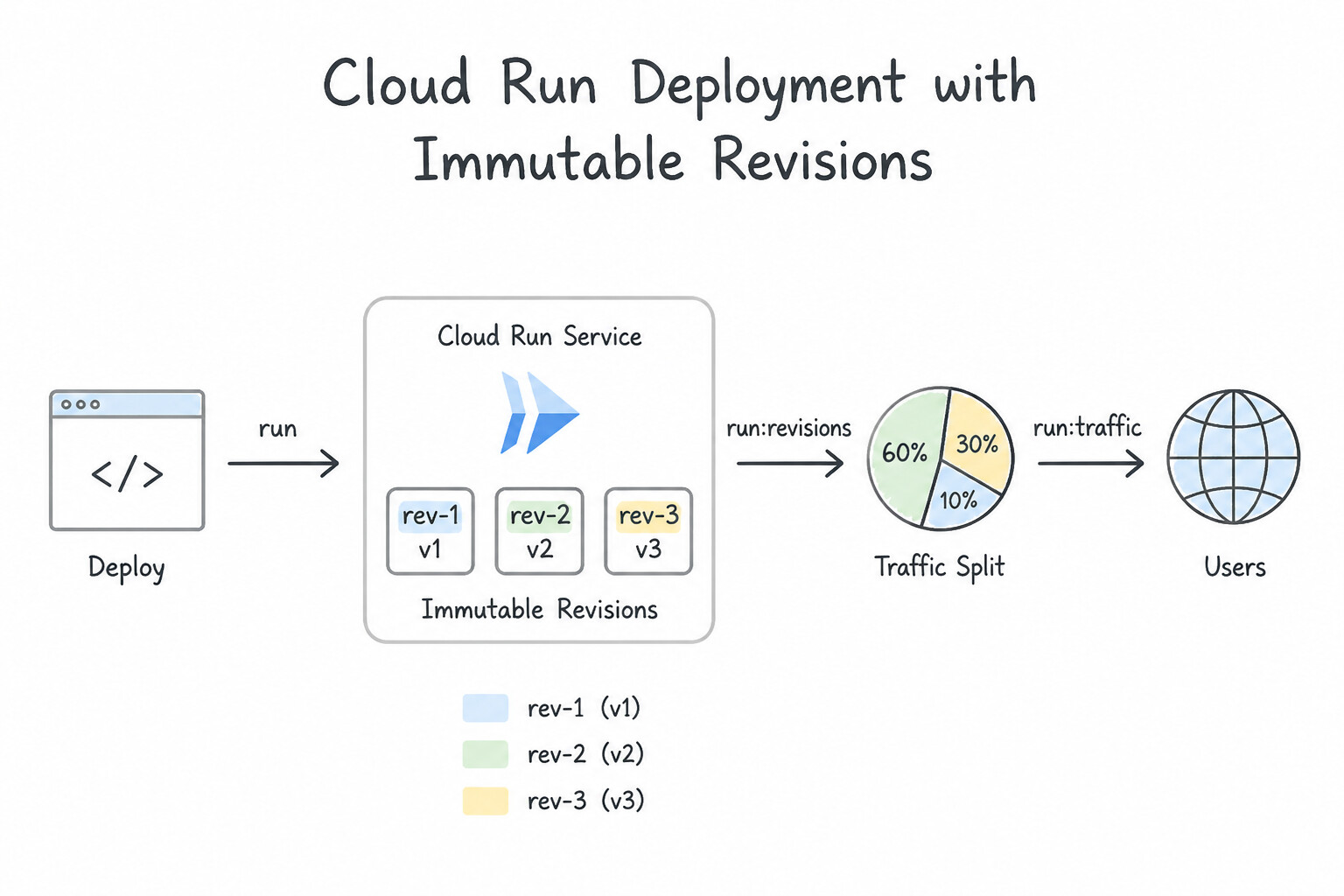
- Immutable Revisions: Every deployment to a Cloud Run service (
gcloud run deploy) creates a brand-new, immutable Revision (e.g.,checkout-service-00005-abc). By default, Cloud Run immediately routes 100% of live traffic to the newest healthy revision. - Dark Launches with
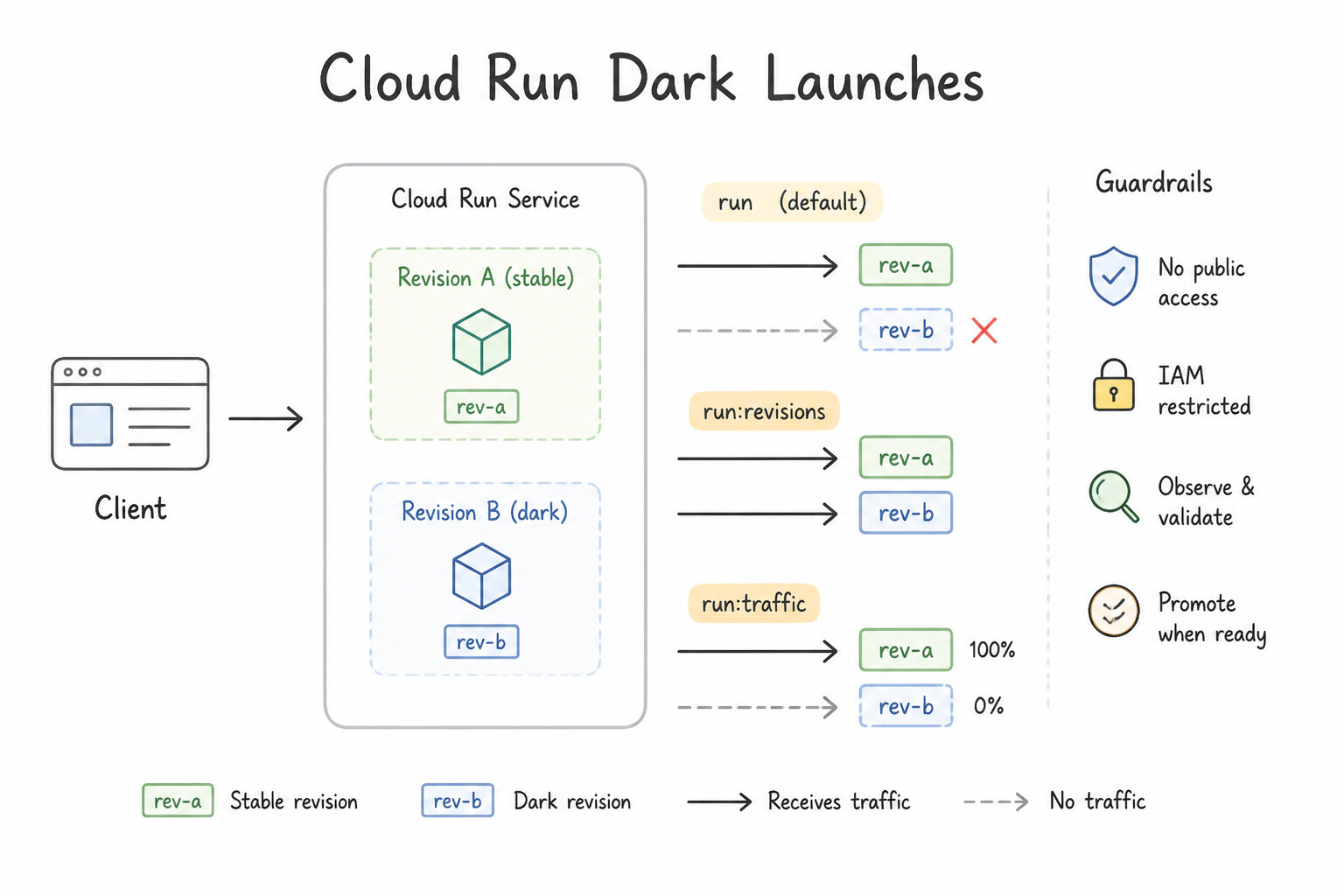
--no-trafficand Revision Tags: To test a new container version in production before exposing real users to it, deploy withgcloud run deploy <SERVICE> --image=<IMAGE> --no-traffic --tag=canary. This keeps 100% of production traffic on the current revision while generating a dedicated test URL (https://canary---<service>-<hash>.a.run.app) for QA verification!
Key Implementation Patterns
- Canary Deployment Configuration: Use Deploy the new revision using the --no-traffic flag. Run gcloud run services update-traffic checkout-service --to-latest=10. Use --no-traffic to prevent an immediate 100% rollout, then use update-traffic to assign the specific 10% split.
- Immediate Rollback Strategy: Use Identify the Revision ID of the previous healthy state and route 100% of the traffic to it. Cloud Run allows you to instantly route traffic to any existing specific Revision ID to perform a rollback. (Avoid alternative: Deleting a revision without managing traffic first can cause further service unavailability.)
- Testing via Specific Revision URLs: Use Deploy the new revision with the --no-traffic flag and apply a tag using the --tag flag. Tags create dedicated URLs for specific revisions, allowing testing without routing public traffic. (Avoid alternative: Using only --no-traffic does not generate the required dedicated URL for testing.)
Key Takeaways (3.1j)
- Cloud Run deployments route 100% of traffic to the new revision by default.
- Use the
--no-trafficflag to deploy a revision without routing live traffic to it immediately.- Use
gcloud run services update-trafficto configure canary rollouts and traffic splits.- Tags create dedicated URLs for revisions but do not inherently split main traffic.
Consideration 3.1k: Adjusting traffic splitting parameters
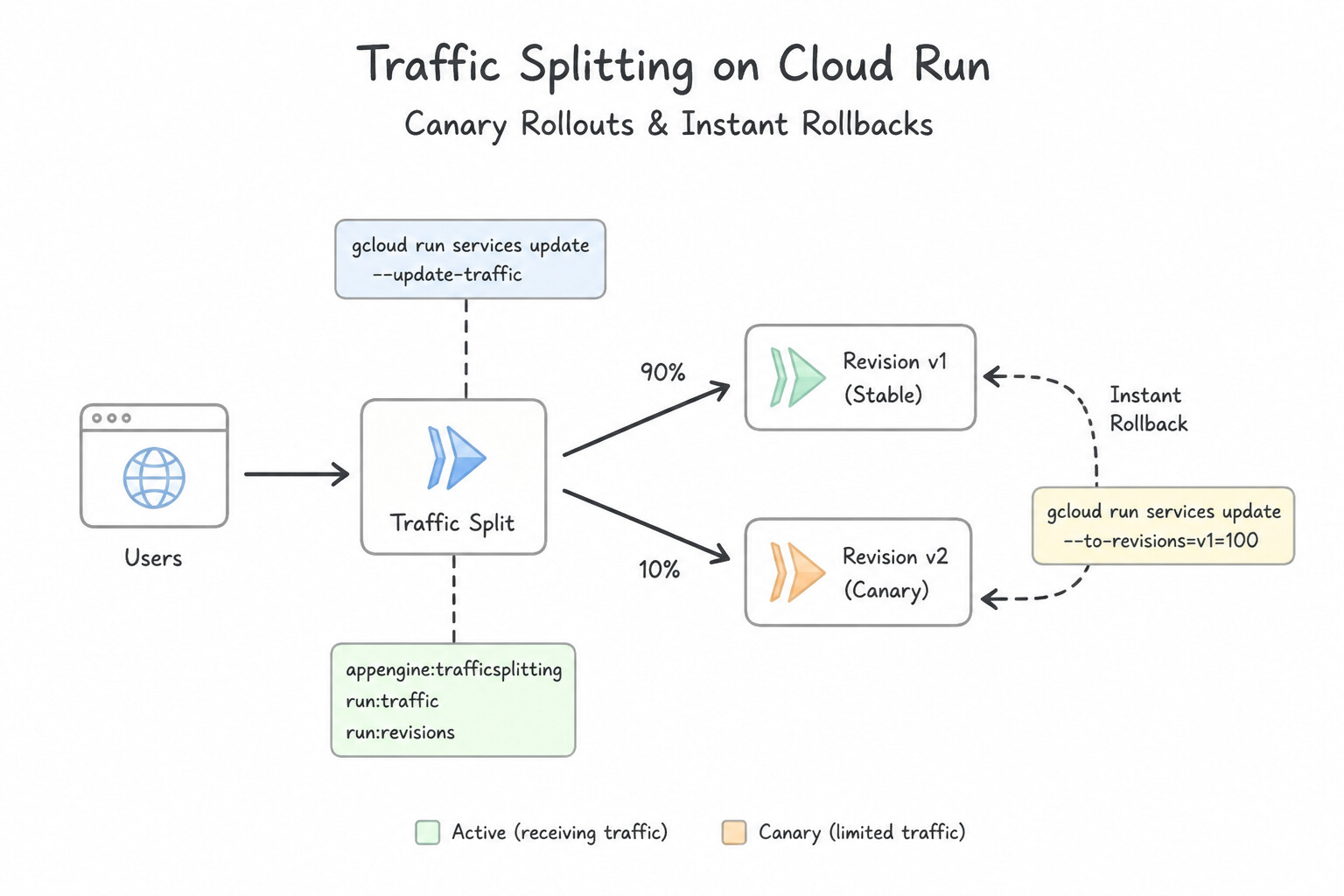
- Canary Rollouts & Instant Rollbacks on Cloud Run / Cloud Run functions:
- Split live traffic by percentage across revisions:
gcloud run services update-traffic <SERVICE> --to-revisions=rev-v2=10,rev-v1=90 - Gradually shift to 100% on the latest revision:
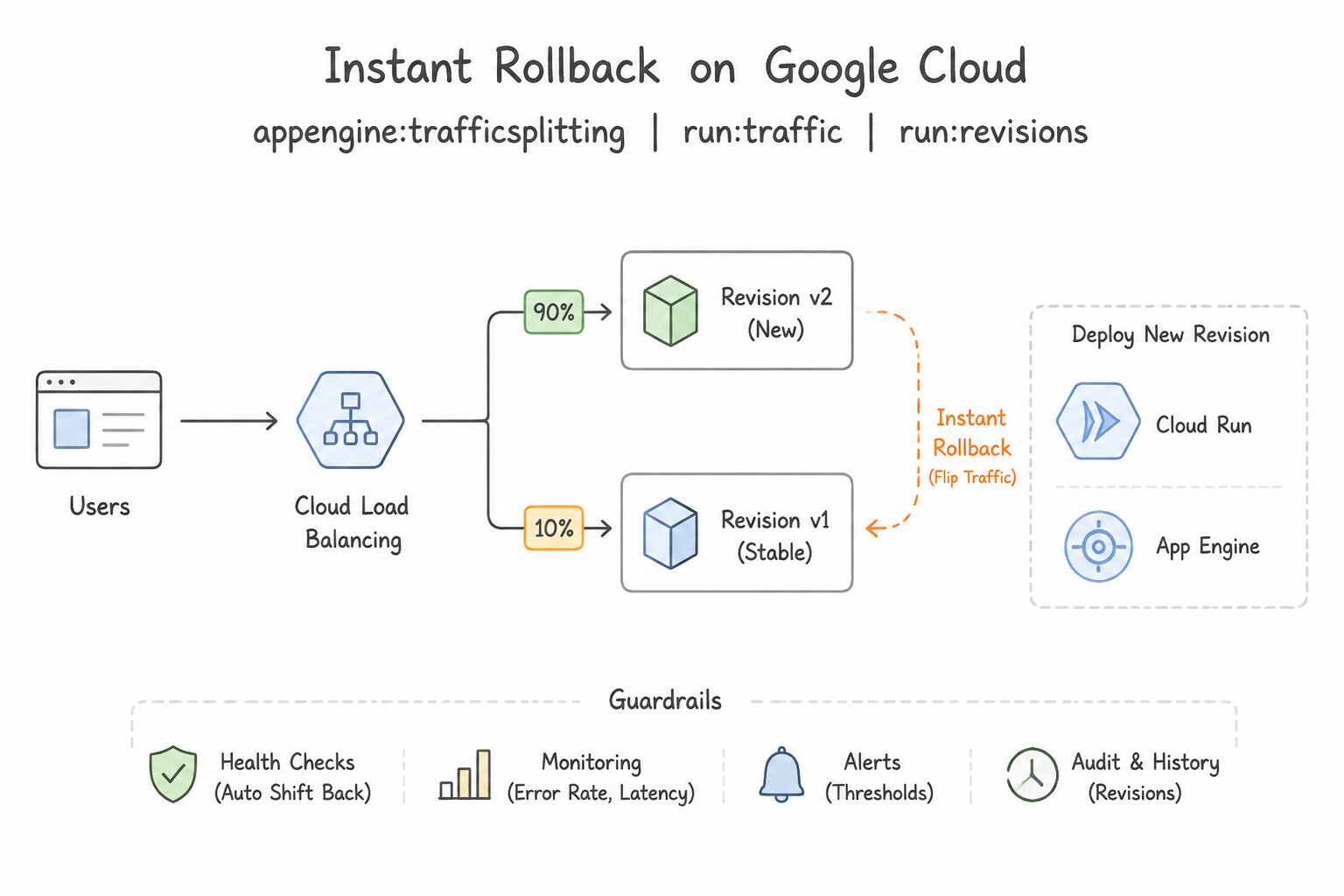
gcloud run services update-traffic <SERVICE> --to-latest - Instant Rollback: If
rev-v2throws errors, route--to-revisions=rev-v1=100—traffic shifts back in seconds without rebuilding the container image!
Key Implementation Patterns
- App Engine Canary Deployment: Use Run gcloud app services set-traffic --splits [NEW_VERSION]=0.05,[OLD_VERSION]=0.95. The
gcloud app services set-trafficcommand with the--splitsflag defines precise traffic weights for canary deployments. (Avoid alternative: Scaling settings inapp.yamlcontrol instance counts, not the percentage of traffic routed between versions.) - Cloud Run Revision Rollback: Use Use the gcloud run services update-traffic command to assign 100% of traffic to the previous revision. Updating traffic splitting to route 100% to a specific previous revision ID is the standard, immediate rollback mechanism in Cloud Run.
- Cookie-based vs. IP-based Splitting: Use Configure traffic splitting to split based on a cookie. Cookie-based splitting ties a specific browser to a specific version, ensuring consistency even if the IP changes. (Avoid alternative: Splitting by IP address is the default and can cause inconsistency if the user's IP changes.)
Key Takeaways (3.1k)
- App Engine allows running multiple versions of a service simultaneously.
- Traffic splitting is used for A/B testing and canary deployments.
- The
gcloud app services set-trafficcommand configures routing weights.- Deploying with
--promote(default) routes 100% of traffic immediately; use--no-promoteif you intend to split traffic manually later.
Consideration 3.1l: Configuring autoscaling for cloud run applications
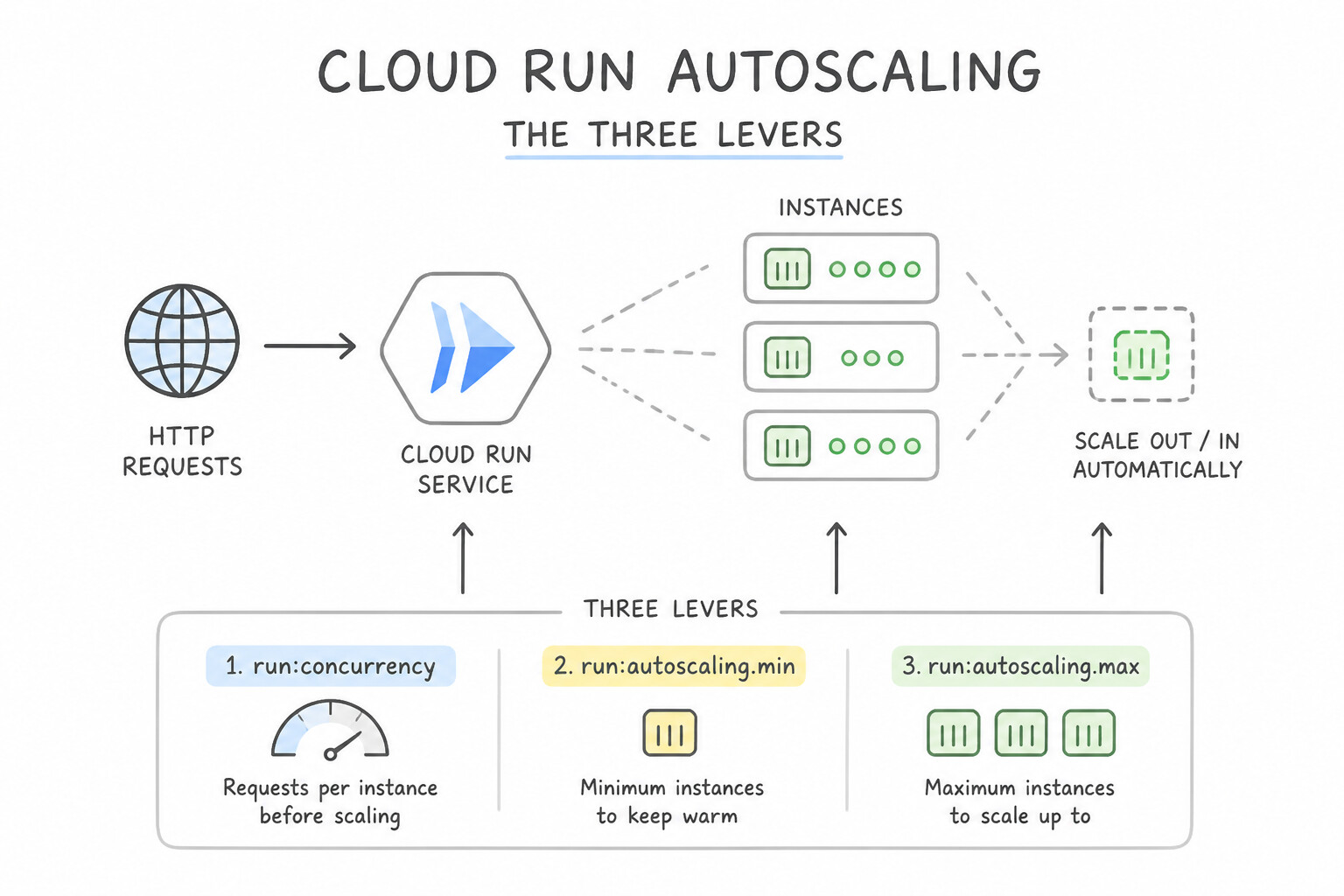
- The Three Levers of Cloud Run Autoscaling:
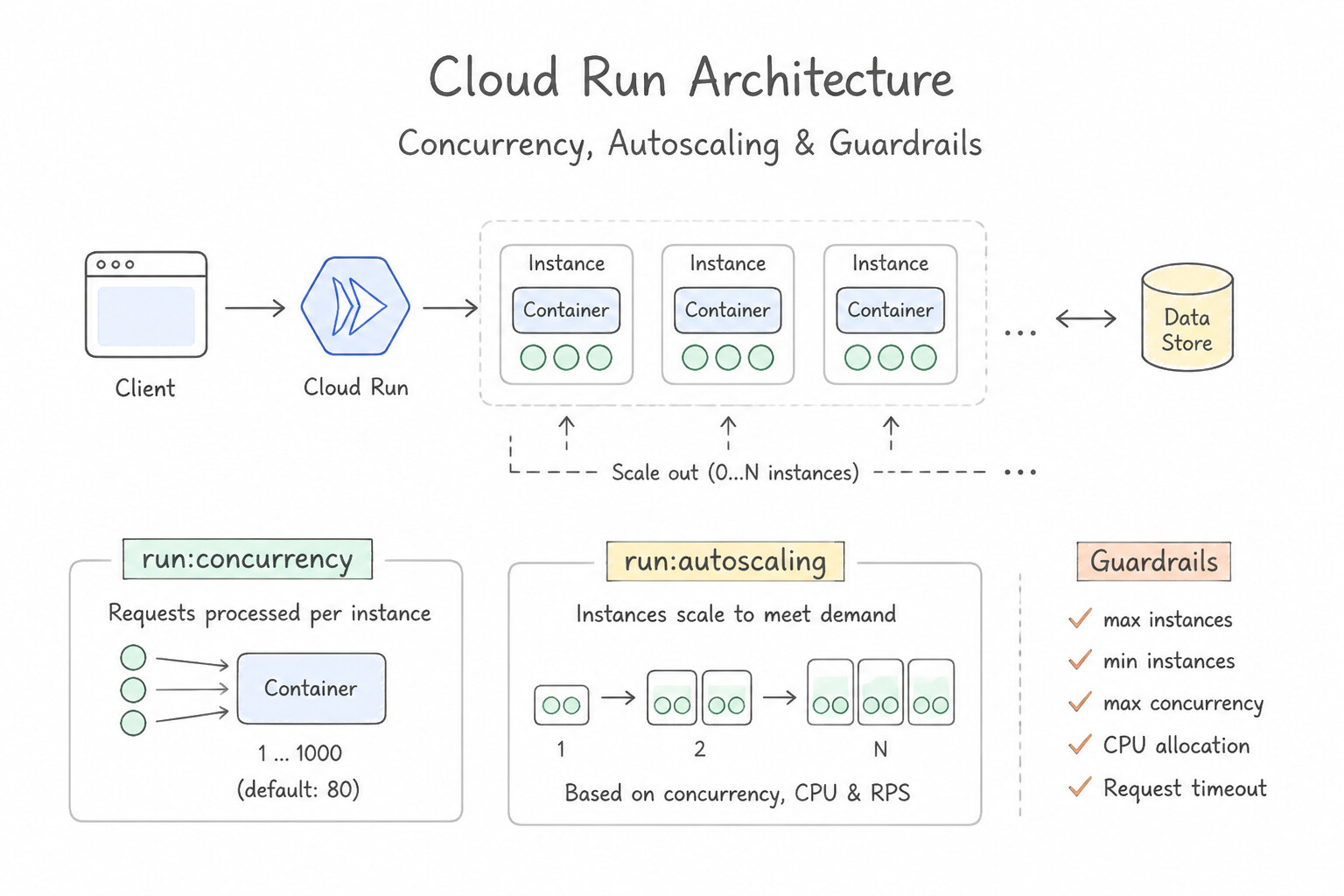
--min-instances(Eliminating Cold Starts): By default,min-instances=0(scales to zero when idle). If a latency-sensitive production API cannot tolerate container cold-start latency on the first request, set--min-instances=1(or higher) to keep warm instances pre-initialized at all times.--max-instances(Protecting Downstream Databases & Budgets): Caps the maximum number of container instances Cloud Run can spin up during a traffic surge (e.g.,--max-instances=50), preventing a sudden spike from exhausting Cloud SQL connection pools or blowing the budget.--concurrency(Requests per Instance): Controls how many simultaneous requests a single container instance can process (default80, up to1000). Set--concurrency=1if your container is single-threaded, CPU-bound, or modifies non-thread-safe local memory per request.\n
Key Implementation Patterns
- Handling Legacy Single-Threaded Applications: Use Update the service configuration to set the maximum concurrency to 1. Setting concurrency to 1 ensures that each container instance handles only one request at a time, preventing data corruption in non-thread-safe applications.
Key Takeaways (3.1l)
- Cloud Run defaults to a concurrency of 80 requests per instance.
- Legacy applications using global state are often not thread-safe.
- Setting concurrency to 1 isolates requests to a single instance, ensuring thread safety without code changes.
- Horizontal scaling (adding instances) is different from vertical concurrency (requests per instance).
Consideration 3.1m: Attaching GPUs and TPUs
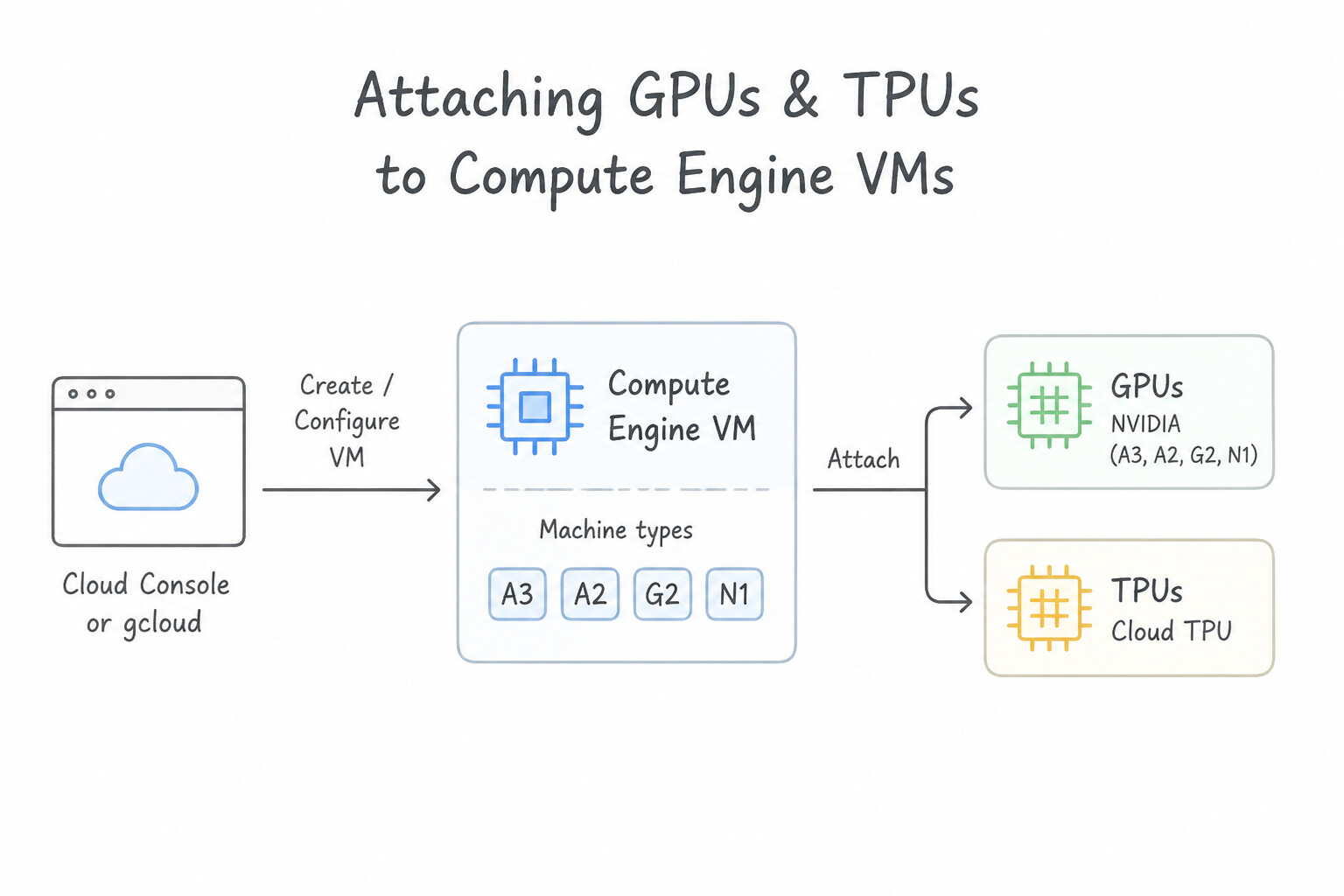
- Attaching GPUs to Compute Engine VMs (
A3,A2,G2,N1): - Machine series like
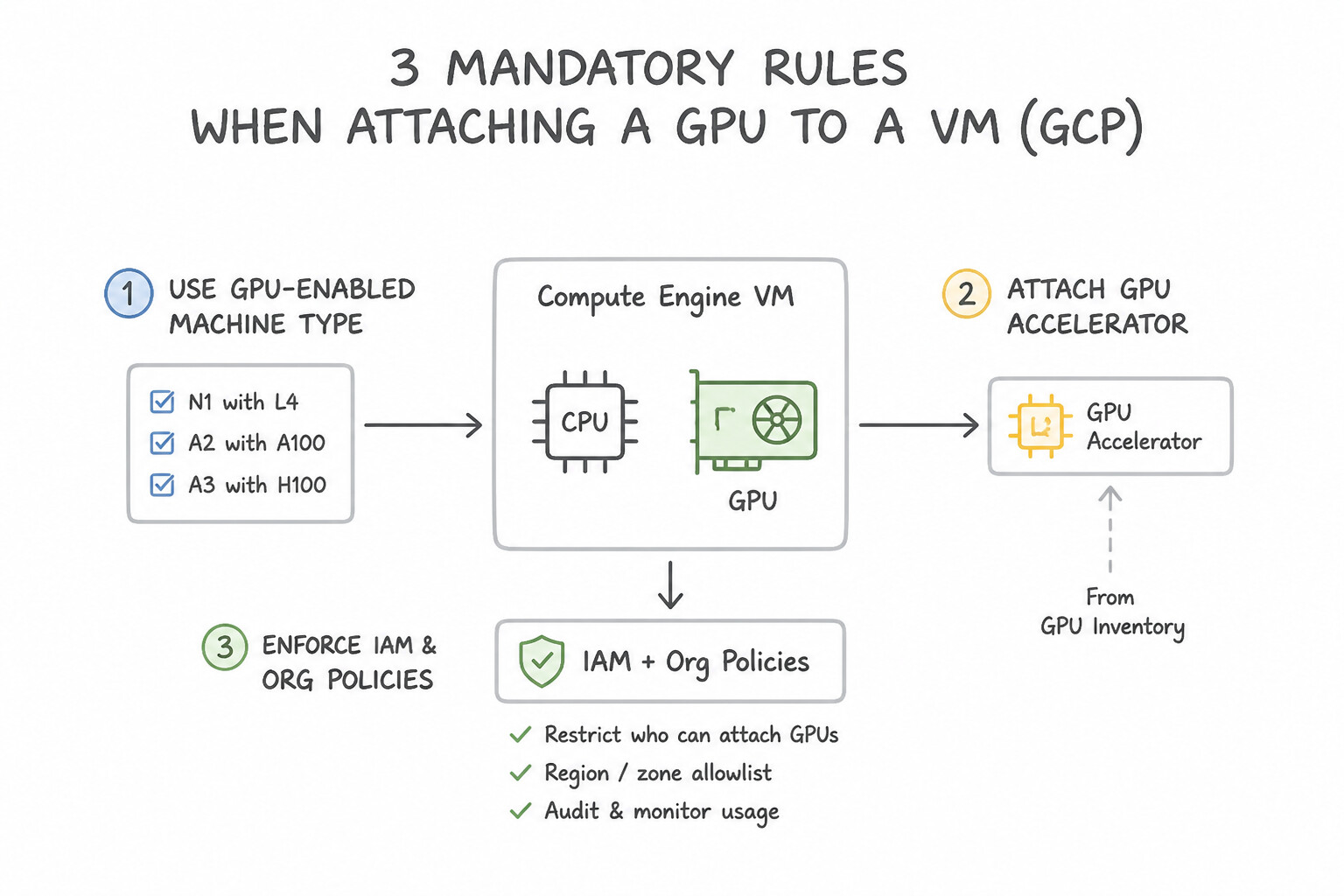
G2(NVIDIA L4) andA2/A3(A100/H100) come with built-in/attached GPUs, whileN1VMs can attach T4/V100/P4 GPUs via--accelerator=type=nvidia-tesla-t4,count=1. - Three Mandatory Operational Rules when Attaching a GPU to a VM:
- Stop the VM first (
gcloud compute instances stop) if modifying an existingN1VM's attached GPU. - Set the Host Maintenance policy to
TERMINATE(--maintenance-policy=TERMINATE)—VMs with GPUs cannot use Live Migration. - Install the NVIDIA GPU Driver inside the guest OS (or use a Deep Learning VM Image with pre-installed drivers) so the OS and CUDA workloads can actually see the hardware!
Key Takeaways (3.1m)
- Attaching GPUs to Compute Engine VMs (
A3,A2,G2,N1):- Three Mandatory Operational Rules when Attaching a GPU to a VM:
Consideration 3.1n: Deploying an Agent to Agent Runtime on Gemini Enterprise Agent Platform
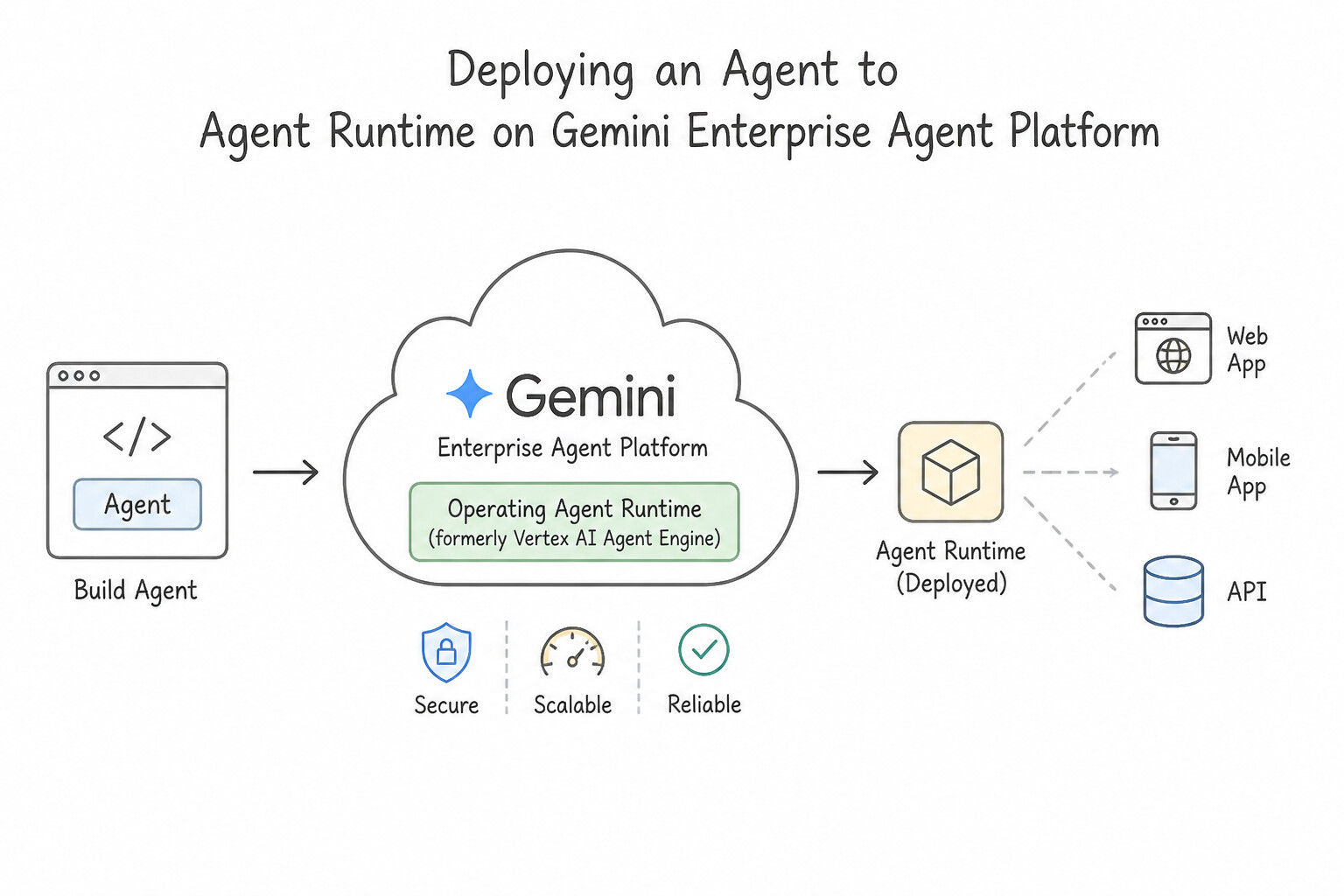
- Operating Agent Runtime (formerly Vertex AI Agent Engine):
- Allows cloud engineers to deploy Python agent applications (built with Agent Development Kit [ADK], LangChain, or LangGraph) to a fully managed, auto-scaling serverless runtime via
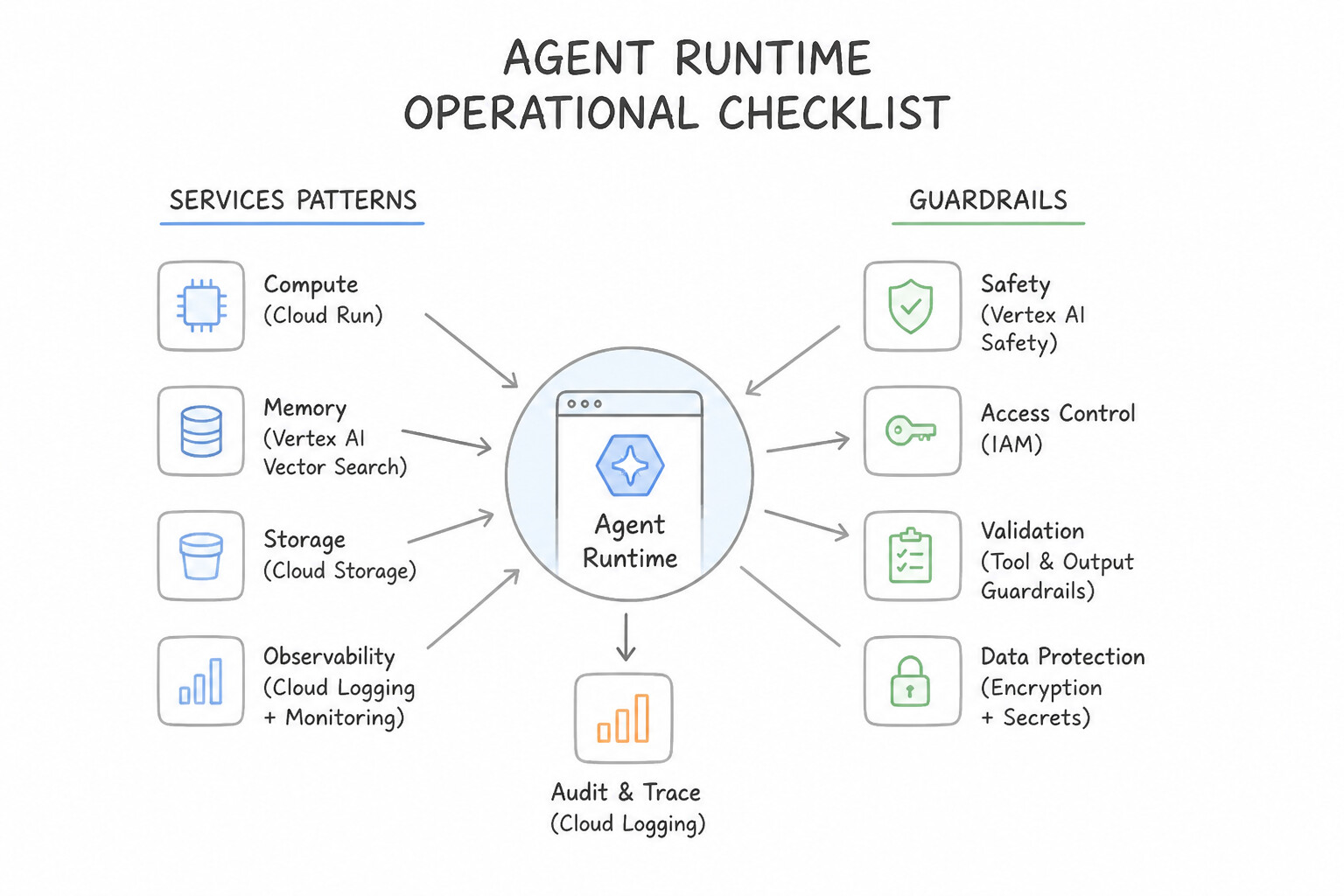
vertexai.preview.reasoning_engines.ReasoningEngine.create(...)or thegcloud/ Agents CLI. - Operational Checklist for Agent Runtime: Assign a dedicated least-privilege Service Account so the deployed agent can invoke Vertex AI Gemini models (
roles/aiplatform.user) and authorized downstream tools, configure environment variables / Secret Manager references, and monitor agent invocation latency and trajectory traces in Cloud Logging and Cloud Trace.
Key Takeaways (3.1n)
- Operating Agent Runtime (formerly Vertex AI Agent Engine):
- Operational Checklist for Agent Runtime: Assign a dedicated least-privilege Service Account so the deployed agent can invoke Vertex AI Gemini models (
roles/aiplatform.user) and authorized downstream tools, configure environment variables / Secret Manager references, and monitor agent invocation latency and trajectory traces in Cloud Logging and Cloud Trace.
Consideration 3.1o: Managing Notebooks in Gemini Enterprise Agent Platform Workbench & BigQuery
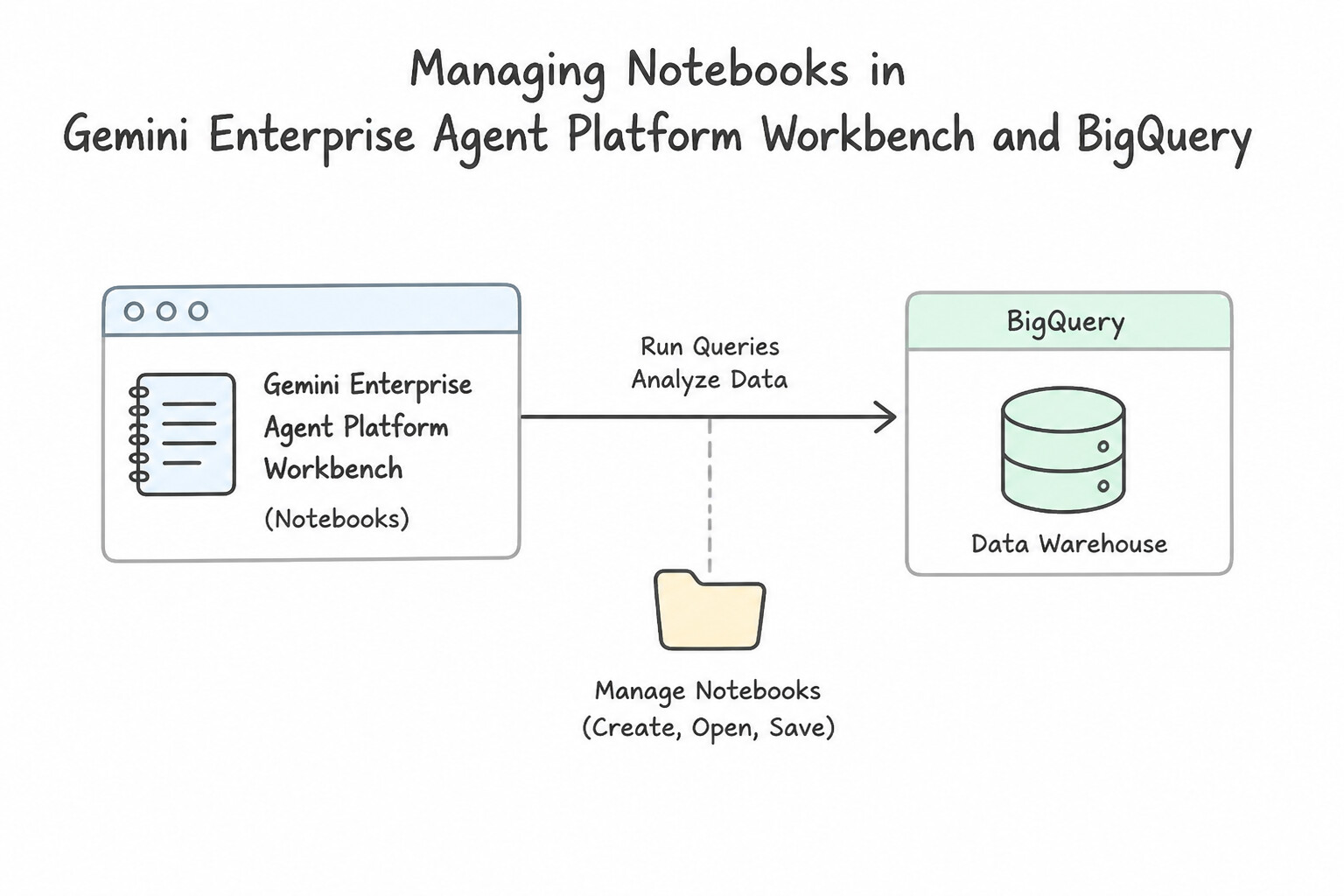
- Gemini Enterprise Agent Platform Workbench (formerly Vertex AI Workbench Instances):
- Managed, JupyterLab-based virtual machine environments for data scientists and ML engineers.
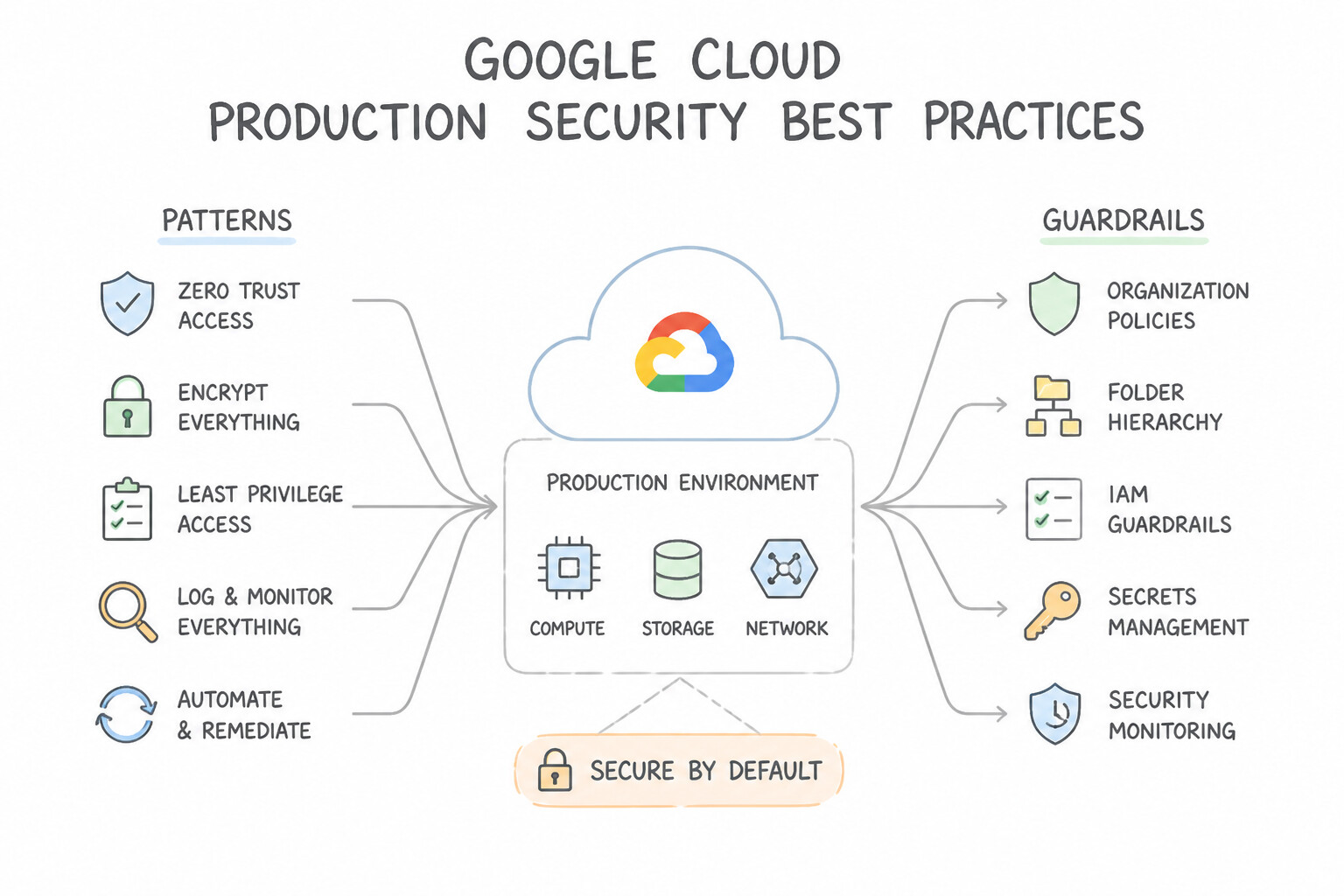
- Production Security Best Practices: Deploy Workbench instances inside a private VPC subnet with
--disable-public-ip, attach a custom least-privilege Service Account (never the default Compute Engine service account), enable Idle Shutdown to automatically stop the underlying VM when the notebook sits idle (saving compute costs), and access the notebook UI via Google's authenticating proxy. - BigQuery Studio Notebooks (Colab Enterprise in BigQuery): Serverless Python notebooks embedded directly inside the BigQuery console that allow analysts to run SQL and Python (
bigframes/ pandas) side-by-side without managing any VM instances.
Key Takeaways (3.1o)
- Gemini Enterprise Agent Platform Workbench (formerly Vertex AI Workbench Instances):
- Production Security Best Practices: Deploy Workbench instances inside a private VPC subnet with
--disable-public-ip, attach a custom least-privilege Service Account (never the default Compute Engine service account), enable Idle Shutdown to automatically stop the underlying VM when the notebook sits idle (saving compute costs), and access the notebook UI via Google's authenticating proxy.- BigQuery Studio Notebooks (Colab Enterprise in BigQuery): Serverless Python notebooks embedded directly inside the BigQuery console that allow analysts to run SQL and Python (
bigframes/ pandas) side-by-side without managing any VM instances.
Consideration 3.1p: Managing Developer Environments (Cloud Workstations)
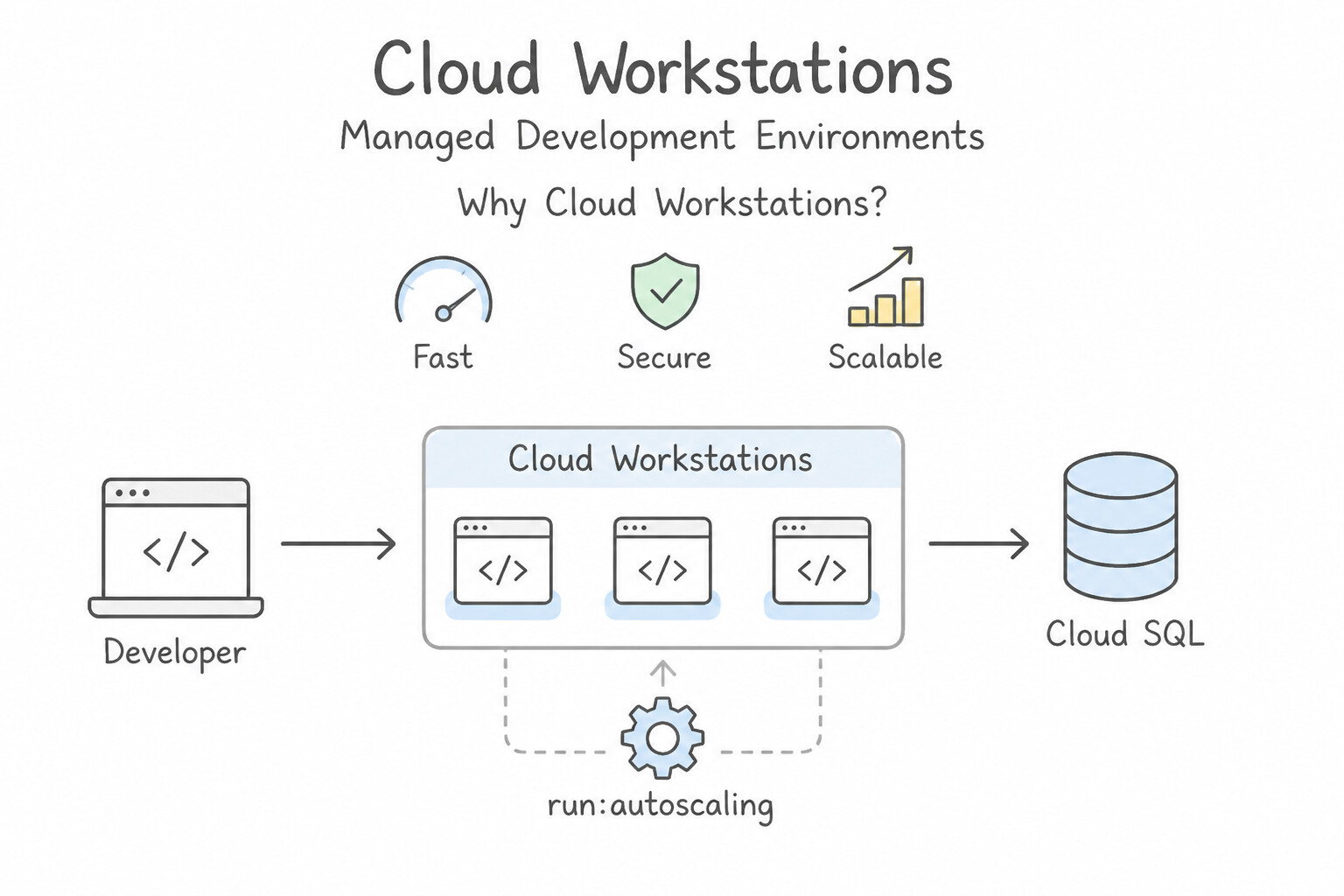
- Why Cloud Workstations? Replaces unmanaged local developer laptops with reproducible, container-based cloud IDEs running inside your VPC network.
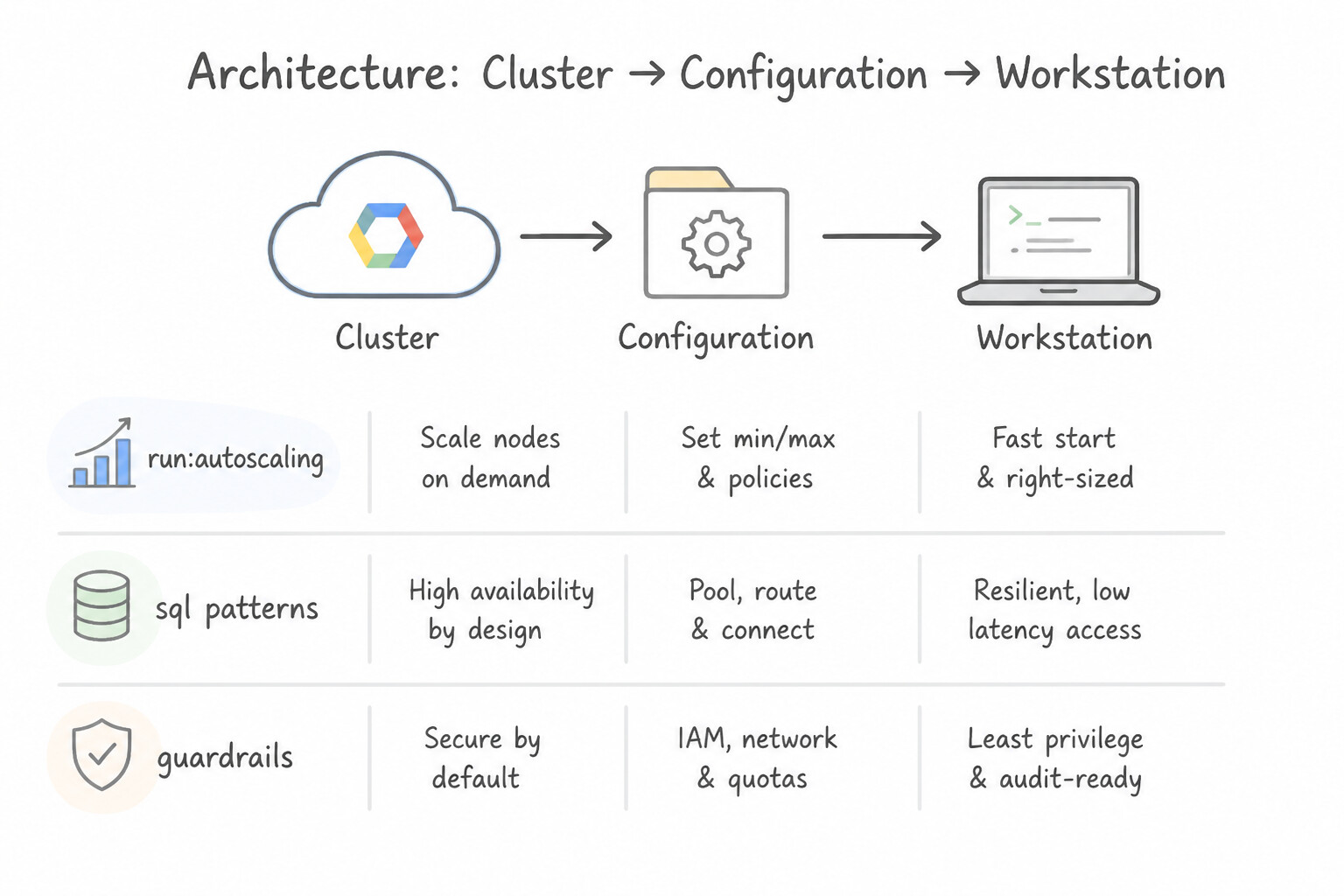
- Architecture (Cluster → Configuration → Workstation):
- Workstation Cluster: Defines the VPC network, subnet, and regional control plane gateway.
- Workstation Configuration: Admin-defined template specifying the machine type, container image (pre-installed with VS Code / JetBrains,
gcloud,kubectl,terraform), persistent home directory disk (pd-standard/pd-ssd), idle timeout (auto-stops VM when developer disconnects), and IAM Service Account. - Individual Workstations: Provisioned per developer with IAM access (
roles/workstations.user); source code stays on encrypted Persistent Disks inside the VPC—never on the developer's local device!
Key Implementation Patterns
- Mitigating Cold Starts for Latency-Sensitive Apps: Use Update the Cloud Run service to set the minimum number of instances to 1. Setting min-instances to 1 keeps a container warm, preventing the cold start latency caused by scaling from zero. (Avoid alternative: Vertical scaling improves processing power but does not stop the service from scaling to zero during idle periods.)
- Protecting Downstream Databases from Overload: Use Configure the maximum number of instances (max-instances) for the Cloud Run service. Setting max-instances limits the total number of containers, ensuring the total database connections remain within the database's capacity.
Key Takeaways (3.1p)
- Cloud Run scales to zero by default to minimize costs.
- Scaling from zero causes 'cold start' latency.
- Configure min-instances to keep instances warm for latency-sensitive applications.
- Idle instances incur charges, so balance performance needs against cost.
Quick Decision Cheat Sheet (Subsection 3.1)
If the Scenario Requires... | Choose This Google Cloud Pattern | Avoid This Common Mistake |
|---|---|---|
"SSH into a VM with no external IP via Identity-Aware Proxy (IAP)" | Allow ingress on tcp:22 from 35.235.240.0/20 + grant roles/iap.tunnelResourceAccessor | Allowing 0.0.0.0/0; attaching an ephemeral public IP |
"Migrate a VM's boot disk to a different zone or region" | Create a Snapshot of the disk → create a new Persistent Disk from the snapshot in the target zone → attach to a new VM | Trying to move a zonal Persistent Disk across regions directly without a snapshot or image |
"Increase the size of a Compute Engine Persistent Disk while the VM is running" | Run gcloud compute disks resize <DISK> --size=500GB (online, zero downtime) → SSH in and run resize2fs / growpart | Stopping the VM first; recreating the disk from scratch |
"GKE Pods are stuck in Pending state with 0/3 nodes are available: Insufficient cpu" | Enable GKE Cluster Autoscaler on the node pool (or manually resize the node pool with gcloud container clusters resize) | Adding a Horizontal Pod Autoscaler (HPA creates more Pending Pods when nodes are full!) |
"Deploy a new Cloud Run version for internal QA testing before sending any live user traffic to it" | gcloud run deploy --image=... --no-traffic --tag=qa | Deploying to a separate project; deploying with default 100% traffic and quickly rolling back |
"Reduce cost of Vertex AI / Gemini Enterprise Agent Platform Workbench notebooks left running overnight by data scientists" | Enable Idle Shutdown on the Workbench instance configuration | Deleting the Workbench instance every evening |
Further Reading (Subsection 3.1)
- Connecting to instances using IAP — This page explains how IAP TCP forwarding works, specifically for SSH access to instances without external IP addresses.
- gcloud compute ssh documentation — Reference for the gcloud command, detailing the usage of the --tunnel-through-iap flag.
- About OS Login — Overview of how OS Login works to manage SSH access using IAM.
- Granting IAM roles for OS Login — Details on the specific IAM roles required to use OS Login.
- Set up OS Login — Task guide for enabling OS Login in project metadata and assigning required roles.
- Creating passwords for Windows instances — This guide explains how to generate a password for a Windows VM using the Google Cloud console or the gcloud CLI.
Book TOC · Previous · Chapter 4 of 8 · Next
AwesomeGCP.com Learning
The approach taken is a question-led learning approach: you explore realistic project scenarios where you need to make decisions or take actions to achieve business goals within specific constraints. Instead of passive learning, you are challenged to think and work through the options to master the Associate Cloud Engineer (ACE) certification!