Book TOC · Previous · Chapter 1 of 8 · Next
Chapter 1: Cloud Projects, Organization Hierarchy, Cloud Identity & Billing Governance
Chapter Focus: Organization/Folder/Project hierarchy, Organization Policies, Cloud Identity, Billing accounts, budgets, alerts, labels, and BigQuery billing exports.
Subsection 1.1: Setting Up Cloud Projects and Accounts
The Big Picture
When an engineering team opens their first Google Cloud account, the temptation is to create a single flat project, invite developers by their personal Gmail addresses with the Project Editor or Owner role, leave all default network and service account settings untouched, and deploy workloads into us-central1 without checking regional product availability or quota limits. Within six months, that team hits four predictable operational walls:
- The Flat-Project Blast Radius & Policy Drift Trap (
1.1a,1.1b,1.1h): Without an Organization node and structured Folders (Production,Non-Production,Shared-Infrastructure), every new project requires manual copy-pasting of IAM bindings and security guardrails. Worse, without Organization Policy constraints (such asconstraints/compute.vmExternalIpAccessorconstraints/iam.disableServiceAccountKeyCreation), a single developer withProject Ownerin a sandbox project can attach public IP addresses to database VMs or export long-lived JSON keys. - The Identity Sprawl & User-Level IAM Trap (
1.1c,1.1d,1.1l): Granting IAM roles directly to individualuser:principals makes offboarding and auditing impossible at scale. Enterprise Google Cloud environments synchronize corporate identities into Cloud Identity (via Google Cloud Directory Sync [GCDS] or SCIM) or federate external IdPs (Okta, Microsoft Entra ID) directly via Workforce Identity Federation, and bind IAM roles strictly to Google Groups following the principle of least privilege. - The Unchecked Quota, API, & Regional Availability Trap (
1.1e,1.1g,1.1j): Production launches fail halfway through Terraform runs because required service APIs (serviceusage.googleapis.com) were not enabled, regional GPU/CPU rate or allocation quotas were not pre-assessed, or an architecture assumed a zonal/regional service was available in a region that does not host it. - The Blind Fleet & Multi-Project Observability Trap (
1.1f,1.1i,1.1k): Scattering logs and metrics across 30 isolated projects without a centralized Metrics Scope and Cloud Asset Inventory (augmented by Gemini Cloud Assist) leaves operators blind during cross-project incidents.
Consideration 1.1a: Creating a resource hierarchy
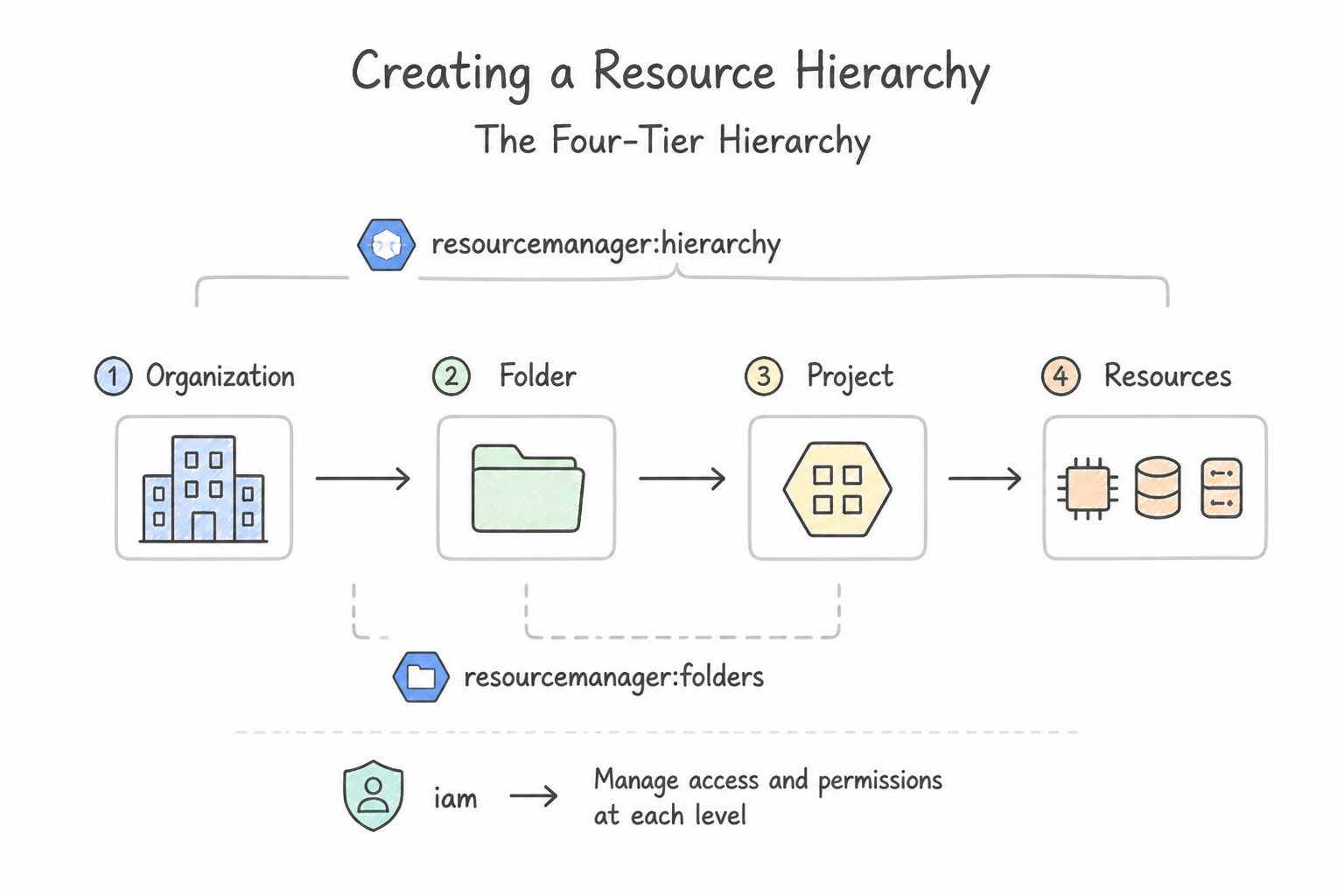
- The Four-Tier Hierarchy: Google Cloud organizes resources into four levels: Organization (the root node representing the company domain) → Folders (nested groupings for departments, environments like
Prod/Dev, or regulatory zones) → Projects (the fundamental trust, quota, API, and billing boundary) → Resources (VMs, buckets, datasets). - Three Project Identifiers: Every project has three identifiers:
- Project Name: Human-friendly display label (mutable, does not have to be unique).
- Project ID: Globally unique string chosen at creation (e.g.,
acme-payments-prod-01), immutable after creation, and used in almost allgcloud --projectcommands and resource URLs. - Project Number: Globally unique, system-generated immutable integer (e.g.,
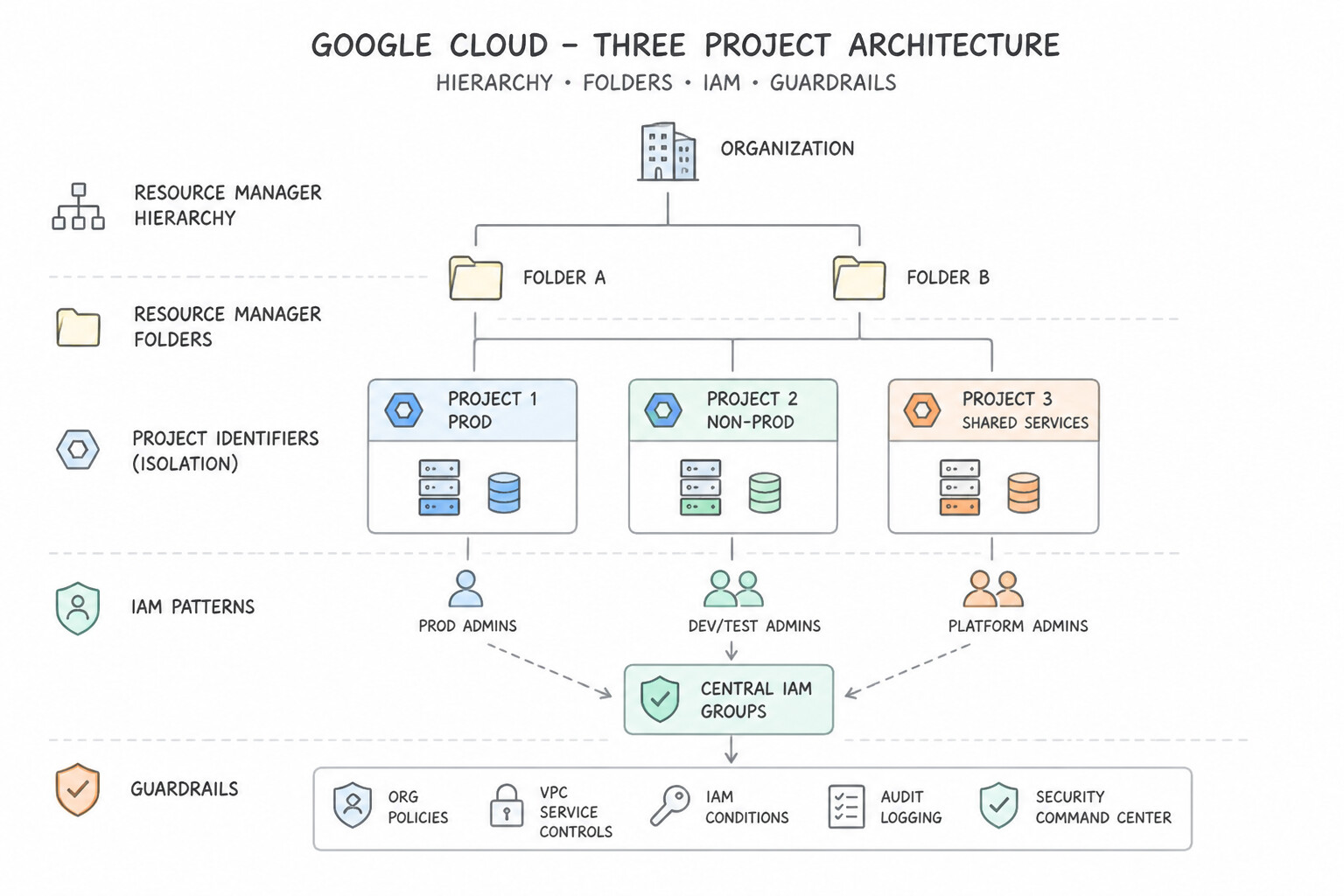
492817364510) used internally by Google-managed service agents (service-<PROJECT_NUMBER>@...). - Additive Inheritance Law: IAM allow policies flow strictly downward. If a group is granted
roles/viewerat the Folder level, they automatically inheritroles/vieweron every Project inside that Folder (and any nested Sub-Folders) and cannot have that permission revoked by a lower-level standard allow policy (unless IAM Deny policies are used).
Key Implementation Patterns
- Designing a Multi-Department Hierarchy: Use Create a Folder for each department under the Organization, and create projects within those folders. Folders provide a layer for grouping projects by department, enabling efficient IAM policy inheritance and isolation. (Avoid alternative: A single company should use one Organization node to maintain centralized billing and policy control.)
- Organization Policy Inheritance and Overrides: Use Navigate to the Organization Policies page for the "Public-Facing" project. Edit the external IP constraint to "Customize" and replace the parent policy to allow external IP addresses. You must override the inherited Organization Policy at the project level by customizing the constraint to allow external IPs for that specific project.
- Granting Granular Access via Hierarchy: Use Grant the Viewer role to the auditor on the Compliance folder. Permissions set on a folder are automatically inherited by all projects inside it, fulfilling the automation and scoping requirements. (Avoid alternative: This grants access to the entire organization, including the "Research" folder, which is not allowed.)
Key Takeaways (1.1a)
- The Organization node is the root of the hierarchy and centralizes control.
- Folders organize projects by business unit (Department) or environment (Dev/Prod).
- IAM policies inherit downwards: Organization -> Folder -> Project -> Resource.
- Projects are the hard boundary for billing, quotas, and permissions isolation.
Consideration 1.1b: Applying organizational policies to the resource hierarchy
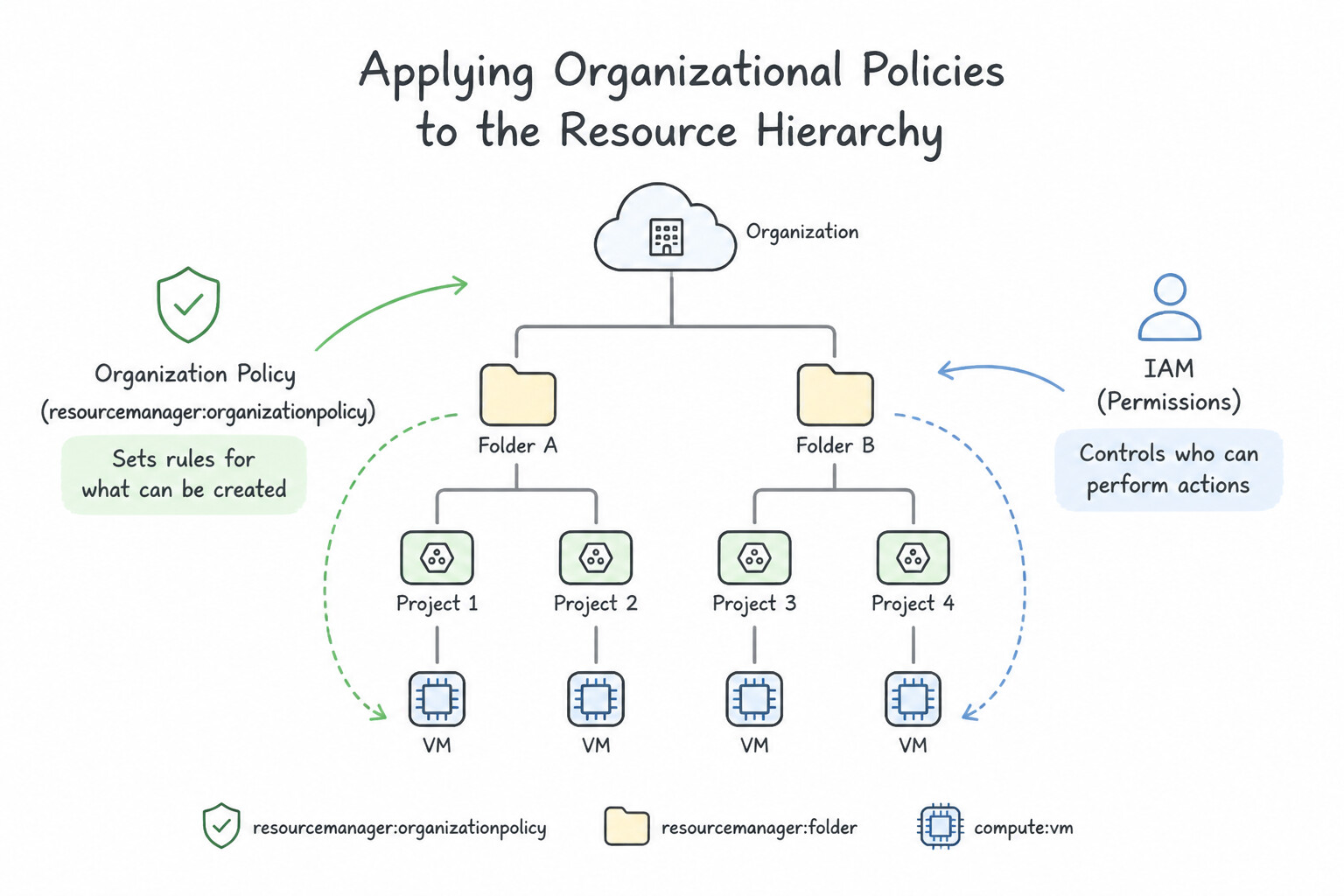
- IAM vs. Organization Policy: IAM answers "WHO can take an action?" (identity-centric). Organization Policy Service answers "WHAT configurations are allowed on resources, regardless of who is asking?" (resource-centric preventive guardrails). Even a
Project Ownercannot violate an active Organization Policy constraint. - Key Architectural Constraints:
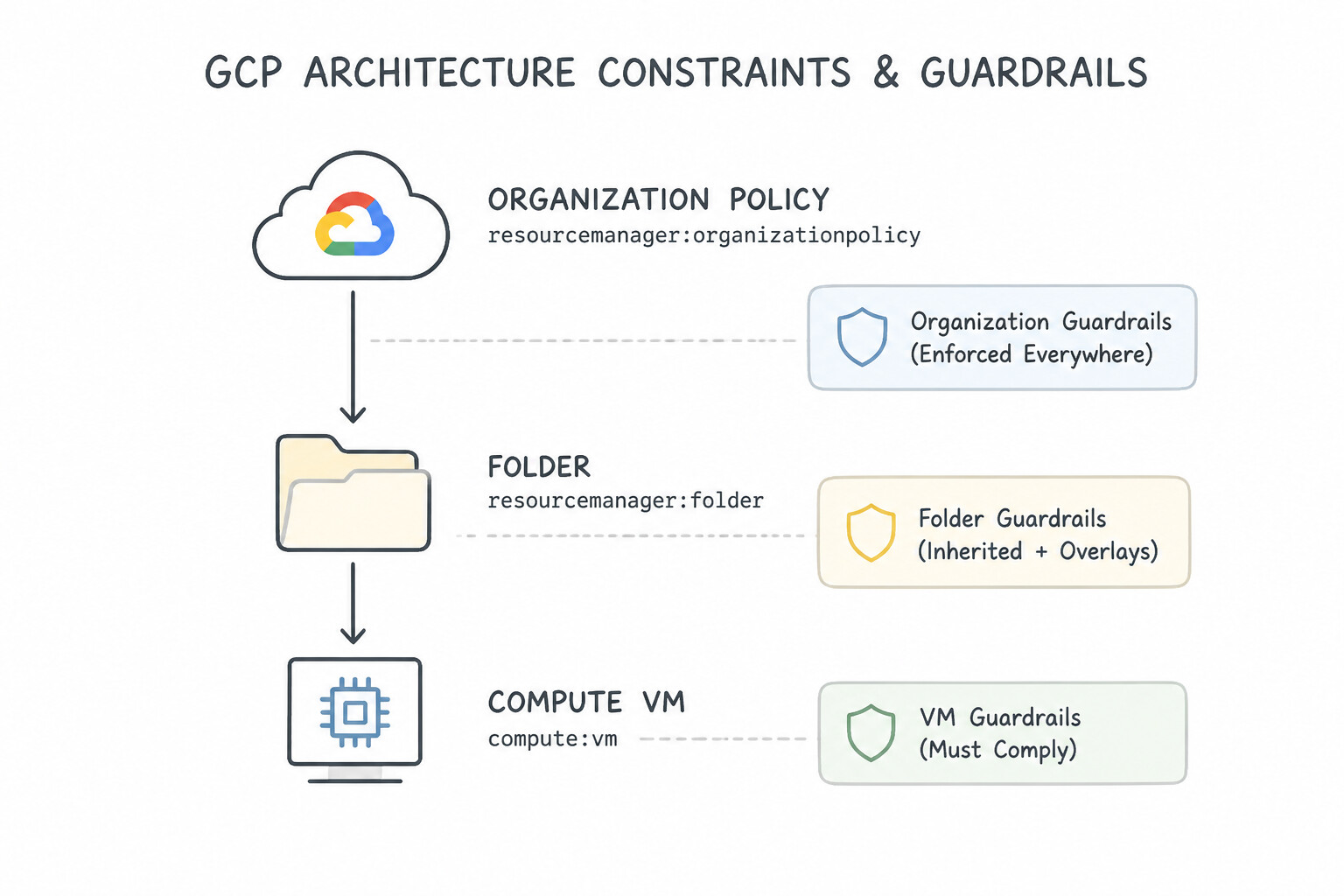
constraints/compute.vmExternalIpAccess: Prevents VMs from being created with public IP addresses.constraints/iam.disableServiceAccountKeyCreation: Blocks users from exporting downloadable JSON service account keys.constraints/gcp.resourceLocations: Restricts physical creation of resources to approved sovereign regions (e.g.,in:eu-locationsfor GDPR residency).constraints/iam.allowedPolicyMemberDomains: Prevents granting IAM access to external personal email domains (@gmail.com).- Hierarchy Override & Inheritance Merging: By default, child Folders and Projects inherit constraints from their parent. Only a principal with
roles/orgpolicy.policyAdmin(Organization Policy Administrator)—assigned at the Organization level—can define, modify, or grant folder/project-level exceptions to constraints.
Key Implementation Patterns
- Enforcing Data Residency Compliance: Use Configure an Organization Policy on the folder using the 'constraints/gcp.resourceLocations' constraint. Add the two European regions to the 'Allowed' list. Organization Policies allow you to restrict resource locations hierarchically using the 'constraints/gcp.resourceLocations' constraint.
- Exempting a Legacy Project from Organization Restrictions: Use In the specific project, edit the Organization Policy for 'Define allowed external IPs for VM instances'. Policies applied at the Project level override inherited Organization policies, allowing you to create specific exceptions.
- Preventing Default Network Creation: Use Configure an Organization Policy with the constraints/compute.skipDefaultNetworkCreation boolean constraint set to true. This boolean constraint is specifically designed to prevent the automatic provisioning of the default VPC network during project creation.
Key Takeaways (1.1b)
- Use Organization Policies to enforce compliance and governance rules across the resource hierarchy.
- Use IAM for managing identity and permissions (who can do what).
- Use Quotas to manage resource consumption and prevent billing spikes, but not for compliance.
- Organization Policies applied at a Folder level are inherited by all Projects within that Folder.
Consideration 1.1c: Granting members iam roles within a project
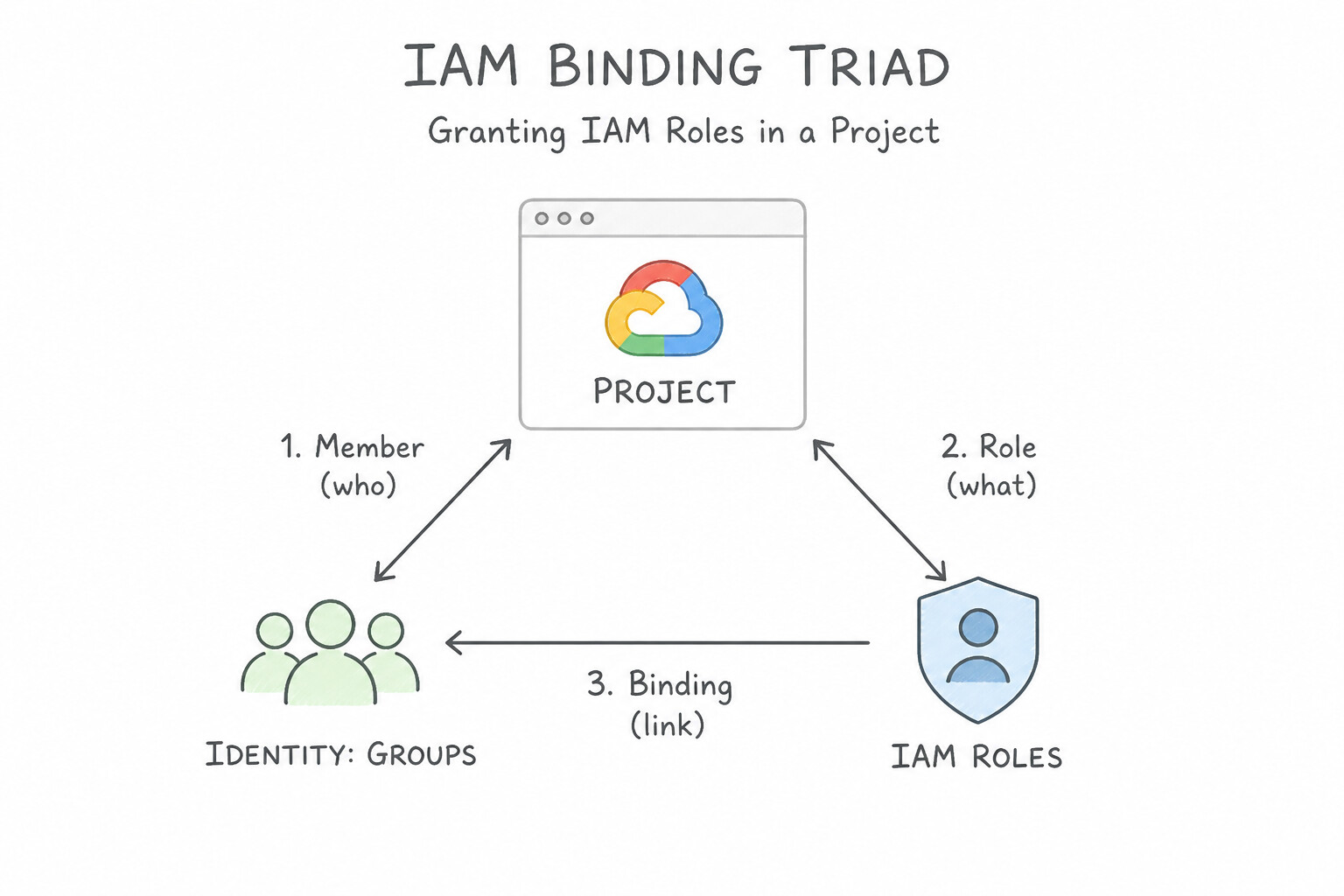
- The IAM Binding Triad: Every IAM binding links three elements: Principal (Who:
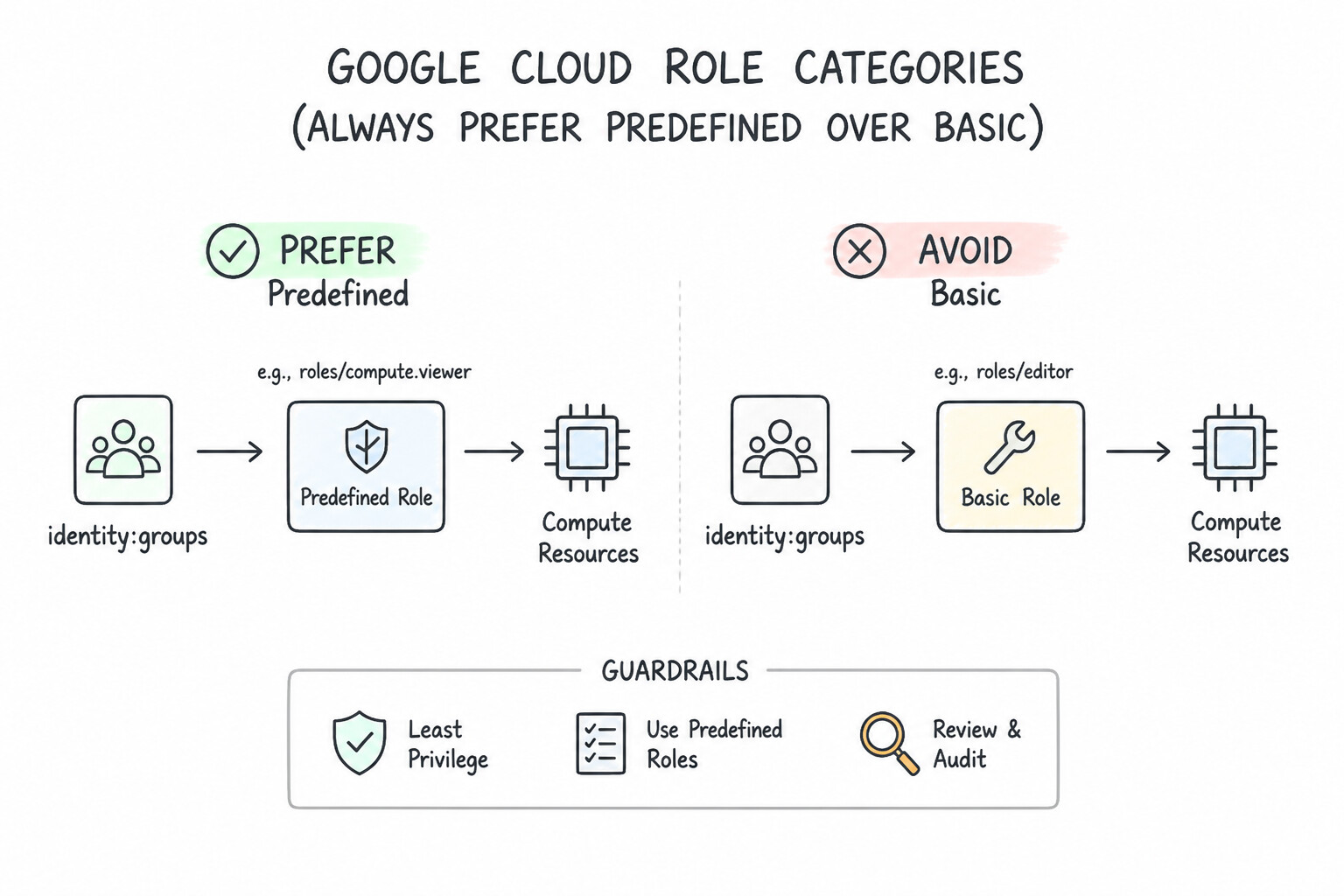
user:,group:,serviceAccount:,domain:) + Role (What: a collection ofservice.resource.verbpermissions) + Resource / Condition (Where / When). - Role Categories (Always Prefer Predefined over Basic):
- Basic (Primitive) Roles (
Owner,Editor,Viewer,Browser): Coarse, legacy project-wide roles.Editorcontains thousands of permissions across all services and violates least privilege in production. Note:Browser(roles/browser) only lets a user browse the project hierarchy and metadata—it does not grant read access to data inside buckets or tables. - Predefined Roles: Fine-grained, Google-maintained job-function roles (e.g.,
roles/run.admin,roles/storage.objectViewer,roles/appengine.deployer). Always the default choice in Production when a standard role fits. - Custom Roles: Created at the Project or Organization level when no Predefined role matches the exact least-privilege permission set.
- CLI Command Pattern: Use
gcloud projects add-iam-policy-binding <PROJECT_ID> --member="group:devs@example.com" --role="roles/compute.viewer"to append a binding non-destructively.
Key Implementation Patterns
- Principle of Least Privilege: Use Assign the Compute Viewer (roles/compute.viewer) role to the developer. The Compute Viewer role grants read-only access specific to Compute Engine resources, satisfying the requirement to view without modifying. (Avoid alternative: The Owner role grants full administrative access to the entire project, which is excessive and dangerous for a viewing requirement.)
- Efficient User Management via Groups: Use Create a Google Group containing the engineers' accounts and assign the Compute Instance Admin role to the group. Assigning roles to a Google Group decouples identity management from access management, significantly reducing administrative effort.
- Granular Permissions with Custom Roles: Use Create a custom IAM role with the specific permissions for logging, monitoring, and VM restart, and assign it to the team. Custom roles allow you to combine specific permissions when predefined roles are too broad. (Avoid alternative: Compute Instance Admin (v1) grants excessive permissions, such as creating and deleting instances.)
Key Takeaways (1.1c)
- Least Privilege: Always grant the minimum permissions required for a task.
- Predefined Roles: Prefer Predefined roles (e.g., Compute Viewer) over Basic roles (e.g., Viewer) for more granular control.
- Read vs. Write: Distinguish clearly between roles that allow viewing (Viewer) and roles that allow modification (Editor, Admin, Owner).
- Always use Google Groups to manage permissions for teams or departments instead of assigning roles to individual users.
Consideration 1.1d: Managing users and groups in cloud identity (manual and automated)
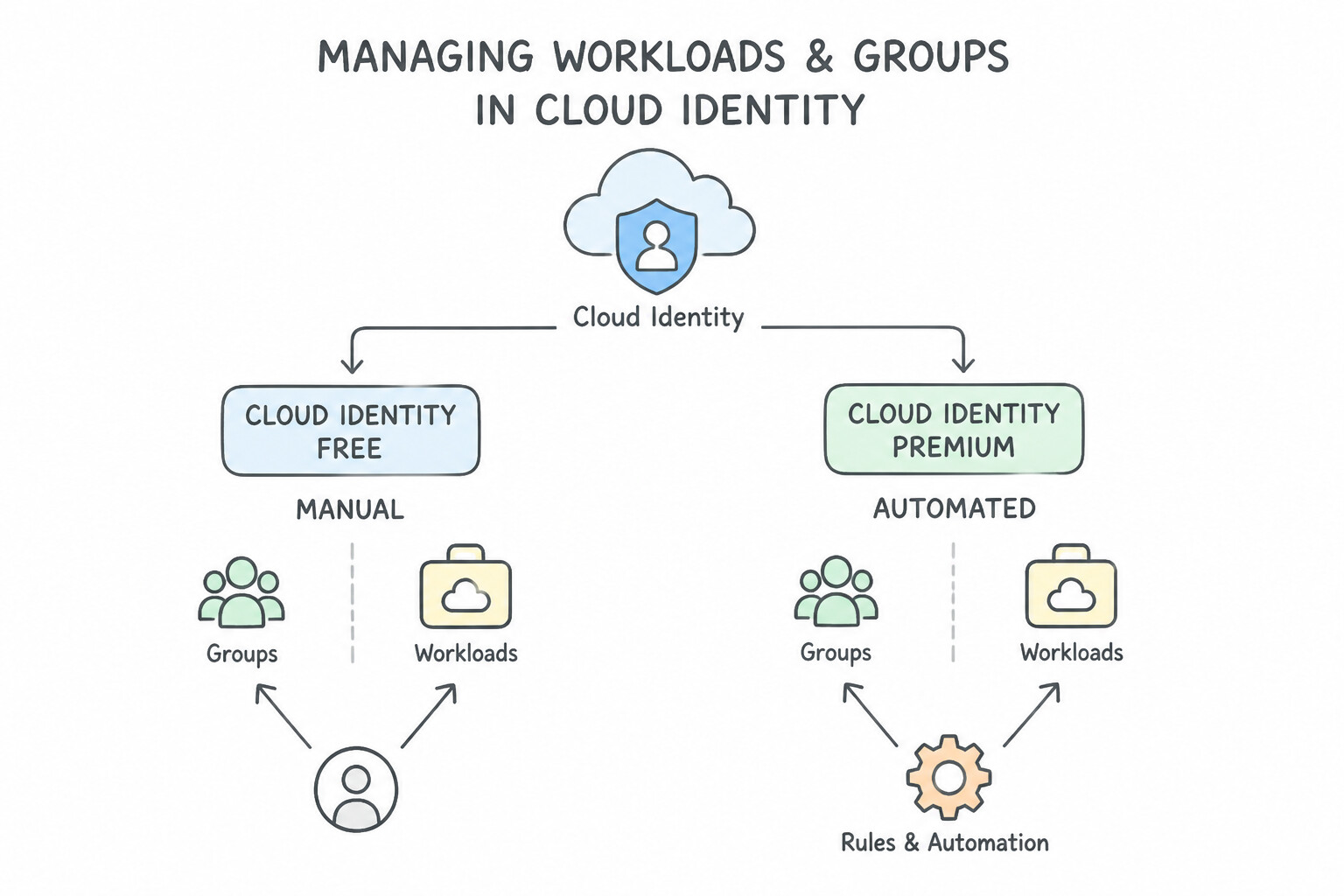
- Cloud Identity Free vs. Premium: Organizations that do not use Google Workspace use Cloud Identity to provision corporate user accounts and Google Groups under their verified DNS domain.
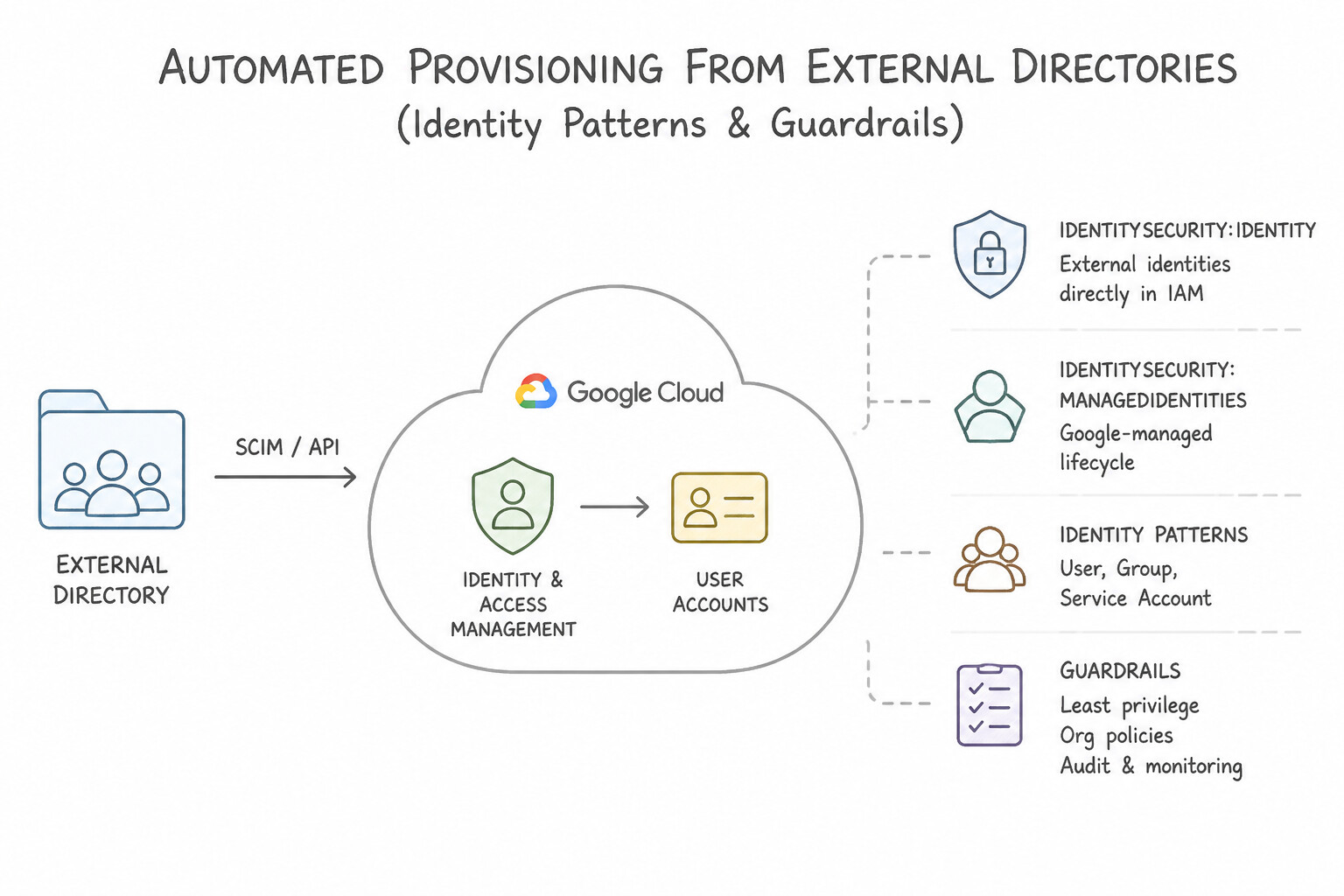
- Automated Provisioning from External Directories: Never create hundreds of users manually by CSV if an enterprise already uses Active Directory or an external IdP:
- Google Cloud Directory Sync (GCDS): Synchronizes users, groups, and organizational units one-way from on-premises Microsoft Active Directory / LDAP into Cloud Identity (Google Cloud never writes passwords or changes back to AD).
- SCIM Provisioning + SAML/OIDC SSO: Modern cloud IdPs (Okta, Microsoft Entra ID, Ping) push user/group lifecycle changes automatically into Cloud Identity via SCIM while handling authentication via SAML 2.0 or OIDC.
- The Group-Based RBAC Pattern: Map job functions to Google Groups (
gcp-network-admins@example.com,gcp-data-analysts@example.com). When an employee joins, changes teams, or leaves, updating their group membership in the corporate directory automatically updates their effective Google Cloud permissions with zero IAM policy edits.
Key Implementation Patterns
- Synchronizing On-Premises Active Directory: Use Install and configure Google Cloud Directory Sync (GCDS) to synchronize users from the Active Directory to Cloud Identity. GCDS is the tool designed to sync users and groups from an LDAP directory to Cloud Identity while keeping the on-premises directory as the master.
- Automating Membership with Dynamic Groups: Use Create dynamic groups in Cloud Identity. Define a membership query using Common Expression Language (CEL) based on the department attribute. Dynamic groups automatically manage membership using queries based on user attributes like department, eliminating manual updates.
- Handling Existing Personal Accounts (Unmanaged Users): Use Use the Transfer tool for unmanaged users to invite the account owners to join the organization. The Transfer tool allows you to invite existing unmanaged users to transfer their accounts and data into your organization.
Key Takeaways (1.1d)
- GCDS (Google Cloud Directory Sync) is used to provision users and groups from LDAP/AD to Cloud Identity.
- GCDS is a one-way synchronization tool; the on-premises directory remains the source of truth.
- GCDS does not sync passwords by default; it syncs directory attributes.
- Manual CSV uploads are not suitable for automated, continuous synchronization.
Consideration 1.1e: Enabling apis within projects
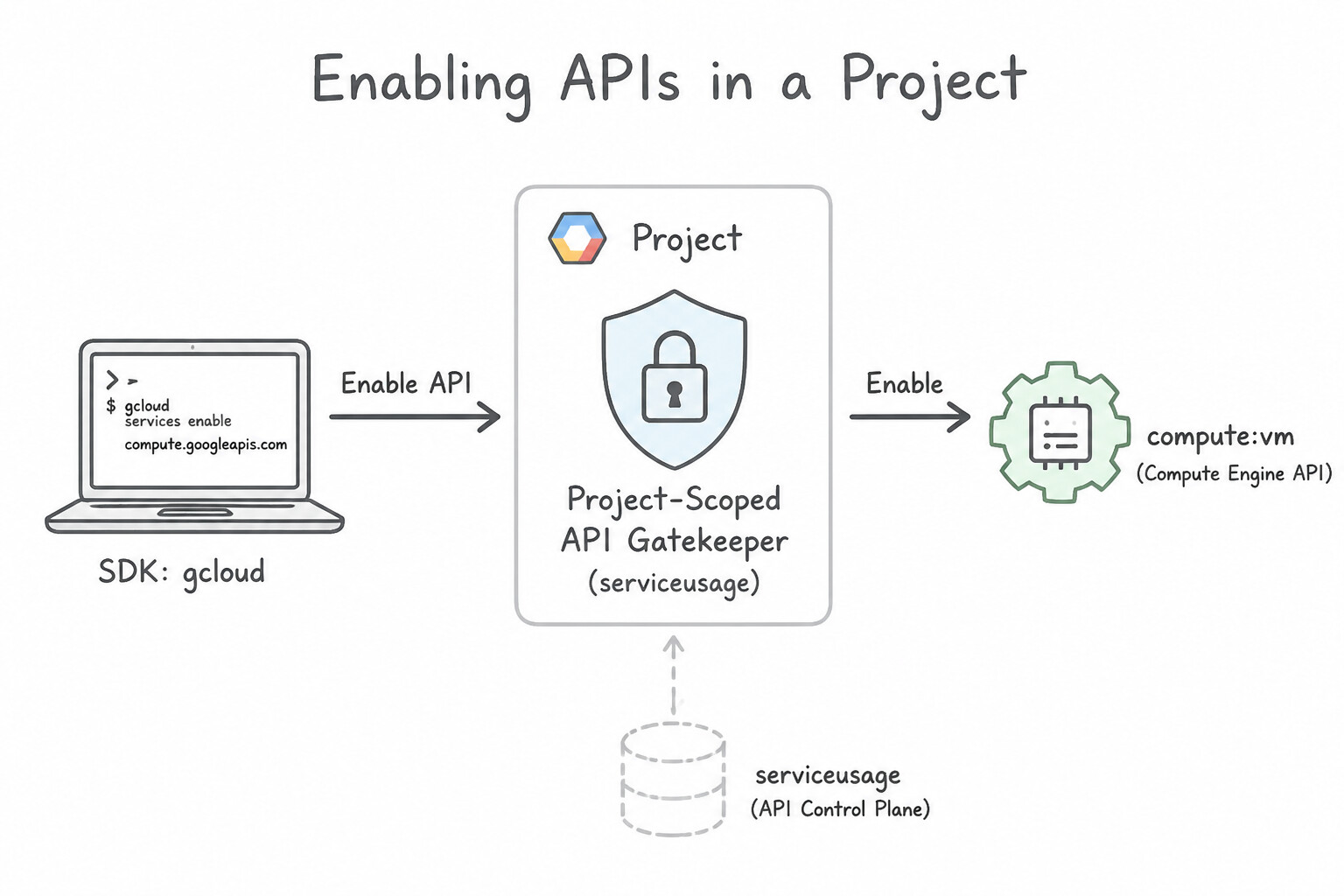
- Project-Scoped API Gatekeeper: Most Google Cloud services (
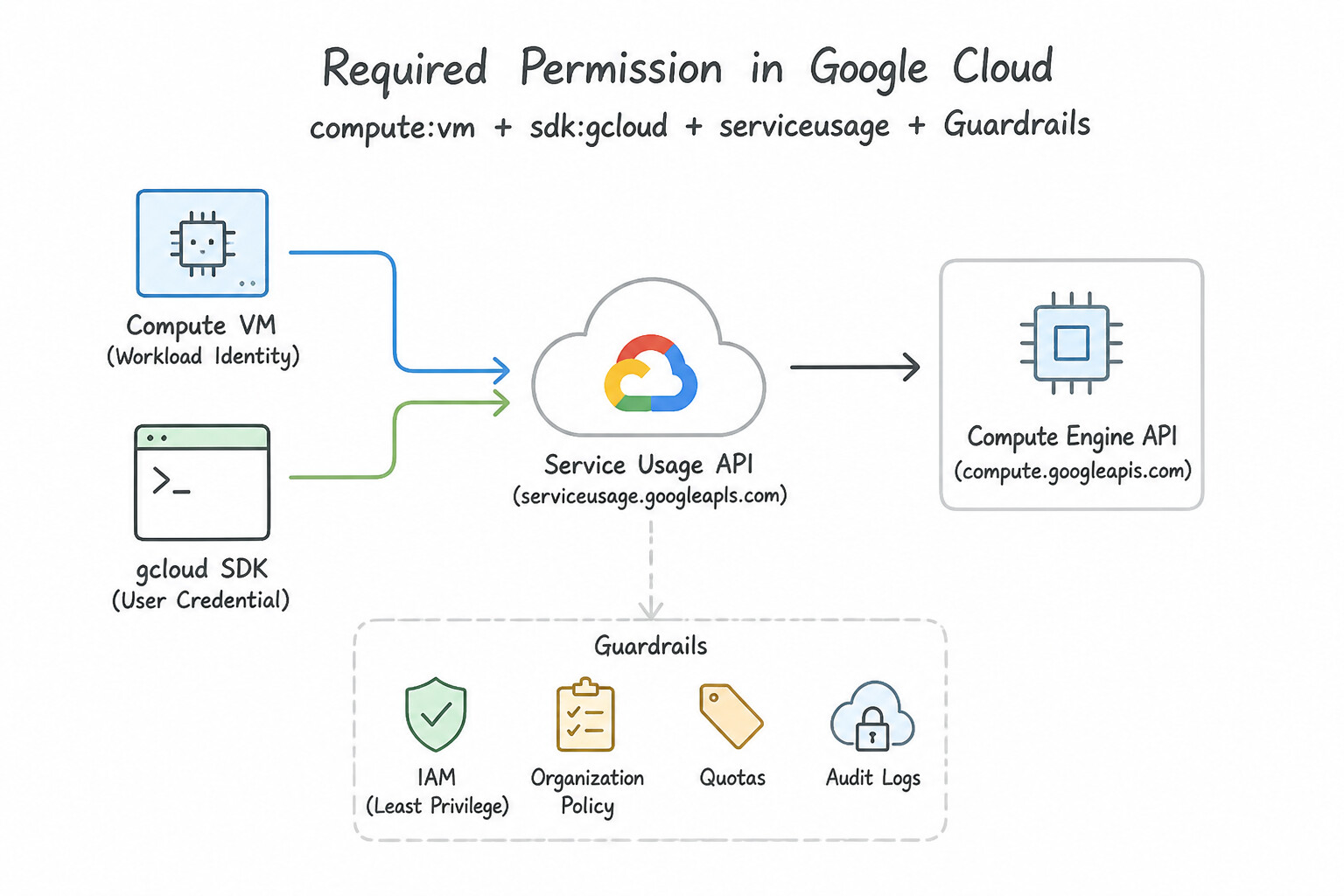
compute.googleapis.com,container.googleapis.com,run.googleapis.com,secretmanager.googleapis.com) are disabled by default in a brand-new project to prevent unintended billing and shrink the attack surface. - Required Permission: Enabling an API requires the
serviceusage.services.enablepermission, which is granted via theroles/serviceusage.serviceUsageAdmin(Service Usage Admin) predefined role (as well asEditor/Owner). - CLI & Terraform Best Practices:
- List active APIs:
gcloud services list --enabled --project=<PROJECT_ID> - Enable APIs via CLI:
gcloud services enable compute.googleapis.com container.googleapis.com --project=<PROJECT_ID> - In Terraform, manage APIs declaratively with
google_project_serviceresources and setdisable_on_destroy = falseso tearing down a module does not accidentally disable a shared API.
Key Implementation Patterns
- Enabling a Single API via CLI: Use Run 'gcloud services enable compute.googleapis.com'. You must explicitly enable the Compute Engine API using 'gcloud services enable compute.googleapis.com' before creating VM instances. (Avoid alternative: The 'gcloud config' command manages local SDK settings, not the server-side enabling of APIs.)
- Batch API Enablement: Use Run
gcloud services enable compute.googleapis.com container.googleapis.com sqladmin.googleapis.com. Thegcloud services enablecommand accepts a space-delimited list of service names to enable multiple APIs at once. (Avoid alternative: Thegcloud configcommand modifies local SDK settings, not the enabled services on the Google Cloud project.) - Verifying Enabled APIs: Use Run
gcloud services list --enabled. This command specifically lists the services that are currently active (enabled) in the project. (Avoid alternative: This command lists every service Google Cloud offers that you could potentialy enable, not just the ones currently active.)
Key Takeaways (1.1e)
- New Google Cloud projects have most APIs disabled by default.
- You must enable specific APIs (like compute.googleapis.com) before creating related resources.
- The
gcloud services enablecommand is the standard CLI method for activating APIs.- Use
gcloud services enableto activate APIs in a project.
Consideration 1.1f: Provisioning and setting up products in google cloud observability
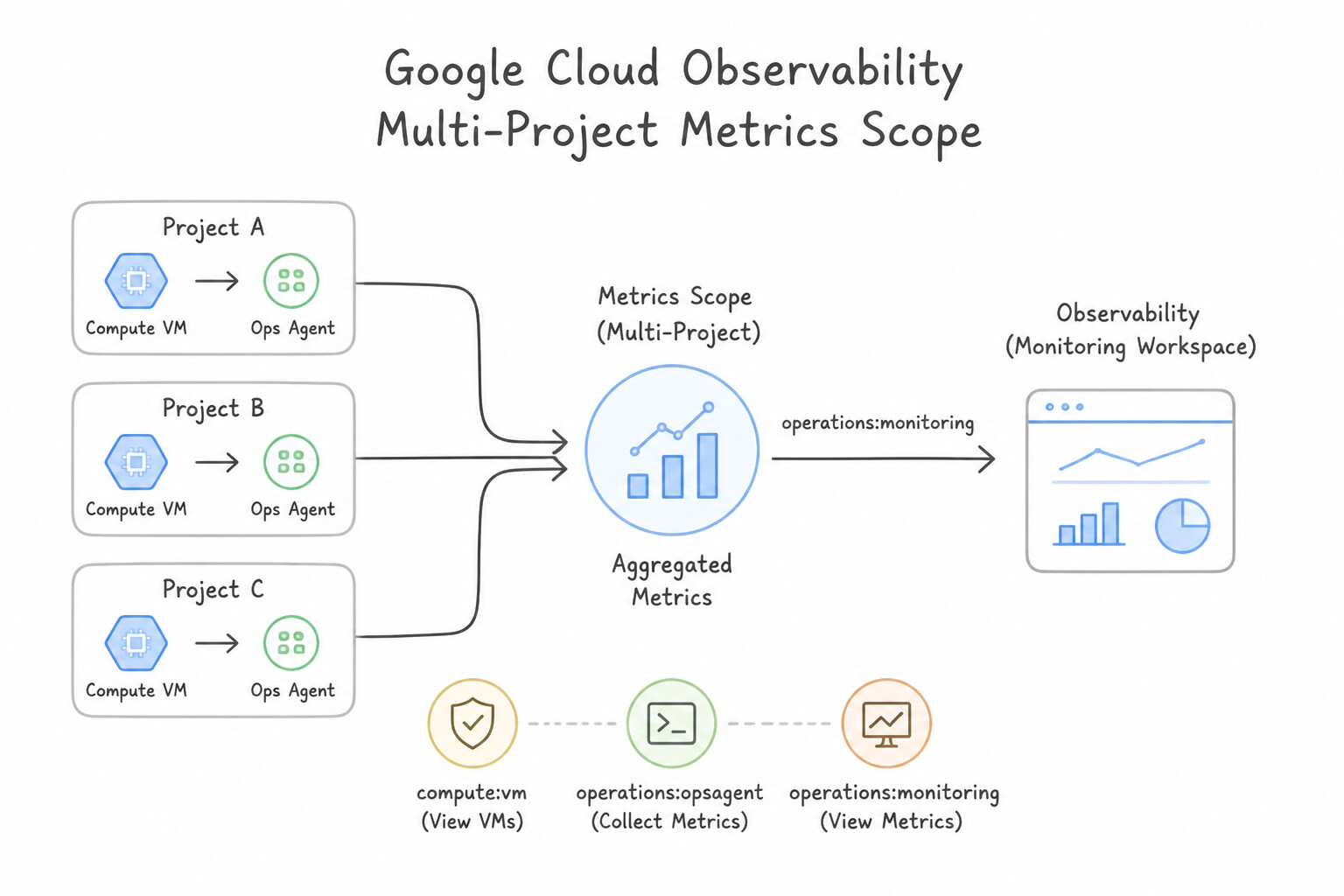
- Multi-Project Metrics Scopes: By default, each project's Cloud Monitoring console only displays metrics from that single project. To monitor 20 microservice projects on a single pane of glass without moving data, create a dedicated Scoping Project (
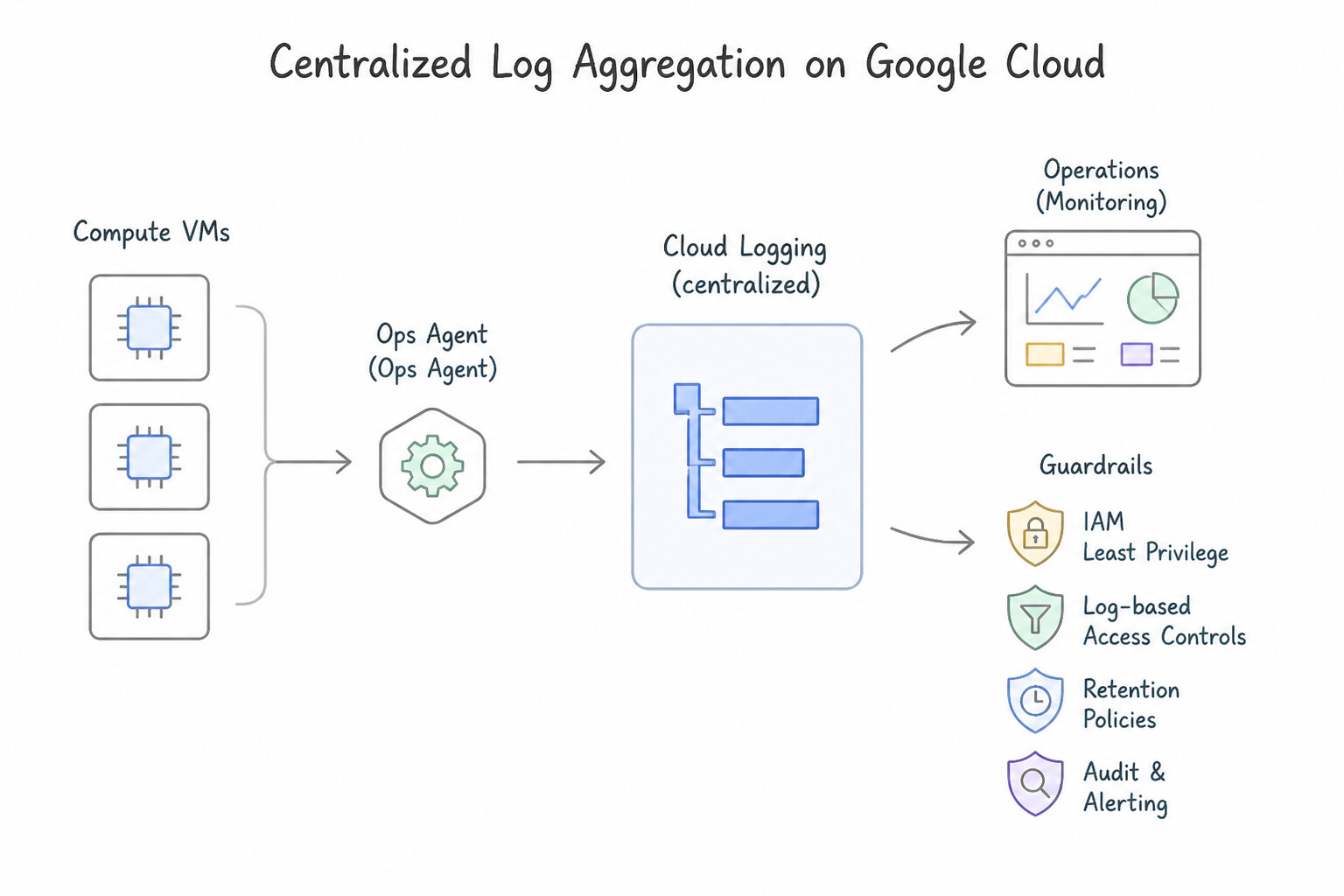
monitoring-host-prod) and add the 20 monitored projects to its Metrics Scope. - Centralized Log Aggregation: While Metrics Scopes aggregate metrics virtually, centralizing logs across an organization or folder requires an Aggregated Log Sink (
--include-children) at the Folder or Organization level that routes logs to a central Cloud Logging bucket, BigQuery dataset, or Cloud Storage bucket.
Key Implementation Patterns
- Configuring Multi-Project Monitoring: Use In the Production project, add the Development and Staging projects to the Metrics Scope. Adding projects to a Metrics Scope allows a single project to view and aggregate metrics from multiple other projects. (Avoid alternative: Exporting to BigQuery is for custom analysis and long-term storage, not for standard Cloud Monitoring dashboards.)
- Installing the Ops Agent for Memory Metrics: Use Install the Google Cloud Ops Agent on the VM instance. Memory and disk space usage are internal OS metrics not visible to the hypervisor; you must install the Ops Agent to collect them. (Avoid alternative: VPC Flow Logs capture network traffic data, not system resource metrics like memory or disk usage.)
- Setting Up Log Exports for Compliance: Use Create a Log Router sink to export audit logs to a Cloud Storage bucket with the Archive storage class. Log Router sinks can export logs to Cloud Storage, which is the most cost-effective solution for long-term retention. (Avoid alternative: Cloud Logging storage is expensive for long-term retention compared to Cloud Storage.)
Key Takeaways (1.1f)
- A Metrics Scope allows you to view metrics from multiple Google Cloud projects in a single dashboard.
- The project that hosts the dashboard is the Scoping Project.
- The projects being viewed are Monitored Projects.
- VPC Peering is for network connectivity, not for sharing Monitoring data.
Consideration 1.1g: Assessing quotas and requesting increases
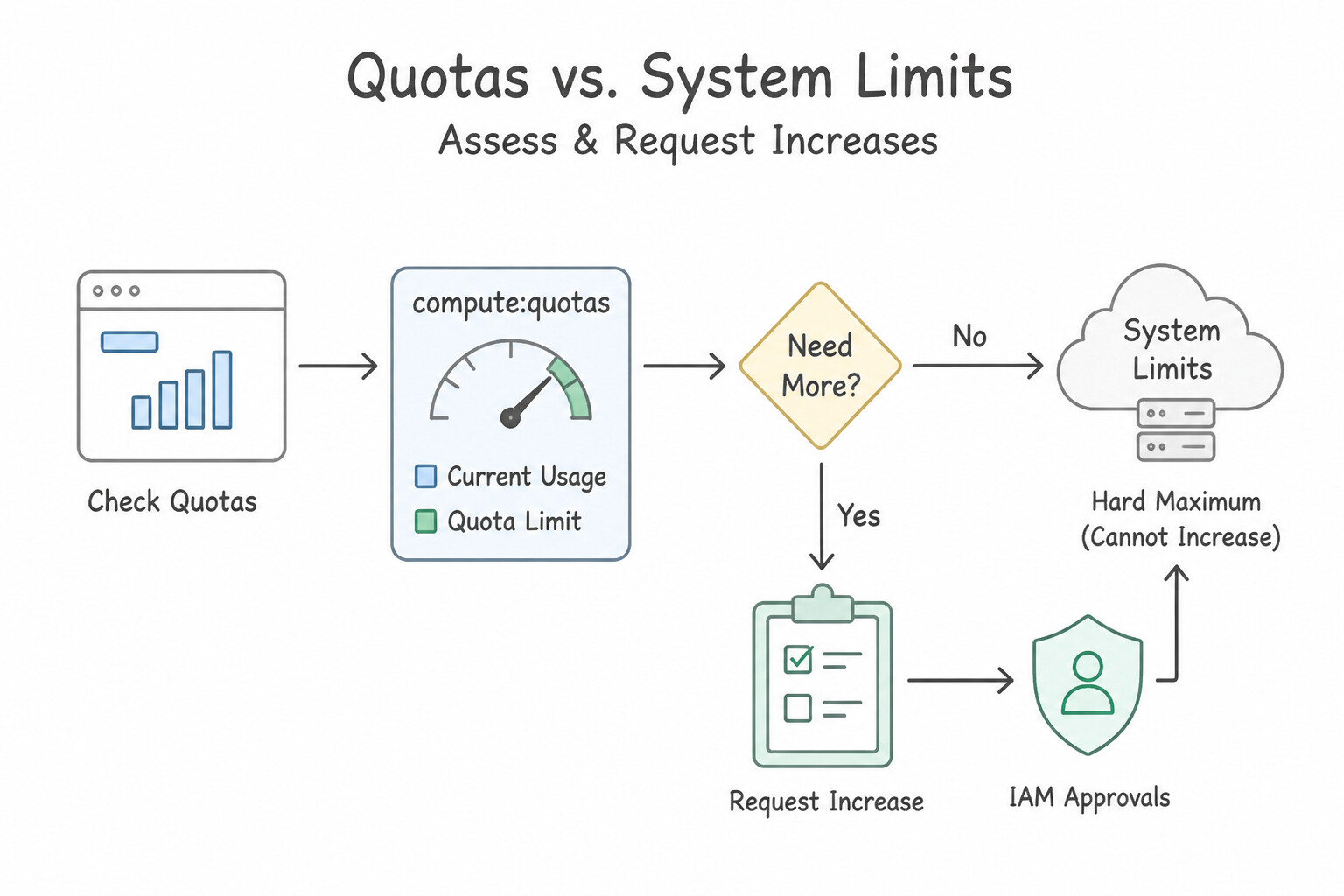
- Quotas vs. System Limits:
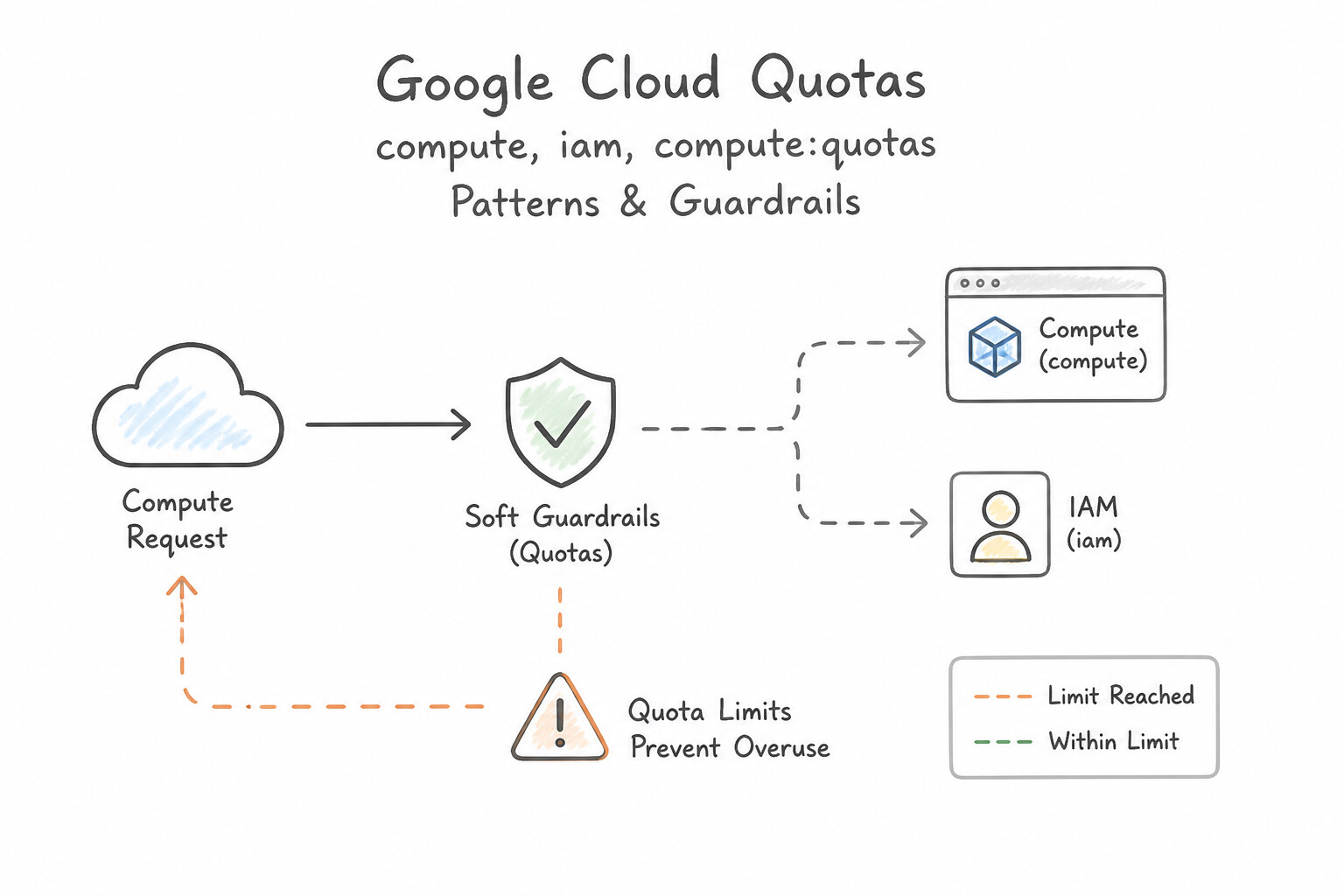
- Quotas are soft guardrails placed on a project or region to prevent runaway billing mistakes and protect multi-tenant capacity. Most quotas can be increased via the Google Cloud Console (IAM & Admin → Quotas & System Limits) or the Cloud Quotas API.
- System Limits are hard architectural boundaries (e.g., maximum VPC peering connections per network or maximum packet size) that cannot be increased.
- Rate Quotas vs. Allocation Quotas:
- Rate Quotas reset after a time interval (e.g.,
1,000 API requests per 100 seconds). - Allocation Quotas govern the total quantity of resources your project can hold simultaneously (e.g.,
24 NVIDIA L4 GPUs in us-central1or8 static external IP addresses). - Proactive Monitoring: Use Cloud Monitoring metrics (
serviceruntime.googleapis.com/quota/allocation/usageand/limit) to alert at 80% quota utilization before production autoscalers hitQUOTA_EXCEEDEDerrors.
Key Implementation Patterns
- Identifying Quota Usage in Console: Use Navigate to IAM & Admin > Quotas. Filter the table by Service 'Compute Engine' and Location 'us-central1'. The IAM & Admin > Quotas page displays current usage and limits for all Google Cloud resources. (Avoid alternative: The VM instances page shows running resources but does not display the enforced quota limits.)
- Proactive Quota Management for Scale: Use Review the Quotas page in the Google Cloud console and request an increase for the N2 CPUs in the target region. Quotas are hard limits on resources; you must manually request an increase for significant scaling events. (Avoid alternative: Autoscaling policies cannot provision resources beyond the project's established quota limits.)
- Troubleshooting Deployment Failures: Use Request a quota increase for Static IP addresses in the Google Cloud Console. The error indicates the IP address limit has been reached, so you must request a quota increase for Static IP addresses. (Avoid alternative: The error specifies 'IN_USE_ADDRESSES', which refers to IP addresses, not CPUs.)
Key Takeaways (1.1g)
- Quotas prevent resource overuse and billing surprises.
- The IAM & Admin > Quotas page is the central place to view and manage these limits.
- Quotas are specific to Regions and Services.
- Monitoring usage against quotas helps avoid deployment failures.
Consideration 1.1h: Setting up standalone organizations
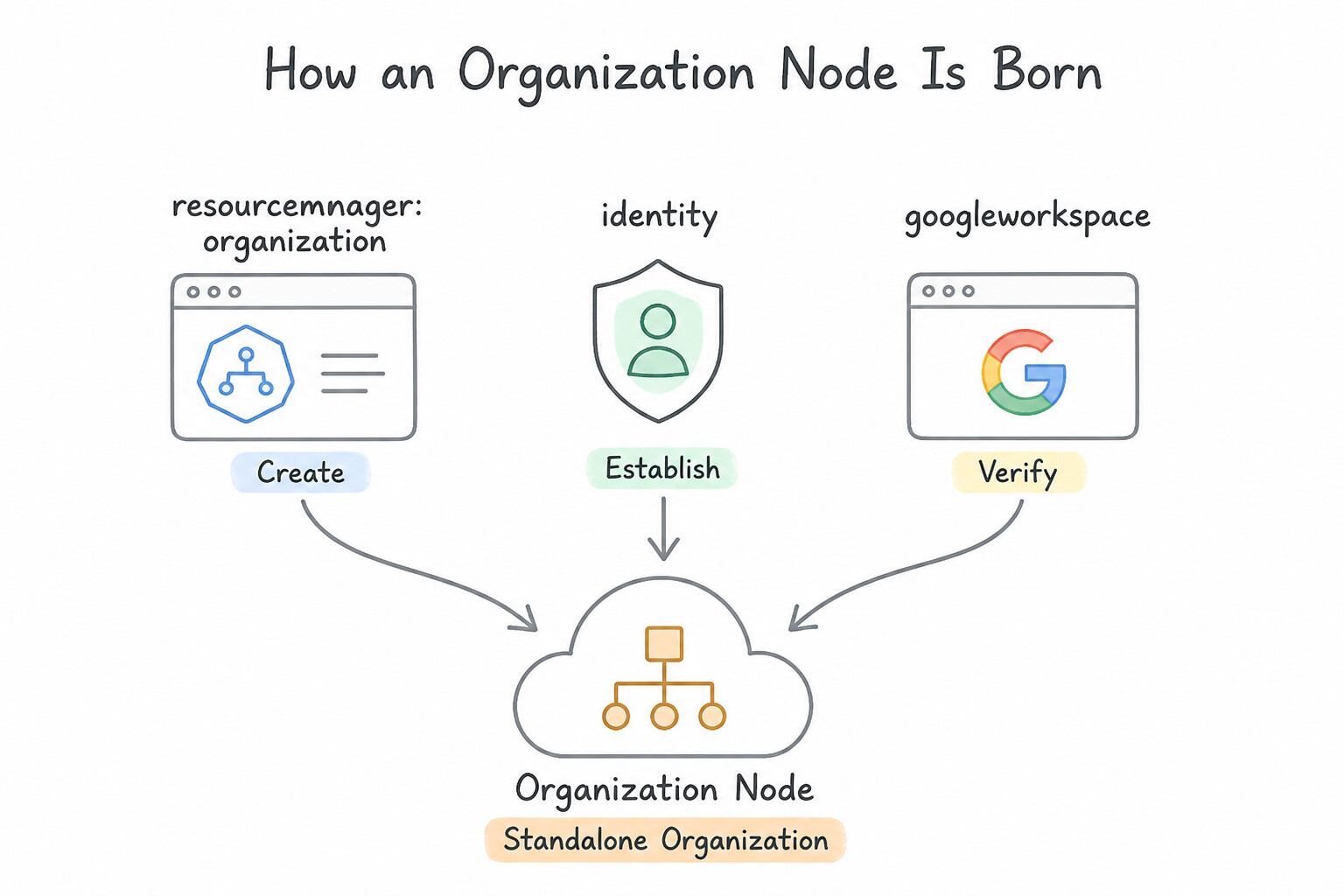
- How an Organization Node Is Born: You cannot run
gcloud organizations createout of thin air. An Organization resource is automatically provisioned when you verify domain ownership in Cloud Identity (or Google Workspace) and a user from that domain accesses Google Cloud. - Bootstrapping Super Admin vs. Organization Admin:
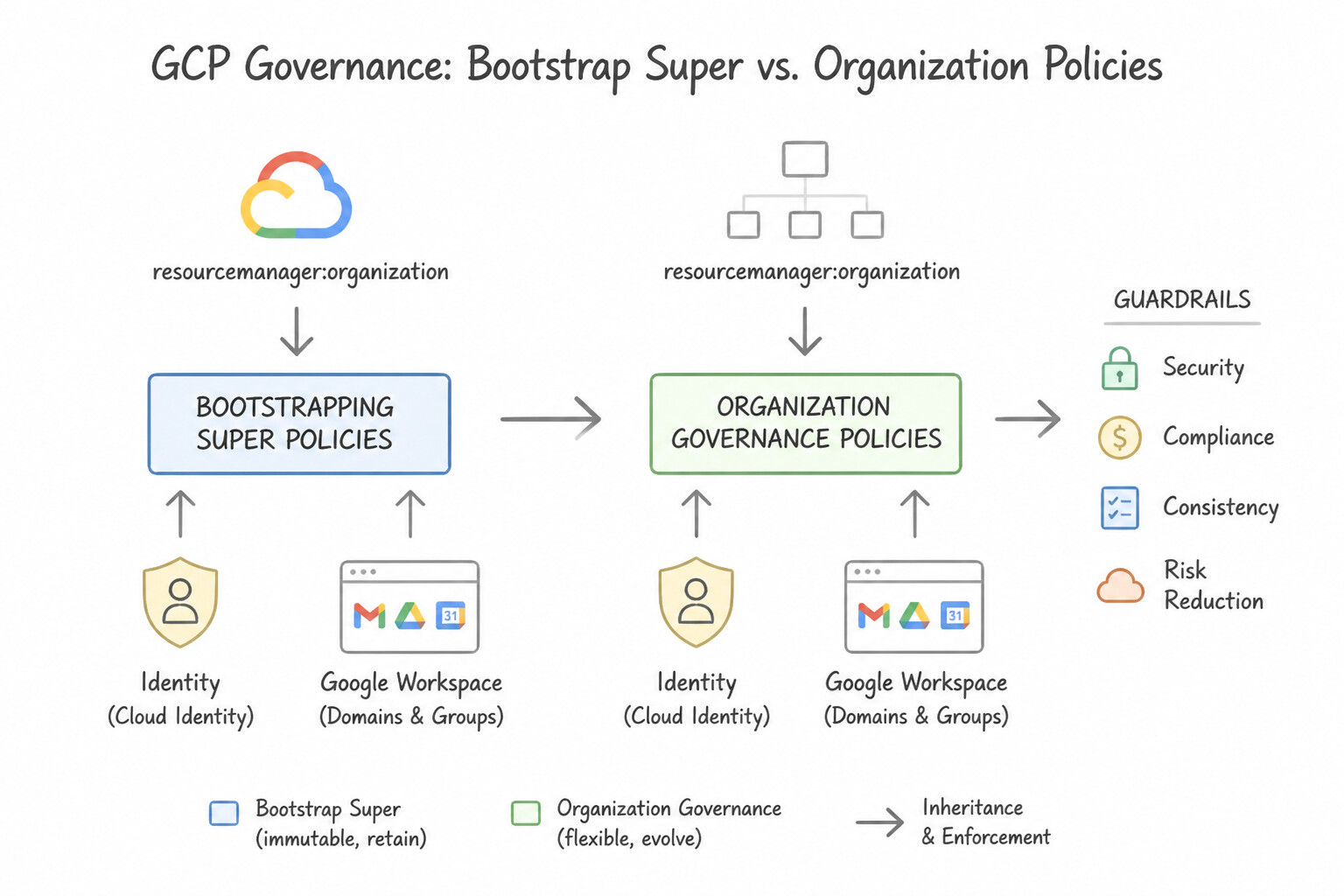
- The Cloud Identity / Workspace Super Administrator is the bootstrap identity. Its primary job in Google Cloud is to assign
roles/resourcemanager.organizationAdmin(Organization Administrator) androles/billing.creatorto dedicated cloud admin groups, and then step out of day-to-day cloud operations. - Migrating "No Organization" Projects: Projects created before an Organization existed can be migrated into the Organization using
roles/resourcemanager.projectMoveron the source project androles/resourcemanager.projectCreatoron the destination Organization/Folder.
Key Implementation Patterns
- Transitioning from Unmanaged to Managed GCP: Use Sign up for Cloud Identity or Google Workspace, verify your domain ownership, and create projects under the new Organization. The Organization resource is automatically created when you set up Cloud Identity or Google Workspace and verify your domain.
- Domain Verification for Organization Setup: Use Verify ownership of example.com by adding a TXT or CNAME record to your DNS configuration. The Organization resource is automatically created only after you verify domain ownership via DNS records. (Avoid alternative: Enabling APIs does not create the Organization resource; it only enables services within a project.)
- Migrating Orphan Projects to an Organization: Use Assign your account the Project Creator role on the Organization and the Project Mover role on each project. To move a project, you need the Project Creator role on the destination Organization and the Project Mover role on the source project.
Key Takeaways (1.1h)
- The Organization resource is the root node of the Google Cloud hierarchy.
- Personal @gmail.com accounts create standalone projects with no Organization.
- Cloud Identity or Google Workspace is required to establish an Organization.
- Domain verification is the trigger for Organization resource creation.
Consideration 1.1i: Setting up cloud networking
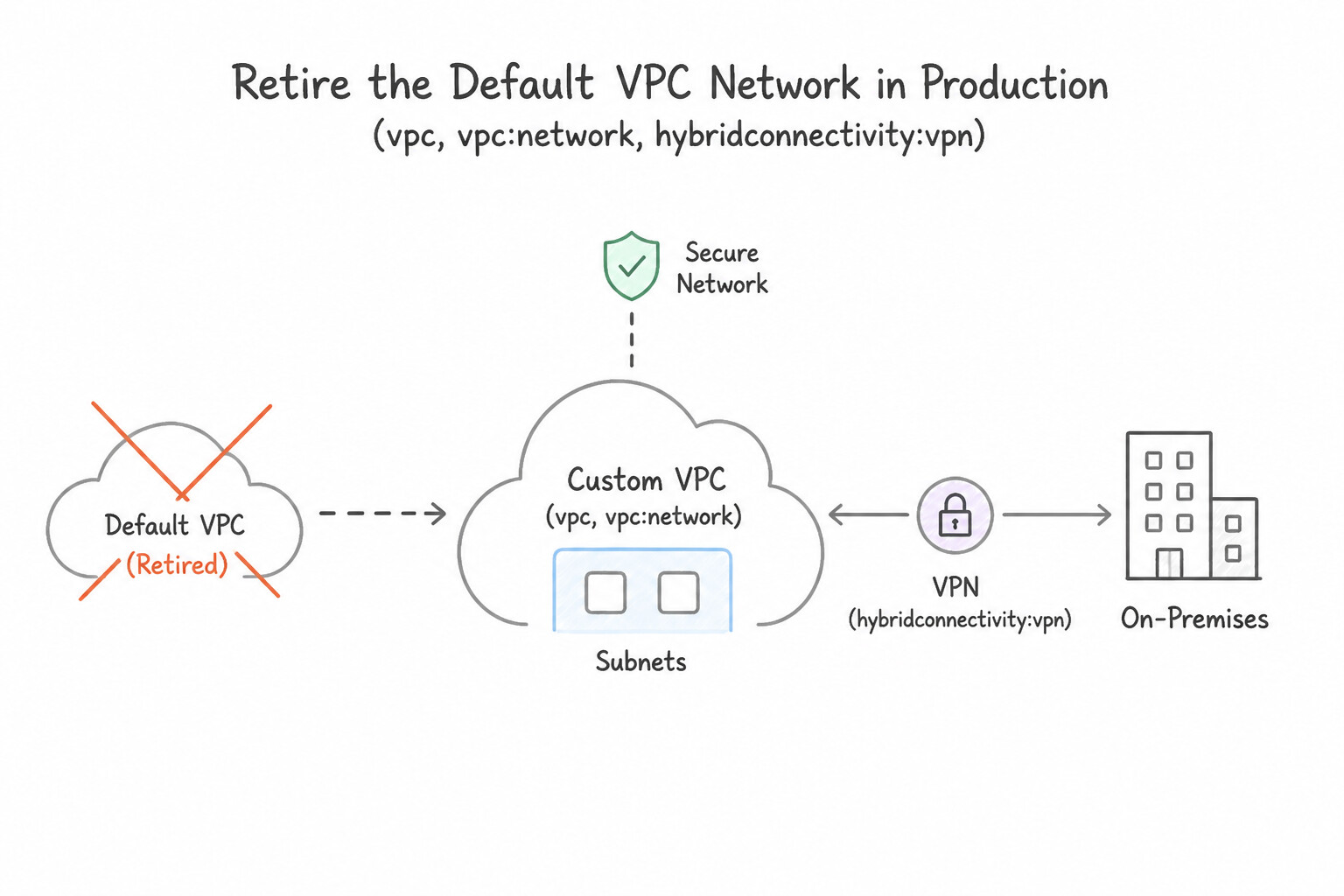
- Retire the
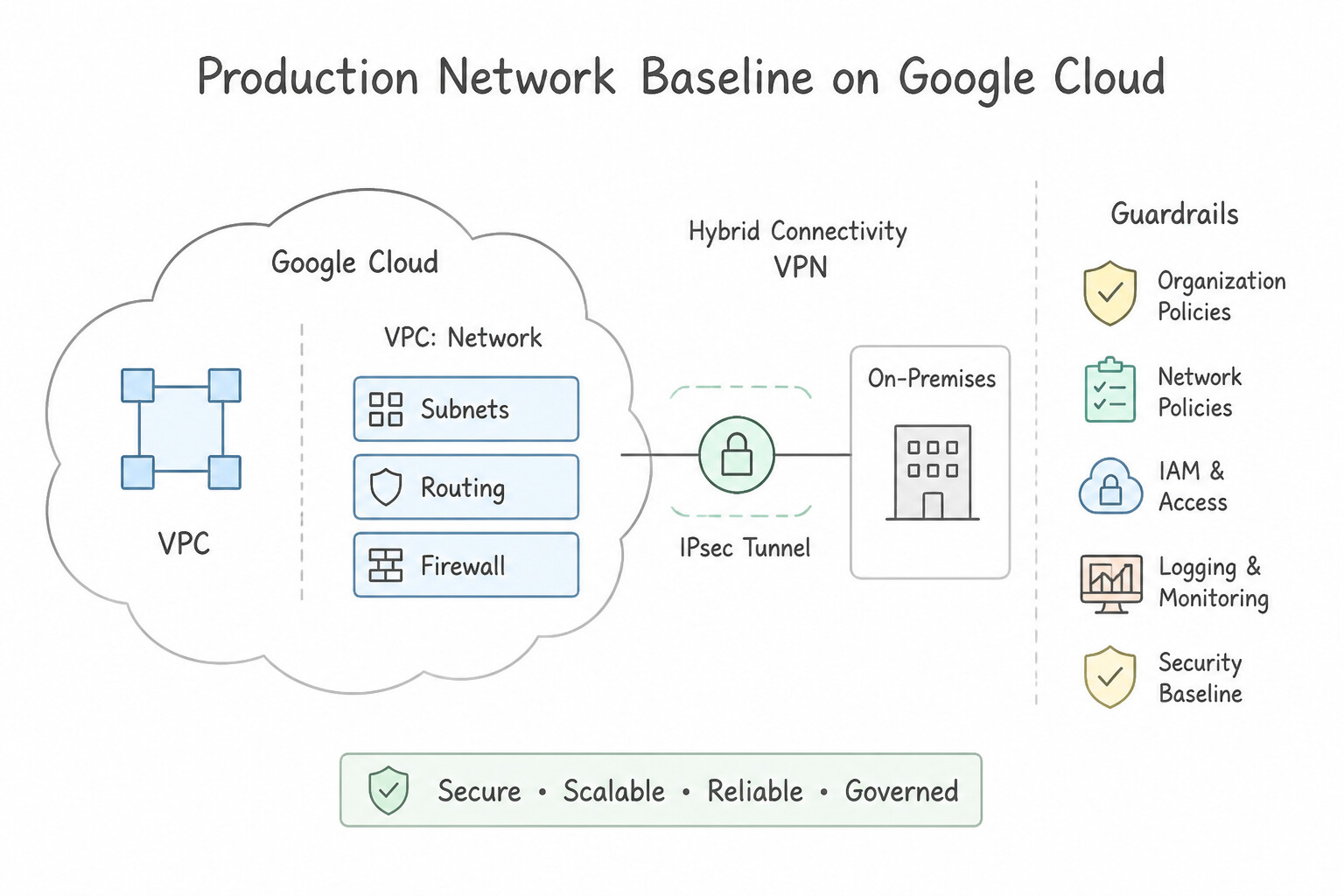
defaultVPC Network in Production: Every new project starts with an auto-modedefaultnetwork (unless blocked byconstraints/compute.skipDefaultNetworkCreation). Auto-mode networks create a fixed/20subnet in every region using predictable10.128.0.0/9CIDR blocks—making them prone to IP overlap with on-premises networks and overly permissive default firewall rules (default-allow-internal,default-allow-ssh,default-allow-rdp). - Production Network Baseline: Always enforce
constraints/compute.skipDefaultNetworkCreation, provision a Custom Mode VPC (where you explicitly control which regions have subnets and their exact CIDR blocks), enable Private Google Access on private subnets, and use Shared VPC for multi-project organizations.
Key Implementation Patterns
- VPC Mode Selection for Hybrid Connectivity: Use Create a custom-mode VPC network and define subnets in the 172.16.0.0/12 range. Custom-mode VPCs allow you to choose a non-overlapping range like 172.16.0.0/12 to avoid the 10.x.x.x conflict. (Avoid alternative: Auto-mode VPCs use the 10.128.0.0/9 range, which conflicts with the 10.0.0.0/8 on-premises range.)
- Centralized Network Administration: Use Configure the Network Team's project as a Shared VPC Host Project and attach the Development Team's projects as Service Projects. Shared VPC allows a Host Project to centrally manage the network while Service Projects use that network for resources.
- Running Out of IP Addresses: Use Edit the existing subnet to expand the primary IP address range to 10.0.0.0/23. Expanding the primary IP range is a supported operation that adds capacity without downtime. (Avoid alternative: Migration causes downtime and does not meet the requirement of not affecting running instances.)
Key Takeaways (1.1i)
- Always check for IP address overlaps before creating a VPC intended for hybrid connectivity.
- Use Custom-mode VPCs for production environments to maintain full control over subnet topology and IP ranges.
- Auto-mode VPCs default to the 10.128.0.0/9 range, which often conflicts with legacy Class A corporate networks.
- Shared VPC separates network administration from instance creation.
Consideration 1.1j: Confirming availability of products in geographical locations (regional, global)
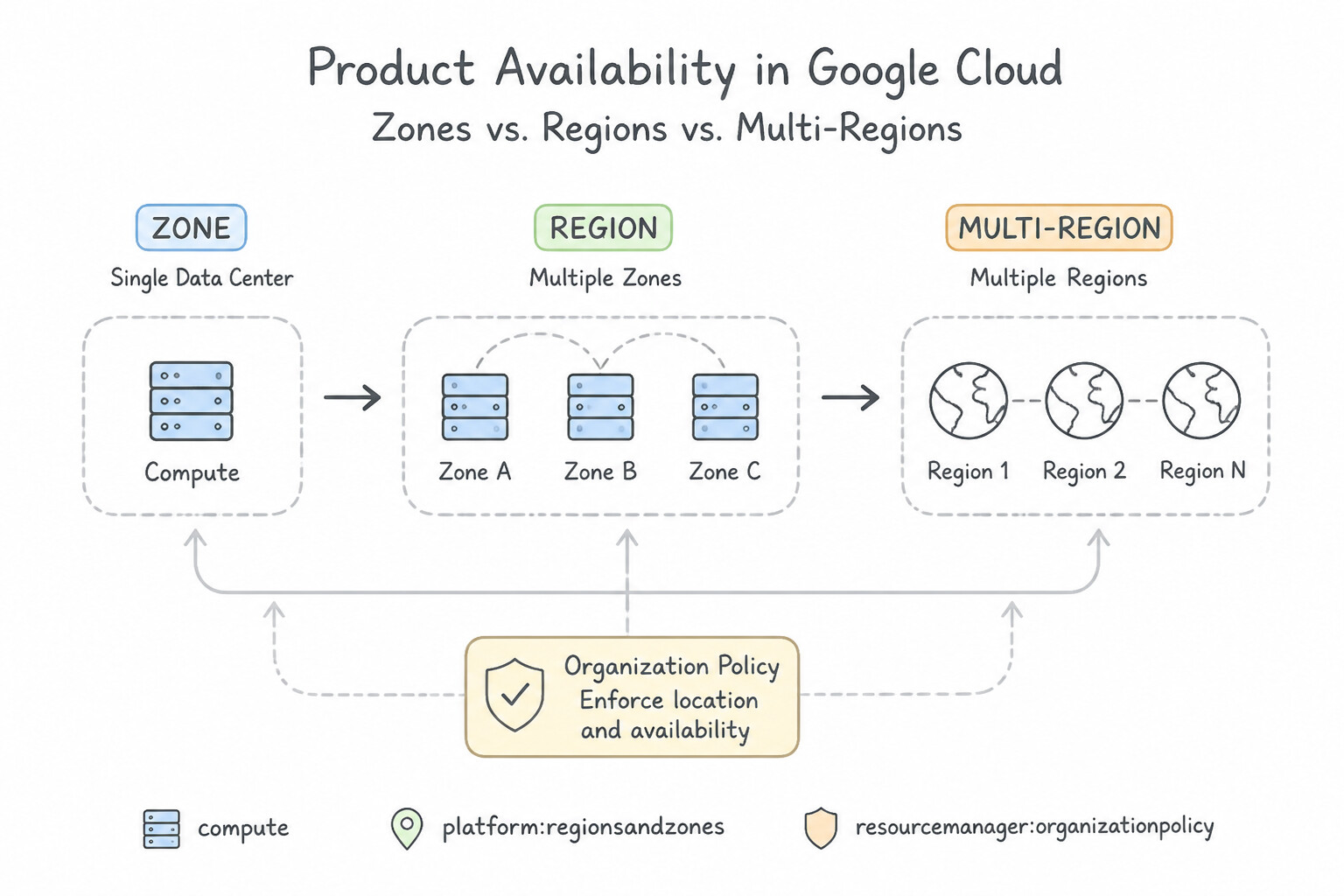
- Zones vs. Regions vs. Multi-Regions:
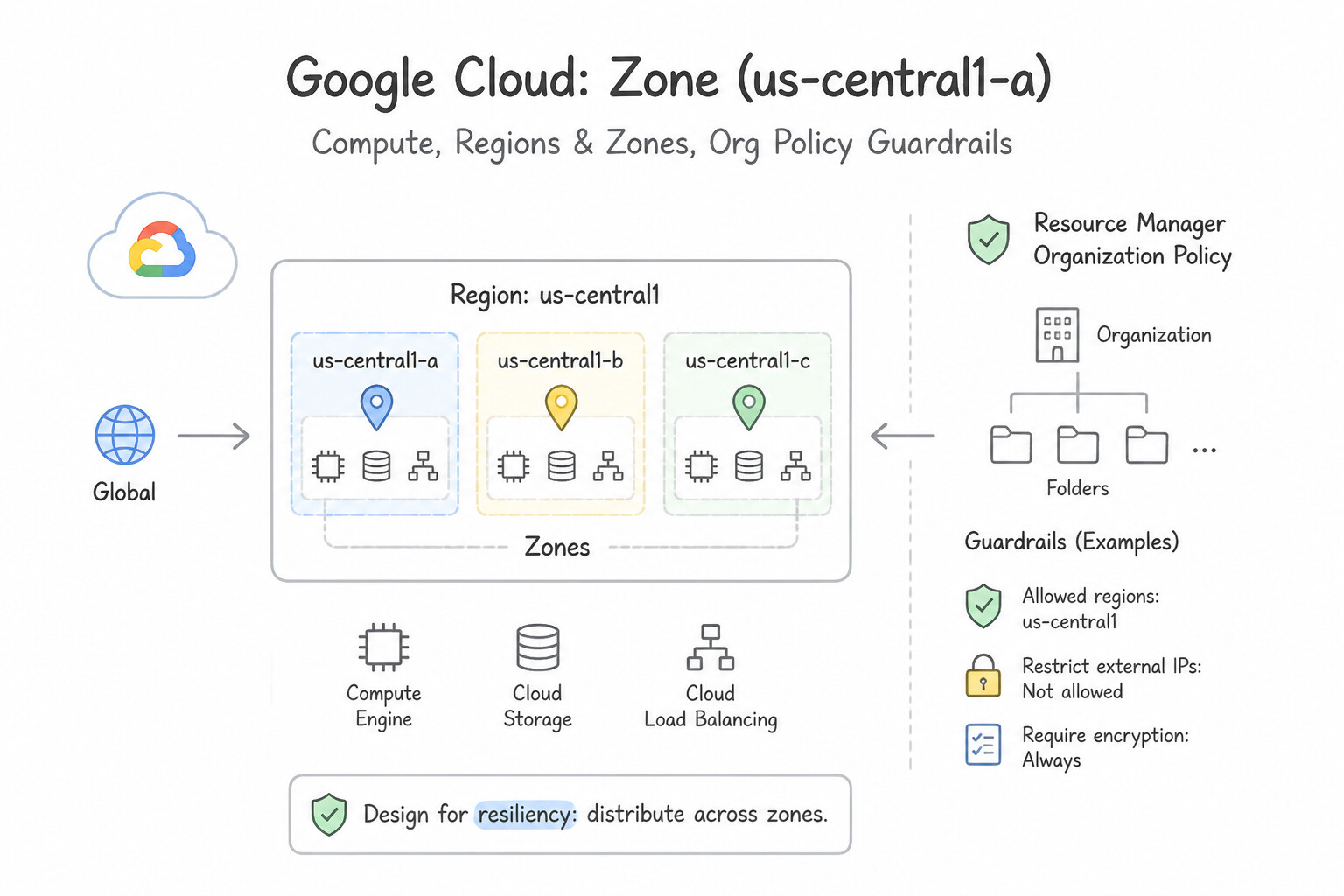
- Zone (
us-central1-a): A single failure domain within a region. Zonal resources (single VM, zonal Persistent Disk) fail if that zone experiences an outage. - Region (
us-central1): An independent geographic area composed of 3 or more zones connected by high-bandwidth, low-latency fiber. Regional resources (Regional MIG, Regional GKE Cluster, Cloud SQL HA, Regional Persistent Disk) survive a complete single-zone outage. - Dual-Region / Multi-Region (
nam4,us,eu): Geographically separated regions hundreds of miles apart for disaster recovery and low-latency global read/write access (Cloud Storage, BigQuery, Spanner, Firestore). - CLI Verification & Co-Location: Before designing a deployment, verify regional resource availability via
gcloud compute regions describe <REGION>,gcloud compute machine-types list --filter="zone:<ZONE>", orgcloud compute accelerator-types list. Always co-locate compute and storage in the same region to avoid cross-region network egress fees and latency spikes.
Key Implementation Patterns
- Latency-Based Region Selection: Use Provision the resources in the 'australia-southeast1' region. Deploying resources in the region physically closest to the users (Sydney) minimizes network hops and latency. (Avoid alternative: Selecting a region based solely on cost ignores the latency requirement; the physical distance from the US to Australia causes delays.)
- Data Sovereignty Compliance: Use Configure an Organization Policy with the "gcp.resourceLocations" constraint to allow only "europe-west3". Use the Organization Policy Service with the "gcp.resourceLocations" constraint to restrict resource creation to specific regions.
- App Engine Region Immutability: Use Create a new Google Cloud project and deploy the App Engine application to "us-central1". App Engine regions are immutable per project; a new project is required for a different region. (Avoid alternative: Deleting services does not remove the region binding of the App Engine application.)
Key Takeaways (1.1j)
- Google Cloud resources are deployed in specific geographic locations called Regions and Zones.
- Network latency correlates with physical distance.
- To minimize latency for end-users, choose the Region physically closest to them.
- Compute resources are typically regional or zonal, whereas some storage services can be multi-regional.
Consideration 1.1k: Configuring cloud asset inventory and using gemini cloud assist to analyze resources
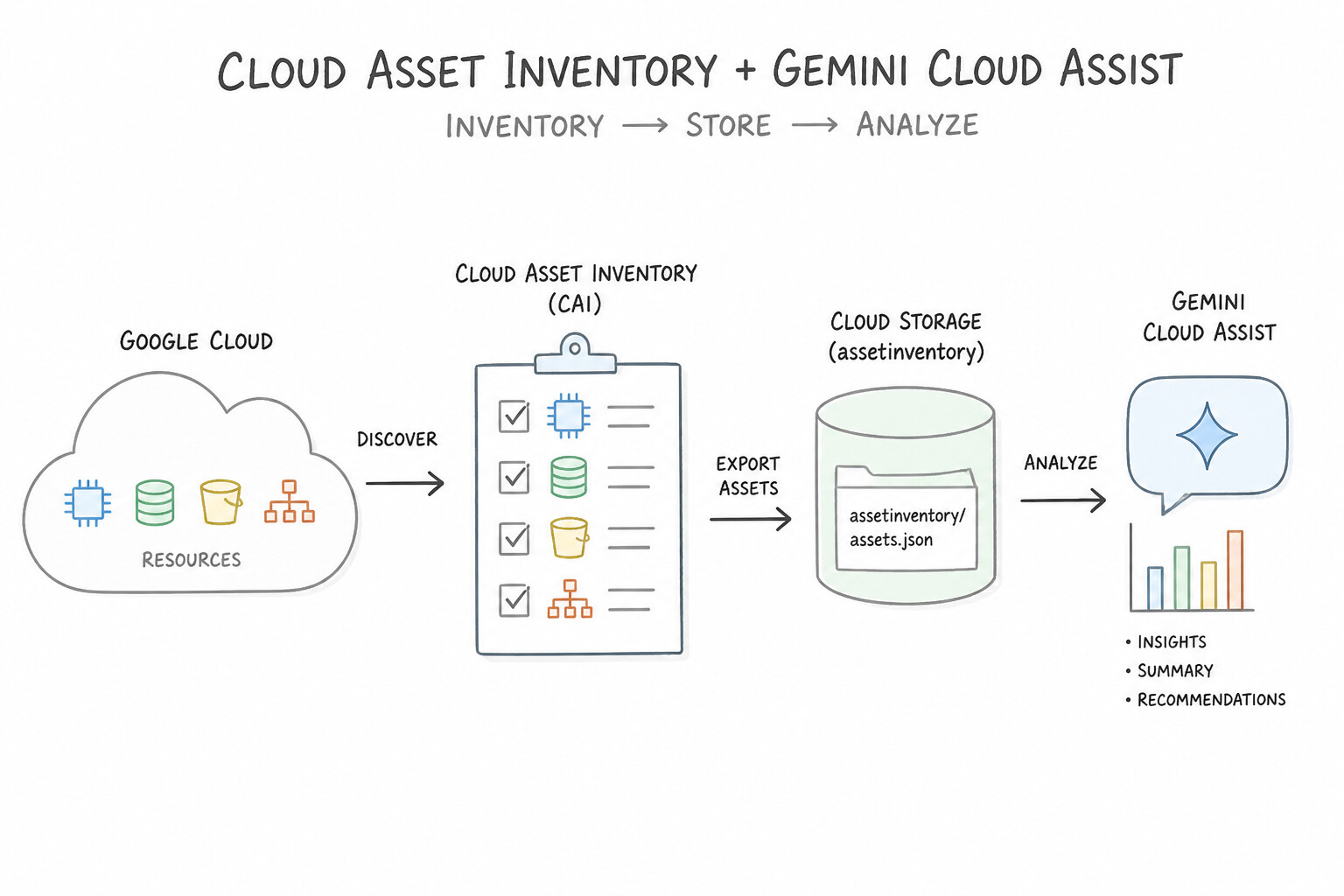
- Cloud Asset Inventory (CAI): Provides a centralized, organization-wide metadata database and 35-day time-series history of all Google Cloud resources and IAM policies.
- Search resources across all projects:
gcloud asset search-all-resources --scope=organizations/<ORG_ID> --query="..." - Audit who has access across the org:
gcloud asset search-all-iam-policies --scope=organizations/<ORG_ID> --query="policy:roles/owner" - Real-time compliance notifications: Configure a Cloud Asset Feed to publish resource/IAM change events directly to Pub/Sub or export snapshots to BigQuery.
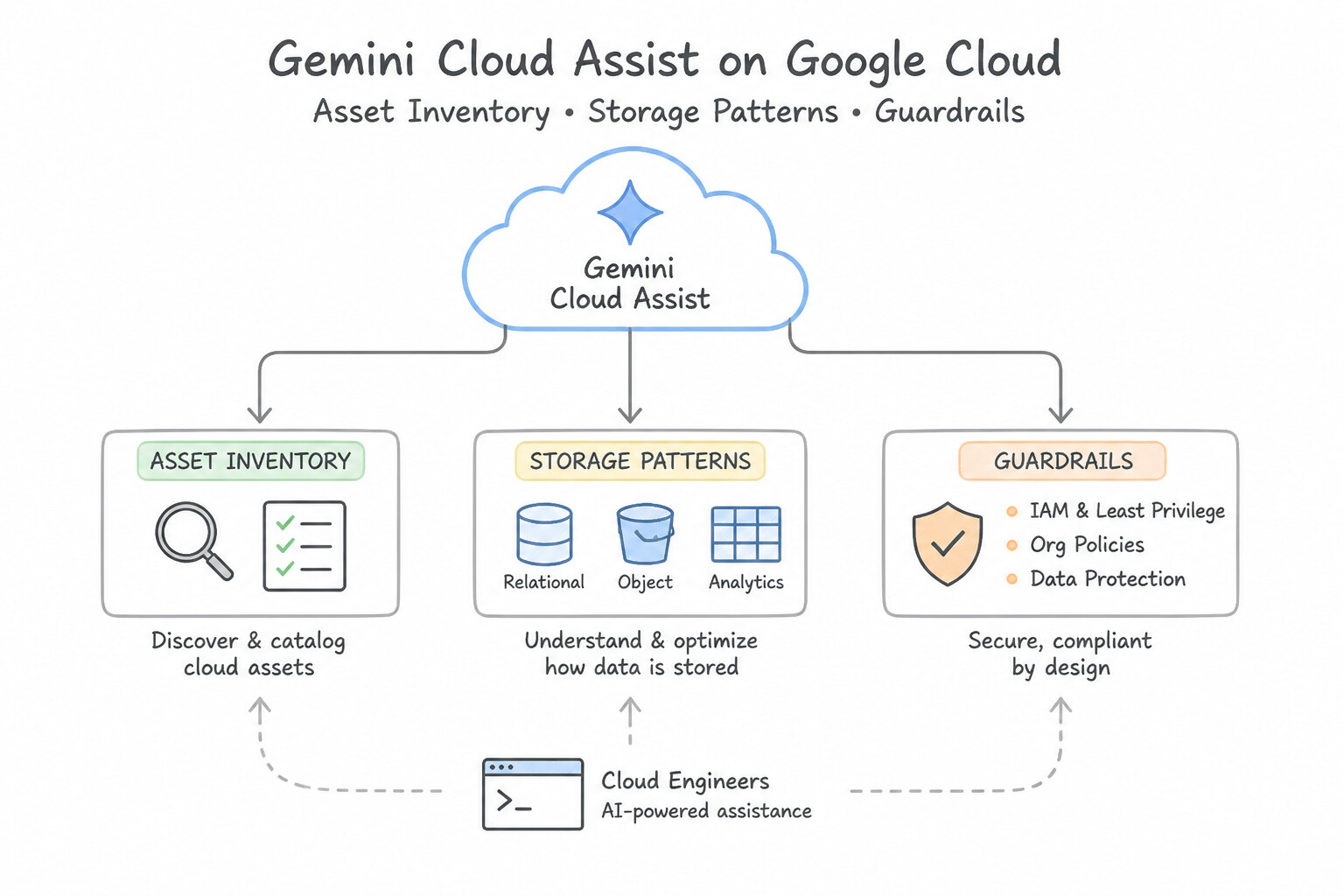
- Gemini Cloud Assist: Integrates conversational AI directly into the Google Cloud console and Cloud Asset Inventory, allowing engineers to query fleet configurations in natural language, diagnose why an IAM permission or firewall blocked a connection, and generate remediation commands.\n
Key Implementation Patterns
- Historical State Analysis for Auditing: Use Use the Cloud Asset Inventory exportAssets API to export asset metadata to Cloud Storage with a specified snapshot time. Cloud Asset Inventory supports exporting resource metadata at a specific timestamp (snapshot) to Cloud Storage or BigQuery.
Key Takeaways (1.1k)
- Cloud Asset Inventory is the primary tool for analyzing resource state history.
- Use the
exportAssetsAPI or command to retrieve snapshots of asset metadata at a specific time.- Cloud Logging is for events; Cloud Asset Inventory is for state.
- Default asset history retention is typically 35 days.
Consideration 1.1l: Configuring Workforce Identity Federation
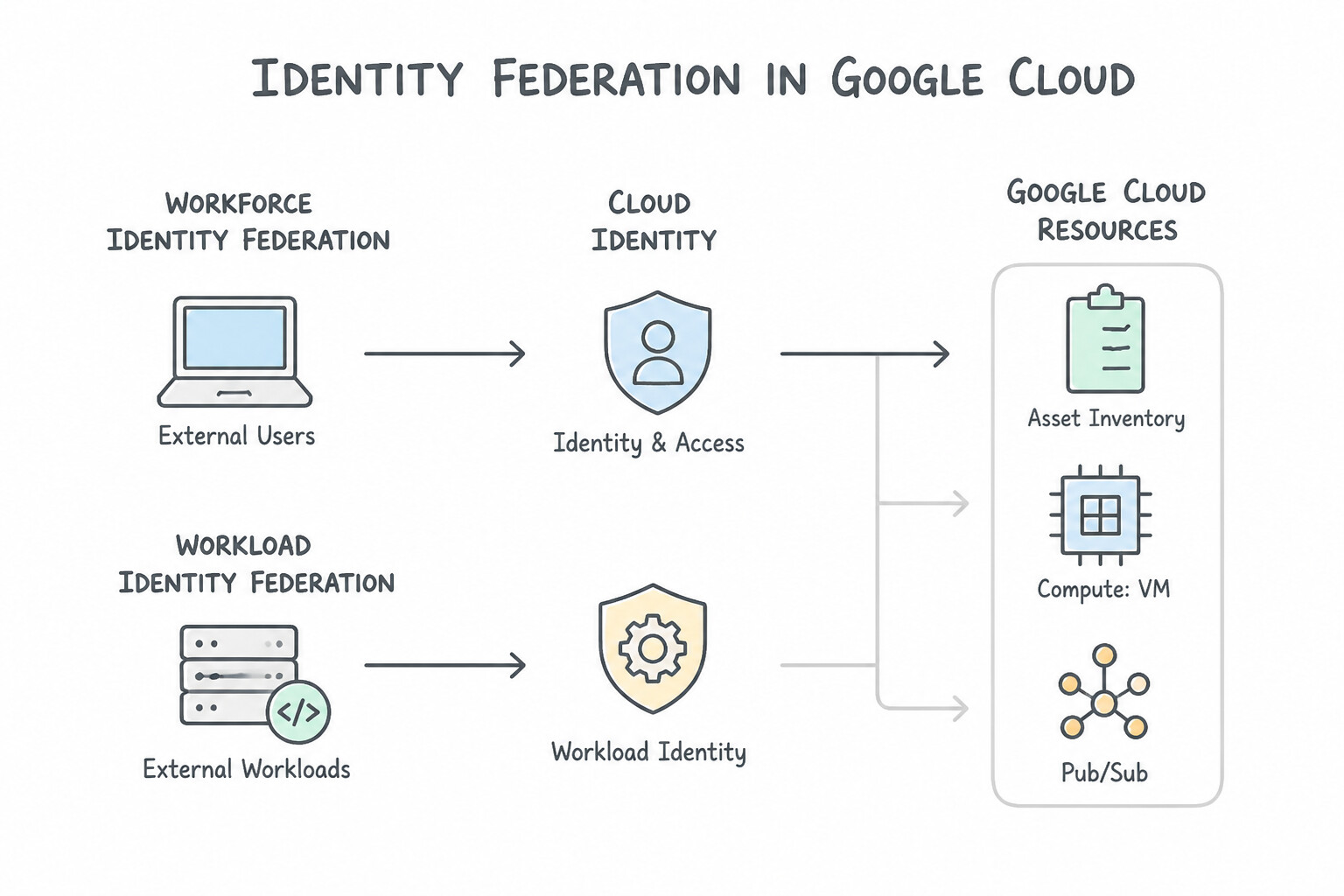
- Workforce Identity Federation vs. Cloud Identity vs. Workload Identity Federation:
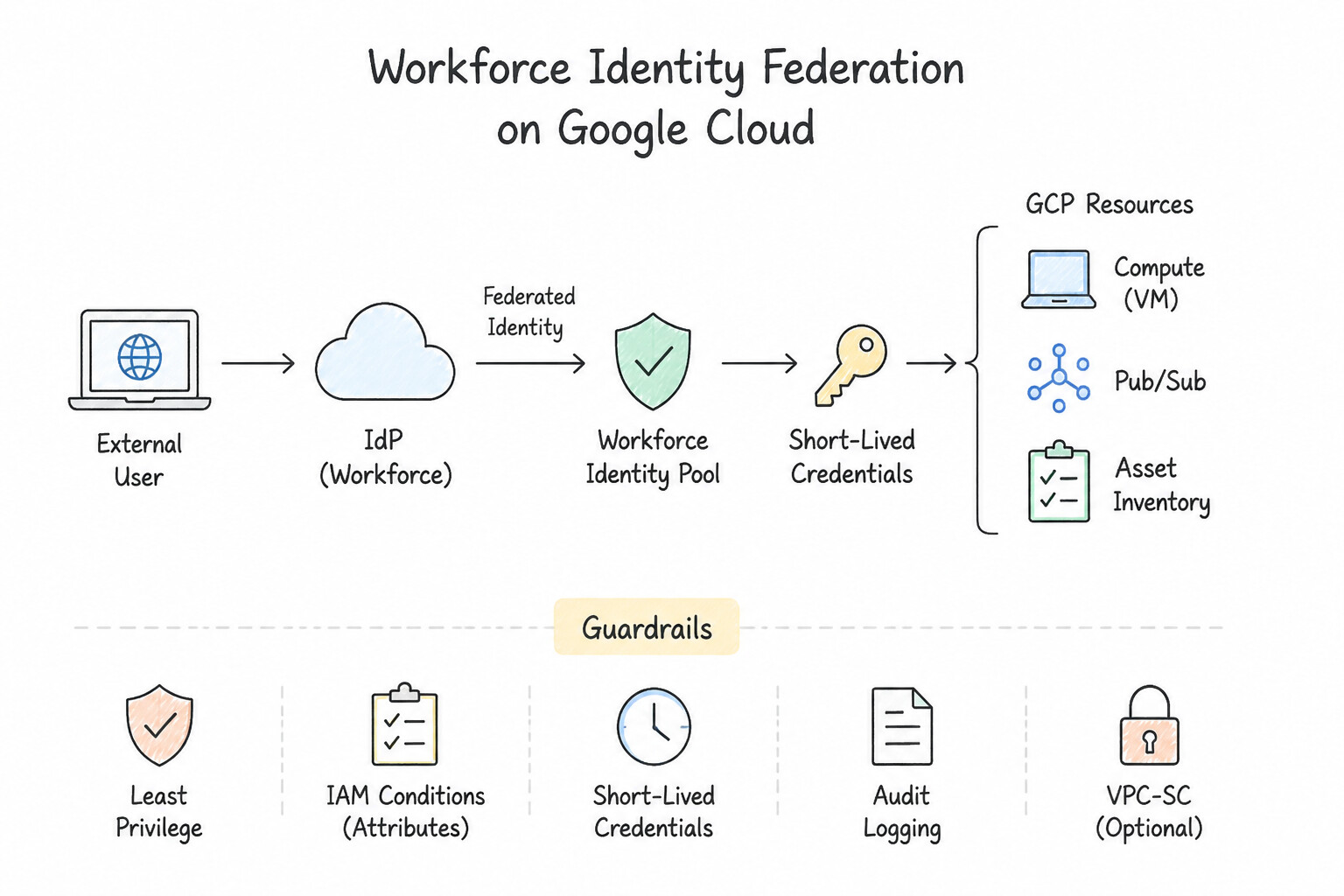
- Workforce Identity Federation lets human users (employees, partners, contractors) sign in to the Google Cloud Console and
gcloudCLI using an external corporate Identity Provider (Okta, Microsoft Entra ID, Active Directory Federation Services, or any OIDC/SAML 2.0 IdP) without synchronizing user accounts into Cloud Identity or Google Workspace. - Users authenticate against their external IdP, which exchanges an OIDC/SAML assertion with Google's Security Token Service (STS) for a short-lived federated Google Cloud credential mapped into a Workforce Pool (
locations/global/workforcePools/<POOL_ID>). - Grant IAM roles to federated human groups using
principalSet://iam.googleapis.com/locations/global/workforcePools/<POOL_ID>/group/<EXTERNAL_GROUP_ID>.
Key Implementation Patterns
- Identifying Specific Resources Across Multiple Projects: Use Run 'gcloud asset search-all-resources' with the scope set to the Folder and a query for the tag 'frontend-prod'. Cloud Asset Inventory 'search-all-resources' allows searching across a folder hierarchy in a single command.
- Real-time Compliance Monitoring Setup: Use Create a Cloud Asset Inventory feed that filters for IAM policy updates and publishes to a Pub/Sub topic. Asset Inventory feeds provide real-time notifications of changes, allowing for immediate remediation via Pub/Sub and Cloud Functions.
Key Takeaways (1.1l)
- Cloud Asset Inventory is the standard tool for searching resources across projects, folders, or organizations.
- Avoid scripting API calls for inventory tasks when a native search tool exists.
- Understand the difference between searching for resources (configuration) and analyzing IAM policies (permissions).
- Batch vs. Real-time: Use exports for historical analysis; use feeds for immediate, real-time reactions.
Quick Decision Cheat Sheet (Subsection 1.1)
If the Scenario Requires... | Choose This Google Cloud Pattern | Avoid This Common Mistake |
|---|---|---|
"Enforce a guardrail across a folder/project that even Project Owners cannot bypass" | Organization Policy Service constraint ( roles/orgpolicy.policyAdmin) | Custom IAM roles; VPC firewall rules; removing Project Owner |
"Grant permissions to a team of developers who frequently join/leave" | Create a Cloud Identity Google Group and bind a Predefined IAM Role to group:... | Binding IAM roles directly to individual user: emails; granting Project Editor |
"External human workforce needs Google Cloud Console access via SAML/OIDC without syncing user accounts" | Workforce Identity Federation ( workforcePools) | Workload Identity Federation (machine-only, no Console login); creating @gmail.com accounts |
"Sync existing on-premises Active Directory users and groups one-way into Google Cloud" | Google Cloud Directory Sync (GCDS) | Writing custom LDAP cron scripts; two-way password writeback |
"Terraform or gcloud fails with SERVICE_DISABLED in a new project" | Run gcloud services enable <API>.googleapis.com (roles/serviceusage.serviceUsageAdmin) | Recreating the project; granting roles/iam.securityAdmin |
"Need more GPUs or regional CPUs than currently permitted in us-east1" | Check IAM & Admin → Quotas & System Limits and submit a Quota Increase Request | Opening a billing dispute; creating 10 separate projects to bypass limits (violates Terms of Service) |
"Audit historical resource configurations or search all IAM policies across an entire Organization" | Cloud Asset Inventory ( gcloud asset) + Gemini Cloud Assist | Cloud Audit Logs alone (only shows events, not full current inventory state) |
Further Reading (Subsection 1.1)
- Resource hierarchy — Provides an overview of the Organization, Folder, and Project nodes and how policies are inherited.
- Creating and managing folders — Explains how to use folders to group projects under an organization node.
- Organisations & the Resource Hierarchy — **
- IAM: There and back again using resource hierarchies — You first want to start by considering how your business works and then map that to a tree hierarchy in the cloud. At the top is your organization, maybe followed by divisions or lines-of-business, and within each of those are sub-divisions or departments. Finally, you have different teams with principals at the bottom of the tree. This organizational structure should be represented in your cloud hierarchy, because it makes access control using identity management that much simpler.
- Creating and managing organization policies — This page explains how to create organization policies, how inheritance works, and how to customize policies on projects to override inherited rules.
- Restricting external IP addresses — Specific documentation on using the 'compute.vmExternalIpAccess' constraint to control external IP usage.
Subsection 1.2: Managing Billing Configuration
The Big Picture
In Google Cloud, Cloud Billing Accounts live outside the Project hierarchy and link to Projects via many-to-one relationships. Engineering teams that treat billing as an afterthought routinely suffer three expensive operational failures:
- The "Budget Alert = Hard Cap" Misconception (1.2c): A foundational FinOps concept principle is that Cloud Billing Budgets and Alerts NEVER automatically stop resources or cap spending. When a project crosses 100% of its monthly budget, Google Cloud sends an email to Billing Account Administrators—and keeps running every VM, GKE node, and BigQuery query uninterrupted. If a scenario requires an automated hard spending cap (for example, shutting down a developer sandbox when spend hits $500), you must connect the Budget Alert to a Cloud Pub/Sub topic that triggers a Cloud Run function calling the Compute Engine API (to stop VMs) or the Cloud Billing API (to unlink the project from the billing account).
- The Over-Privileged Billing Admin Trap (
1.2a,1.2b): Linking a new project to an existing Cloud Billing Account requires permissions on both sides: the project side (roles/resourcemanager.projectOwnerorprojectBillingManager) and the billing account side. A classic mistake is granting developersroles/billing.admin(Billing Account Administrator) just so they can link projects—giving them power to close the company's billing account or change payment methods. Instead, grantroles/billing.user(Billing Account User) paired withroles/billing.ProjectManager(Project Billing Manager). - The Retroactive Billing Export Trap (1.2d): Cloud Billing Export to BigQuery only captures detailed usage and pricing data from the day you enable it forward (plus a short backfill window of a few days). Teams that wait until month-end bill shock to enable BigQuery Billing Export discover they lack granular resource-level label and SKU breakdowns for prior months.
Consideration 1.2a: Creating one or more billing accounts
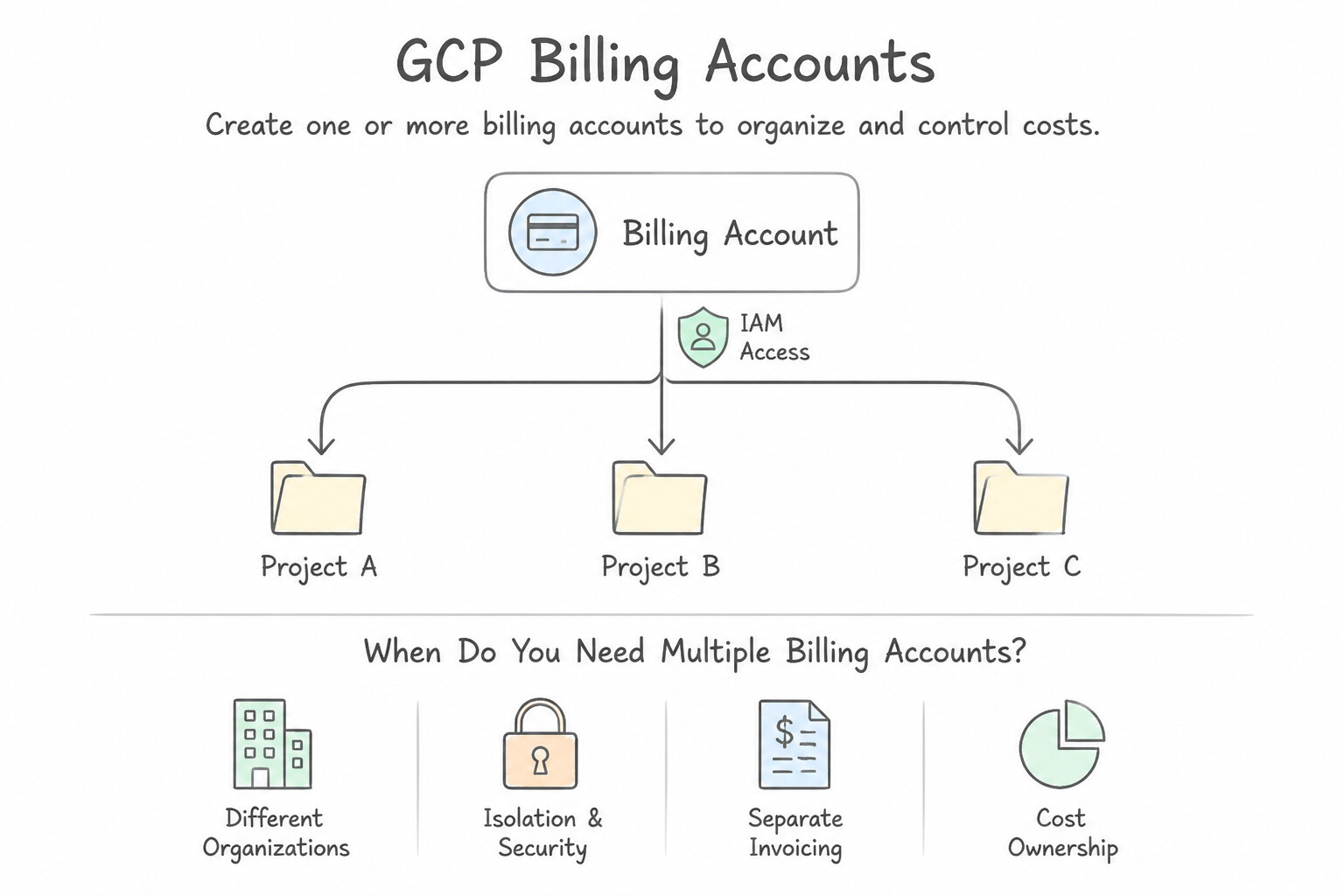
- When Do You Need Multiple Billing Accounts? A single Cloud Billing Account can pay for hundreds of projects across multiple folders using Folders, Projects, and Labels (
env,cost-center,team) for internal chargeback/showback. You only need multiple Cloud Billing Accounts when: - Different business units or subsidiaries must be billed in different currencies or under different legal tax entities / invoices.
- Different departments require separate payment instruments (e.g., distinct corporate credit cards or separate offline invoice contracts).
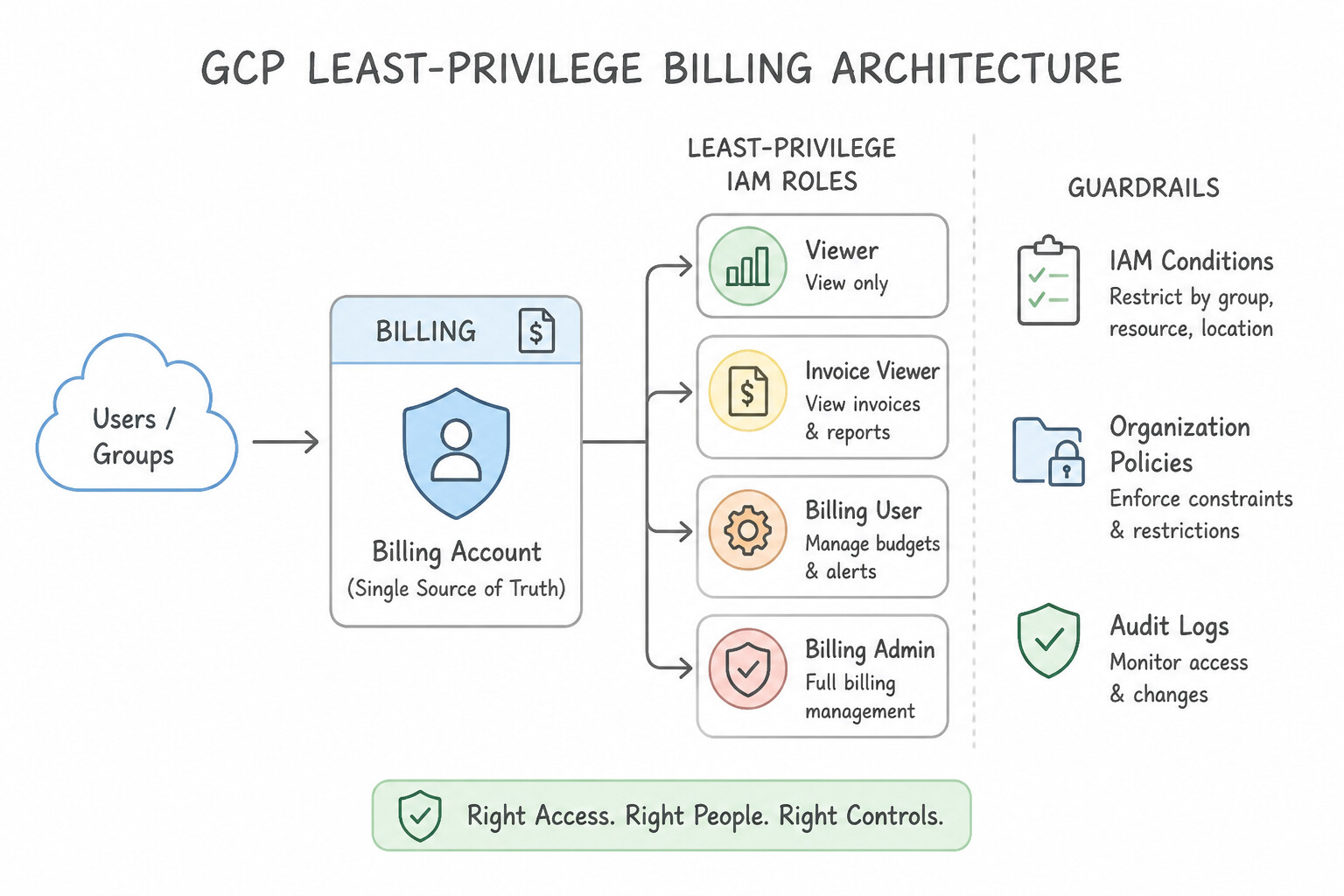
- Least-Privilege Billing IAM Roles:
roles/billing.creator(Billing Account Creator): Assigned at the Organization level to allow creating new self-serve billing accounts.roles/billing.admin(Billing Account Administrator): Full control over the billing account (payment methods, invoices, linking/unlinking any project).roles/billing.user(Billing Account User): Allows linking projects to the billing account (when paired with project-level permission) without seeing other projects' bills or changing payment methods.roles/billing.viewer(Billing Account Costs Manager / Viewer): Read-only access to view invoices, cost trends, and budgets for finance auditors.
Key Implementation Patterns
- IAM Roles for Initial Setup: Use Assign the CFO the Billing Account Creator role on the Organization. The Billing Account Creator role on the Organization resource is the specific permission required to create new billing accounts. (Avoid alternative: Project Owner permissions are scoped to a specific project and do not grant Organization-level abilities to create billing accounts.)
- Multi-Currency Requirements: Use Create two Cloud Billing accounts. Select USD as the currency for the first account and EUR for the second account. Billing accounts are single-currency entities; distinct currencies require distinct billing accounts. (Avoid alternative: A single Cloud Billing account supports only one currency for invoicing.)
- Delegating Project Association: Use Grant the DevOps team the Billing Account User role on the billing account. The Billing Account User role allows linking projects to the billing account without granting access to sensitive payment information. (Avoid alternative: Billing Account Administrator grants full access, including sensitive payment details, which violates the privacy requirement.)
Key Takeaways (1.2a)
- The Billing Account Creator role is required to create new billing accounts within an Organization.
- Billing permissions are distinct from Project permissions; being a Project Owner does not grant rights to create billing accounts.
- Always apply the principle of least privilege by selecting the specific role for the task (Creator vs Admin).
- A Cloud Billing Account is permanently tied to one currency selected at creation.
Consideration 1.2b: Linking projects to a billing account
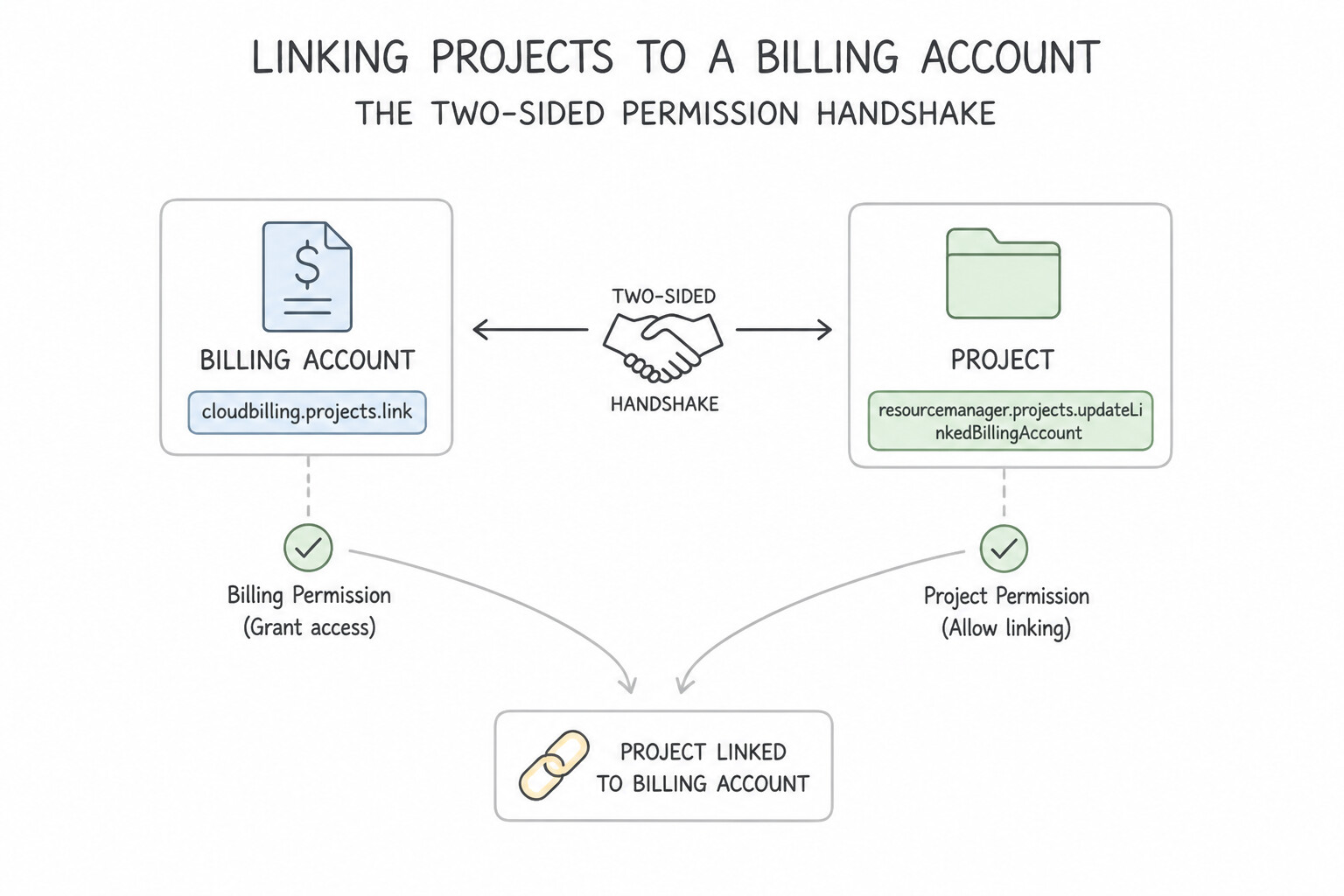
- The Two-Sided Permission Handshake: Linking a project to a Cloud Billing Account requires permissions on both resources simultaneously:
- On the Billing Account:
roles/billing.user(Billing Account User) orroles/billing.admin. - On the Project:
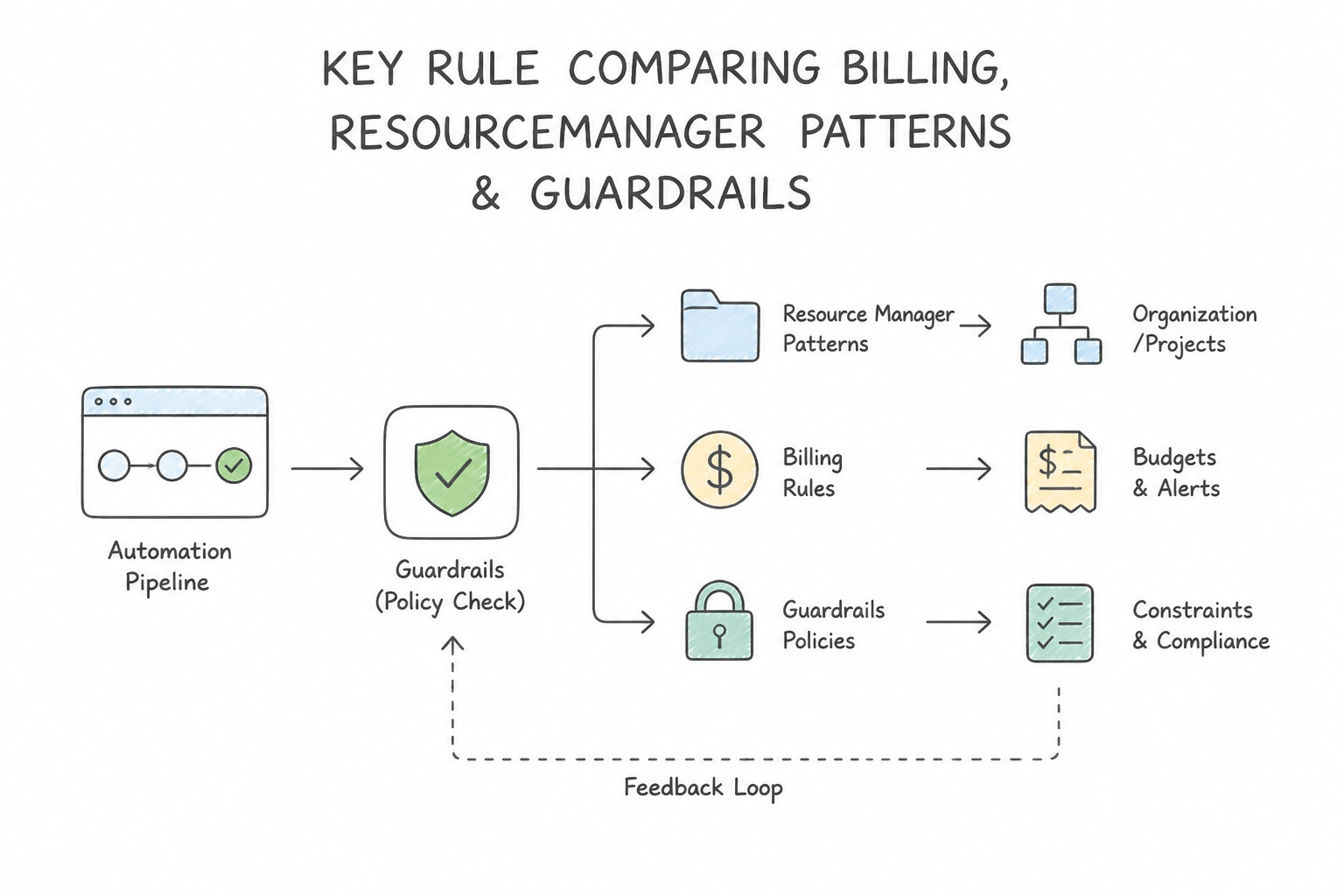
roles/billing.projectManager(Project Billing Manager) orroles/owner. - Key Rule: If an engineer needs to link projects to the company billing account without having administrative access to project resources or other billing settings, grant them
Billing Account Useron the Billing Account +Project Billing Manageron the Project/Folder. - Changing vs. Disabling Billing on a Project:
- Switching a project from Billing Account A to Billing Account B happens seamlessly with zero downtime to running VMs or services; charges simply begin accruing on Billing Account B from the moment of the switch.
- Disabling (unlinking) billing completely immediately stops all billable services in the project—running VMs are terminated/stopped and API calls fail until a valid billing account is relinked.
Key Implementation Patterns
- Essential IAM Roles for Linking Billing: Use Ask the Billing Administrator to grant you the Billing Account User role on the corporate billing account. The Billing Account User role provides the necessary permissions to link a project to a specific billing account. (Avoid alternative: Granting Project Billing Manager at the organization level is overly broad and does not specifically address the need to link to a specific billing account securely.)
- Changing Billing Accounts for Existing Projects: Use Navigate to the Billing page in the Cloud Console. On the Account Management tab, locate the project. Click the Actions menu (three dots) and select "Change billing". Select the Department B billing account. Use the "Change billing" action in the Billing Account Management section to switch the linked account.
- Disabling Billing to Stop Charges: Use Disable billing for the project. Disabling billing stops all chargeable services immediately but keeps the project and its metadata intact. (Avoid alternative: Shutting down the project deletes it after 30 days, which violates the requirement to preserve the project.)
Key Takeaways (1.2b)
- Project creation permissions are separate from Billing permissions.
- The Billing Account User role is required to link a project to a billing account.
- The Billing Account Viewer role only allows viewing costs, not linking projects.
- Always apply the principle of least privilege when requesting roles.
Consideration 1.2c: Establishing billing budgets and alerts
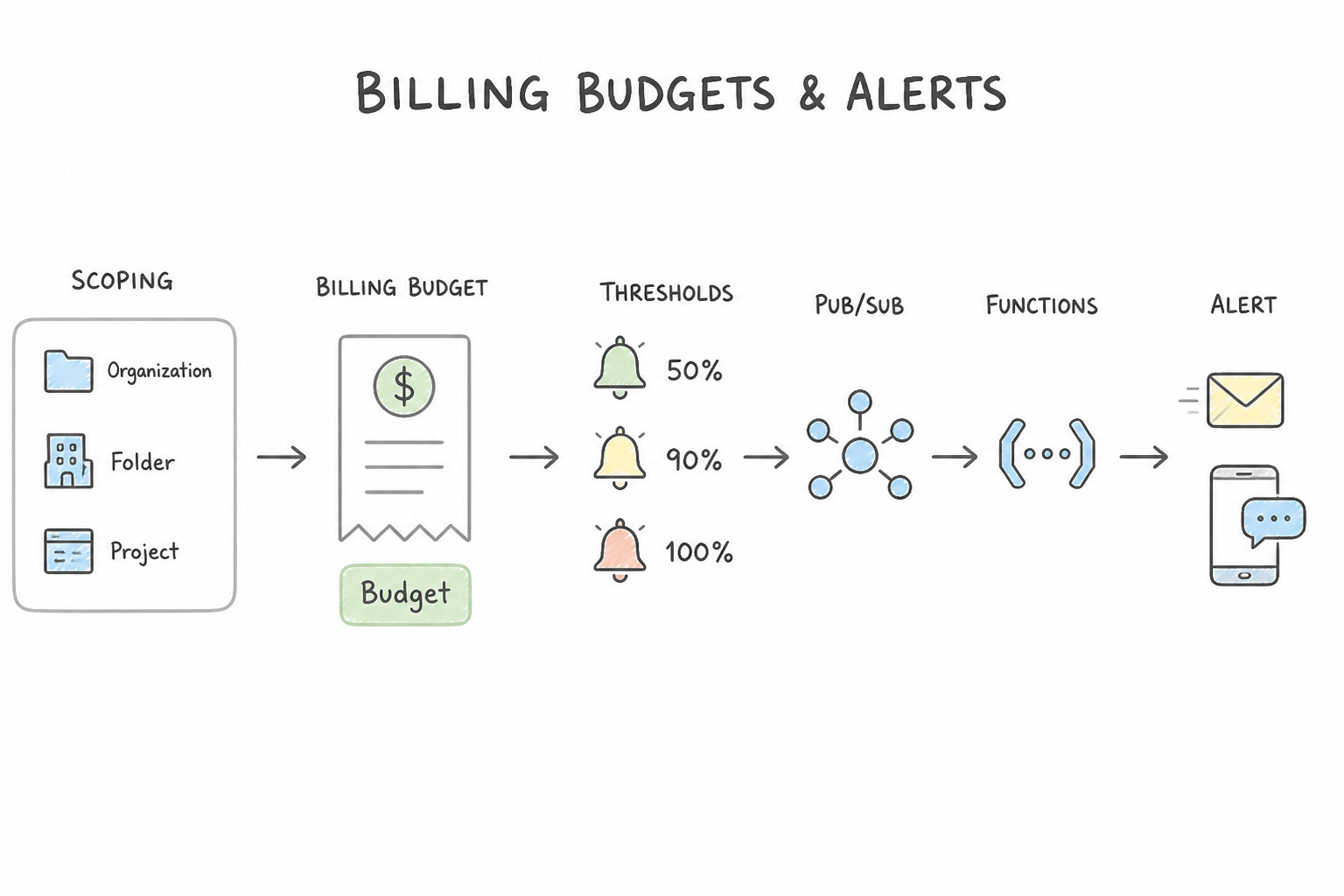
- Scoping & Thresholds: A Cloud Billing Budget can be scoped to an entire Billing Account or filtered by specific Projects, Folders, Services (e.g., Compute Engine only), or Labels. You can configure threshold rules based on both Actual Spend (e.g., 50%, 90%, 100%) and Forecasted Spend (e.g., 100% forecasted before month-end).
- Custom Notification Channels: By default, budget alerts email
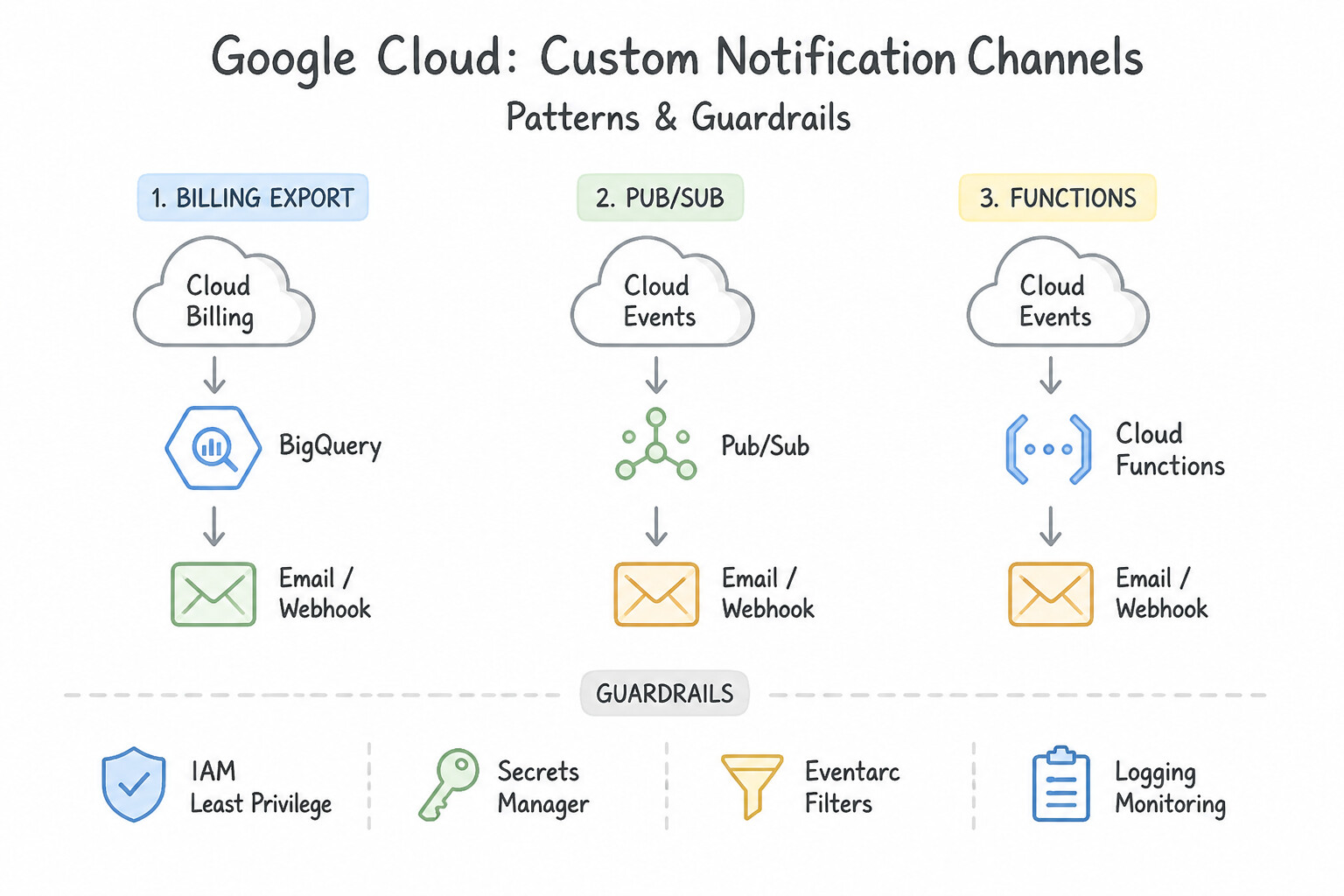
Billing Account AdministratorsandBilling Account Users. To notify a team Slack channel, PagerDuty, or non-billing project leads, link the budget to Cloud Monitoring Notification Channels (up to 5 email channels). - Programmatic Cost Control via Pub/Sub: Because budgets never stop resources on their own, automate hard spending caps by attaching a Cloud Pub/Sub topic to the budget. The budget publishes continuous JSON messages containing
costAmountandbudgetAmount; a subscriber Cloud Run function inspectsif costAmount >= budgetAmountand callsprojects.updateBillingInfo(settingbillingAccountName: "") or stops non-production Compute Engine instances.
Key Implementation Patterns
- Configuring Programmatic Cost Controls: Use Create a billing budget for $500. Connect the budget to a Pub/Sub topic. Deploy a Cloud Function triggered by the topic that stops the VM instances. Billing budgets cannot stop resources directly; you must link the budget to a Pub/Sub topic and trigger a Cloud Function to perform the shutdown.
- Proactive Spending Alerts: Use Set the threshold trigger to "Forecasted costs" at 100% of the budget amount. Forecasted costs trigger alerts based on predicted future spend, allowing proactive notification. (Avoid alternative: Actual costs trigger alerts only after the money is spent.)
- Granular Service Tracking: Use Create a new budget. In the budget scope section, use the Services filter to select BigQuery. Configure the threshold and email alerts. The Services filter in the budget creation flow allows you to isolate costs for specific products like BigQuery.
Key Takeaways (1.2c)
- Billing Budgets are monitoring tools, not enforcement tools.
- To automate cost control, link Budgets to Pub/Sub.
- Use Cloud Functions to execute logic (like stopping VMs) in response to Pub/Sub messages.
- Quotas limit resource capacity, not monetary cost.
Consideration 1.2d: Setting up billing exports
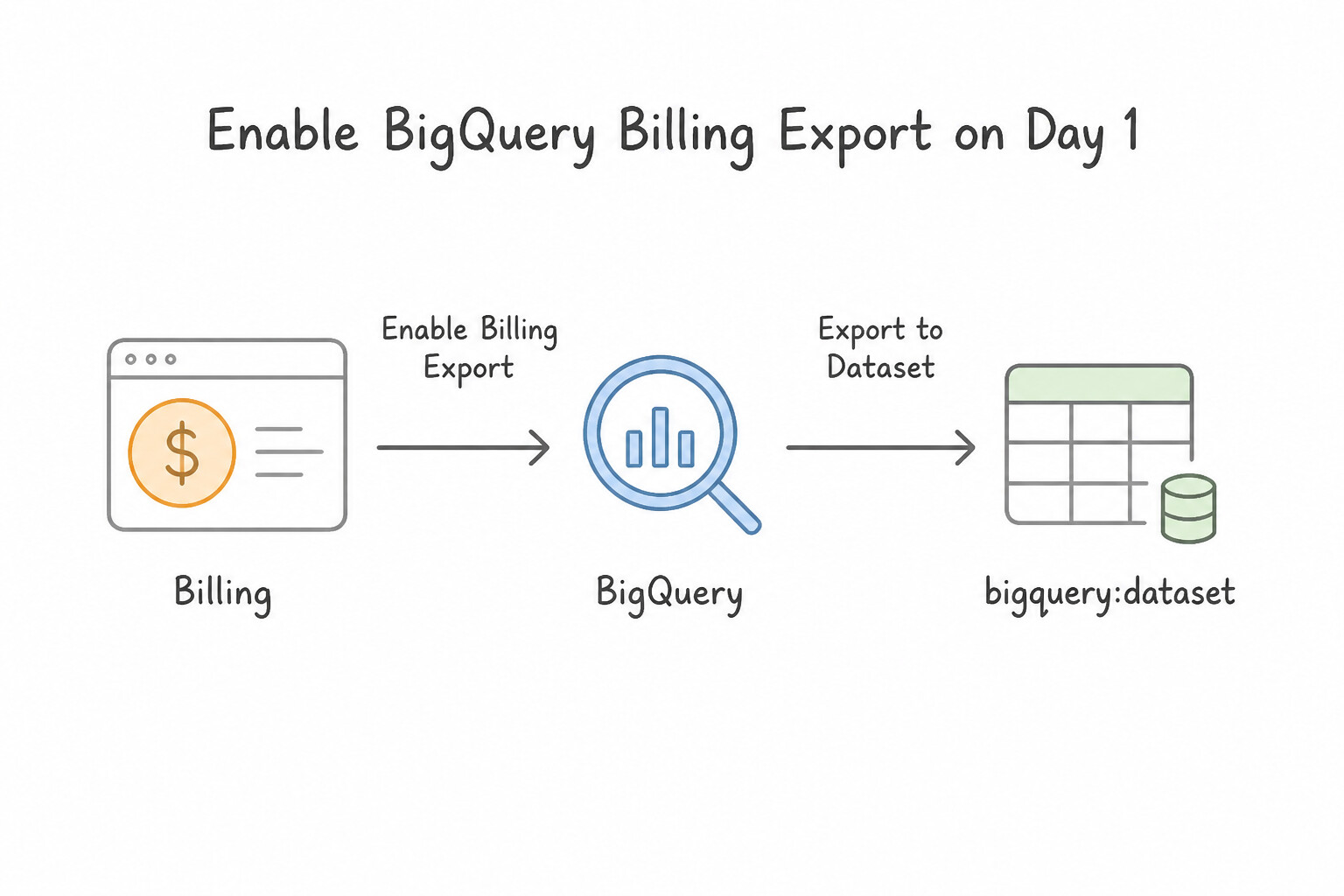
- Enable BigQuery Billing Export on Day 1: Cloud Billing exports to BigQuery (the only supported native destination; export to Cloud Storage CSV/JSON is deprecated). Because billing export is not retroactive, enable it immediately when setting up a billing account.
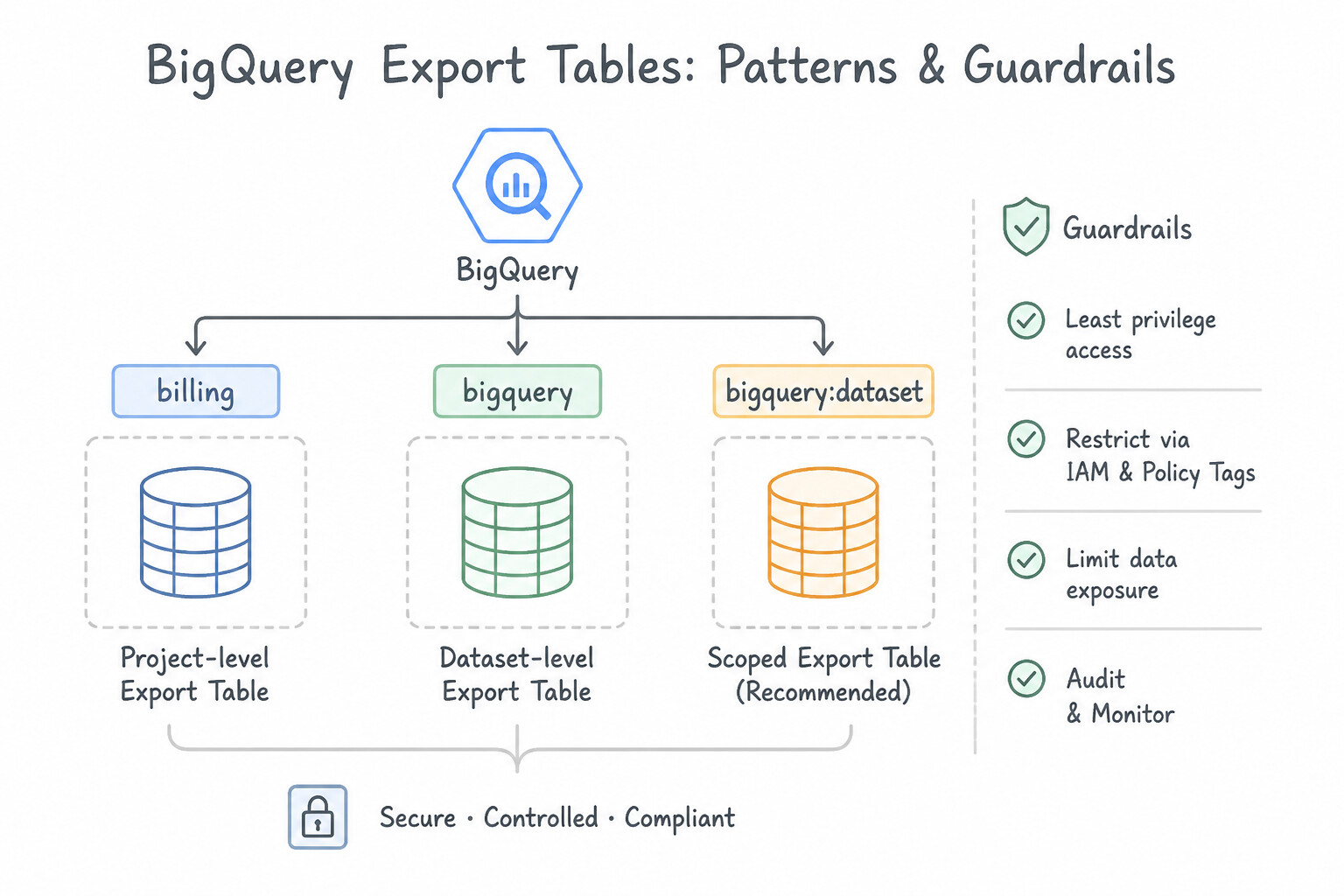
- Three Export Tables in BigQuery:
- Standard Usage Cost Table (
gcp_billing_export_v1_<BILLING_ACCOUNT_ID>): Account, project, service, SKU, location, cost, credits, and project/resource labels. - Detailed Usage Cost Table (
gcp_billing_export_resource_v1_<BILLING_ACCOUNT_ID>): Adds granular resource-level cost breakdown (individual VM instance names, GKE namespaces/labels, Persistent Disk IDs). Always enable this when a scenario asks for per-VM or per-GKE-namespace cost attribution! - Pricing Table (
cloud_pricing_export): SKU list prices and contract pricing tiers. - Querying Net Cost & Labels in BigQuery:
- Remember to include Credits (Committed Use Discounts, Sustained Use Discounts, promotions) when calculating net invoice cost:
SUM(cost) + SUM(IFNULL((SELECT SUM(c.amount) FROM UNNEST(credits) c), 0)). - Resource labels are stored as a repeated
RECORD(ARRAY<STRUCT<key, value>>), so query them in BigQuery usingFROMtable, UNNEST(labels) AS l WHERE l.key = 'env' AND l.value = 'prod'.
Key Implementation Patterns
- Initial Billing Export Setup Requirements: Use Create a new BigQuery dataset in a Google Cloud project. Billing exports require an existing BigQuery dataset as a destination; you must create the dataset first before configuring the export. (Avoid alternative: A Cloud Storage bucket is used for file-based exports (CSV/JSON), not for the direct BigQuery export requested in the scenario.)
- Standard vs. Detailed Usage Cost Exports: Use Enable the "Detailed usage cost" export to BigQuery. Detailed usage cost exports include resource-level metadata, such as resource names and IDs, which are necessary for granular audits. (Avoid alternative: CSV downloads are less efficient for granular analysis than BigQuery exports and may not offer the same continuous schema updates.)
- Handling Historical Data Requests: Use Export the historical billing data to a CSV or JSON file, and then import the file into a BigQuery table. Since exports are not retroactive, you must manually export past data to a file and import it into BigQuery. (Avoid alternative: Cloud Support cannot trigger retroactive backfills for billing exports.)
Key Takeaways (1.2d)
- Billing exports to BigQuery are not retroactive; they only export data from the time of setup onwards.
- You must create the destination BigQuery dataset before configuring the export in the Billing console.
- Always separate administration and billing data into a dedicated project for better security and governance.
- Use Standard usage cost exports for high-level cost analysis by project, service, or label.
Quick Decision Cheat Sheet (Subsection 1.2)
If the Scenario Requires... | Choose This Google Cloud Pattern | Avoid This Common Mistake |
|---|---|---|
"Automatically stop resources / prevent spending over $X" | Billing Budget → Pub/Sub Topic → Cloud Run function (stops VMs or unlinks billing account) | Assuming a 100% Budget Alert automatically halts workloads |
"Least-privilege role to link an existing project to a Billing Account" | roles/billing.user (on Billing Account) + roles/billing.projectManager (on Project) | roles/billing.admin + roles/owner |
"Analyze granular per-VM or per-GKE-Pod costs using SQL or Looker Studio" | Enable Detailed Usage Cost Export to BigQuery and query with UNNEST(labels) | Exporting billing data to Cloud Storage CSVs; viewing the summary Billing Console chart |
"Calculate exact net invoice cost in a BigQuery billing export query" | Sum cost plus UNNEST(credits) (SUM(cost) + SUM(IFNULL(credits.amount, 0))) | Summing cost alone (ignores CUDs, SUDs, and promotional credits, inflating the total) |
"Move a live production project from Billing Account A to Billing Account B" | Change the linked billing account directly in Console/CLI ( gcloud beta billing projects link) — zero downtime | Stopping VMs first or unlinking billing before relinking |
Further Reading (Subsection 1.2)
- Manage billing accounts and billing permissions — Refer to the section 'Permit a user to create new billing accounts' which explicitly states the need for the Billing Account Creator role on the Organization.
- Cloud Billing overview — Introduces billing accounts, payments profiles, and how projects link to them.
- Overview of Cloud Billing Access Control — This page details the specific permissions contained in each standard billing IAM role, distinguishing between Admin, User, and Viewer capabilities.
- Create a project — Provides context on the prerequisites for creating a project, including the need for a billing account.
- Modify project billing settings — This guide details the steps to change the billing account for a project, including enabling billing, disabling billing, and switching the linked account.
- Overview of Cloud Billing access control — Describes billing roles, including Billing Account User and Project Billing Manager.
Book TOC · Previous · Chapter 1 of 8 · Next
AwesomeGCP.com Learning
The approach taken is a question-led learning approach: you explore realistic project scenarios where you need to make decisions or take actions to achieve business goals within specific constraints. Instead of passive learning, you are challenged to think and work through the options to master the Associate Cloud Engineer (ACE) certification!